
How to Use the New ChatGPT: Complete Guide (Work, Codex, GPT-5.6)
OpenAI rebuilt ChatGPT with Work, Codex, and GPT-5.6. Here's how to set it up, which model and plan to pick, and how to move your Claude workflow over.

I know Claude has become the daily driver for a lot of you. But you’ve also told me ChatGPT is still your go-to when Claude’s session or weekly limits block your work in the middle of something.
And since I already wrote full guides to Claude and Gemini, it was about time I did the same for ChatGPT. So here's how to use ChatGPT now that OpenAI has rebuilt the whole thing, start to finish.
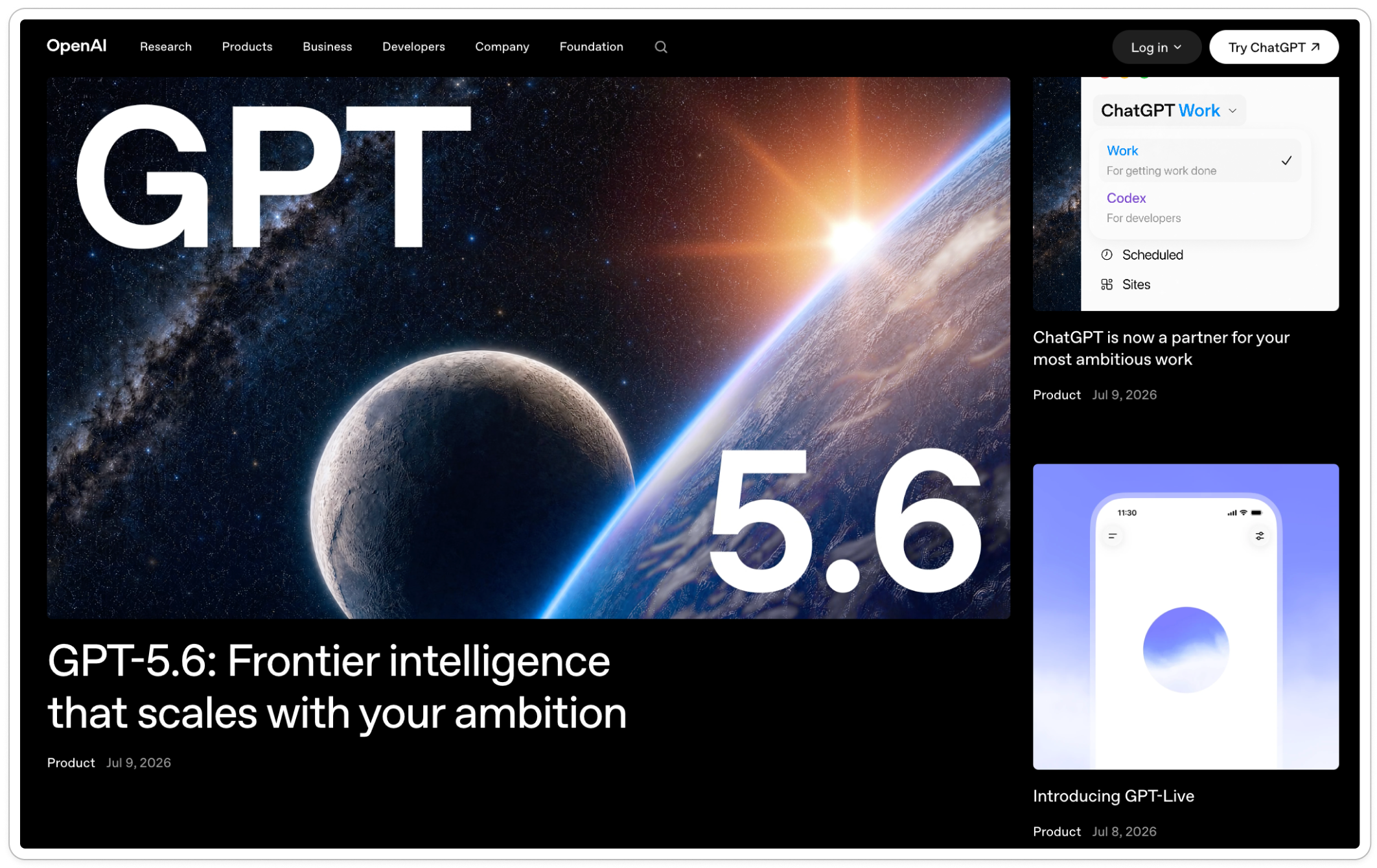
OpenAI shipped a lot at once: new models, a rebuilt desktop app, and three separate ways of working inside it: Chat for quick conversations, Work for longer tasks and finished deliverables, and Codex for working directly with local folders, files, apps, and repeatable systems.
If that sounds familiar, it should. Most of it mirrors what already exists in the Claude ecosystem, close enough to feel like replicas of what you’re used to working with there. But since Work launched, I’ve seen a lot of confusion online about which piece does what, so I started digging.
I tested Codex and ChatGPT Work on the same tasks I had been doing in Cowork, and even gave them access to my Cowork operating system so they could work inside the same folders, rules, and areas of my business, with all the context they need.
This guide covers all of it: how to set ChatGPT up properly, what every model is for, what each new feature does, and how I moved my Cowork folder system into ChatGPT so it can work alongside me in there.
Here’s what we’re covering
One thing you should know about before we begin: OpenAI is rolling out several of these changes gradually. The buttons you see depend on your plan, country, workspace settings, and whether you are on web, mobile, or desktop. I’ll flag those differences as we go.
What just changed inside ChatGPT
Before we get into what’s inside ChatGPT now and how it all works, let’s quickly map all the new things that shipped, some in the last few weeks, some a bit older:
GPT-5.6, a new model family across ChatGPT, Codex, and the API
A rebuilt desktop app that brings Chat, Work, and Codex into one place
ChatGPT Work, an agent that takes on longer tasks and produces finished documents, spreadsheets, presentations, and reports
Codex inside the same app, for working with local folders, repositories, and repeatable systems
GPT-Live, a real upgrade to voice. The new models listen and talk at the same time, so you can interrupt, pause to think, or let it wait until you finish
ChatGPT Search, which now pulls current information from the web with links to sources, so answers aren’t limited to training data
ChatGPT Sites, where you can ask Work or Codex to build and publish a working website
A Plugin Directory that replaced the App Directory, packaging apps, skills, and instructions into reusable workflows
Reusable Skills that teach ChatGPT to run a process the same way every time
Scheduled Tasks that run a prompt on a schedule or watch something for changes
Some of this is available everywhere, some is still rolling out, and most of it works almost exactly like what already exists in Claude.
Now let’s go through all of it properly, starting with where ChatGPT lives.
Where ChatGPT lives now: web, mobile, and desktop
Same account, three surfaces.
Web (chatgpt.com) is closer to the ChatGPT you knew, with a few additions. You’ll find your chats, Projects, custom GPTs, plugins, scheduled tasks, the library with every file from your conversations, an Images section with everything you created or uploaded, and your memory and privacy controls. The new one is a Work tab, so you can switch between Chat and Work on the web too, not only on desktop. If you can’t find something in the new desktop app, check here first.
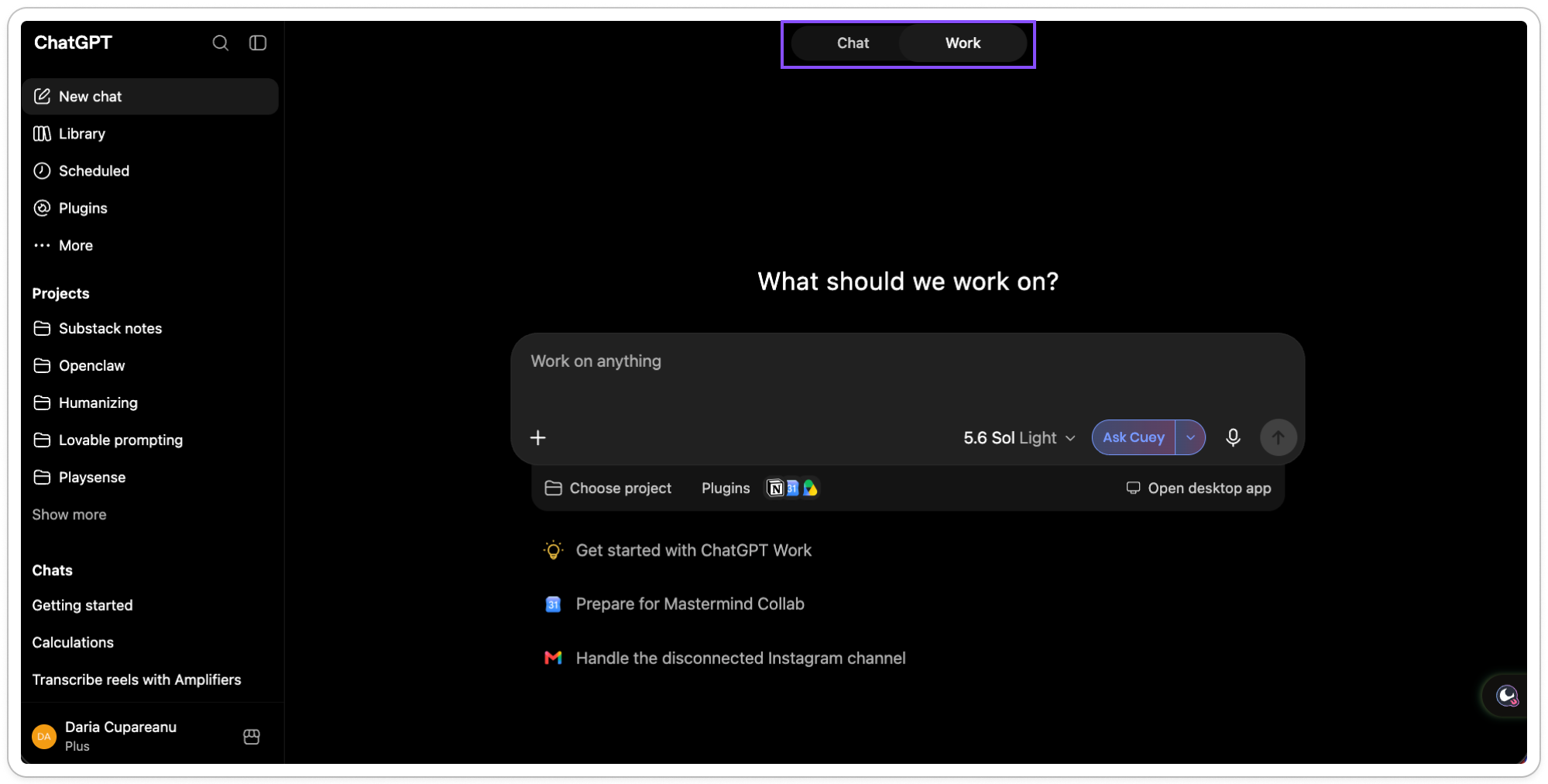
Mobile is for voice, camera, and quick questions. It’s also where you check on work running somewhere else: your phone connects to Codex running on your computer, so you can review what it found, answer a question, redirect it, or approve the next step without being at your desk. Nothing runs on the phone itself, it’s just the control surface.
Desktop is the new one, and it’s where Chat, Work, and Codex sit together. This is a much bigger change than the web, a different experience from the old desktop app. macOS and Windows, though some features arrive at different times depending on your plan and region. We’ll dig into it in a bit, so if you haven’t downloaded the new app yet, you can get it here.
Which ChatGPT model, effort, and speed to pick
This is the part everyone is confused about, and you can see why. The picker looks different depending on where you are, and there’s so much in it. Model, effort, speed, a slider, an Advanced menu.
So I’ll do my best to clarify what we have here, and tell you how I use it.
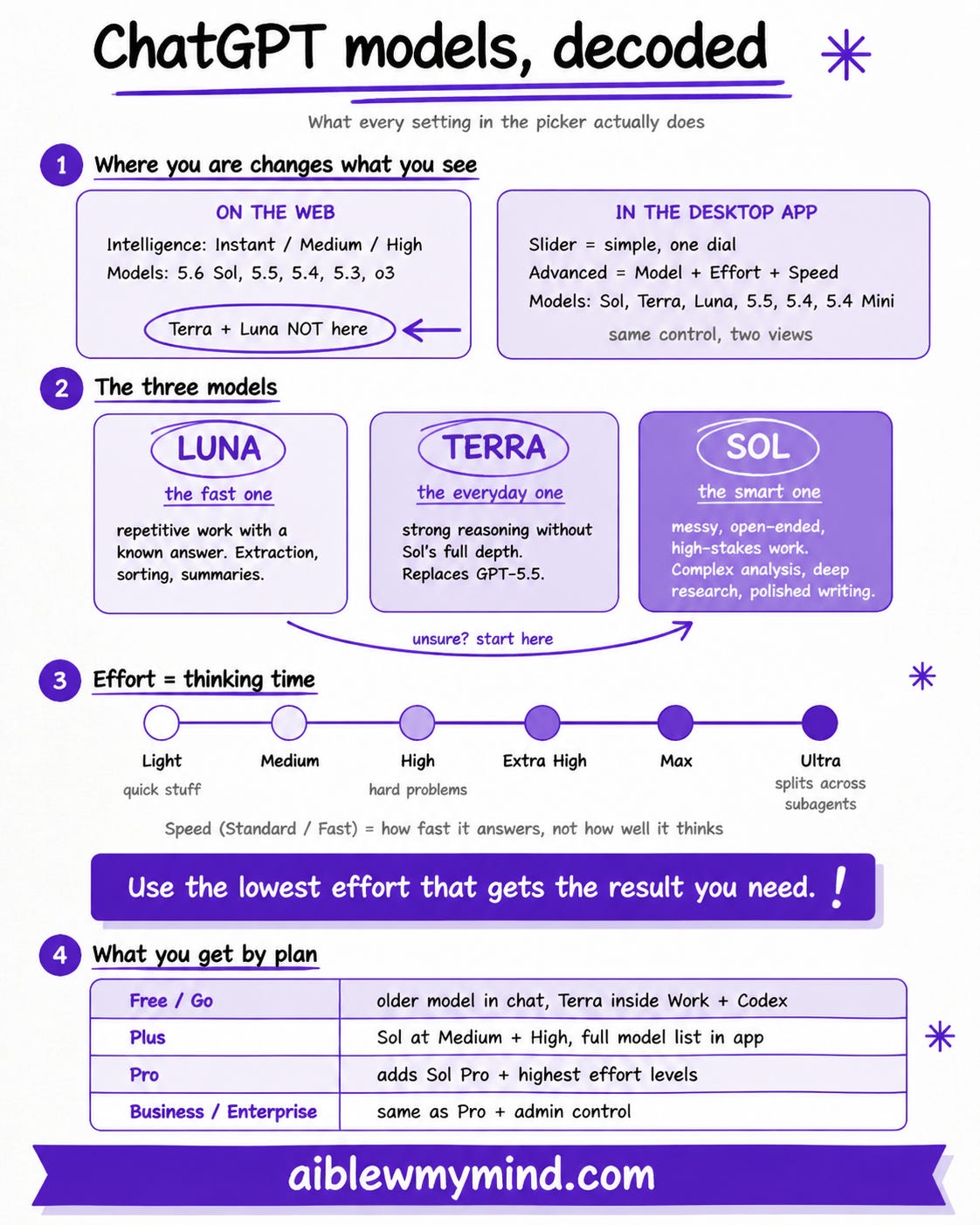
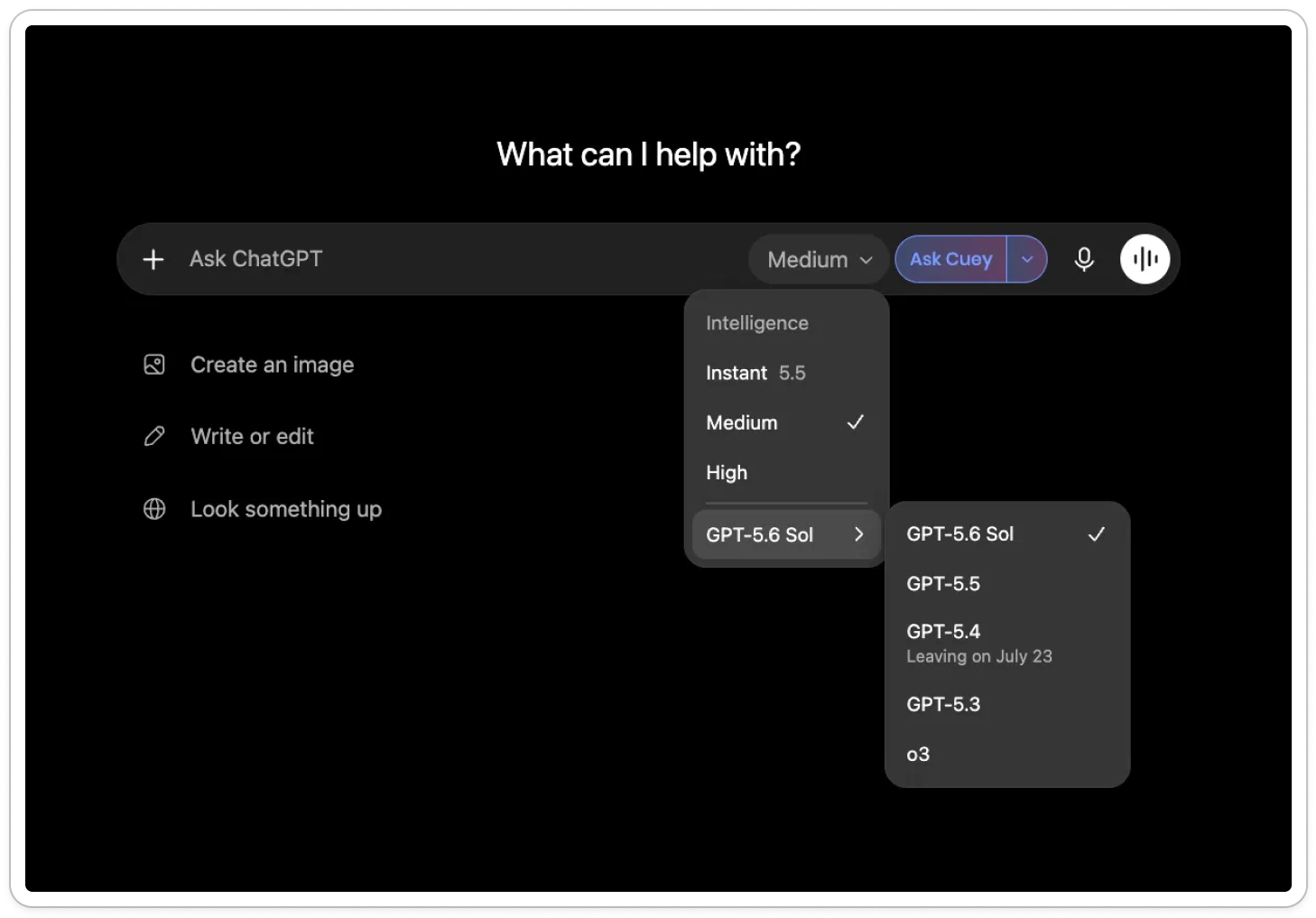
On the web, you get two things: an Intelligence setting (Instant, Medium, High) and a model list underneath it with GPT-5.6 Sol, 5.5, 5.4, 5.3, and o3. Terra and Luna aren’t there.
In the desktop app, it gets more complicated. There’s a slider under the box where you type, and an Advanced menu next to it. They’re the same control, just shown two ways:
The slider is the simple version. Drag it left for faster and cheaper, right for slower and smarter. It starts in the middle, on Sol at medium effort.
Advanced opens the same thing up into three separate settings: which model, how much effort, and how fast. This is also where Terra and Luna appear.
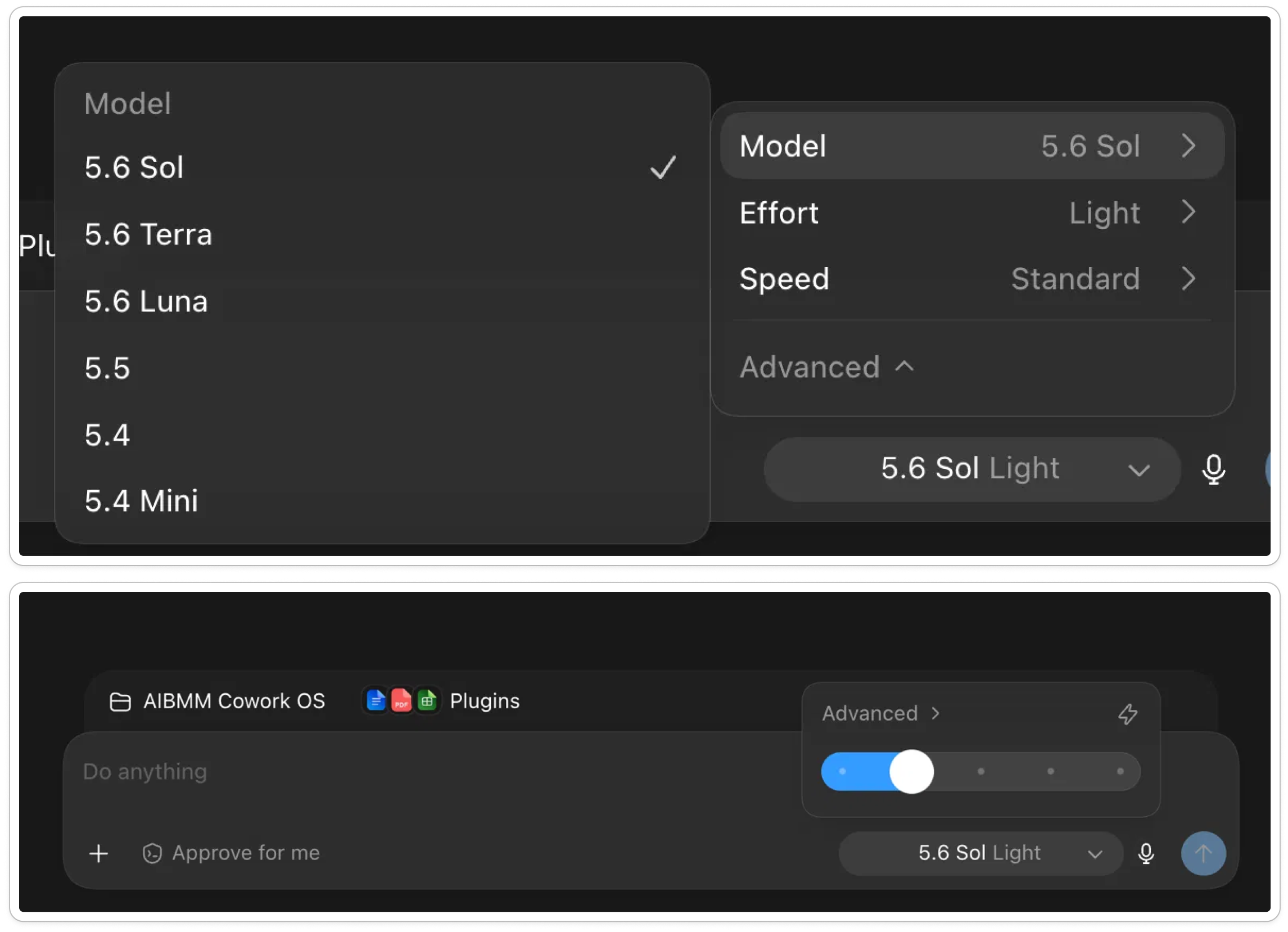
The three models, in plain terms:
Sol is the smart one. Use it when the task is messy, open-ended, or matters a lot
Terra is the everyday one. If you used to reach for GPT-5.5, this replaces it
Luna is the fast, cheap one. Good for repetitive jobs where you already know what a right answer looks like: pulling data out of documents, sorting things into categories, summarizing
OpenAI’s own advice if you’re stuck: start with Sol.
Effort is how much thinking it does before answering.
Same model, more or less of it. The levels go Light, Medium, High, Extra High, Max, and Ultra. The top two work differently from each other:
Max gives the model more time on one task
Ultra splits the task into pieces and runs them at the same time
Most tasks don’t need either one. The rule OpenAI gives is the one I’d keep: use the lowest effort that gets you the result you need.
How I use it
My read is that OpenAI wants most people on the slider. That’s the simple version. The Advanced settings, where you pick the model, the effort, and the speed separately, are there for people who want more control.
I’ve used ChatGPT since it came out, and I still use it even though Claude is my main AI assistant. But I haven’t moved enough of my work over to justify testing every combination. That would take a properly designed test across every model and every effort level, and I don’t have time for that. You probably don’t either.
So I also stay on the slider:
Sol for almost everything
Medium most of the time
High and Extra High when the task is complex and I want it to reason properly
Two more personal observations from using it:
It’s pretty slow for some tasks. I’ve had it work on spreadsheets, polish a few articles, run research, and I’d be doing something else while it ran, checking back now and then, surprised it still hadn’t finished. And that's on medium.
But it’s really good. 5.6 Sol is the best ChatGPT model I’ve used in a long time, and the difference shows up across a lot of different work. Writing is where I noticed it most, since that’s what I do every day. I gave it my voice DNA skill, the same one I use in Claude, and in several places it matched my voice much better than Claude did, because it followed the skill instructions more closely.
PS. If you’re on Free or Go: your normal chat stays on the older model, but you can reach GPT-5.6 Terra inside Work and Codex. That’s the one place the new generation shows up without paying.
Which plan you need: Free, Go, Plus, and Pro
Plan limits change constantly, so check the current pricing page rather than trusting any number you read in an article, including this one.
Free works for learning and testing. You get limited access to Codex and Work, but not the flagship model in normal chat, and you’ll see ads
Go ($8/month) raises everyday limits at a lower price, also ad-supported
Plus ($20/month) is where I’d start if ChatGPT is becoming part of your work rather than an occasional assistant, and where I am. It unlocks the flagship model and expanded access to Codex and Work
Pro ($100 or $200/month) comes in two tiers, 5x and 20x Plus usage, for when you’re running long agent tasks and Plus limits keep interrupting you. Think of it the way you’d think about Claude Max
Business ($20/seat annual, $25 monthly, minimum two seats), Enterprise (custom pricing), and Edu add shared workspaces and admin controls
Checking what you’ve used. Click your profile in the desktop app and you’ll see how much weekly usage you have left.
Now to the part that takes the most getting used to: the desktop app.
The new ChatGPT desktop app: Chat, Work, and Codex
Everything below happens inside the ChatGPT desktop app, so download it first if you haven’t yet.
Once you open it, OpenAI gives you three different working modes.
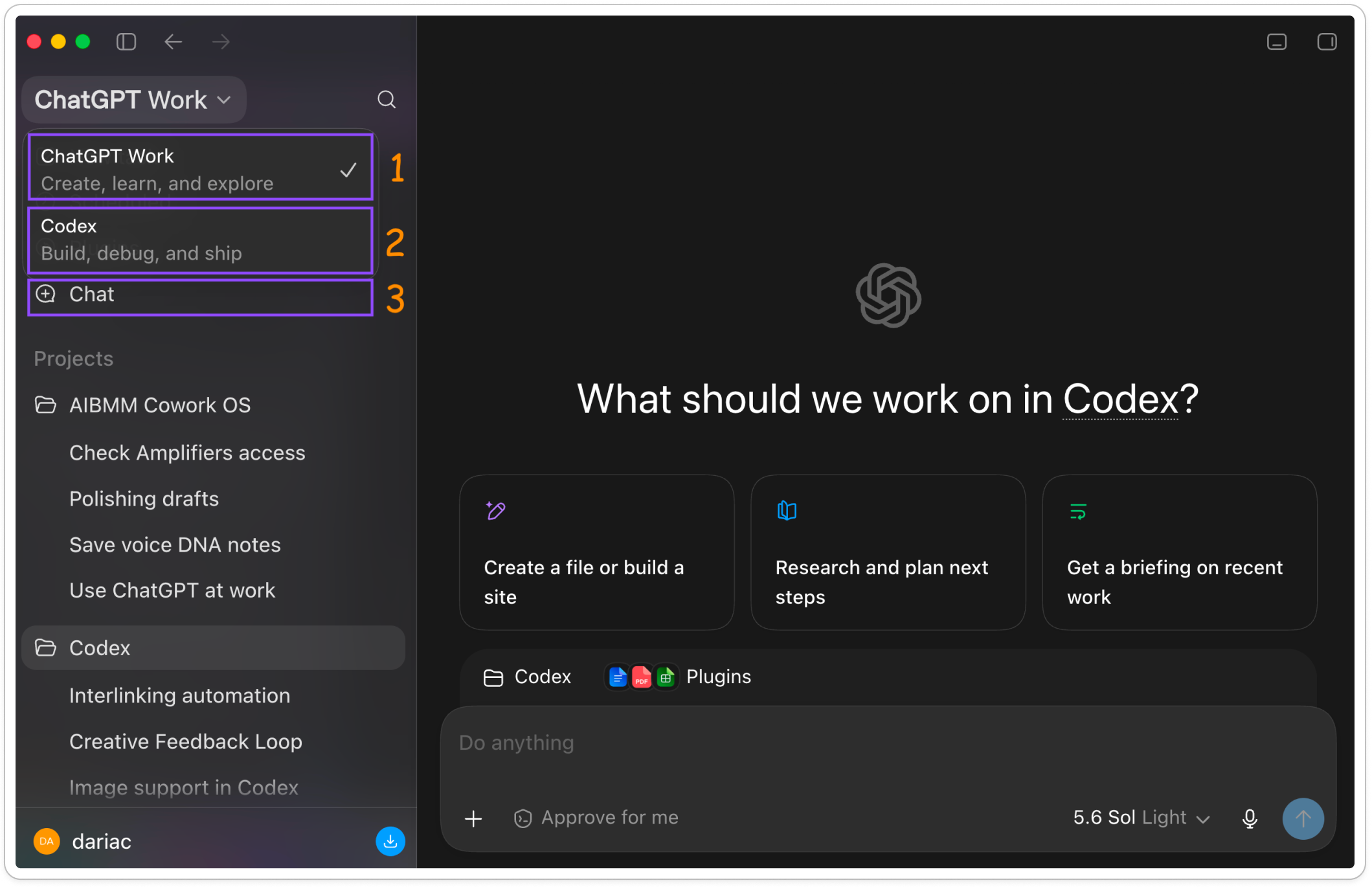
Chat: for quick, conversational work
This is the ChatGPT you already know, stripped down.
What’s inside the quick chat. Five things: attach files, create an image, web search, pick the model, and dictate. That’s it.
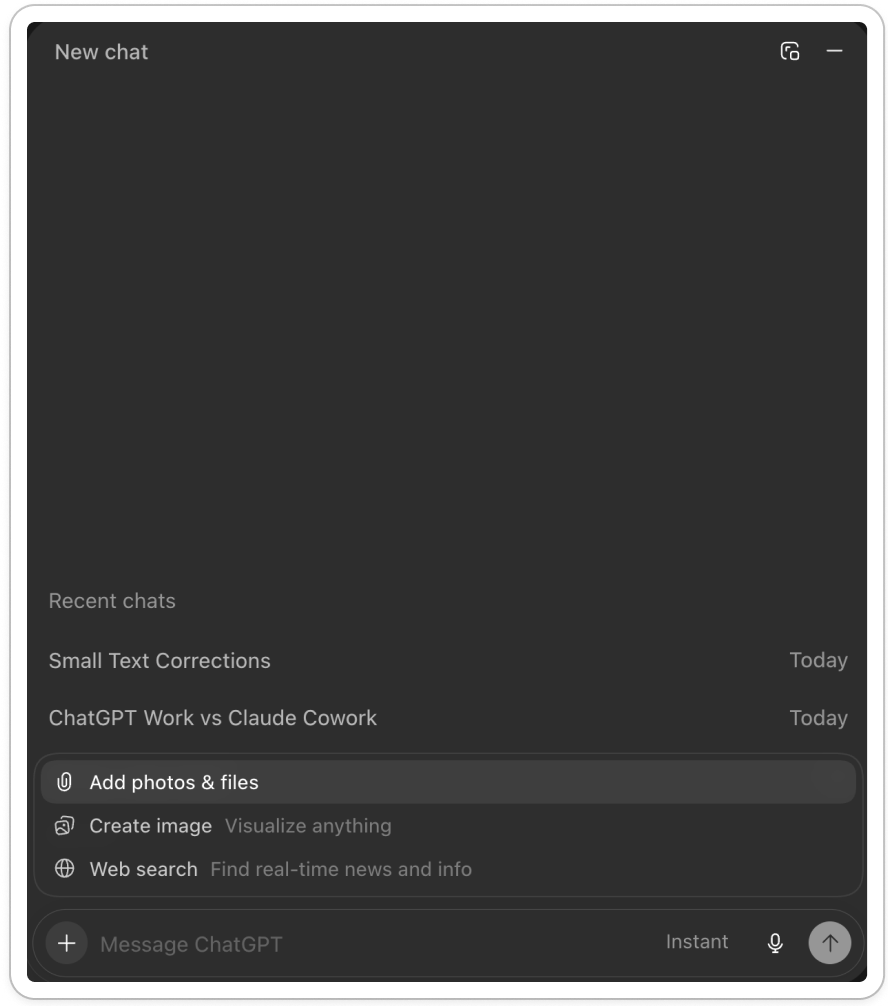
When to reach for it. A quick question, a paragraph to rewrite or summarize, one document to analyze, an image to create, an idea to talk through by voice, or something you want to explore before you know whether it deserves a full project.
Why it feels different. Chat opens as a small floating window on top of the app, the kind you open, ask something, and close. If you were used to spending most of your time inside the chat, this will take adjusting. Claude made a similar move when Cowork became the default option inside Home after the new UI changes. Both are nudging you to keep chat for quick questions and do the real work in the agent.
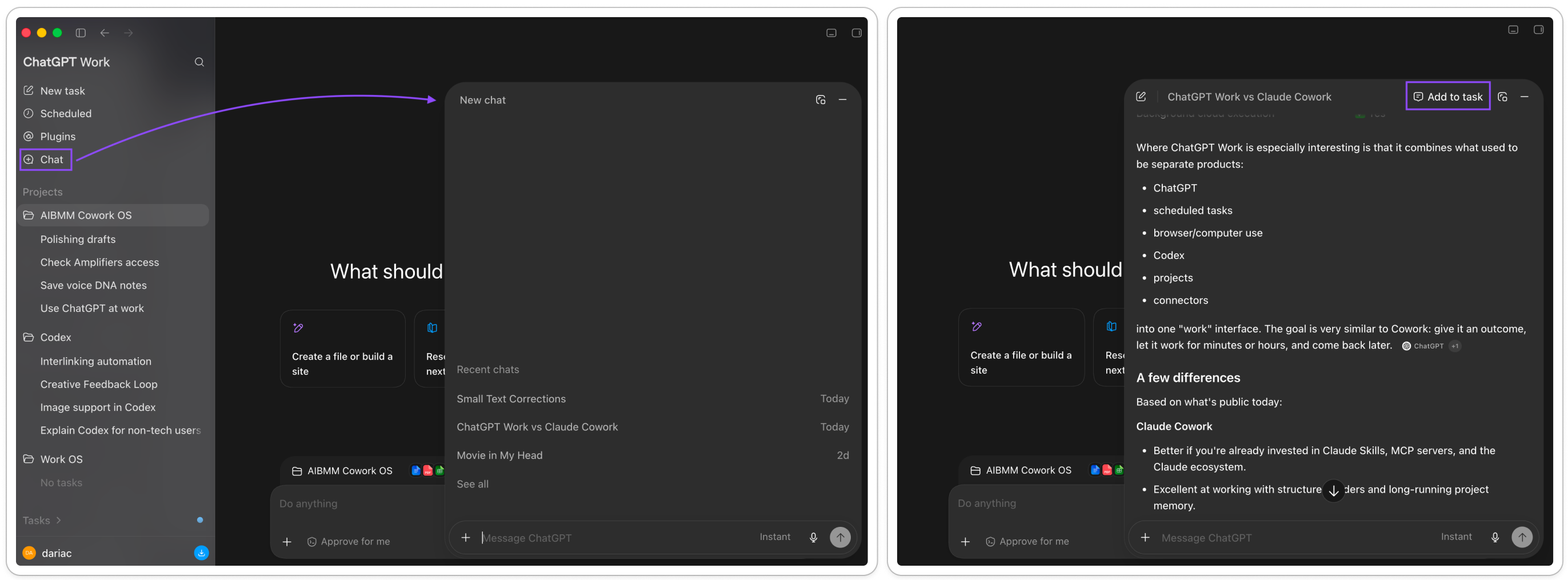
How it connects to the rest. Say you ask a quick question in Chat and the answer turns out to be useful for a task you have open in Work or Codex. Instead of copying it over, click Add to task at the top of the chat window. The conversation gets attached to that task, so the agent can read it and keep going with that context.
ChatGPT Work: for finished results that take longer
If you have used Claude Cowork, this is the exact same idea.
What Work does. It can break a goal into steps, research across the web and your connected apps, work with local files, and create finished documents, spreadsheets, presentations, reports, and web apps. It’s built for tasks rather than conversation, which also means it takes minutes to respond instead of seconds.
When to reach for it. Research a market and turn the findings into a presentation. Pull information from Drive, Slack, and the web to prepare a client brief. Compare a group of products and build a decision spreadsheet. Create a small web app from a business idea. Monitor something and update you when it changes.
Where Work operates: projects and folders
Before you type anything, you pick where Work should operate. Select a project you created in the desktop app, start from scratch, point it at a local folder on your computer, or choose not to work in a project at all.
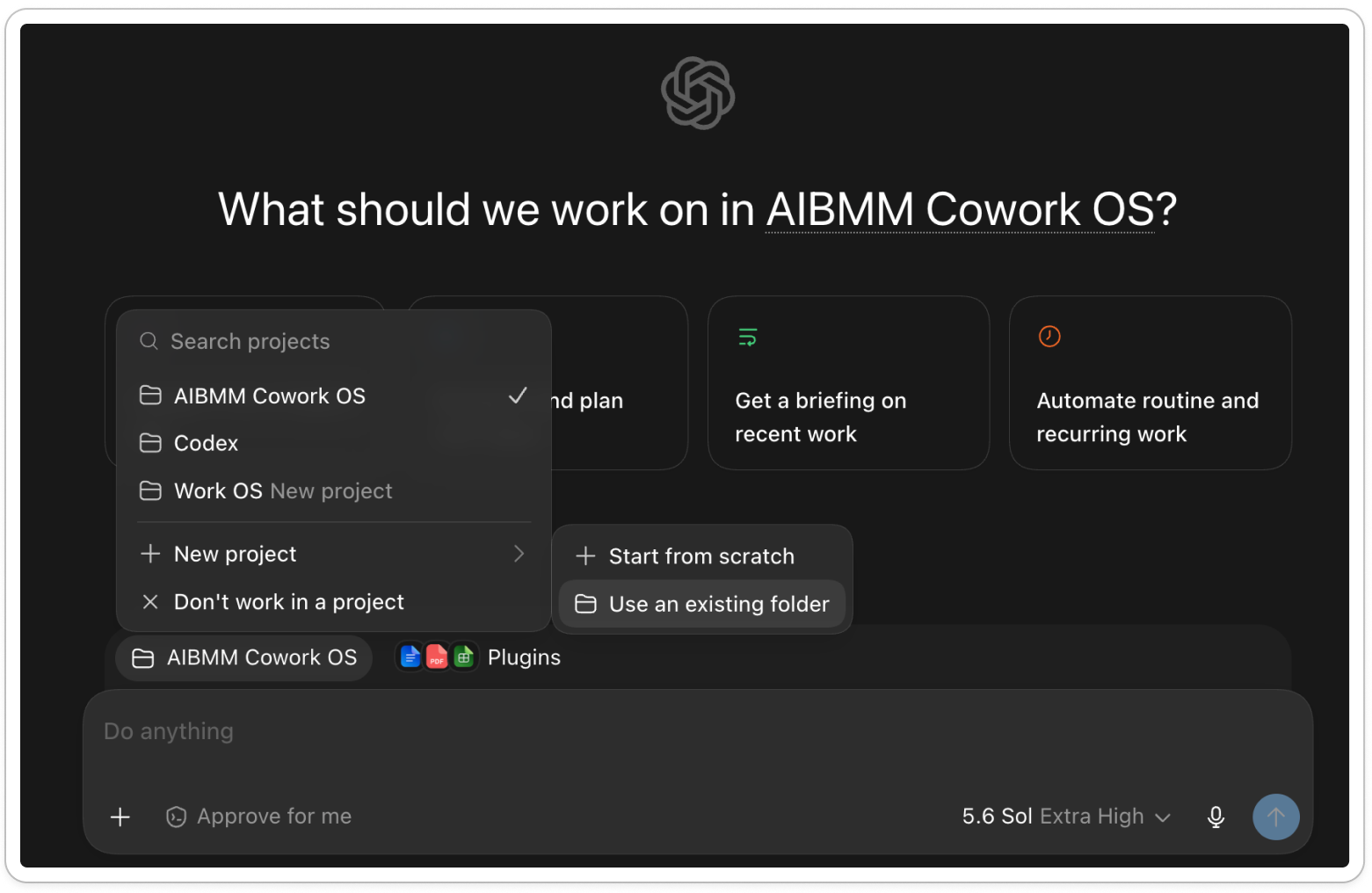
That third option is how I connected Work to the same folder Cowork uses. I pointed it at my Cowork operating system, the folder where all my rules, context, and areas of work live, and it picked up from there.
Why a shared folder is worth setting up. If you’re not paying for top-tier plans and you’re watching your budget, this is one of the best moves you can make. Keep one folder of markdown files with your context, your rules, and what you’re working on, then point every AI assistant at it.
They all read the same files, so you stop re-explaining yourself every time you switch tools. It costs almost nothing to run, since it’s just text. And whatever one assistant updates, the next one picks up.
I may write a deeper piece on this. Tell me if it’d be useful.
How to control what Work can touch (permissions)
Next to the model picker there’s a permissions setting with three options:
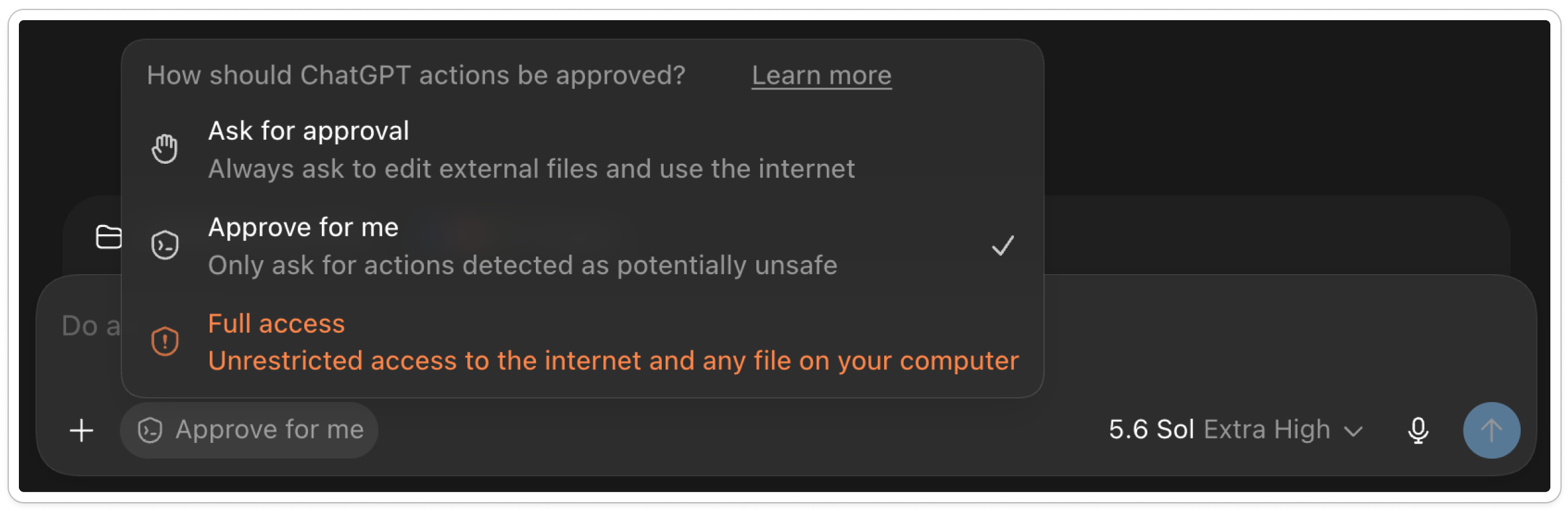
Ask for approval, where it checks with you before editing external files or using the internet
Approve for me, where it only stops for actions it detects as potentially unsafe
Full access, unrestricted access to the internet and every file on your computer
I keep it on Approve for me for a lot of my work, where it’s safe enough and I don’t want to approve every step. For anything trickier, I switch to Ask for approval.
I’d never trust it with Full access. I’ve read some horror stories from people who weren’t even using it, which I don’t know for a fact, but safety first, always.
How to extend what Work can reach (plugins)
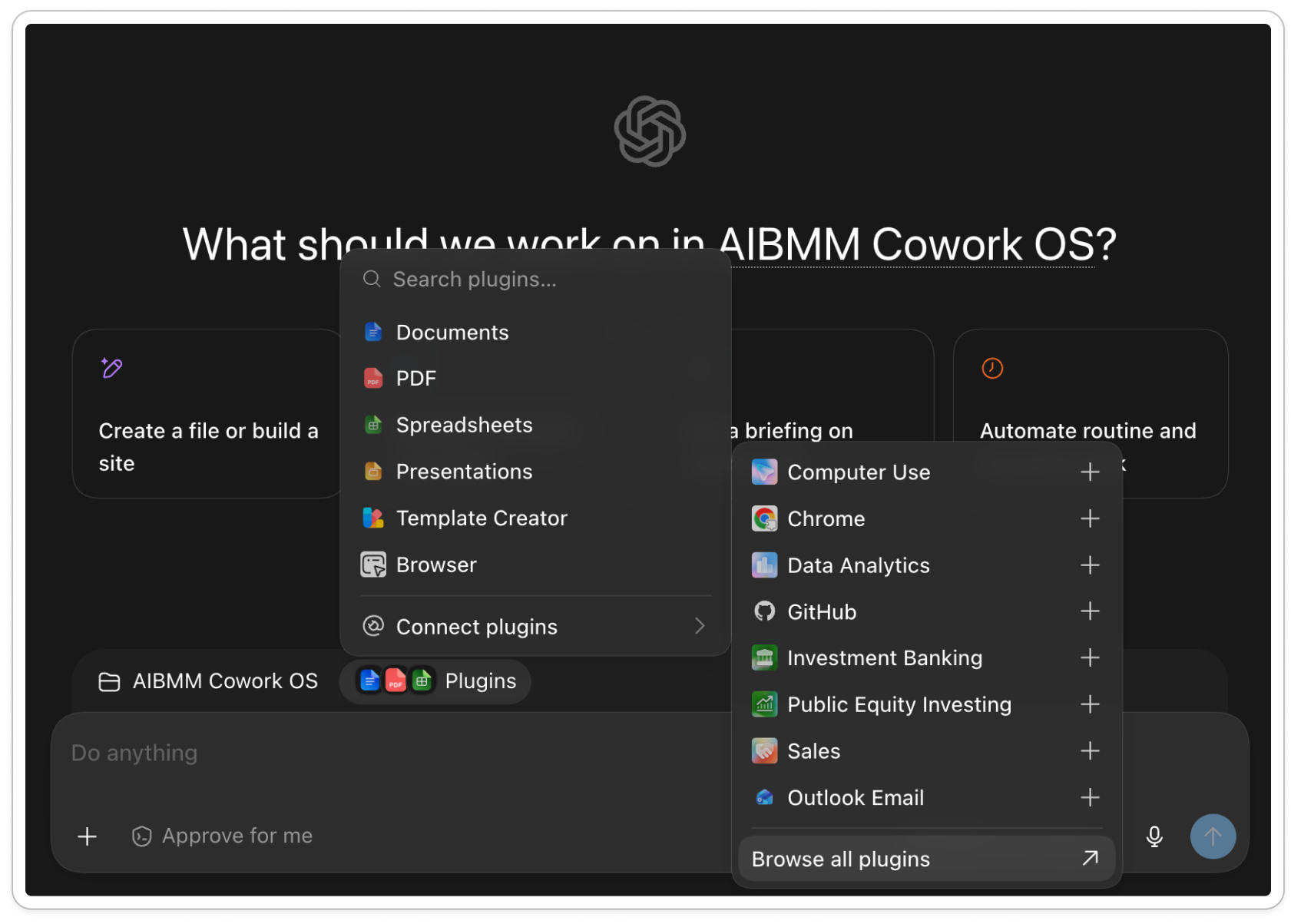
OpenAI replaced the old App Directory with a Plugin Directory in July. And just like Claude’s plugins, this is where you give Work access to your everyday tools.
Everything else in the composer
The plus button opens the rest:
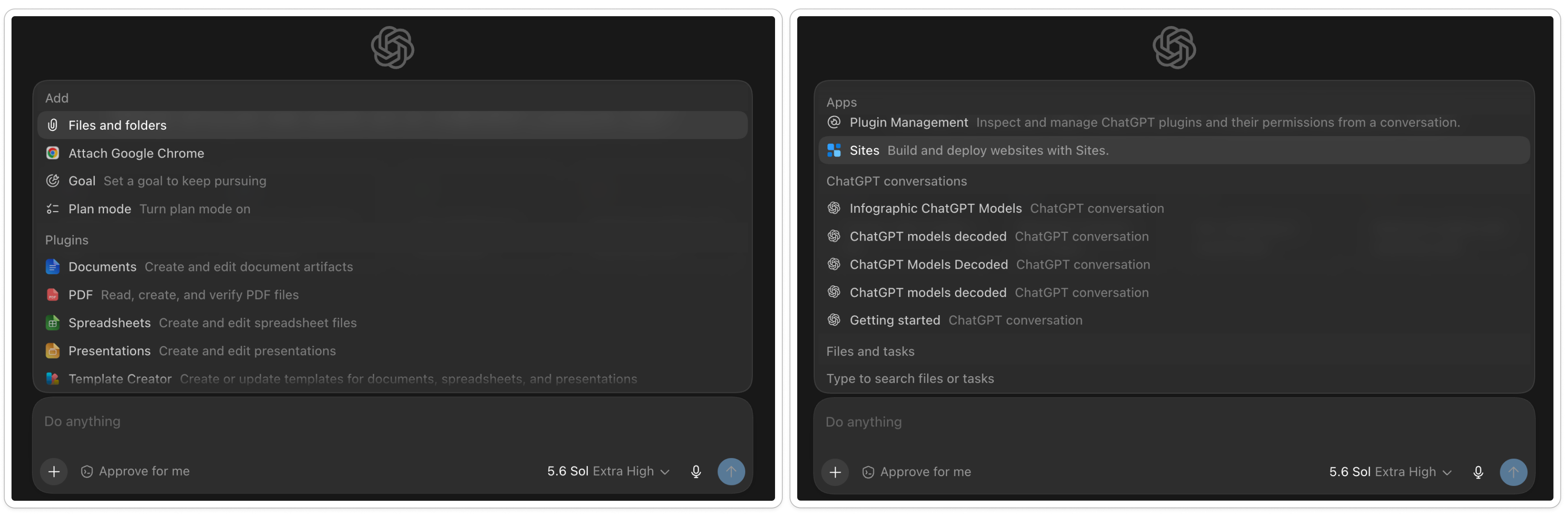
Files and folders, to attach specific things rather than the whole project
Appshots, to capture other windows you have open
Goal, to set something it keeps pursuing across the task, like the /goal command in Claude Code
Plan mode, which works like planning in Claude Code. It thinks the approach through before it starts building
Sites, to build and deploy an actual website. Like Claude Artifacts, but it ships to a real URL instead of staying in the conversation
Search across your files, tasks, and past conversations
Interactive visuals, similar to inline visualizations in Claude
ChatGPT Codex: for technical work, but not only
Codex began as OpenAI’s coding agent, and OpenAI still positions it that way.
What Codex does. It works directly with local folders, repositories, terminals, apps, and repeatable project instructions. (The new desktop app is built more on top of the old Codex app than on the old ChatGPT one, and Work was added on top of Codex, not the other way around.)
When to reach for it. Work that spans many related files. Anything where you want the AI editing or creating files directly. Situations where the same instructions should apply every time, or where you need several agents running in parallel. Recurring scheduled work that keeps its context. Projects you want kept separate from each other.
Work or Codex? This is the same question people ask about Cowork and Claude Code, and the answer is the same.
Work is the smaller sibling. It’s aimed at knowledge work, Codex at development. But both are capable, both can run a folder system, and plenty of people run non-development tasks in Claude Code because that’s where they’re comfortable. I have my automated distribution system in Claude Code, and an equivalent can be built in Codex.
The only rule: for really technical work, complex projects, anything beyond a quick dashboard, use the more powerful agent. That’s Codex on OpenAI’s side, Claude Code on Anthropic’s.
Now for the practical part. First a few settings that make everything after them work better, then a walk through the features worth knowing about.
How to set up ChatGPT before you start using it
The default blank chat works, but a few settings make every future conversation more useful.
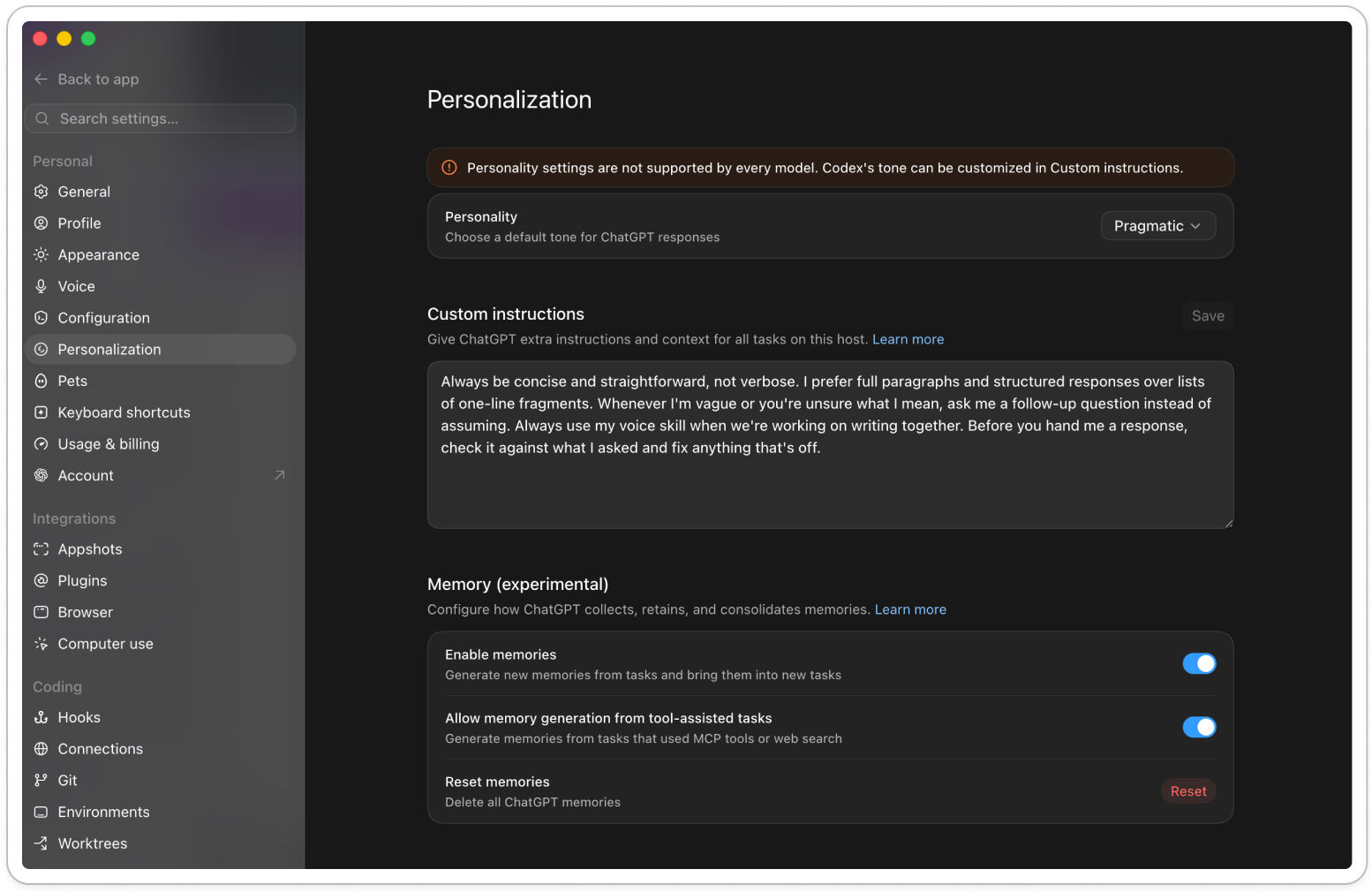
Step 1: Add your custom instructions
Open Settings → Personalization → Custom Instructions.
Custom instructions tell ChatGPT how you want it to respond across conversations. Add how detailed answers should be, and any work or tone preferences you repeat constantly. Things like:
Always be concise and straightforward, not verbose. I prefer full paragraphs and structured responses over lists of one-line fragments. Whenever I’m vague or you’re unsure what I mean, ask me a follow-up question instead of assuming. Always use my voice skill when we’re working on writing together. Before you hand me a response, check it against what I asked and fix anything that’s off.
These instructions apply globally. Instructions inside a Project override them for that Project.
Don’t over-constrain it. Keep instructions at the level of how you want it to behave, and let your skills handle the rest.
I had a global rule in Claude telling it to always push back when something didn’t add up. It slowed me down constantly, arguing with me over news it couldn’t verify and decisions I’d already made. I removed it and now just ask for pushback when I want it.
The more rules you write globally, the more situations you create where it refuses to do something reasonable. This applies across all models.
Step 2: Set up ChatGPT memory
Memory is what stops you re-explaining your job, your projects, and your preferences in every new conversation.
Turn it on. Settings → Personalization → Memory.
OpenAI rebuilt this recently. Instead of a list of saved facts you managed yourself, it now builds a memory summary that updates on its own from your chats, files, and connected apps.
Three things worth knowing:
Ask it directly. The summary is a high-level view, not everything. “What do you remember about me?” gets you the real answer
Deleting takes work. To remove something completely you have to clear it from past chats, archived chats, files, and the summary itself
You can see the source. Tap the book icon under a response to see which memories or past chats shaped it. Useful when it drags in something outdated
Don’t treat memory as storage for anything critical. Keep that in a Project, a file, or your own folder system.
Step 3: Review your data controls
Open ChatGPT on the web, since this isn’t available in the desktop app, and click Settings → Data Controls if you want to opt out of model training. The setting is called Improve the model for everyone. Turn it off and your chats still show up in your history, they just don’t get used for training. It applies to your whole account, so you only need to do it once, and you can change it back anytime.
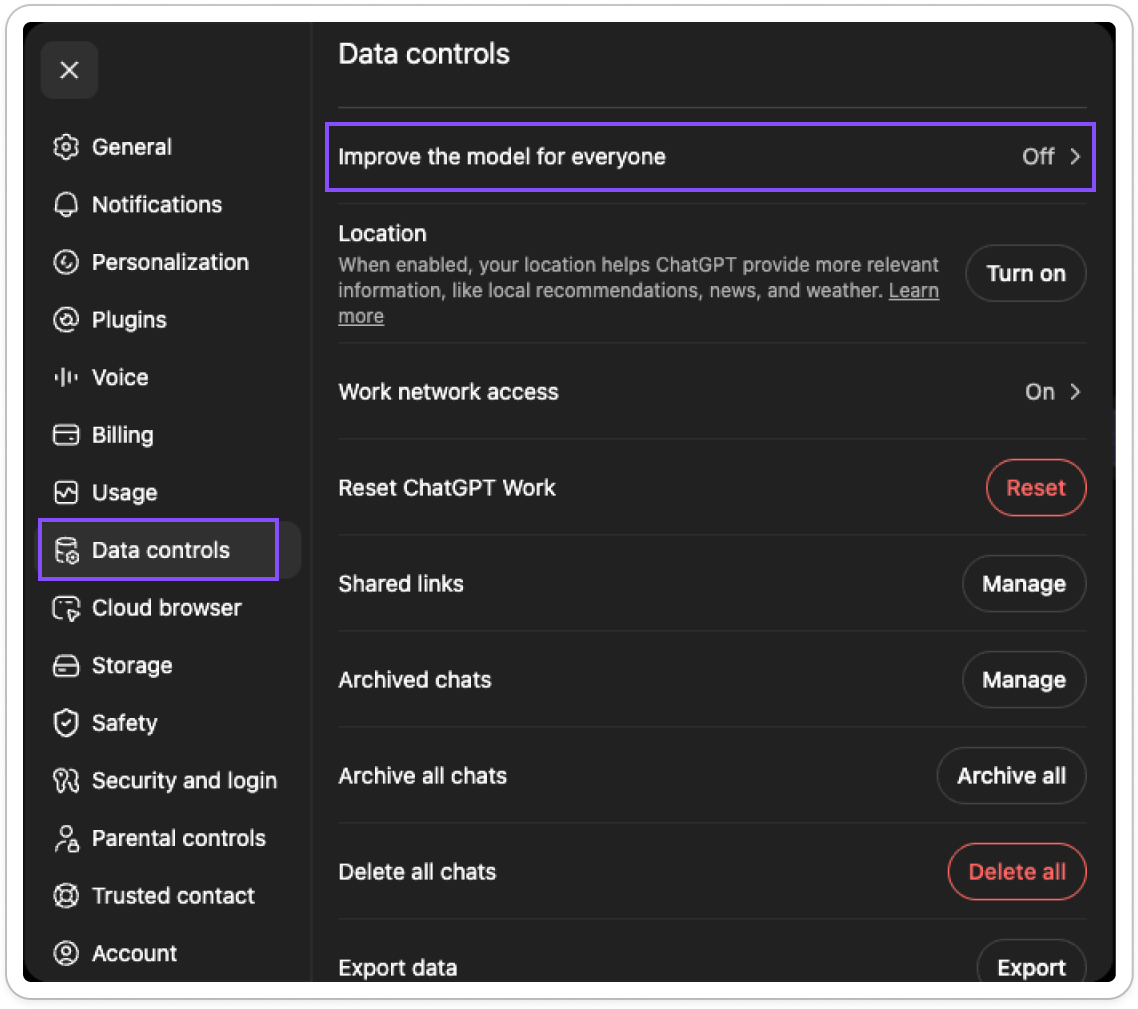
This is also where your archive lives. Archiving pulls a chat out of your sidebar without deleting it, and you can archive everything at once or manage what’s already there.
ChatGPT desktop app features worth knowing
ChatGPT has grown enormous. Between Chat, Work, Codex, projects, skills, plugins, scheduled tasks, and everything layered on top, there’s more in here than one article can hold. It took me a whole archive of articles to cover Claude properly, and ChatGPT is at least that big now.
So I’m skipping the things you already know if you’ve used ChatGPT for a while. What follows is what I think is worth your attention: projects, skills, templates, plugins, sites, scheduled tasks, visualize, pets.
Projects (web vs desktop)
On the web, Projects are what you already know: a container for chats, files, and instructions so ChatGPT stops losing context between conversations.
Create one in the sidebar, name it, then add files, connect apps, and open Project settings for instructions and memory options that apply only inside it.
In the desktop app, projects work differently. Go to Projects in the sidebar, click +, and you get two options:
Start from scratch, which creates a new folder on your computer automatically
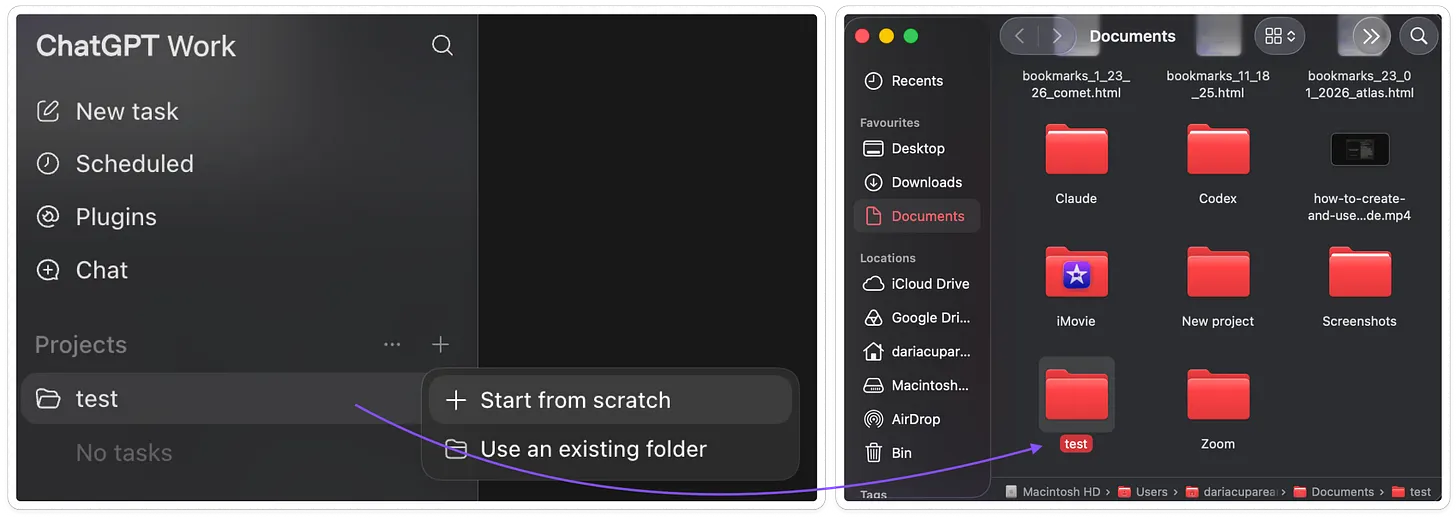
Use an existing folder, where you point it at a folder you already have
Either way, the project is a real folder sitting on your computer. Nothing like the web version, where you upload files into the app and type instructions into a settings box.
Your instructions should be a file in there. Your reference material or context should be stored as files in there. So if you want ChatGPT to know something, you put it in the folder rather than typing it into the app.
That also explains something I couldn’t work out at first, and you might be confused by it too: my old ChatGPT projects don’t appear in the desktop app at all, yet they’re still there on the web. I haven’t found this documented anywhere in OpenAI’s help docs, so tell me if it’s the same for you after you install the new app.
Which brings me back to my earlier point: I strongly believe we should stop relying on projects as these apps build them, in ChatGPT and in Claude both.
Build your own local folder, structured the proper way, with your own files. It works better than anything the app gives you, it moves with you between tools, and as the new ChatGPT app just demonstrated, it survives when the app decides your projects don’t exist anymore.
Start here. Even though it’s built for Cowork, you can use Amplifiers inside ChatGPT and ask it to swap the
CLAUDE.mdfile for anAGENTS.mdone while keeping the same folder structure. Trust me, that structure is the winning one.
Skills
If you’ve read me for a while, you know I’m obsessed with Claude Skills.
ChatGPT now has them too. A skill teaches it to run a process the same way every time, so you get consistent output without re-explaining yourself. They’ve technically existed for a while, but only for Business, Enterprise, Healthcare, and Edu accounts, and I couldn’t touch them in the old app. Now they work inside both Work and Codex.
Where to find them. Click Plugins in the sidebar, then switch to the Skills tab.
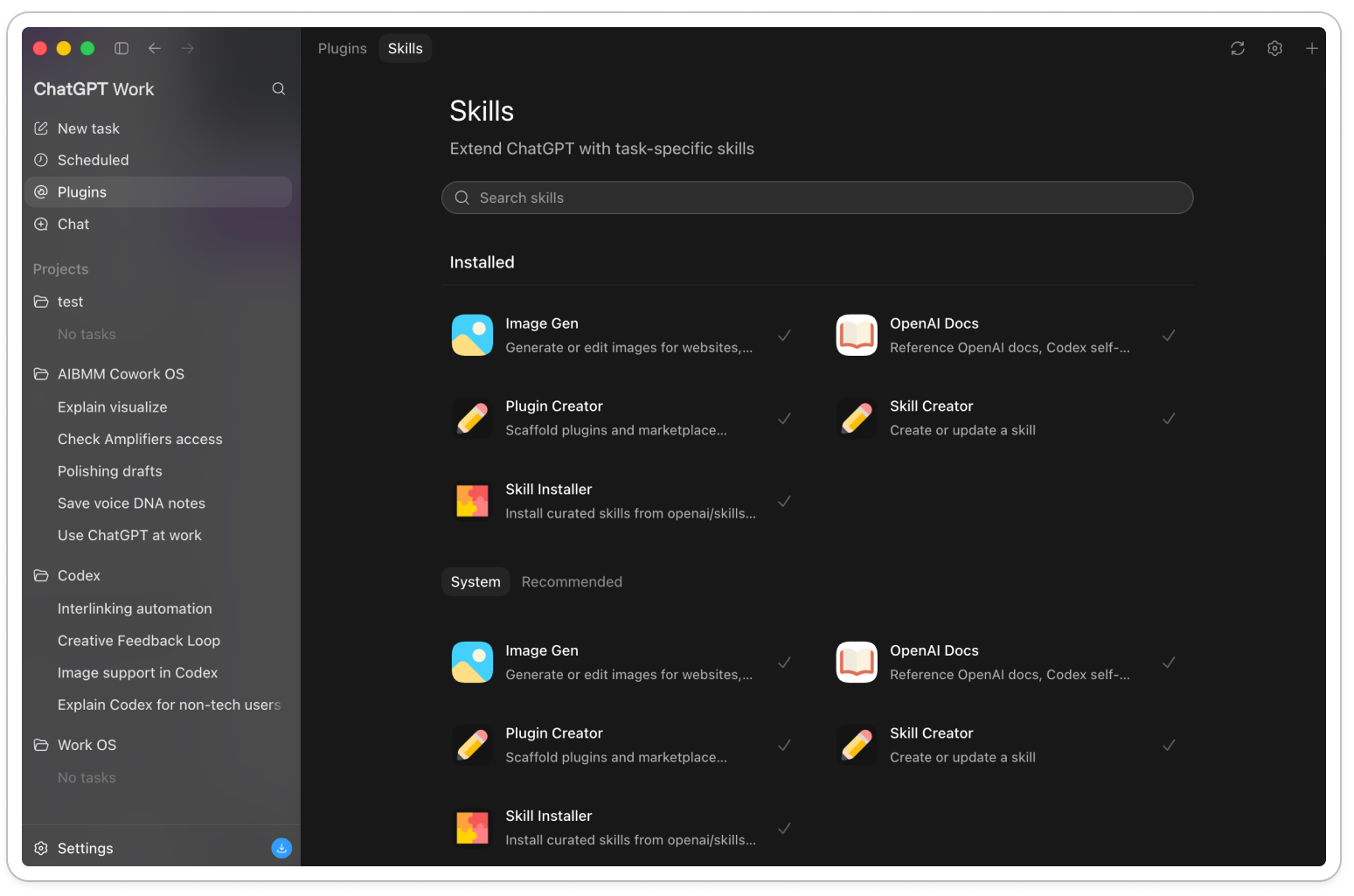
Three ways to get one:
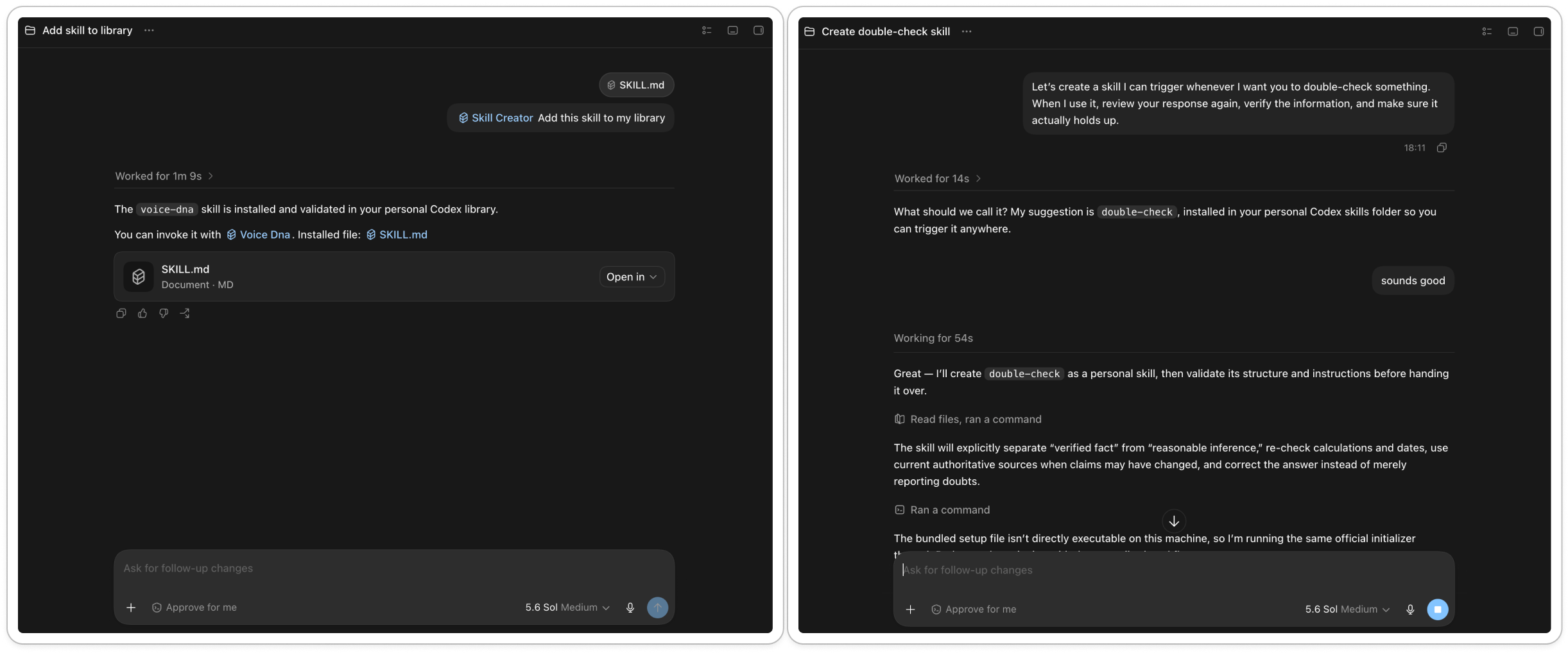
Bring your Claude skills over. Drop your SKILL.md into a chat inside one of your projects and ask it to save it to your library. Mine installed as voice-dna with nothing rewritten
Create one in chat. Describe what you want the skill to do. It writes it, validates it, and installs it
Install a curated one. Skill Installer pulls from OpenAI’s own library
Templates
This is the one thing here without a direct Claude equivalent.
A template combines an example file, instructions, and an expected output, so the workflow is reusable. Instead of describing your report format every time, ChatGPT produces it in your structure.
How to make a custom one. Open a new chat inside Work and type @Template Creator. Then either attach a document you already use and ask it to build a template from that format, or just describe the format you want.
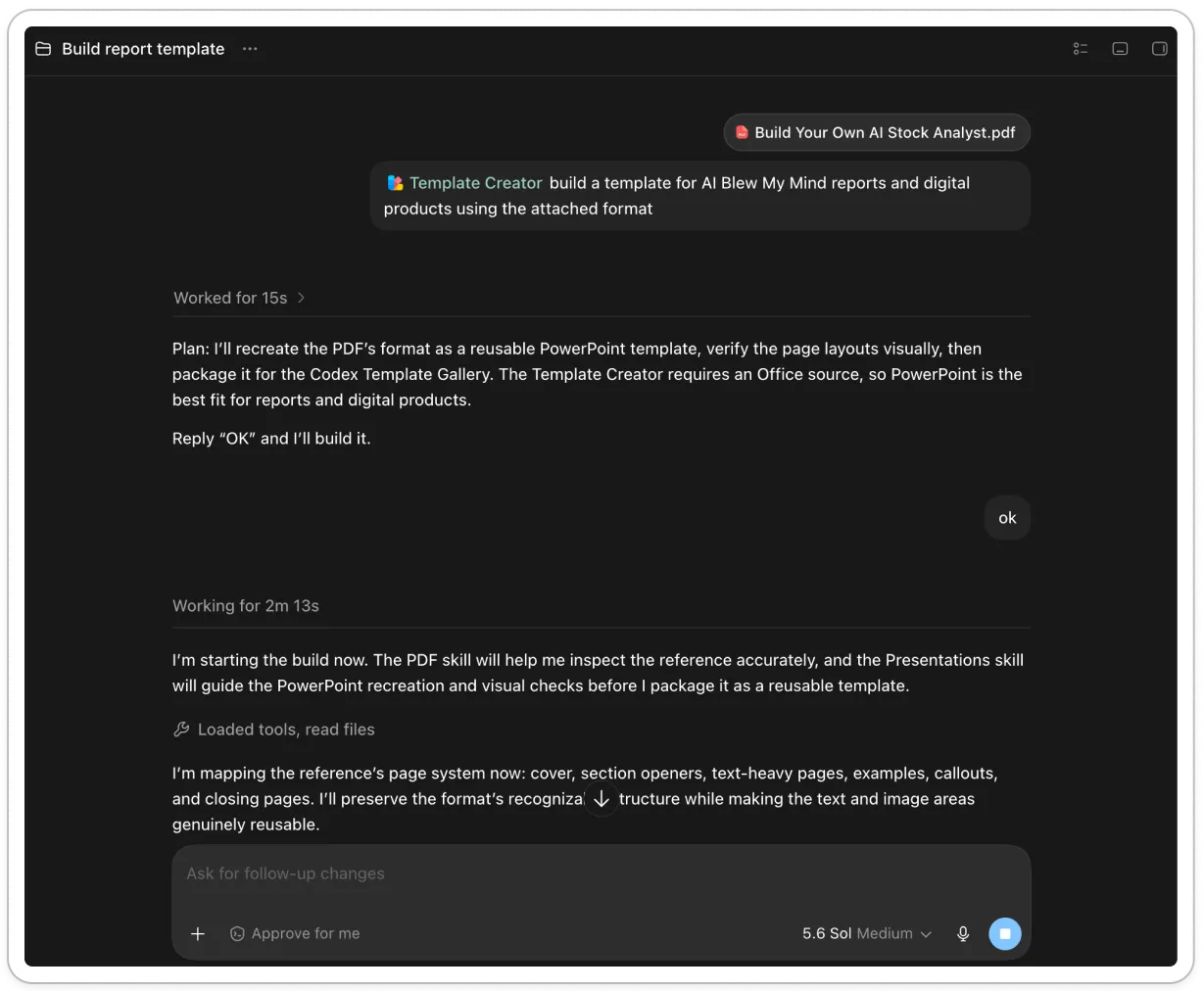
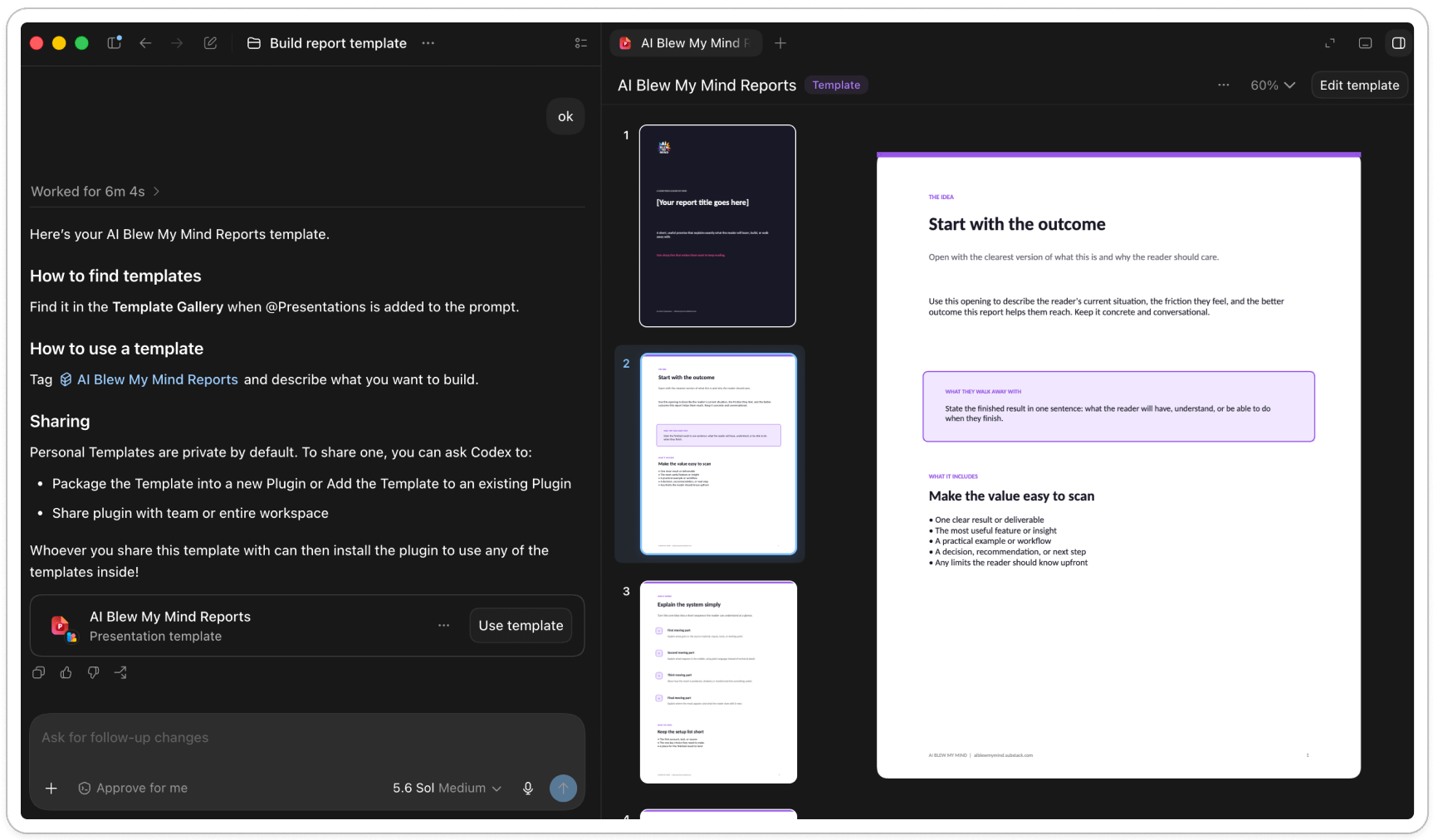
Be careful, because this really is a template. There isn't much freedom on the layout once it's built, and only the data and information inside will change. So it should be used for something like a weekly company report or a presentation that always looks the same.
Plugins (and adding your own MCP server)
Plugins are how you give ChatGPT access to tools beyond what OpenAI built. Same job Claude’s plugins do.
How to browse them. Click Plugins in the sidebar, where you’ll find two tabs: Plugins and Skills. Install your apps, authenticate if it requires an account, and it becomes available.
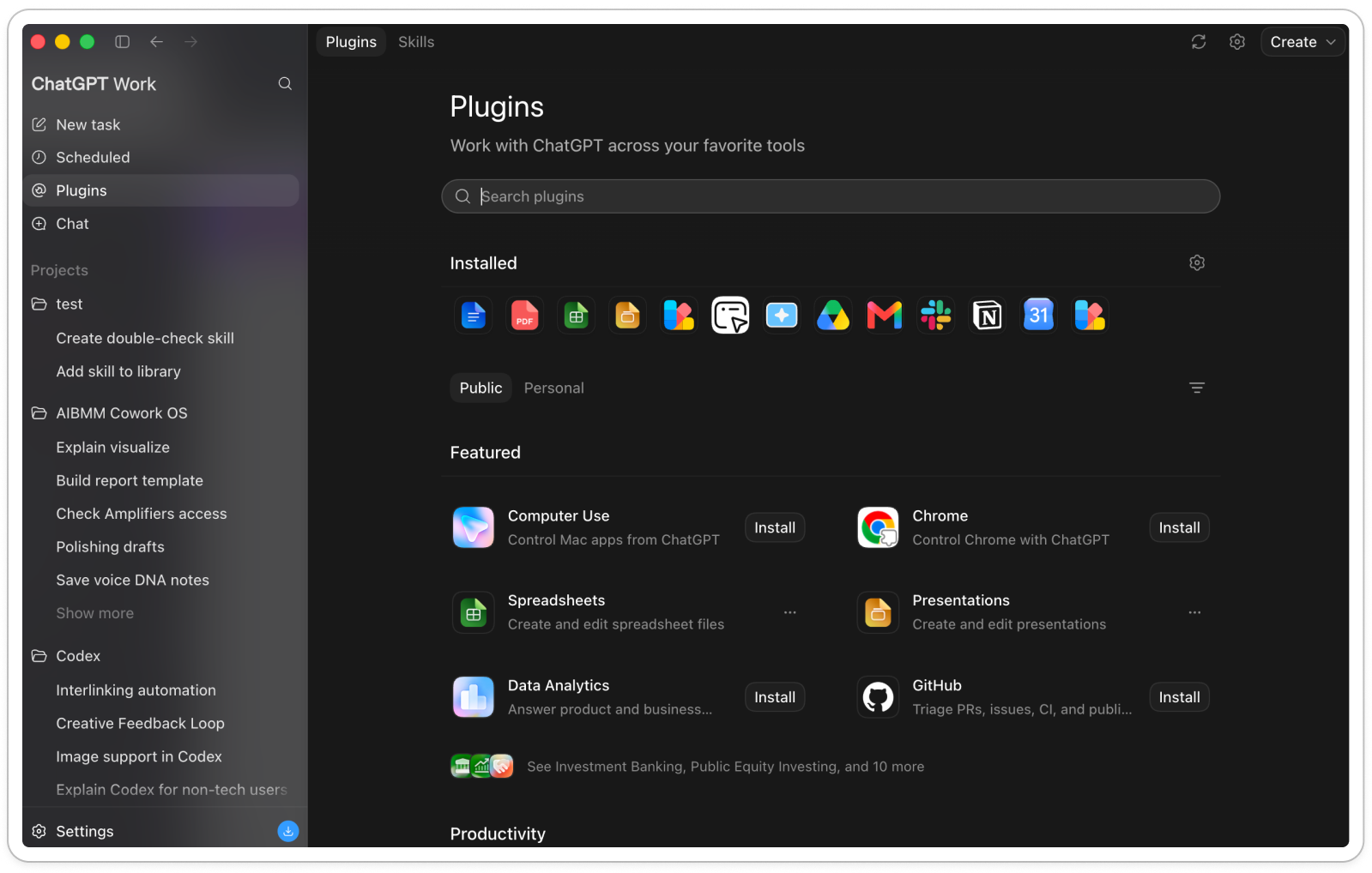
Adding your own MCP server. If what you want isn’t in the directory, you can connect any MCP server yourself.
Amplifiers is the one I’d start with. Connect it once and your AI gets a whole team of specialists: research tools and ready-made workflows across marketing, design, writing, and business. It replaces half the subscriptions you’re paying for, and supercharges your AI with capabilities it doesn’t have out of the box.
Setup is only on the web:
In Chatgpt.com, go to Settings → Security and login and turn on Developer mode
Go to Settings → Plugins, or straight to chatgpt.com/plugins, and click the + button
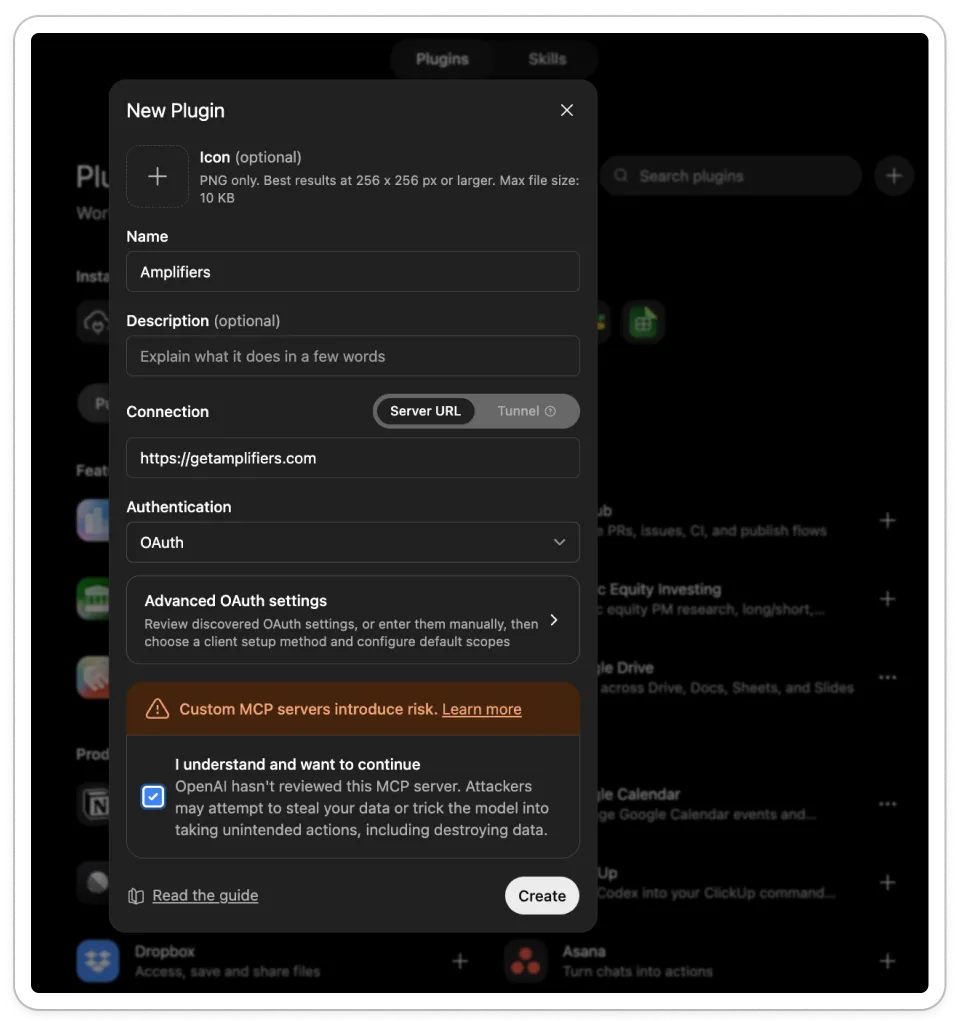
Fill in the New Plugin form: name it Amplifiers, paste https://mcp.getamplifiers.com under Connection, and pick OAuth for authentication.
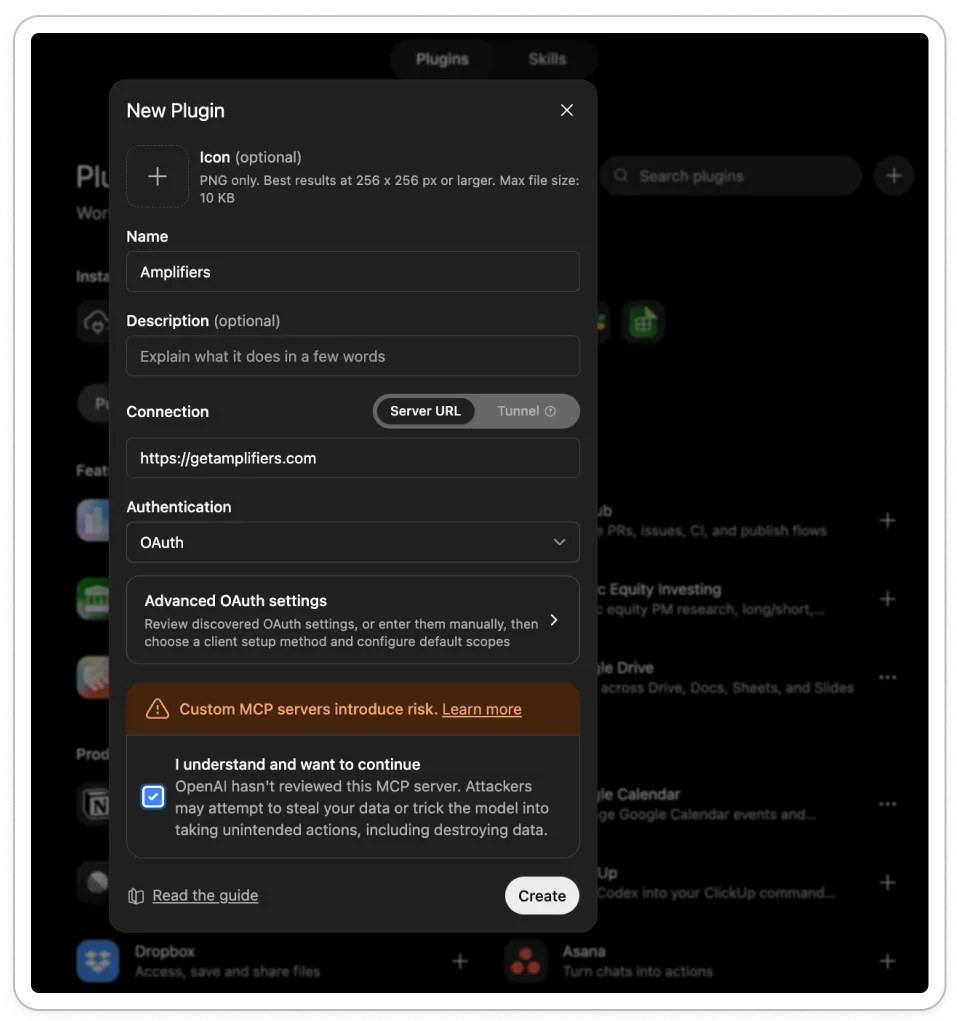
Tick the box acknowledging the risk, since OpenAI hasn’t reviewed custom servers, then click Create.
Sign in at auth.aiblewmymind.com when it prompts you, using the same email address you subscribed to AI Blew My Mind with.
Sites
Sites doesn’t just build a website, it hosts it at a real URL. Closer to Claude Artifacts in how you make it, closer to a hosting service in what you get.
People are already using it for dashboards, project trackers, launch calendars, prototypes, internal portals, and reports.
How to use it. In Work on the web, or Work or Codex in the desktop app, describe what you want and either include the word “website” or type @Sites.
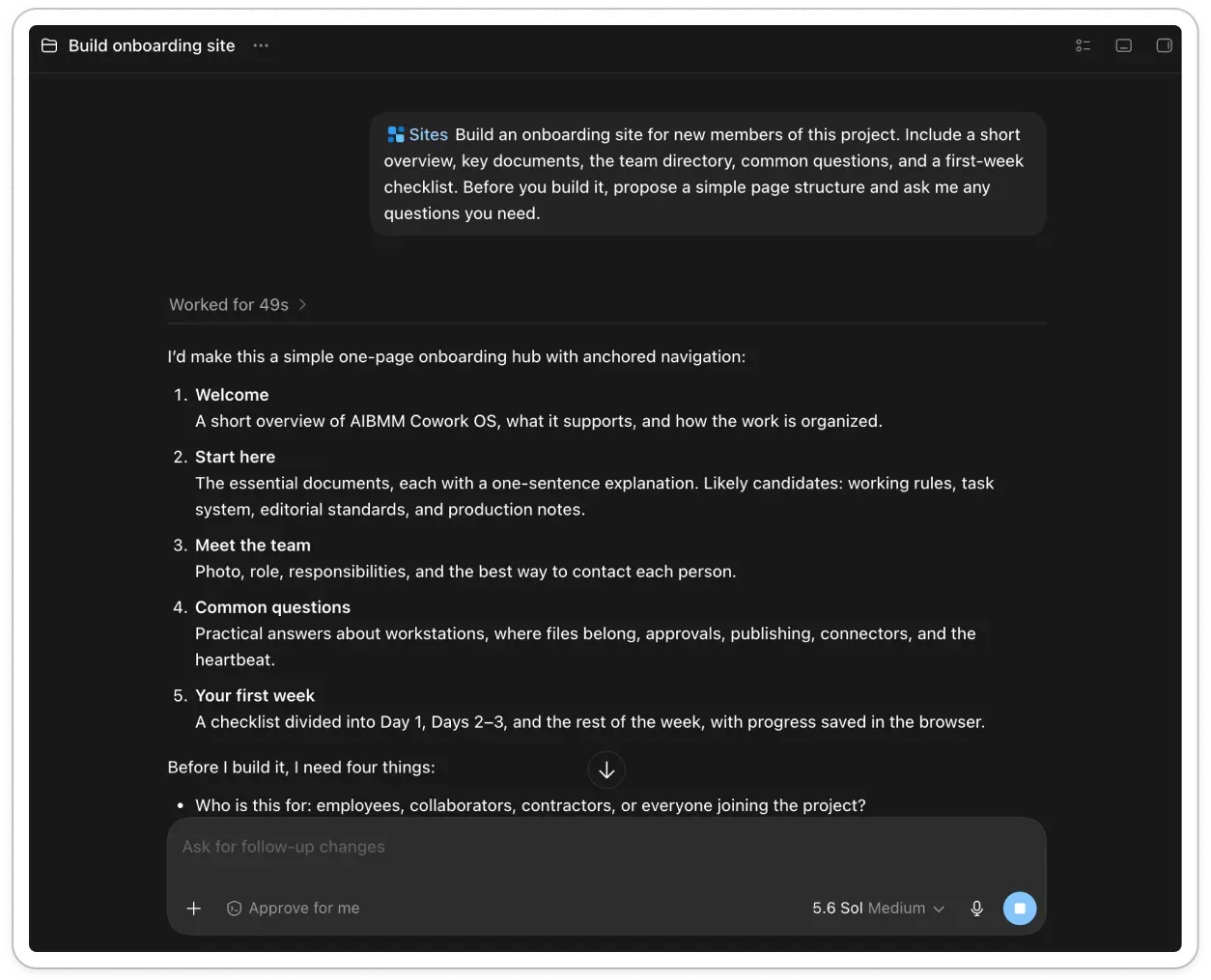
Add whatever content, files, or constraints it should work from. You get a preview, you ask for changes until it’s right, and when you deploy it generates a live URL.
Here’s the site it created to onboard new people into working inside my Cowork OS, which is now the home of ChatGPT too.
Scheduled tasks
Scheduled tasks in ChatGPT work just like scheduled tasks in Cowork, which means ChatGPT can run a small automation across your apps on your prompt, at whatever frequency you want.
How to create one. In the desktop app, go to Scheduled in the sidebar and click Create. Two options:
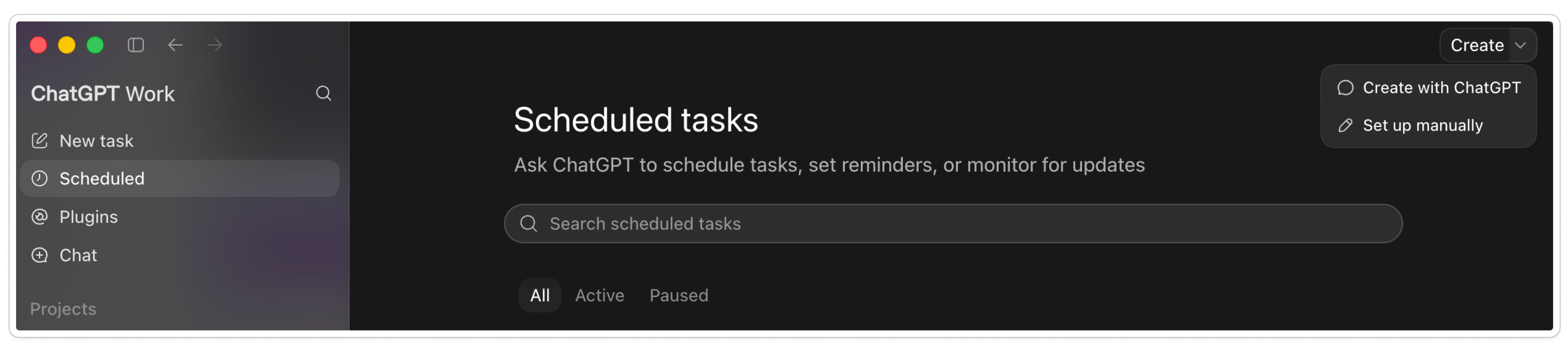
Create with ChatGPT, where you just describe it: “Every weekday at 8am, give me a five-minute briefing with today’s calendar, urgent unread emails, and the three things I should handle first.”
Set up manually, where you fill it in yourself: the prompt, whether it runs in a new task or an existing one, which project it belongs to, the model, the reasoning effort, and the frequency
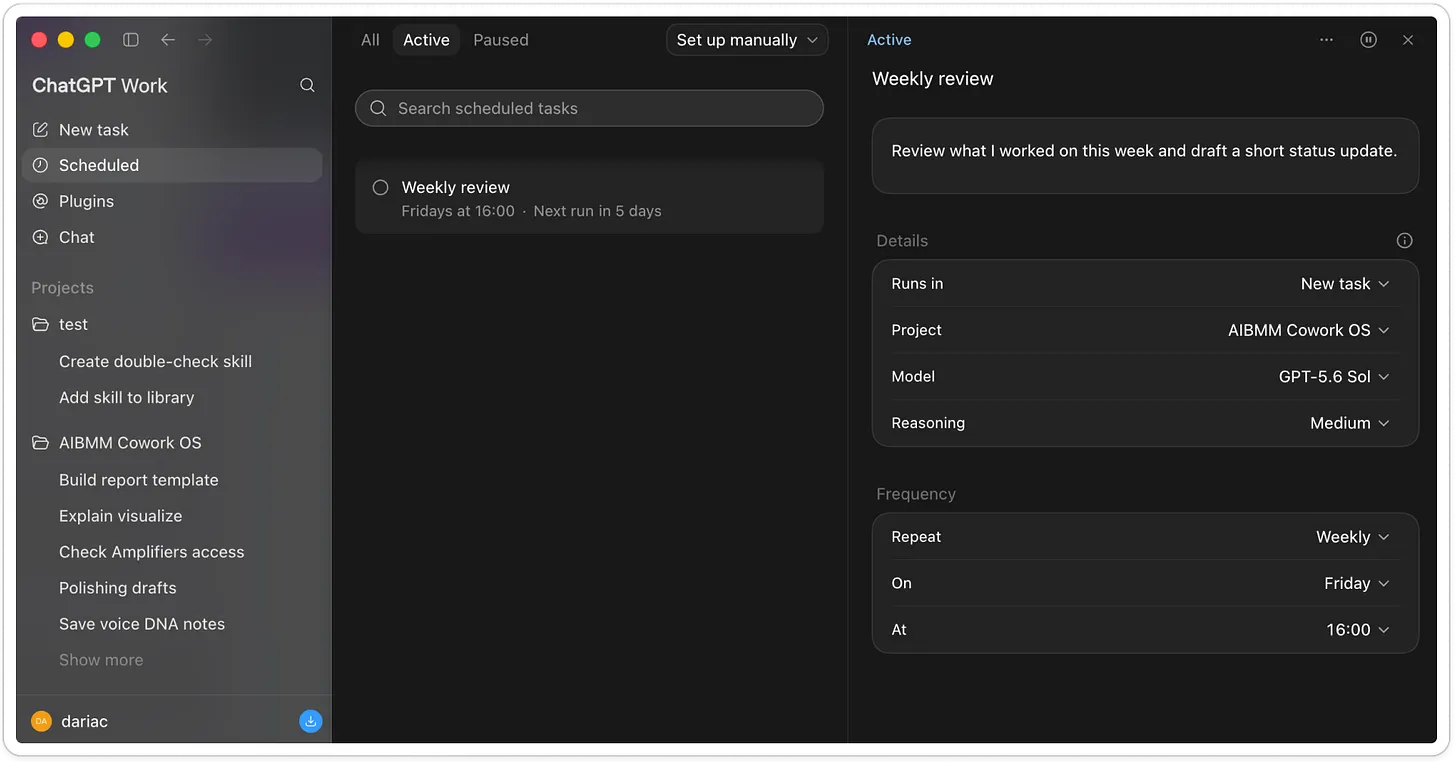
The Scheduled page shows every active task and when it runs next. Pause, resume, edit, or delete from there.
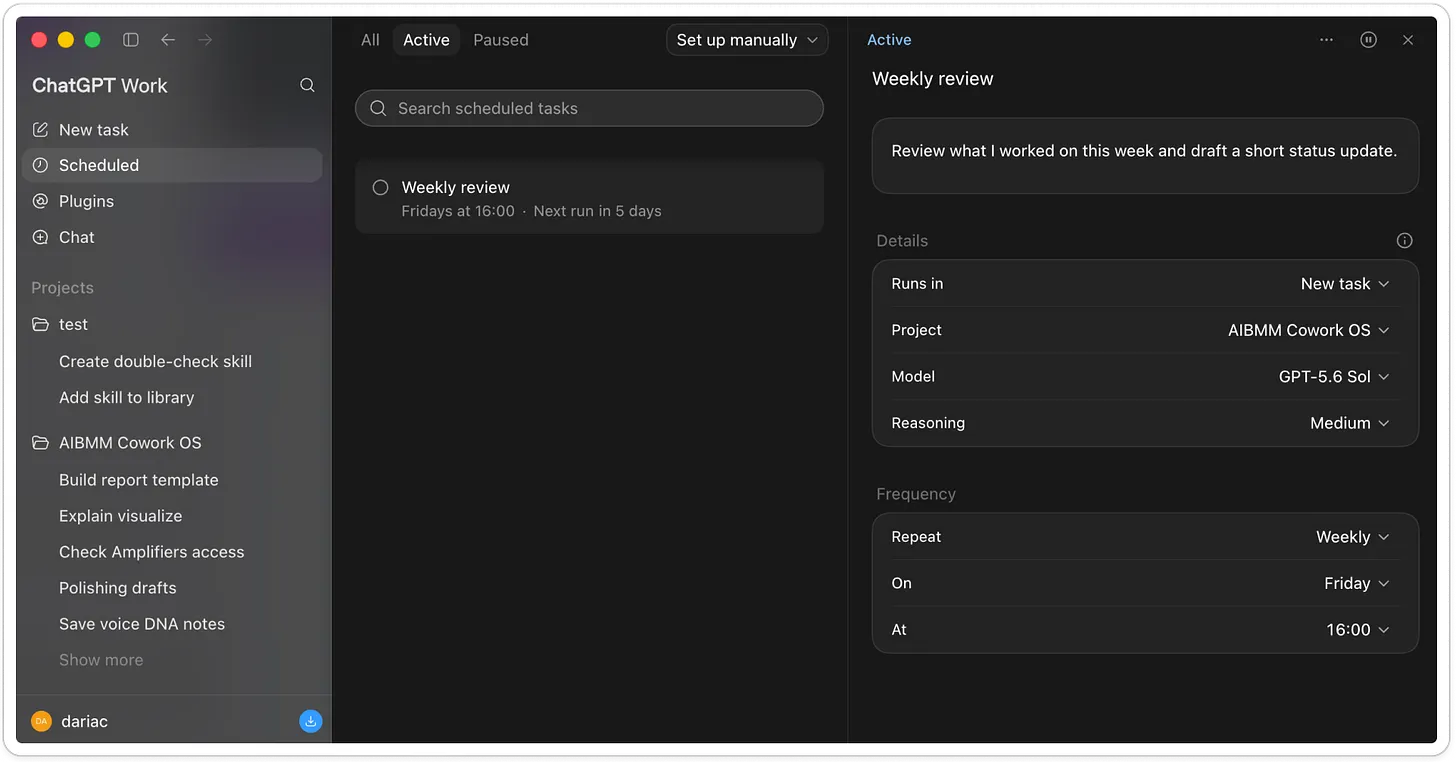
A few things to know before you rely on one. If the task touches a folder on your computer, it runs on your machine, so your computer needs to be on and the app open. If it only touches the web and your connected apps, it runs in OpenAI’s cloud and works while you’re asleep.
That said, the same workaround I used to get Cowork scheduled tasks running on my files with my computer off should apply here too.
Visualize
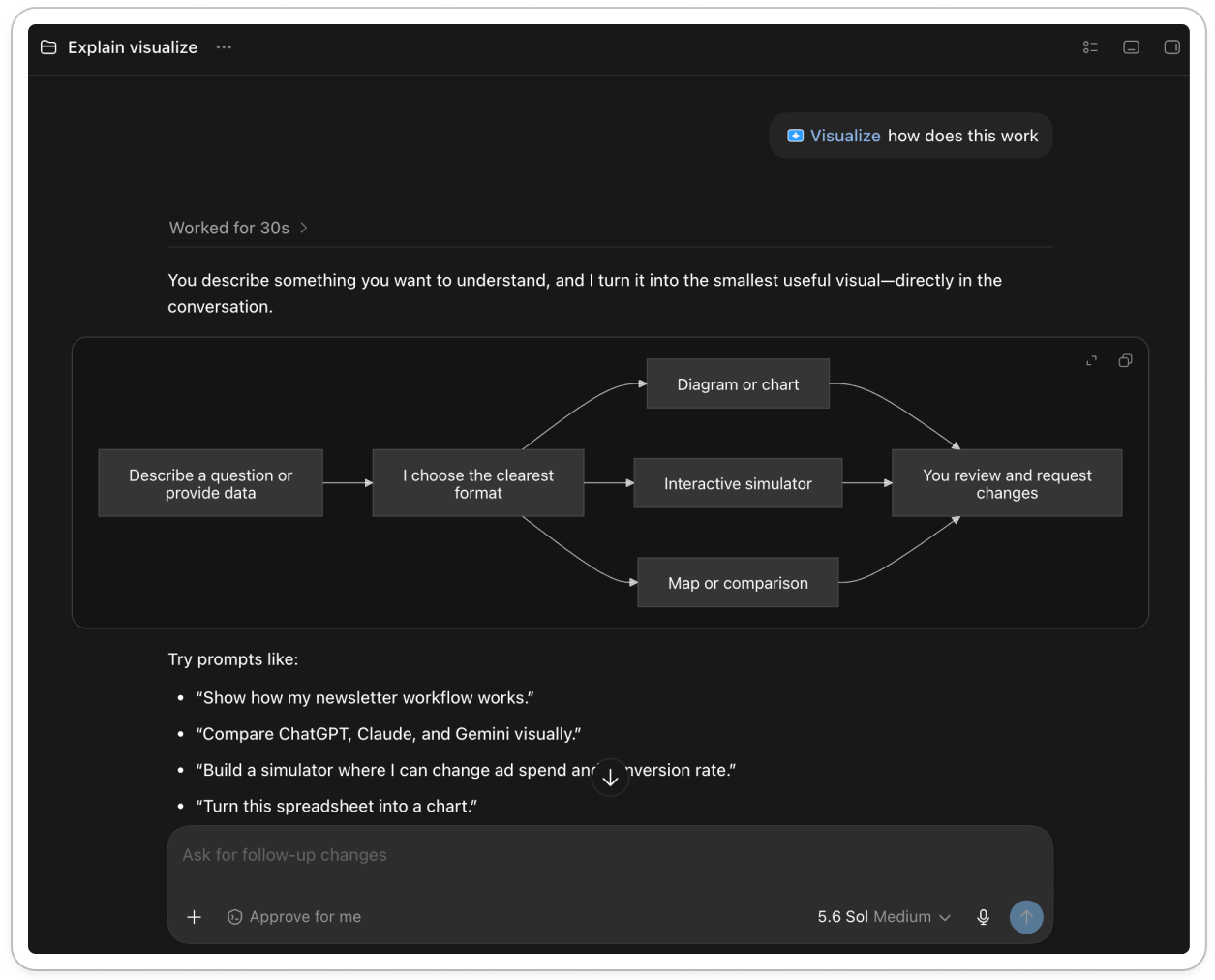
New in ChatGPT, and it works exactly like inline visualizations in Claude. Ask it to visualize something and it builds a graph, a diagram, or whatever fits the concept or data you gave it. Same idea.
Pets
Silly, but it isn’t just decoration. The floating pet shows what the agent is doing: running, needs input, ready, or blocked. When you’ve got a long task going and you’ve switched to another app, the pet is how you know it’s waiting on you.
I’ve needed this plenty of times in Claude, so it’s pretty useful.
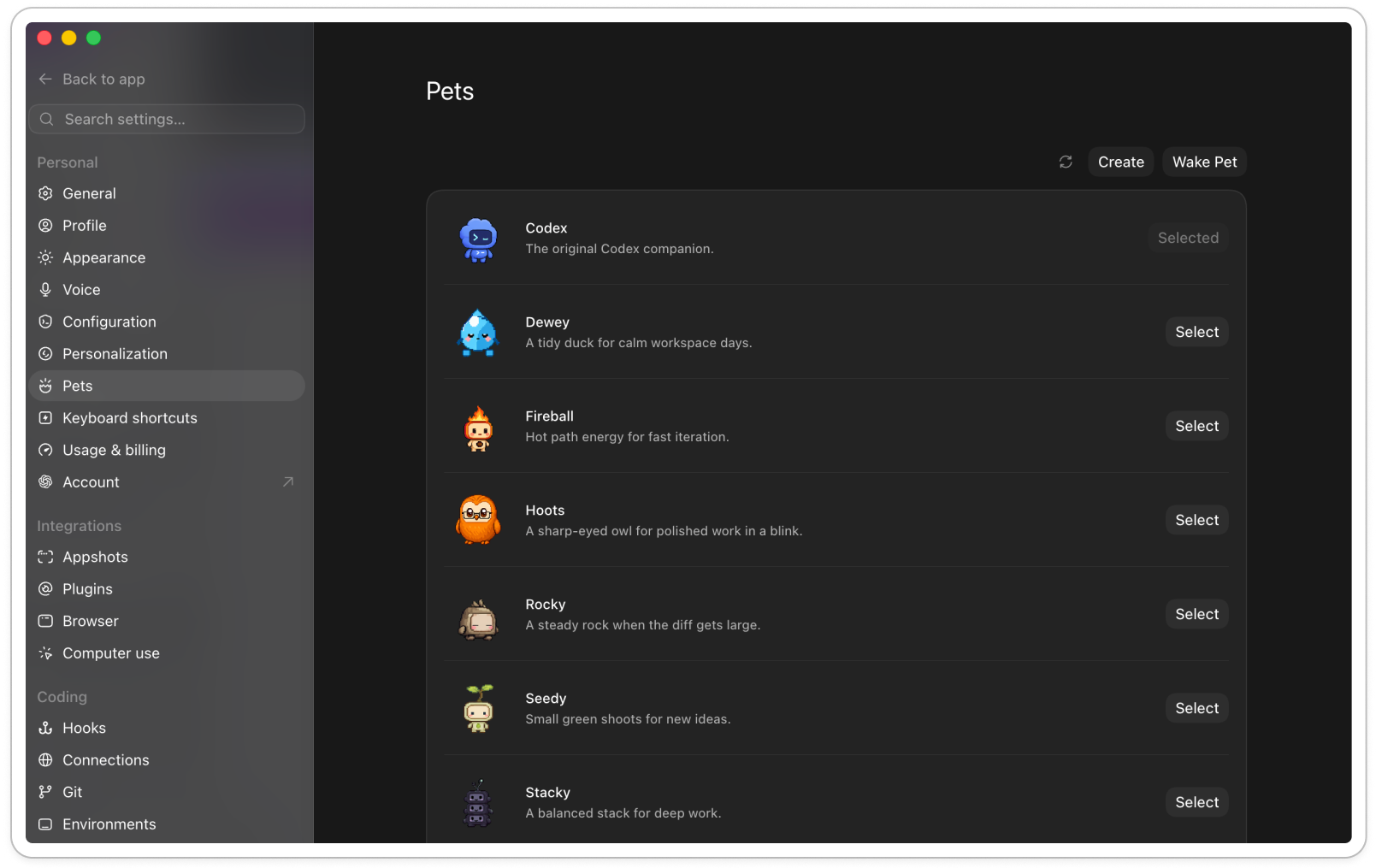
You can also make your own. Choosing to create one installs a bundled hatch-pet skill and opens a new chat, where you describe the pet you want. When it finishes, go back to Settings → Pets, hit Refresh, and select it.
Where the new ChatGPT still falls short
The naming is a mess. ChatGPT Projects and desktop projects are different things. Tasks in ChatGPT and tasks in Codex are different things. Apps live inside plugins, app templates mean something else, document templates mean a third thing.
It’s not the clean one anymore. People used to praise Codex and ChatGPT for staying tidy while Claude piled everything into one app. They’ve arrived at the same place now. Features are buried across tabs, and you have to go hunting for things you need.
Nothing is available everywhere at once. Data controls only exist on the web. Some features land on macOS before Windows, or later in Europe. You don’t notice this at first, but the more you go looking for different features, the messier it feels.
Cloud and desktop don’t fully sync. Local Work chats and their files stay on the computer where they started. Decide where a long task should live before you begin.
Memory saves things it shouldn’t. When I pointed it at my Cowork folder, it started writing temporary details into memory that were never meant to persist. I’ve had to tell it repeatedly to stop saving anything that isn’t a fact or a decision. Still tuning that one.
Work is a bit slow. Tasks take noticeably longer than in Cowork. To be fair, Cowork was slow at the start too and got much faster, so this may be the same story.
Agents still need watching. Ask for a plan before a big job, say what it may read or change, and require approval before it sends, publishes, or deletes anything. I had it working on polishing an article once and it pulled the Gmail connector and started reading my emails, which had nothing to do with the article. Watch it.
More reasoning isn’t always better. The higher effort levels are slower and eat more of your allowance, and on a simple rewrite they overthink it. Use the lightest setting that does the job.
The verdict: is the new ChatGPT worth switching to?
What I find funny is that this was supposed to be an article about ChatGPT, and I couldn’t stop mentioning Claude in every section, because almost everything in here looks like a version of something Claude built.
But that’s how the product world works, and it will keep happening. Everybody competes, everybody borrows, and the copying runs in both directions. And if you’re a ChatGPT user, this is good news for you: the features you liked in Claude are now in ChatGPT too, and you get to use them where you already work.
And no, I wouldn’t leave Claude to switch to ChatGPT, yet I’ll keep using it the way I have been.
But if you’re choosing, and a tight budget means you have to, choose based on what your work needs. Or use both. Either way, I hope this guide saved you some time figuring the new app out. And do try GPT-5.6 Sol. It’s really good.
Now let’s sum up this 5,000-word article into something you can act on.
Your first week with the new ChatGPT
If this guide feels like a lot, and I know it is, do these in order.
Open ChatGPT on the web and review Custom Instructions, Memory, and Data Controls
Ask what it remembers about you and clean up anything outdated
Connect the apps you already use, like Google Drive or Slack
Bring your Claude skills over, or build new ones
Create one project for work you come back to every week, using my Cowork OS folder structure
Set up one scheduled task that saves you from remembering something repetitive
Don’t try to build the whole thing on day one. Put the context in one place, write down the rules you already follow, and let ChatGPT run the process once. When it works, save it and repeat.
Now I’m curious about you. Have you tried the new ChatGPT Work yet, and what did you make of it?
And if this guide was useful, share it with someone who needs it. It’s free, and it’s how this newsletter grows.
This post is free. Paid subscribers get access to all premium prompts and tools inside Amplifiers (the AI blew my mind MCP), weekly premium articles, all premium resources inside the AI blew my mind Lab, and exclusive partner discounts. Upgrade here.
Wait… Who uses ChatGPT these days?
Do you have mainstream users? 😂
Great overview, Daria!