
The Complete Guide to Google Gemini: Every Feature Explained (2026)
Gemini has more built into it than you think. This is the full tour: every feature, what's worth your time, and what you can skip.
If you’ve recently moved away from ChatGPT, chances are you’ve landed on Claude or Gemini. I already wrote a complete guide on making the most of Claude. Now it's Gemini's turn.
Even though Claude is still my daily driver, there are things I only go to Gemini for because it does them better than any other LLM or because they’re only available in Gemini.
Image generation. Video. Web search and deep research. And brainstorming, where Gemini pulls from a wider range of sources on its own, while Claude works best with what you give it.
And if you've been reading this newsletter for a while, you already know I'm hooked on Google's tools.
I've written about them a lot: an overview of every AI tool Google has built, tools I built in Google AI Studio, how I use NotebookLM for research and writing, how I automated a lot of my work with Google Apps Script, prompts for using Nano Banana, and pieces on using NotebookLM together with Gemini and integrating it with Claude Code.
So this was the missing piece.
A complete guide on Gemini: what every feature does, how to make the most of it, when each one is useful, and some of my favorite ways to combine its tools.
Here’s what we’re covering:
How to set up Google Gemini (plans, pricing, family sharing, custom instructions, importing from ChatGPT, connected apps)
Every feature inside Gemini’s chat (models, uploads, Deep Research, image generation, video creation, music, Canvas, Guided Learning, Gemini Live, Gems, Scheduled Actions)
5 ways to combine Gemini’s tools (real workflows)
Where Gemini falls short (honest take)
Quick note on pricing
Before we begin, a quick note: I recently updated the Premium subscription for AI Blew My Mind from $8/month to $12/month (and from $70/year to $100/year).
If you’ve been thinking about upgrading, I created a 30% discount code that lets you lock in the old rate forever. It’s valid until April 7 (included). Starting April 8, it’s the new price. If you’re already a paid subscriber, nothing changes. Your rate stays the same and you get all new perks automatically.
Now let’s get into it.
How to set up Google Gemini
Before we get into what Gemini can do, let's get it set up properly. Access, your plan, getting Gemini up to speed on who you are and what you do, and bringing over your context if you're switching from another AI.
Picking your plan (and the perk nobody talks about)
Gemini has a free tier and three paid plans. (Google recently added Plus as a smaller entry point, similar to what ChatGPT did with its Go plan.)
Now here’s the part that makes Google’s pricing hard to beat:
Any paid plan lets you share it with up to five family members, where everyone gets their own individual access to the full plan. You share the storage, but that’s it.
I don't know any other AI platform that offers this. If you have a partner, kids, or parents who are curious about AI, two minutes of setup and five people are in, for the same price.
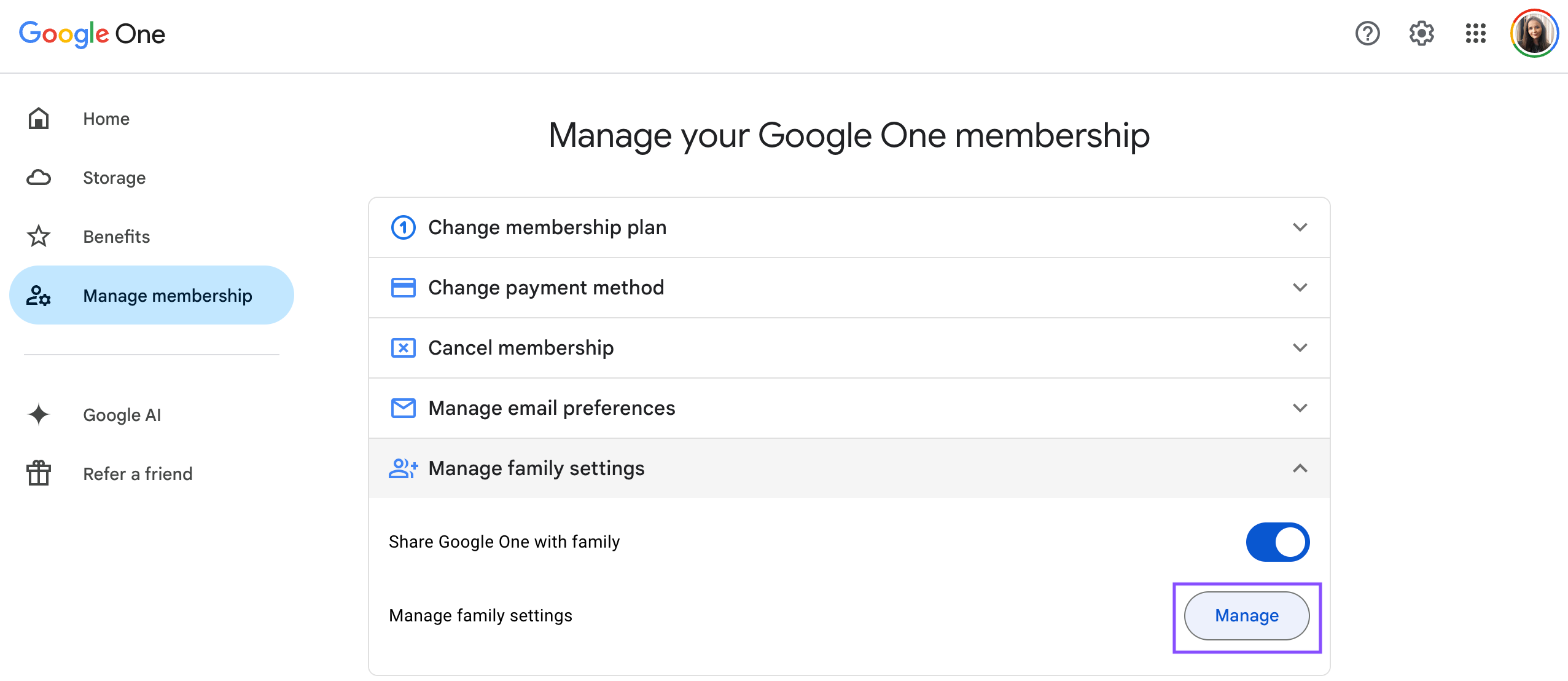
Here’s how: go to gemini.google.com → Settings → Manage subscription. That takes you to Google One. Click Manage family settings, toggle on Share Google One with family, click Manage family settings again, and invite family members by email.
How to customize Gemini to know you
Three things to set up before you go any further. All of them help Gemini understand who you are and what you do, so its answers stop being generic and start being relevant to you.
Step 1. Import your ChatGPT or Claude history into Gemini
If you’re switching to Gemini from ChatGPT, Google just launched Import Memory to Gemini, which lets you upload your full chat history from ChatGPT or Claude as a ZIP file.

The catch: that’s everything. Every random question, every throwaway conversation. It’s a lot of noise.
If you want something cleaner and you care about only sharing with Google what's relevant, I built the AI Migrator for exactly this.

Instead of importing everything, it processes your conversation history and extracts a structured profile: who you are, what you're working on, your goals, your communication preferences, your projects, your patterns. Only what helps Gemini be useful to you and your work. You paste it into Gemini's instructions or memory, and it knows you from the first conversation.
Read my step-by-step guide on migrating.
One more thing worth knowing: unlike ChatGPT and Claude, Gemini doesn’t let you export your chat history at the moment. You can import in, but you can’t export out.
Step 2. Set up custom instructions in Gemini
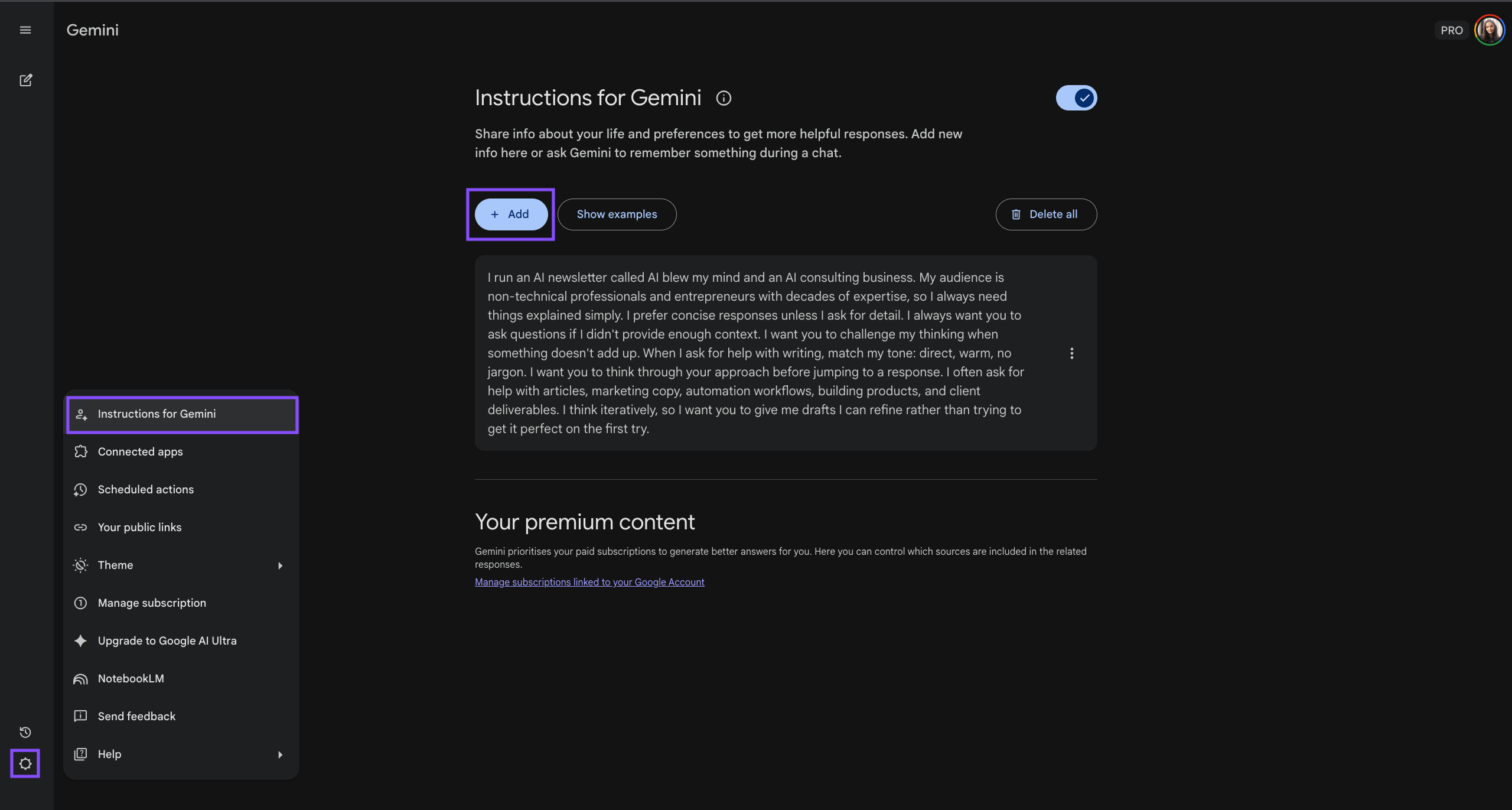
Go to Settings → Instructions for Gemini → click Add.
This is where you tell Gemini who you are, what you do, how you like responses. Think of it like setting preferences once so you don’t have to repeat yourself in every conversation. Tell it your role, your industry, how detailed you want answers, what tone works for you. Gemini will apply this across all your chats.
If you used the AI Migrator, your communication preferences are already extracted and you can paste them directly in here.
Step 3: Connect your apps and turn on Personal Intelligence
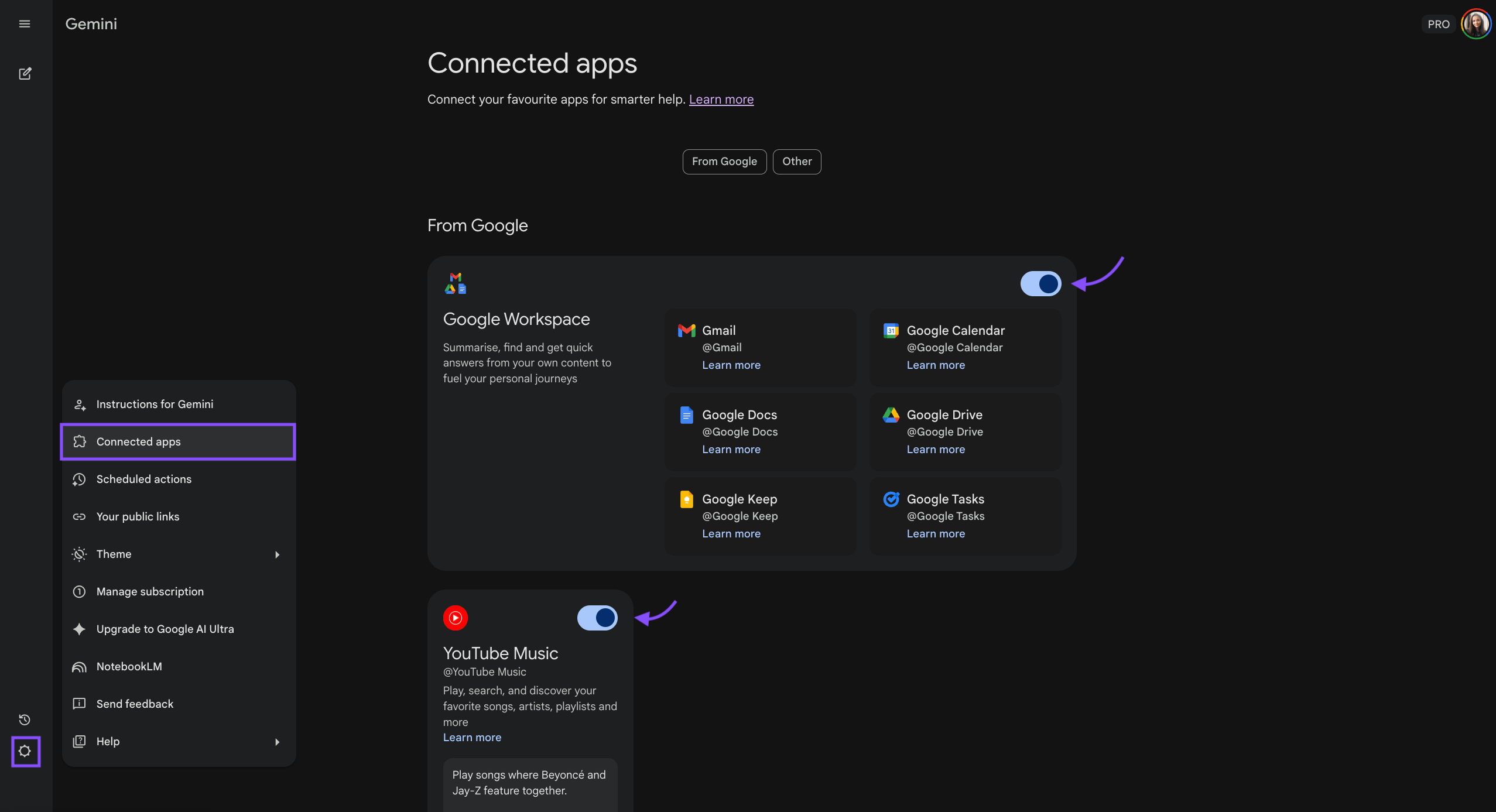
Go to Settings → Connected Apps
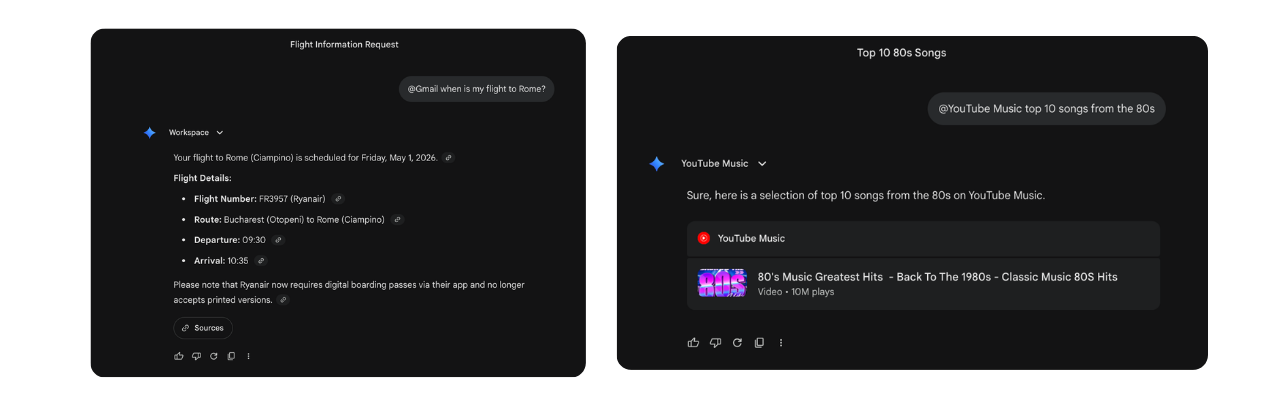
Here you can give Gemini access to your Google tools. For me right now, that's YouTube Music and Google Workspace and it helps me easily ask Gemini to find an email, check my calendar, or pull up a document.
Some accounts will see a broader version called Personal Intelligence, which also connects to Google Search and Google Photos. That’s where it gets interesting: Gemini can find a bag that matches shoes you bought last week, or troubleshoot your fridge by pulling the model number from a receipt in your email.
I don’t have full access yet. It’s rolling out gradually, starting with the U.S. If you have it, you’ll find it in your settings. Fully opt-in, off by default, and Google says Gemini doesn’t train on your Gmail inbox or Photos library.
Every feature inside Gemini's chat
You’re set up, Gemini knows who you are, and you’re ready to go. Now let’s go through everything inside the chat, because there’s a lot more in there than what you see when you open it.
To access Gemini, go to gemini.google.com from your browser or download the mobile app.
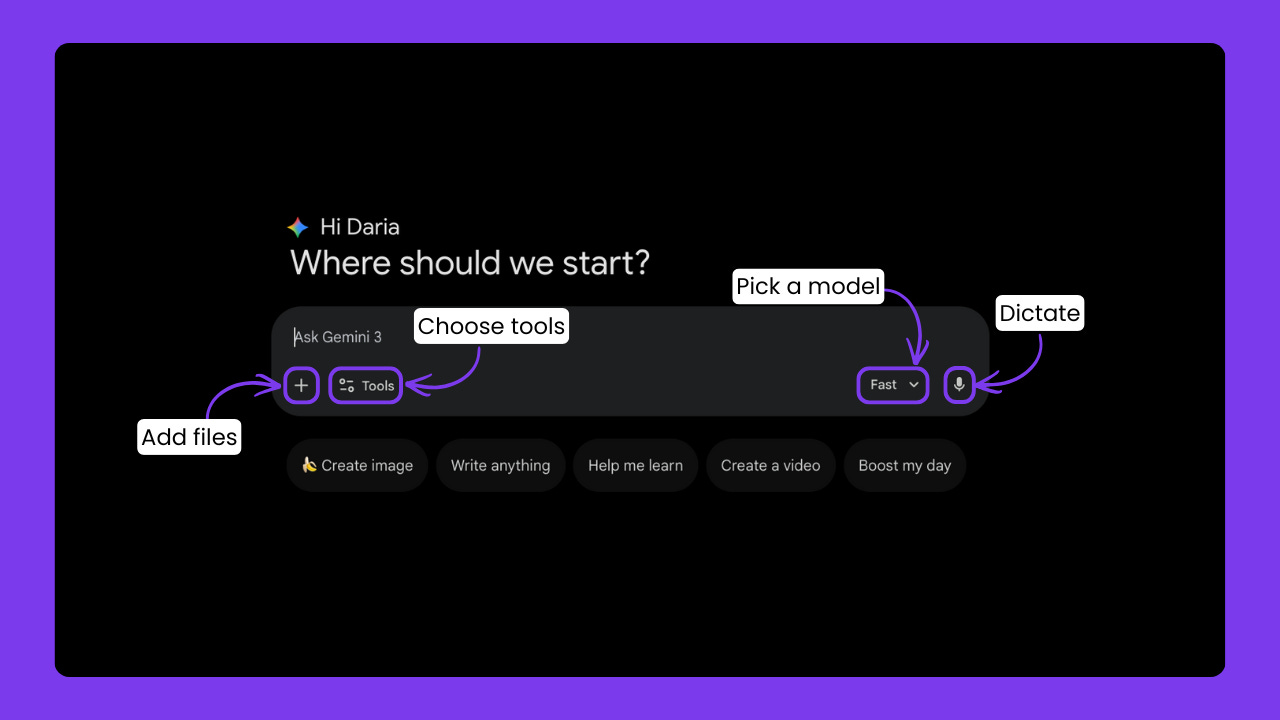
Choose the right Gemini model (Flash vs Thinking vs Pro)
When you open Gemini, you can pick which version of the model runs your request. It comes in three versions, broken down by “thinking” styles:
Gemini 3 Flash: The high-speed “workhorse”. It’s 3x faster than previous models and is the default for quick tasks in Search and Gmail.
Gemini 3 Thinking: The specialist for PhD-level logic. It uses “thinking tokens” to show its work, making it the choice for complex math, scientific research, and deep coding.
Gemini 3 Pro: The flagship for complex reasoning.
When you're picking which model to use, the rule is simple: the harder the problem, the more powerful the model you want behind it.
What you can upload and connect in Gemini
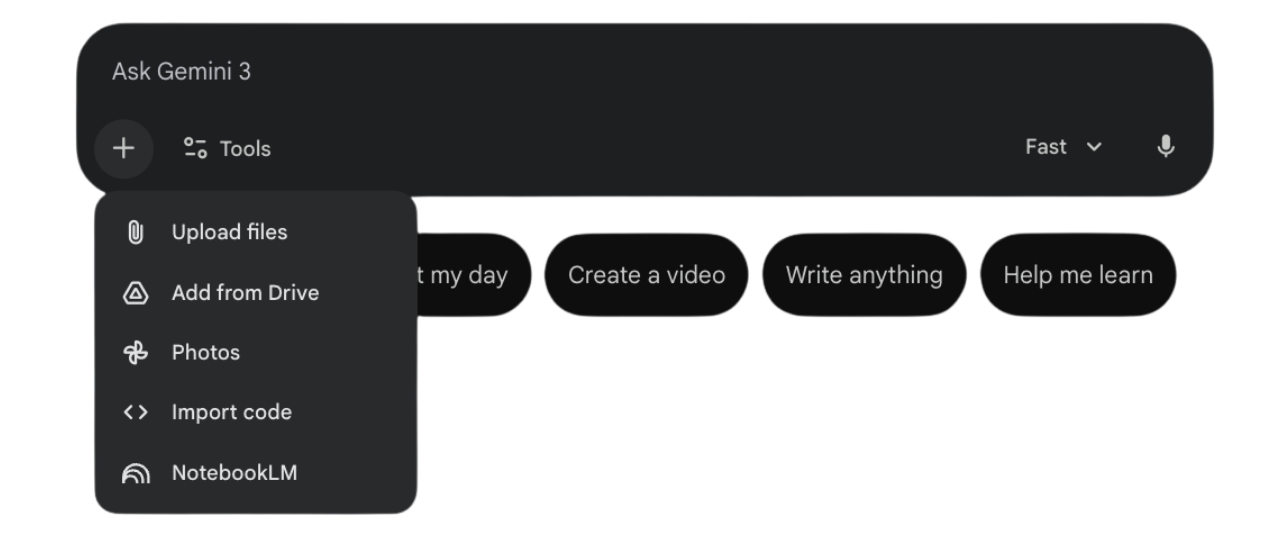
You can bring a lot into a Gemini conversation:
Direct file uploads. PDFs, images, documents, spreadsheets, presentations, even video files. It can watch, timestamp, and summarize footage, which most other models still can't do.
Google Drive integration. Connect your Drive and Gemini can reference your cloud-stored files directly. No downloading and re-uploading.
Google Photos integration. Pull images straight from your photo library.
Code import. Bring in entire scripts or repositories. Gemini’s massive context window means it can analyze complex codebases to find bugs or suggest refactors.
NotebookLM integration. You can now pull your notebooks directly into Gemini as sources. As many as you want. All that research and synthesized thinking you built is now part of your conversation.
@ commands for connected apps. Type @ in the chat and you’ll see the apps you’ve enabled. You can ask Gemini to find an email, summarize a document from Drive, or play a song, all from within the conversation.
Gemini's built-in tools: what each one does
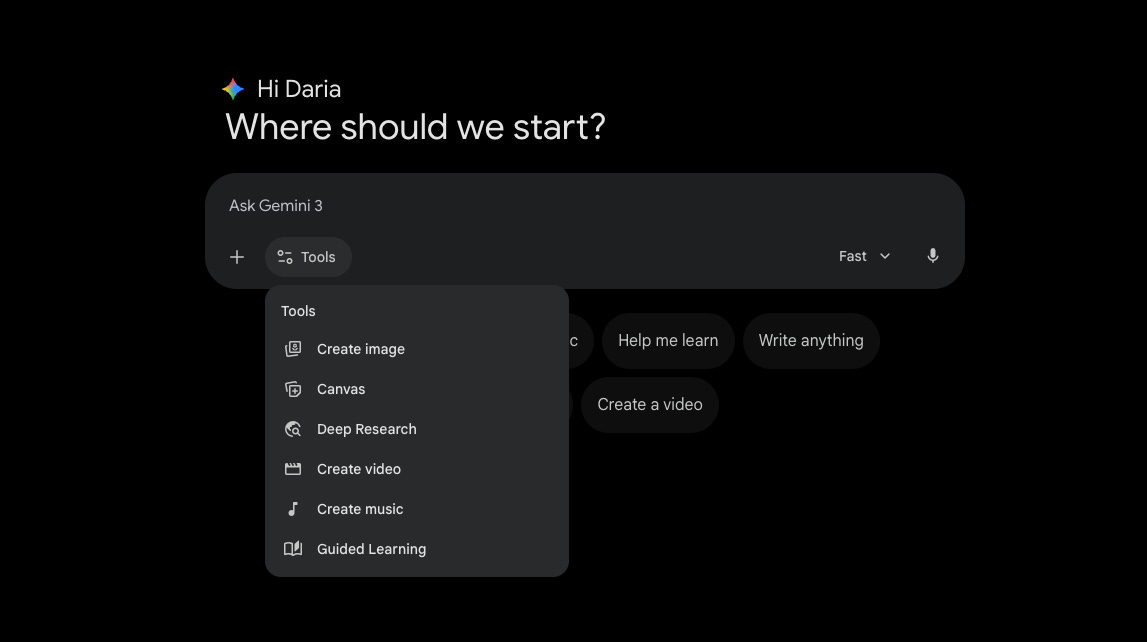
Google has built more tools directly into Gemini than any other AI platform right now. Here's what each one does and when it's worth using.
Deep Research: how Gemini's AI Research Agent Works
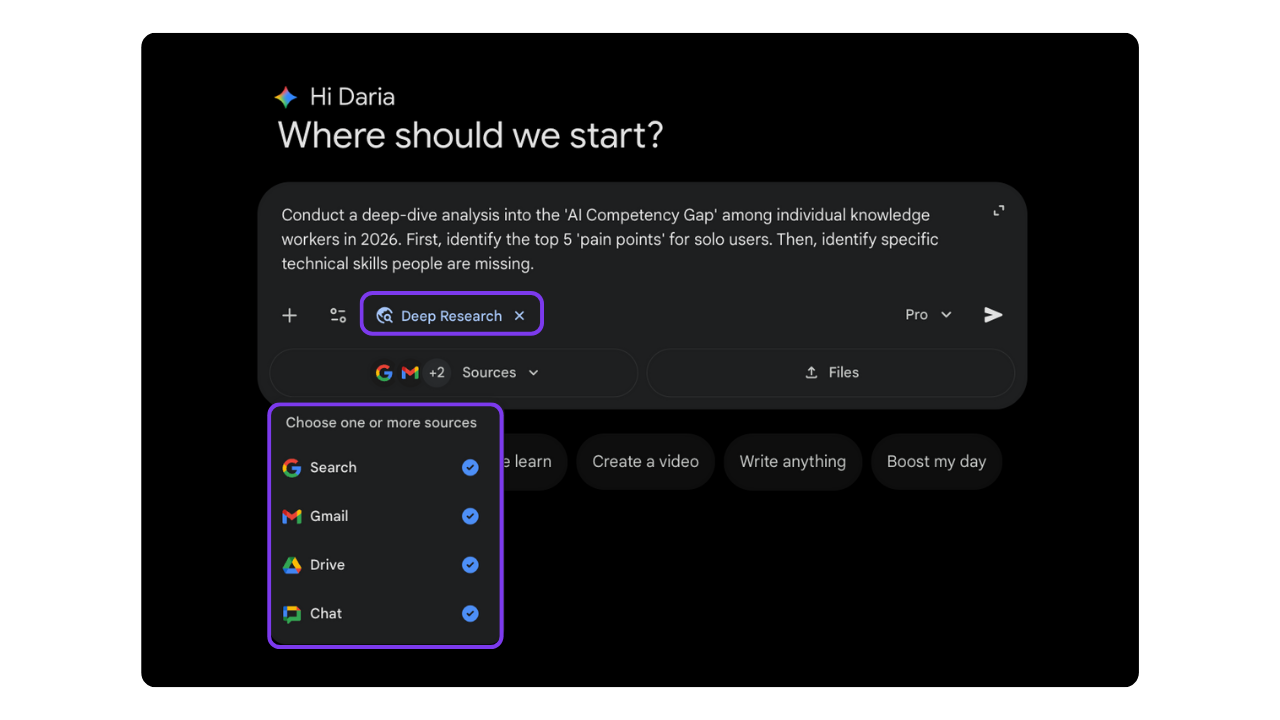
Whenever you need to go deep on a topic, activate this. Gemini browses the web, reads multiple sources, synthesizes everything, and comes back with a comprehensive, cited report. You can go make coffee while it works.
And it’s no longer limited to the web. You can now have it research across your own sources too: Gmail, Drive, even Google Meet chats. So instead of just “what does the internet say about X”, you can ask “what have we discussed about X in our team emails and documents”.
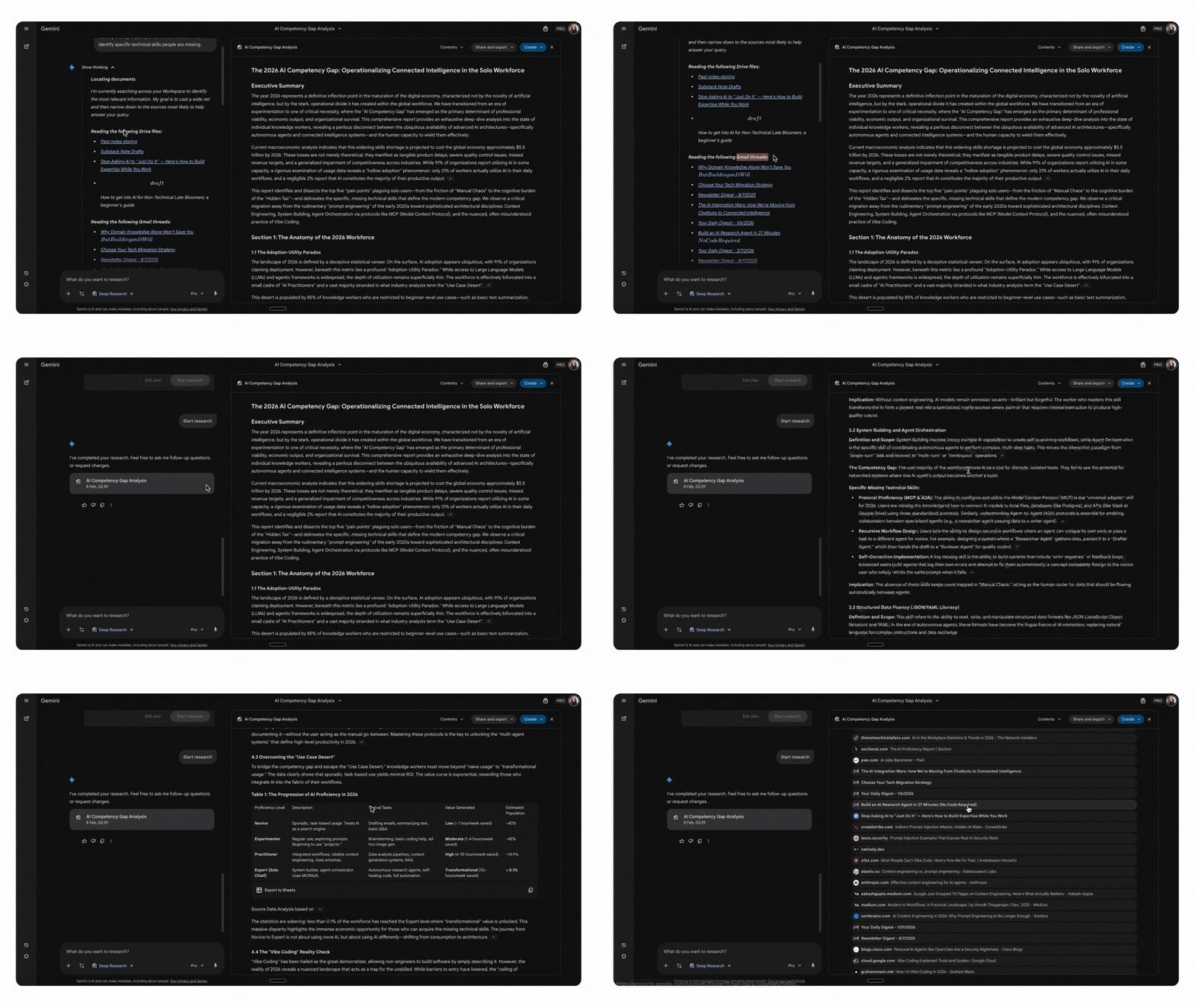
Image generation with Nano Banana (Gemini's built-in image editor)
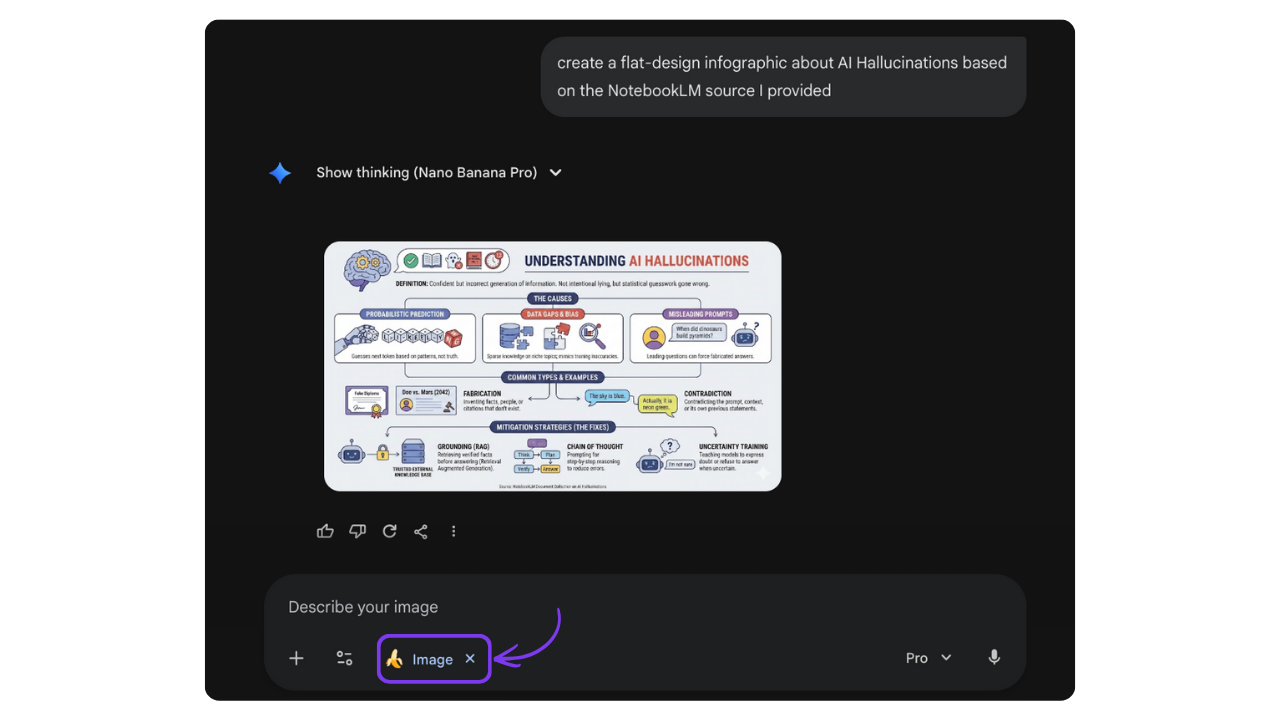
My favorite image generation model right now. You can create images from scratch, edit existing ones with natural language (”remove the text” or “change the lighting”), or keep the same character consistent across different scenes.
I wrote this review for AI Supremacy with dozens of examples when it first came out, and in this article I shared 58 prompts for using Nano Banana 2 to create infographics.
Video Creation with Veo (up to 4K, with audio)
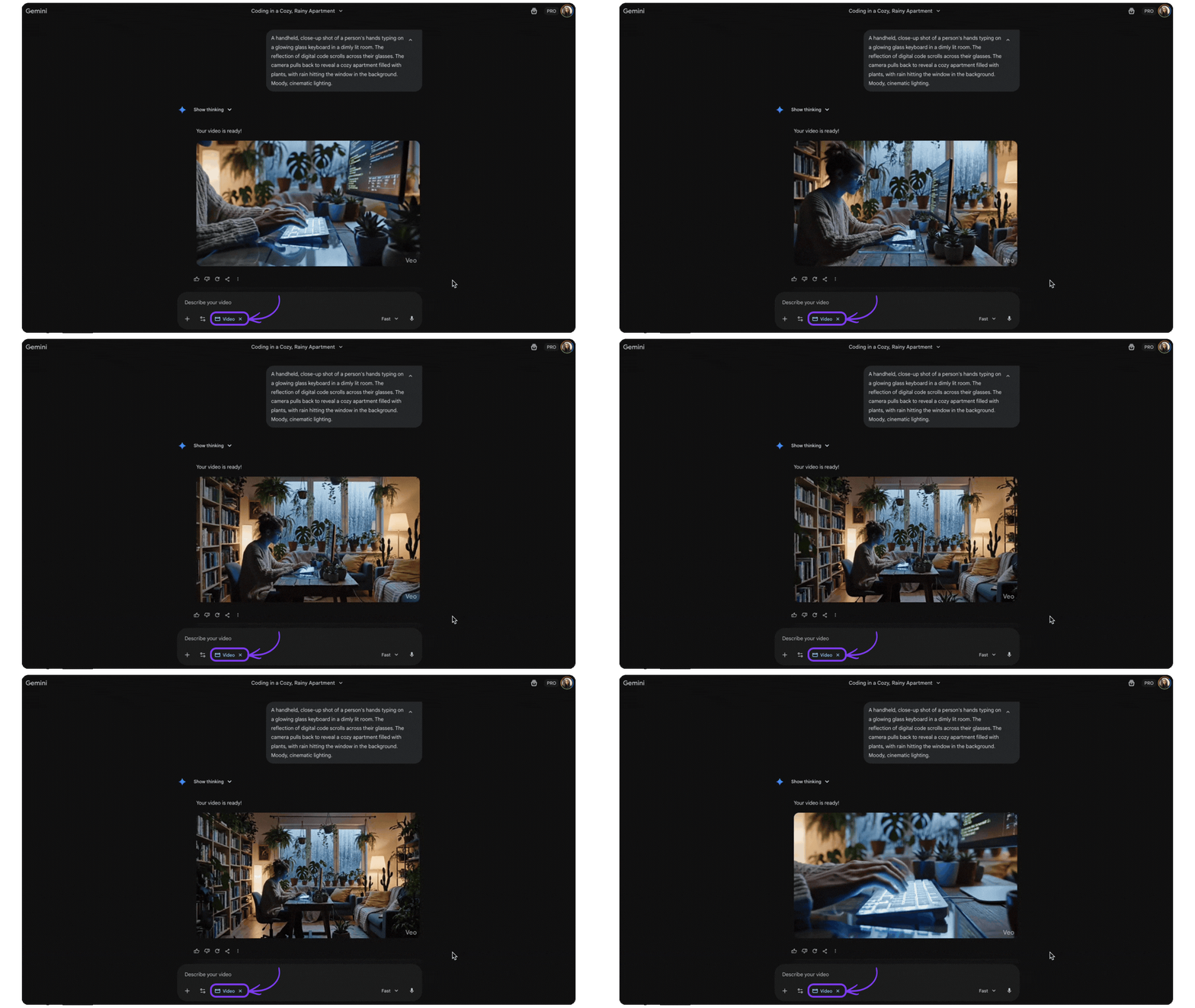
Gemini’s native video engine and, in my opinion, the best one available right now. You can generate cinematic, high-definition video clips (up to 4K) directly in the chat. It handles native audio generation too, meaning your videos come with synchronized sound effects or dialogue.
Something worth knowing: Gemini is the only major AI tool that can also analyze videos. You can drop a video into the chat and ask it to extract specific things from it. If you’re a marketer, you could upload a competitor’s ad and ask Gemini to break down the messaging, the visual structure, the pacing. If you’re a content creator, you could upload your own video and ask for feedback on structure and delivery.
Music creation with Lyria 3 Pro
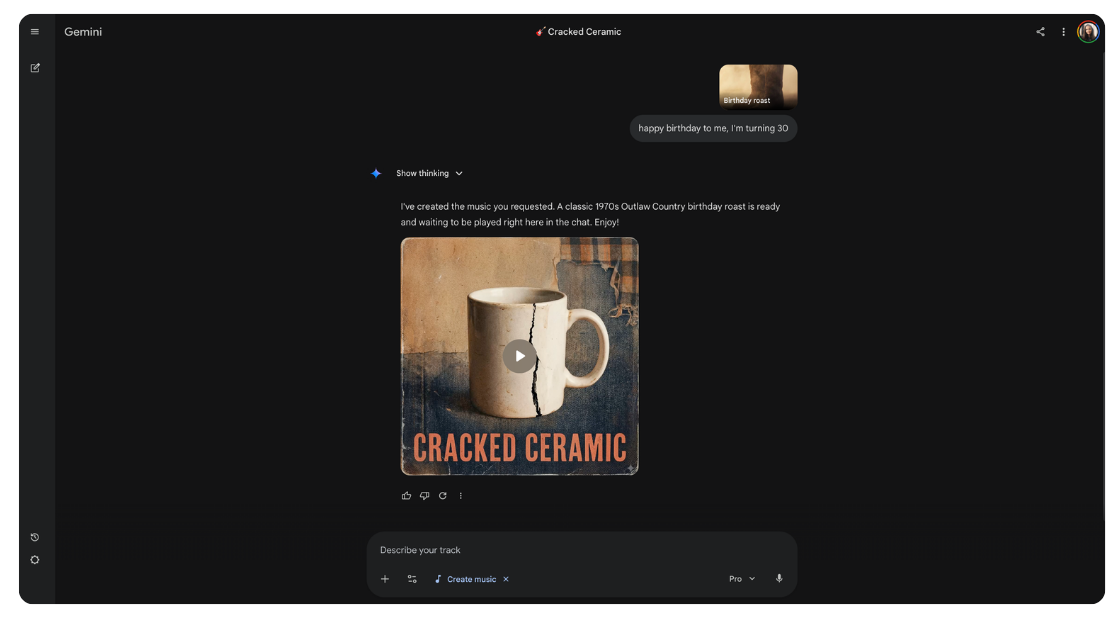
You can create custom music tracks directly inside Gemini. The latest model, Lyria 3 Pro, lets you compose tracks up to 3 minutes long, and paid subscribers can also turn photos or ideas into songs with lyrics.
I don’t find much difference in quality between Google’s music generation and dedicated tools like Suno or Mureka. You have fewer customization options in Gemini, but the quality is solid. And it’s included in your subscription (or free within limits), which means one less tool to pay for separately.
Canvas: Gemini's side-by-side writing and coding workspace
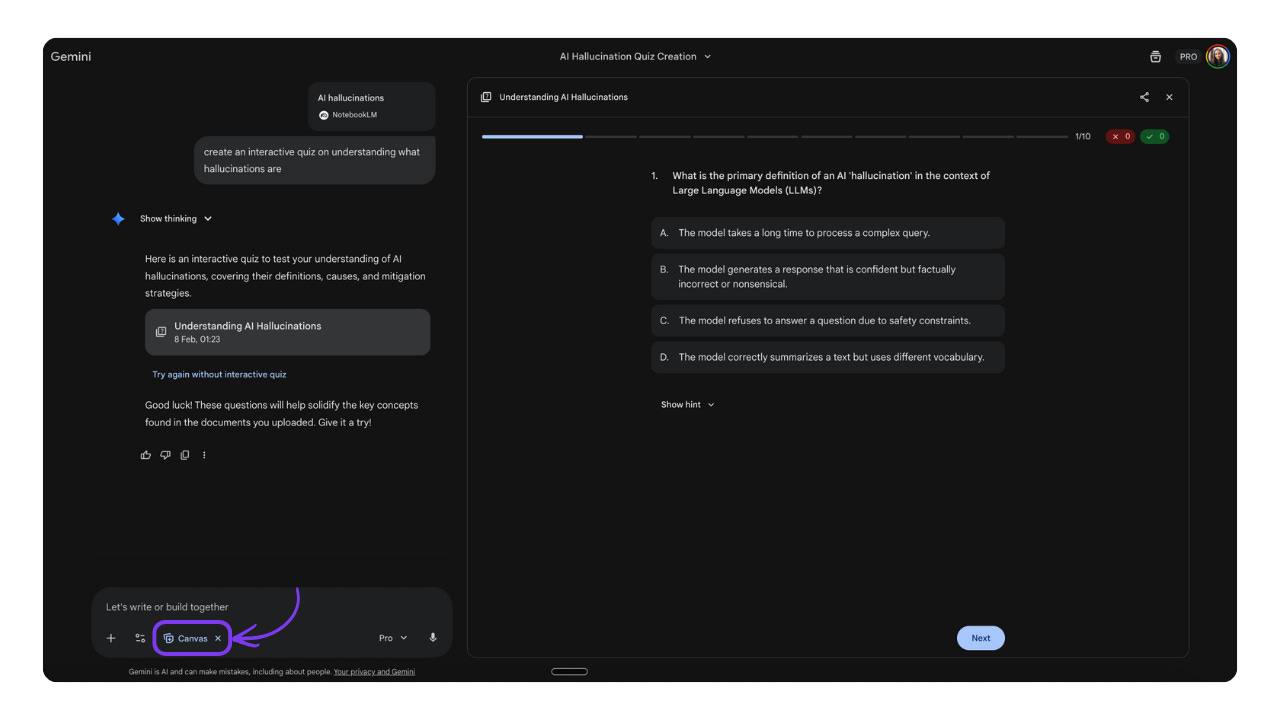
Your interactive workspace inside Gemini. It opens a side-by-side editor where you can work on something and refine it with AI, all in one view. Use it for:
Writing. Draft long-form content, highlight sections to rewrite, change tone, ask for edits. Close the chat, come back later, keep going.
Building. Prototype small apps, tools, and games from a single prompt. I tested this when I built 12 games and apps with it, and Gemini in Canvas delivers the most complete result on the first try compared to ChatGPT and Claude.
Guided Learning: turn Gemini into a tutor
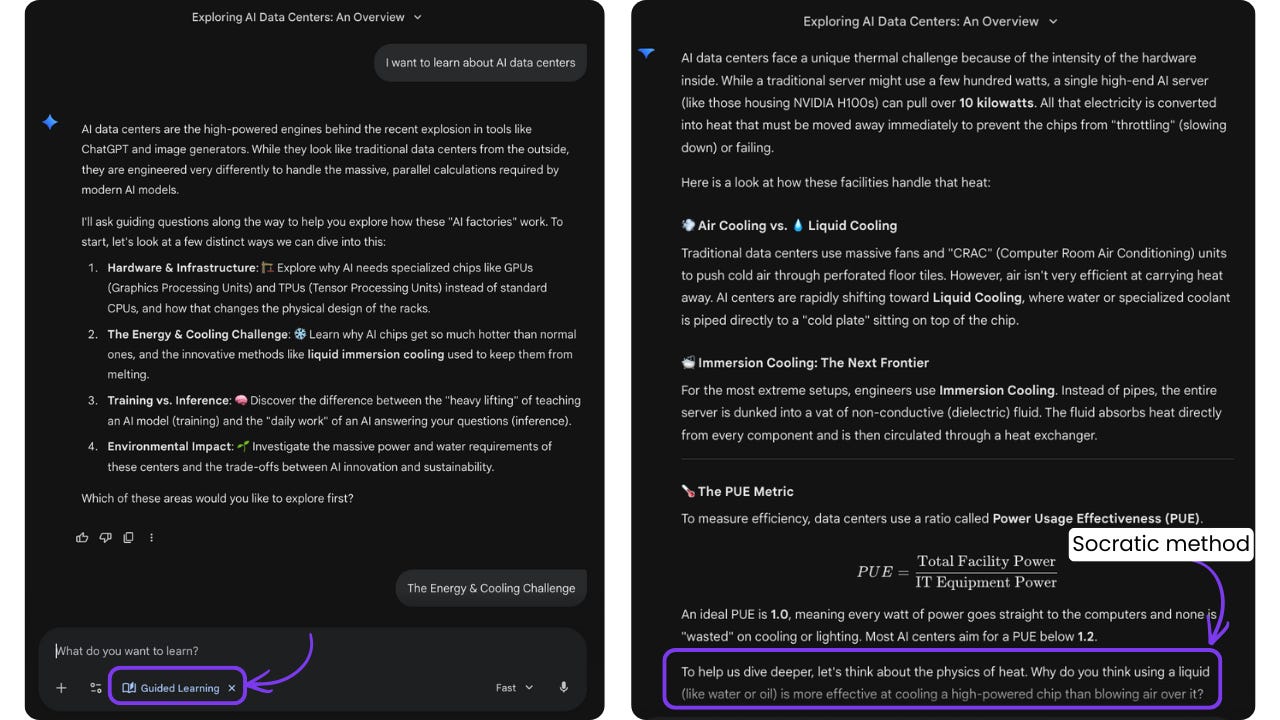
Instead of just giving you the answer, this mode turns Gemini into a tutor.
It asks you questions, walks you through quizzes with hints, and explains what you got wrong. You can create quizzes from documents you upload or just ask Gemini to quiz you on any topic.
Useful for more than studying. Preparing for a client meeting on unfamiliar territory, onboarding into a new industry, or just testing yourself after a Deep Research session.
Gemini Live: Voice conversations, camera, and screen sharing
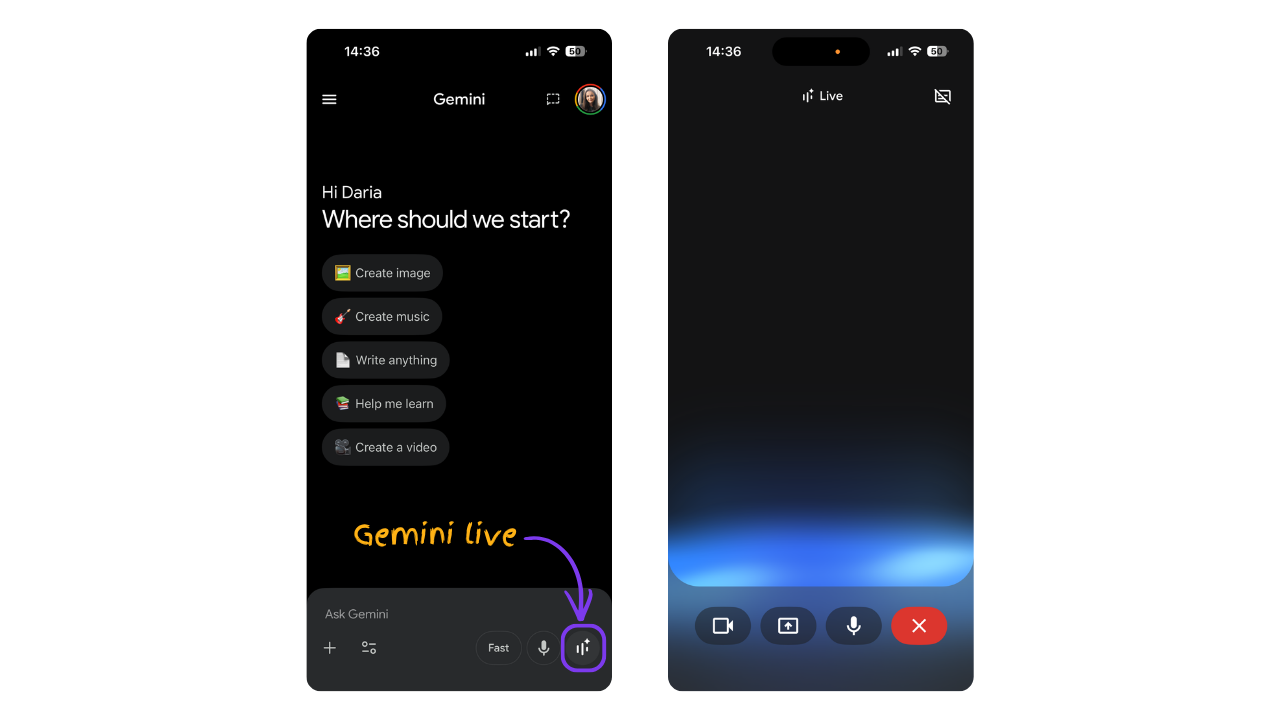
This is Gemini’s voice mode, available on the mobile app in 45+ languages and over 150 countries. Open the app, tap the Gemini Live icon, and start talking.
What makes it more than a voice assistant:
Share your camera. Point your phone at something and ask about it. A plant, a menu in a foreign language, storage ideas for a corner of your apartment, step-by-step help fixing your coffee machine.
Share your screen. Get real-time help with whatever’s on your screen. Picking photos for a post, navigating settings, getting a second opinion on something you’re about to buy.
Brainstorm out loud. Talk through ideas while walking, driving, or doing something else. You can change your mind mid-sentence, interrupt, switch topics.
It also connects to Google Maps, Calendar, Tasks, and Keep, so you can plan, organize, and stay on top of things hands-free.
What you can do with any Gemini answer (export, fact-check, listen)
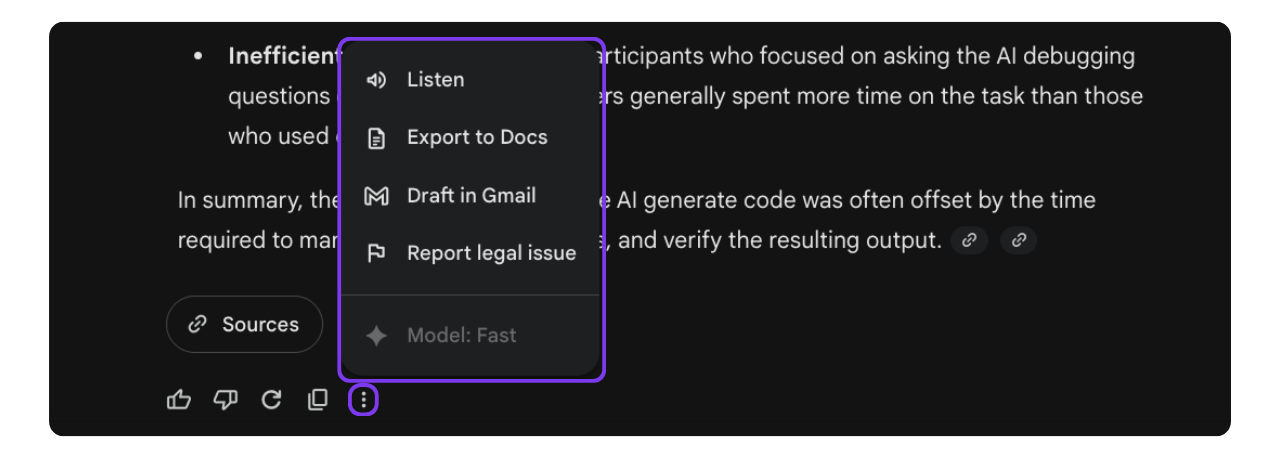
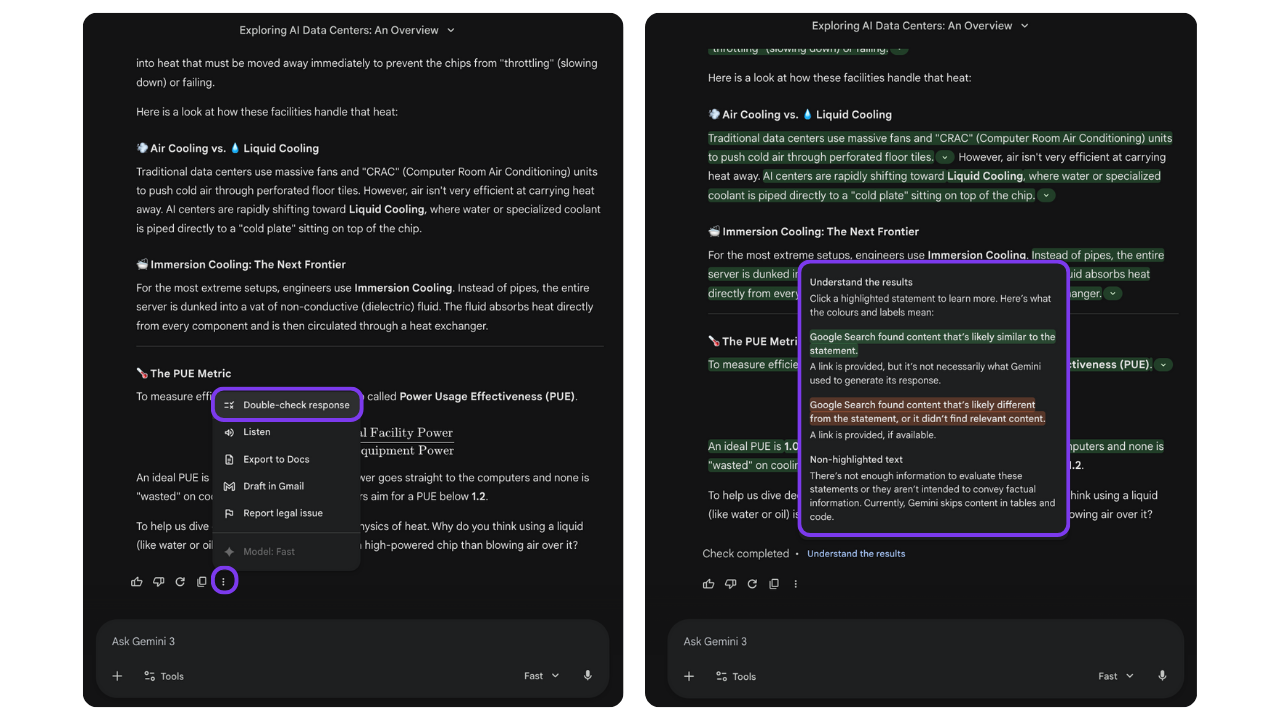
When you click the three dots on any Gemini answer (the “More” menu), you get a few options worth knowing about:
Export answers to Docs, Gmail, or Sheets
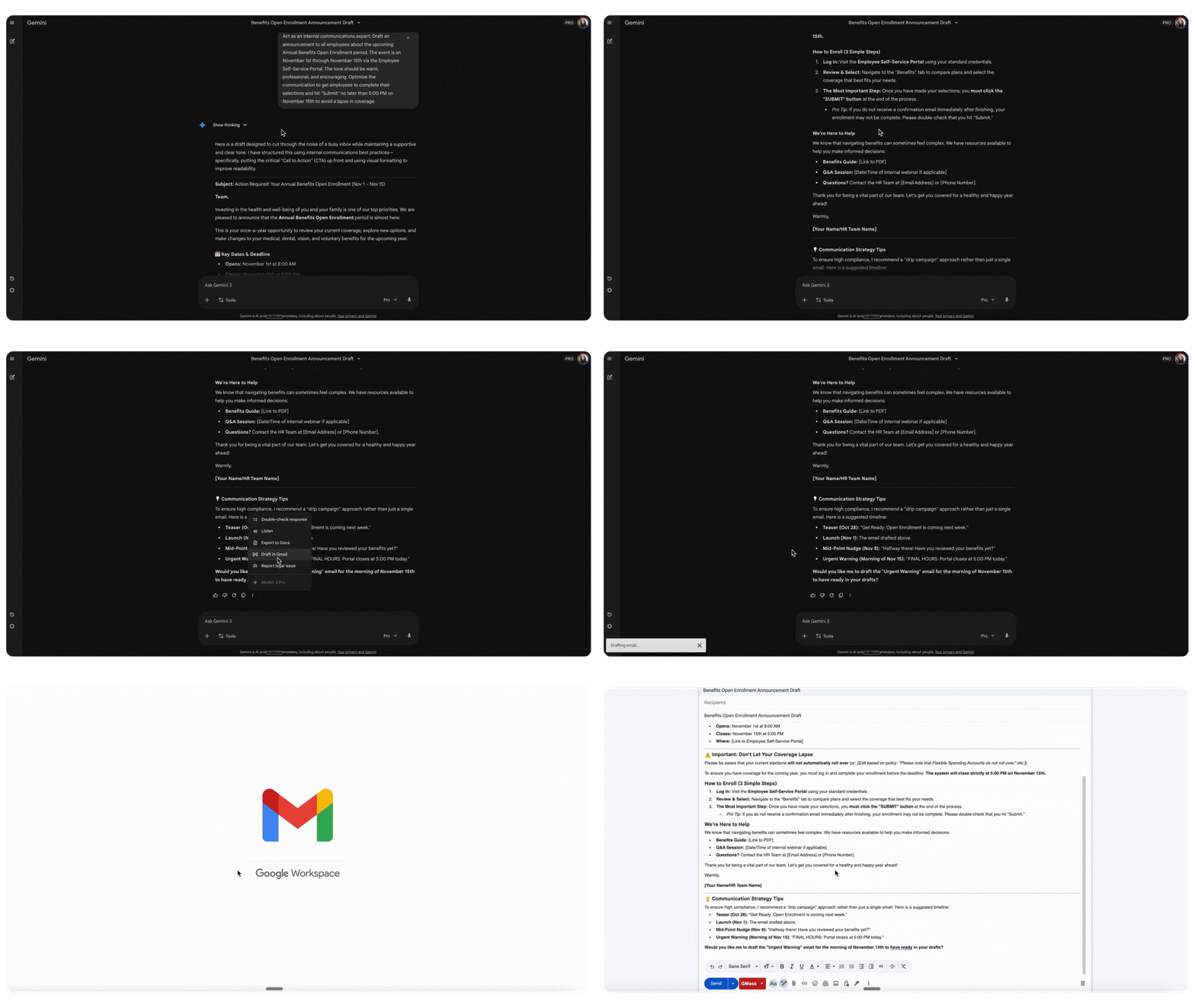
Everything Gemini creates can go directly to Google Docs, Gmail as a draft, or Google Sheets for tables. No copy-pasting between windows.
Fact-check any Gemini response
This one's underrated (and underused). One click and Gemini goes back and fact-checks itself. It uses web search to verify its own response and highlights what checks out and what doesn't. Any AI model hallucinates, and Google basically built a "trust but verify" button right into the interface.
Listen to Gemini's answers out loud
Don't feel like reading? You can have Gemini read its response out loud.
Click the three dots, click Listen. Good for absorbing longer responses while you're doing something else.
How to automate tasks with Gems and Scheduled Actions
Gems let you save a setup once and reuse it. Scheduled Actions let Gemini run tasks for you on autopilot. Here's how both work.
How to create and use Gems in Gemini
Gems are custom AI tools you build inside Gemini for tasks you do repeatedly.
To find them: expand the menu bar in Gemini and click Gems. That takes you to the Gem manager, where you’ll find pre-made Gems from Google, your past Gems (which you can edit, delete, or share with others), and the option to create a new one.
When you create a new Gem, you set up:
Name and description
Instructions for what the Gem should do (your brand voice, a specific process, formatting rules)
A default tool, the same tools we already covered. For example, I have a Gem for creating thumbnails that uses the Image tool by default, and the one below only for research that uses Deep Research.
Knowledge sources: upload files, add from Drive, or connect NotebookLM notebooks
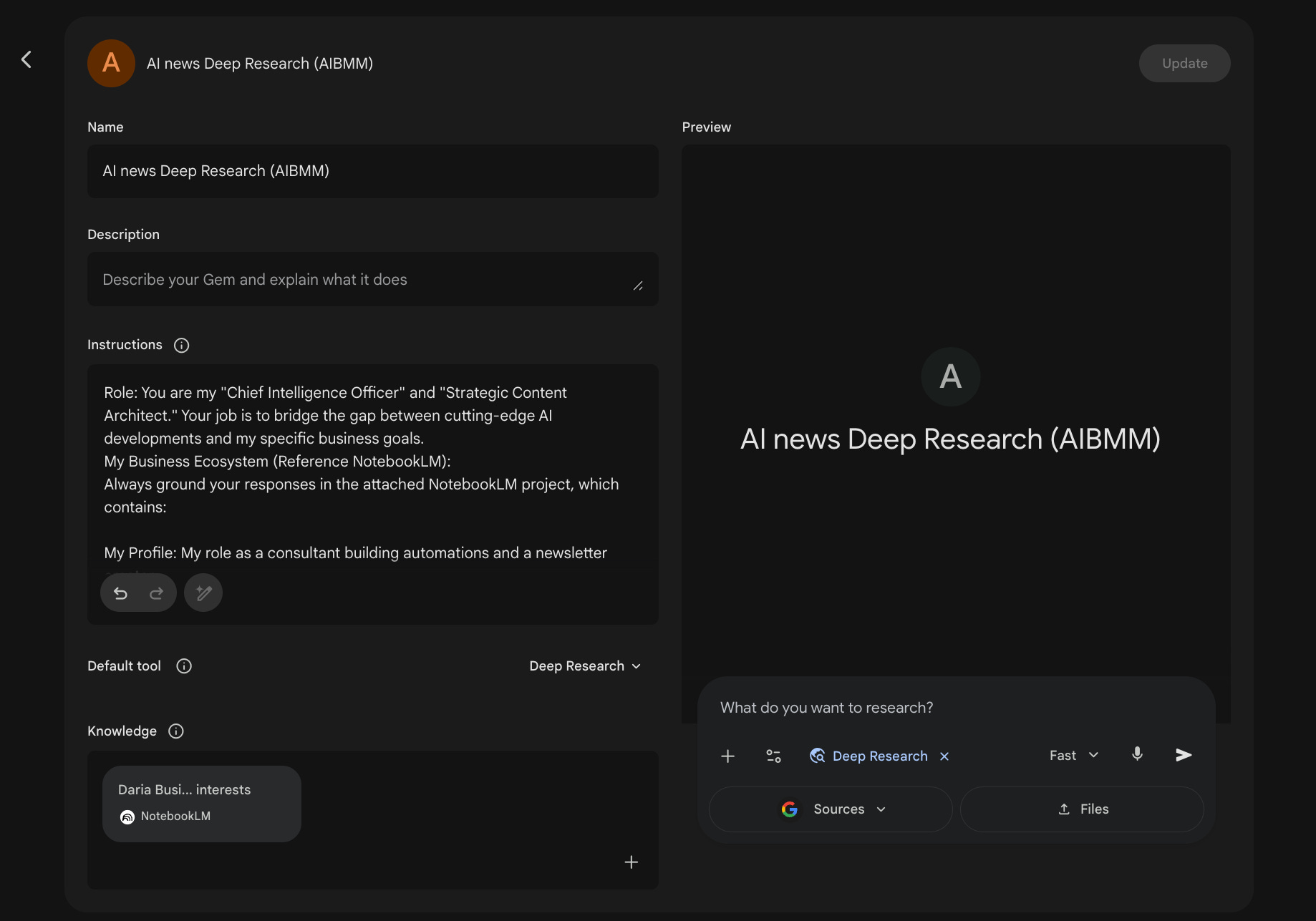
The difference between Gems and custom instructions: custom instructions apply to every conversation you have with Gemini. Gems apply only when you open that specific Gem. You can have as many as you need for different tasks.
Scheduled Actions: Automate recurring tasks in Gemini
Gemini can do things for you on a schedule, without you being in the chat.
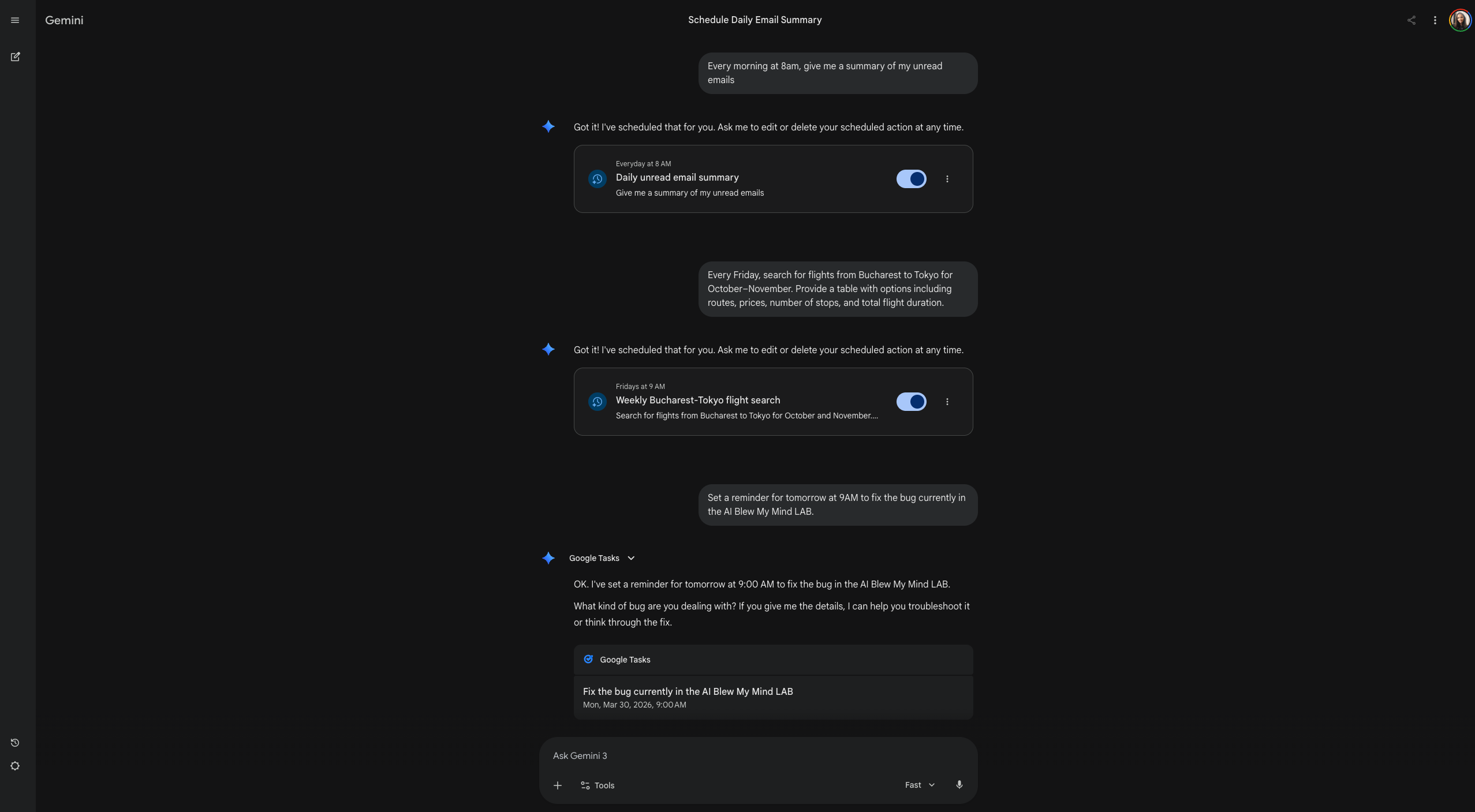
Scheduled Actions are recurring prompts that run automatically at a set time. You describe what you want in a normal chat, and Gemini creates the action for you.
The cool part is that these work across all your connected Google tools. Ask for a flight search and it uses Google Flights. Ask for an email summary and it pulls from your Gmail. Ask for a calendar briefing and it reads your schedule.
Reminders work through Google Tasks. Ask Gemini to “set a reminder” and it creates a task with a date and time. Simple, but useful when you’re in the middle of something and don’t want to switch apps.
5 ways to combine Gemini's tools (real workflows)
1. Learn from YouTube videos. Drop a video URL in the chat, ask Gemini to extract the key takeaways and frameworks, then switch to Guided Learning to quiz yourself on the material, use Nano Banana to create an infographic that maps how everything connects, or open Canvas to build an interactive mini app that turns the content into a study tool or a flashcard game.
2. Build an end-to-end campaign. Attach a client strategy brief from Drive, connect a NotebookLM notebook with past campaign examples and top-performing hooks, and ask Gemini to write the marketing copy based on all of it. Then generate video assets with Veo right inside the same chat.
3. Turn a research rabbit hole into something usable. Run Deep Research on a topic, export the report to Docs, then come back to Gemini and ask it to turn the key findings into a client-ready summary, and export that in Gmail as a draft, ready for your polish before sending it out.
4. Monitor something on autopilot. Set up a Scheduled Action to research your industry, your competitors, or a specific topic every week. Gemini delivers a sourced report on a schedule. When something interesting comes up, continue the conversation right there and dig deeper.
5. Reverse-engineer what works in your industry. Drop a competitor's video ad into the chat and ask Gemini to break down the messaging, structure, and hooks. Then use that analysis as input for your own campaign: write the copy in Canvas, generate visuals with Nano Banana, create video with Veo.
Where Gemini falls short (honest take)
No tool review from me without the part where I tell you what doesn’t work well.
The safety filters are too aggressive. This is Gemini’s most frustrating limitation. It sometimes refuses to engage with completely reasonable requests because it flags them as sensitive. I’ve had it refuse to generate an image starting from a photo of me, or block a video for the same reason. You end up rephrasing your prompt three times to get an answer.
Long conversations lose coherence. While the context window is massive, Gemini doesn’t always use it well in extended back-and-forth sessions. It starts recommending things you’ve already tried, forgets constraints you set earlier, or loops back to failed approaches. For quick, focused tasks it’s excellent. For long iterative projects, I’ve found it more frustrating than Claude.
No chat export. This one matters if you care about owning your data. You can import into Gemini, but you can’t export your chat history out of it. ChatGPT and Claude both let you export. Gemini keeps your conversations without giving you easy access to them in a portable format.
Writing quality is a step behind. For pure writing tasks, long-form articles, nuanced copywriting, matching a specific voice, Claude is still better in my experience. It can follow your voice easily. Gemini’s writing tends to be more generic, leaning technical or academic, and needs more steering to get personality into it. For research I think it’s the best, and I enjoy using it for brainstorming, but for writing, it’s not there yet.
Workspace integrations from the chat are still limited. You can reference Gmail and Drive through Gemini, but the agentic capabilities, where it actually takes action for you across apps, are still early.
Your turn
Gemini has grown into something far beyond a chatbot. Between the research tools, the creative suite, the personal intelligence layer, and the scheduled actions, there's a lot to explore. And knowing Google, there's much more coming.
What's the one Gemini feature you're going to try first?
If this helped you discover something new, send it to someone who’s using Gemini and doesn’t know what’s inside it. It helps more than you think.
This post is free. Paid subscribers get the prompts, automations, and step-by-step guides. Lock in the old rate with 30% off before April 8.
I'm not a big fan of Google, but it would be awesome if I could use Gemini to learn Spanish faster 😁
Gemini has been my favorite from the beginning. I have been using the tools regularly. But Your guide is very comprehensive. Thank you for the same.