
Claude Cowork: Run Scheduled Tasks on Your Files, Laptop Closed
Yes, cloud tasks run while you sleep — but not on your local files. Here's the trick to keep Cowork working on your own files with your laptop closed.
I opened Claude on Wednesday and couldn’t find Cowork.
The tab was gone. If that happened to you too, know that a lot of people spent that morning hunting for a button that had moved overnight or chasing where their projects went.
But Cowork didn’t disappear. It moved in with Chat. And the UI change isn’t the biggest thing Anthropic shipped this week. This is:
Cowork now runs in the cloud, and scheduled tasks keep working with your laptop closed.
That one change is what most of this article is about, and it’s why I stayed up testing.
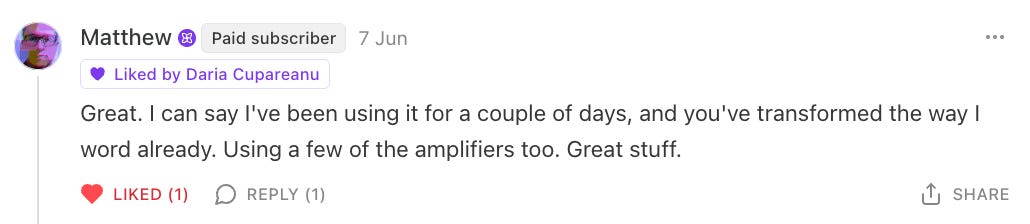
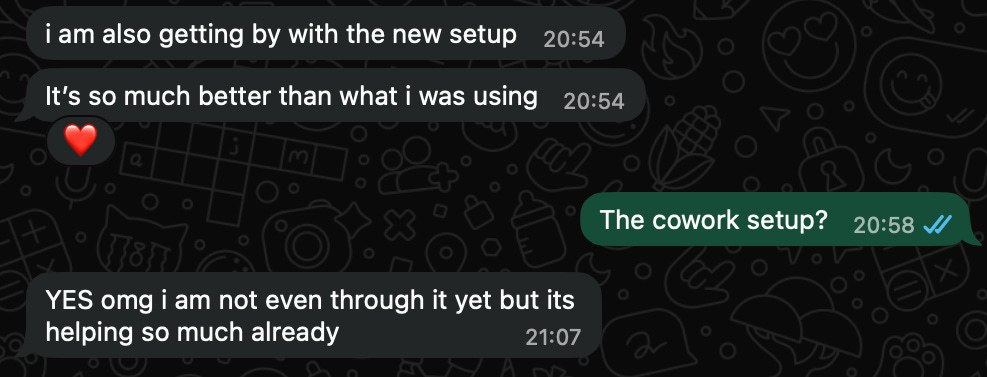
Because ever since I published my Cowork OS, the feedback you’ve sent me has been overwhelmingly positive:
But it still had one limitation, and it’s the thing many of you kept asking me about: “How do I make it run while I sleep, with my laptop closed, like your Claude Code OS?”
Until this week, my answer was: you can’t. That’s why I built my distribution system in Claude Code, because routines run on Anthropic’s servers, so my automations run 24/7, on vacation, on weekends, lid closed.
But I know many of you don’t want to move to Claude Code. You live in Cowork because your work isn’t about writing code.
And according to Anthropic’s data, released with this week’s launch, over 90% of Cowork usage has nothing to do with coding.
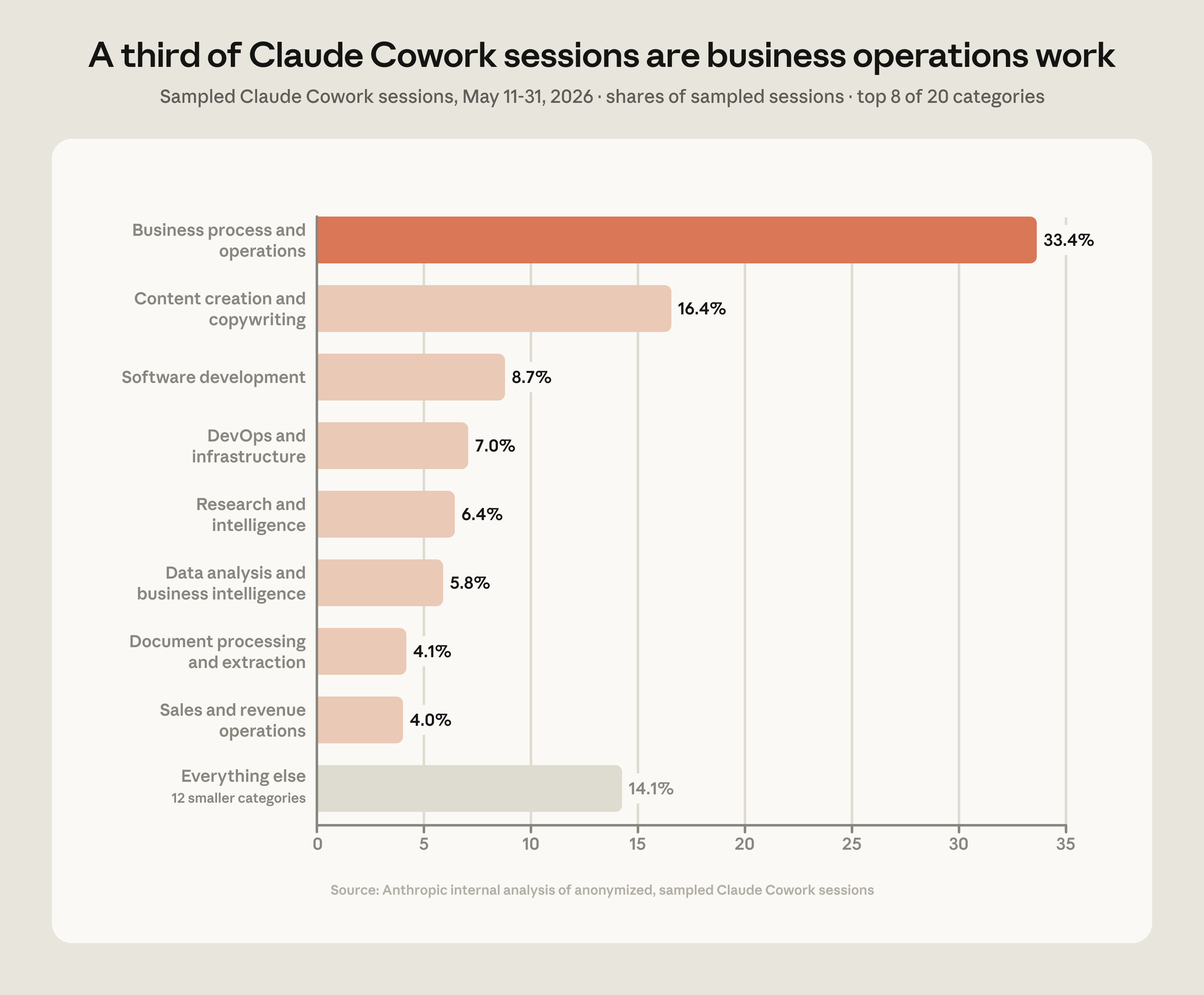
Which means most Cowork users are exactly the people who benefit from this update.
So when Anthropic announced that scheduled tasks now run in the cloud, I had to test it for you. Five test runs, two failures, one undocumented limitation, and one scheduled task that ran with my MacBook closed on my desk.
Think of this as Part 2 of the Cowork OS. Part 1 gave you the folder that holds all your work.
This one adds the piece it was missing: scheduled tasks that keep running while your laptop is closed. A morning brief waiting when you wake up, weekly tasks firing on schedule, everything reviewable from your phone. No terminal. No code.
We’ll start with this week’s news, in case you haven’t opened Claude yet, and then get your Cowork OS set up to run while you sleep.
Here’s what we’ll cover today:
What shipped this week, and what each update means for you
The catch: why your scheduled tasks will NOT run with your laptop closed if you set them up the obvious way
For premium subscribers: the full setup that fixes it, tested step by step, with every prompt ready to paste
Quick news: Fable 5 is free on all paid plans through July 12
Before the main event, one small update worth catching. Access to Claude Fable 5 has been extended for all paid plans through July 12, so if you haven’t tried it yet, this is your window.
I’ve already covered how to use Fable 5 without dragging your ChatGPT habits into it and 30+ real builds from the first 72 hours, so I won’t repeat any of it here. Go try it before the window closes, then come back for the part that matters.
The Cowork tab moved: Chat and Cowork now share one home
The Cowork tab is gone from the desktop app. In its place, two tabs: Home and Code. Everything you used Cowork for now lives inside Home.
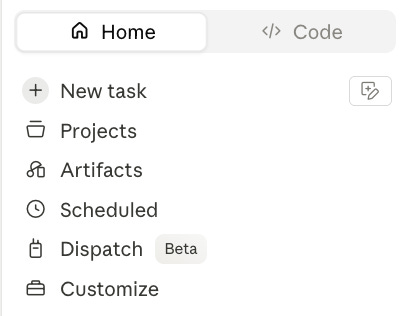
To find Cowork, look at the bottom-left corner of the message box, where there’s a small selector.
Pick Cowork: you describe a task.
Pick Chat: you have a conversation.
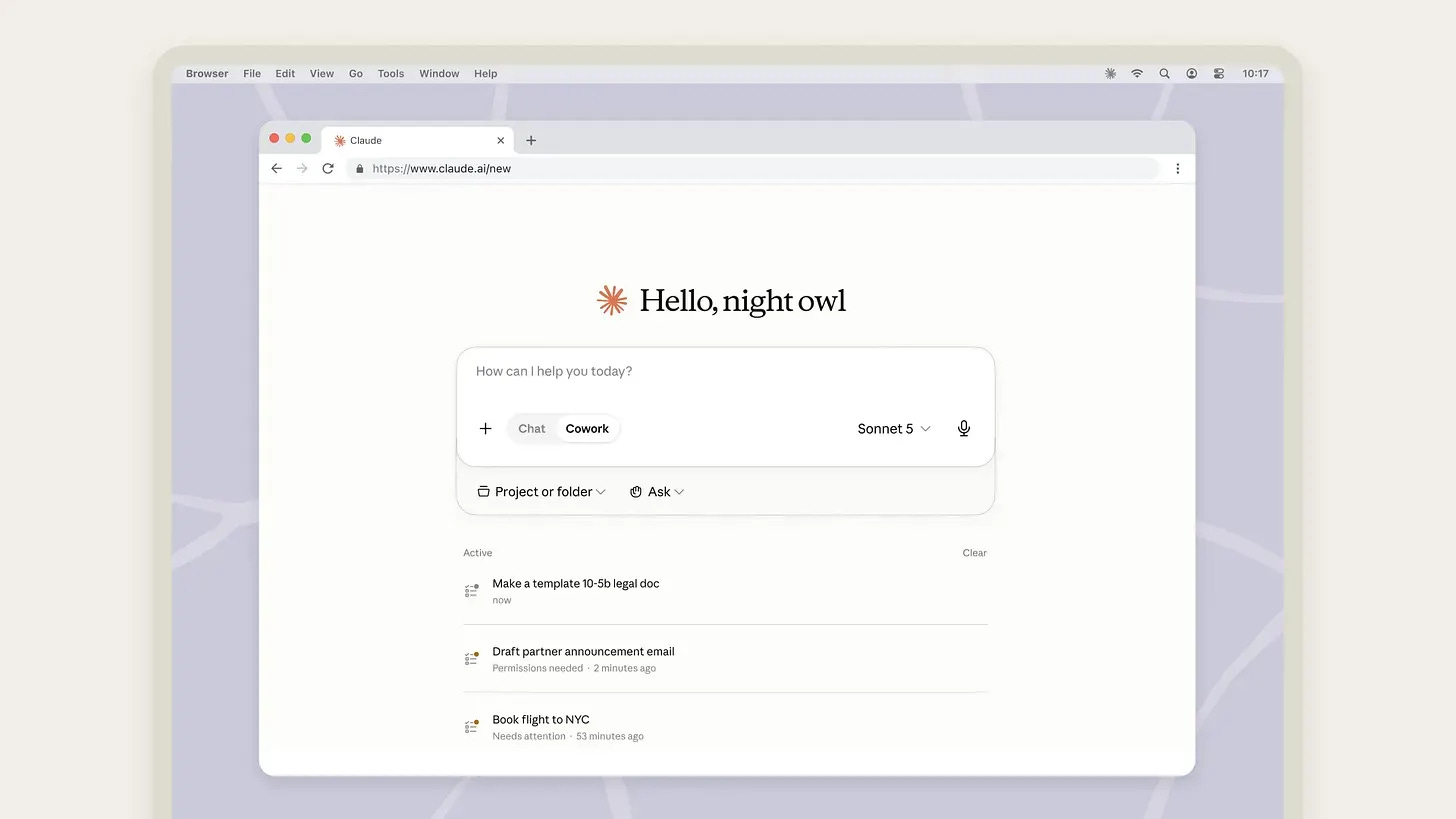
Same window, same sidebar, and your projects and artifacts now live together across both.
Reactions have been mixed, and I get why. For months, people complained that the desktop app had become cluttered, so two tabs instead of three is undeniably cleaner. But the trade-off is that Chat and Cowork projects now live in the same place, and I know many of you preferred keeping them separate.
Looking back, this update felt inevitable, though.
Anthropic has been nudging people toward Cowork for months. They increased usage limits, kept expanding what it could do, and those little in-app notifications encouraging you to move a Chat conversation into Cowork became more and more common. Folding it into Home felt like the next obvious step.
And I think that’s the real lesson from this update. Interfaces change. Your system shouldn’t.
Why I keep my work in a Cowork OS, not inside the app
The Cowork OS is simply a folder where Claude keeps everything about your work: your rules, projects, instructions, preferences, and memory.
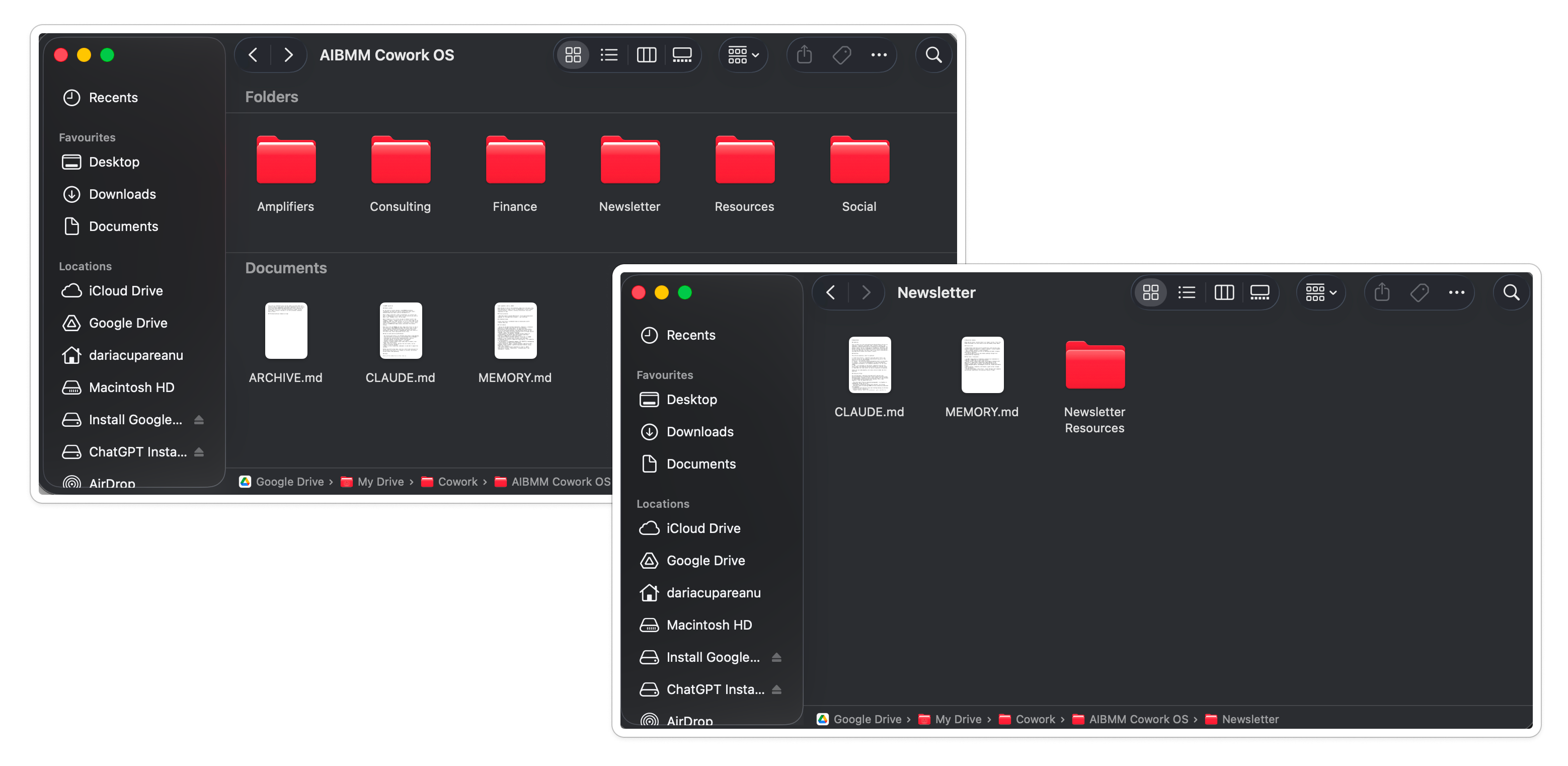
Every time you start a session, Claude reads those files before it does anything else. It loads your rules, checks what you’re currently working on, follows the routing instructions to find the right workspace or project, and uses that context to complete the task. As you work, it updates the right memory files with new decisions and information, so the next session starts where the last one ended.
Here’s why I’ve been recommending this approach from the start:
App redesigns can’t touch you. Your structure lives in your folder, under your control. When Anthropic merges tabs or blends projects, like it just did, nothing of yours moves.
Memory that beats the built-in features. Better than the “turn on memory” toggle, better than global instructions. Every session works in the folder, logs every decision and preference, and reads it all back next time. You never start from scratch, never repeat yourself, never fight instructions it forgot to apply.
Everything in plain files you own. Readable, portable, backed up, shareable with a team if you want.
And this week, it gained one more advantage.
Claude Cowork now runs in the cloud, on mobile and web
Cowork is rolling out to web and mobile in beta, starting with Max plans, with more plans following over the next few weeks.
This is the update that matters most for our work. Here’s what changes:
You can finally close your laptop. Claude keeps working even after your computer goes to sleep or turns off. Until now, your laptop had to stay awake with Claude open. Now your sessions live in your Claude account, so you can pick up the same work from any device.

This little guy just got laid off. Your laptop can finally go to sleep. Your AI won’t. Your work follows you. Start something on your laptop, check on it from your phone, then come back later from another computer. It’s the same session everywhere.
Scheduled tasks no longer depend on your computer. Set Monday’s board meeting prep for 7 a.m., and Claude works through your email, Drive, or whatever you’ve connected, builds the briefing, and has it waiting for you to review.

All three of these changes come from one thing: Cowork no longer runs on your laptop. It runs on Anthropic’s servers. That’s the update that matters most for our Cowork OS, because for the first time, it can keep working 24/7 without depending on your computer staying awake.
PS. To celebrate the launch, Anthropic is doubling Cowork usage limits through August 5. Yet, if you tend to still hit the ceiling, my 15 habits for staying under Claude’s limits still apply.
The catch: why scheduled tasks stop when your laptop sleeps
Everything we’ve covered so far leads to one thing: making your Cowork OS work while you sleep, using scheduled tasks that no longer depend on your computer staying awake.
But it comes with one big asterisk, printed right on the Scheduled page: “Tasks set to run on your computer only run while it’s awake.”
And since our Cowork OS lives in a folder on our computer, the moment a scheduled task needs files from that folder, Claude stops running it in the cloud and switches back to your machine. If your laptop is asleep, the task never starts.
That’s why “Summarize my Gmail and Calendar every morning” works perfectly with the lid closed, because it’s using cloud connectors, while “Look through my client files, update the project memory, and send a note to the client when a deliverable is finished” doesn’t.
For our setup, that’s a pretty big limitation.
It’s also why I spent yesterday running the same scheduled tasks over and over, changing one variable at a time until I understood exactly where the boundary was.
Eventually, I found a workaround. It lets your local Cowork OS keep running automations while your laptop is closed, without moving everything into Claude Code.
Before I show you how to build it, though, let’s spend one minute looking at how scheduled tasks work.
How Claude Cowork scheduled tasks work (in 60 seconds)
Scheduled tasks are the machine all of this runs on, so let’s make sure we’re looking at the same thing.
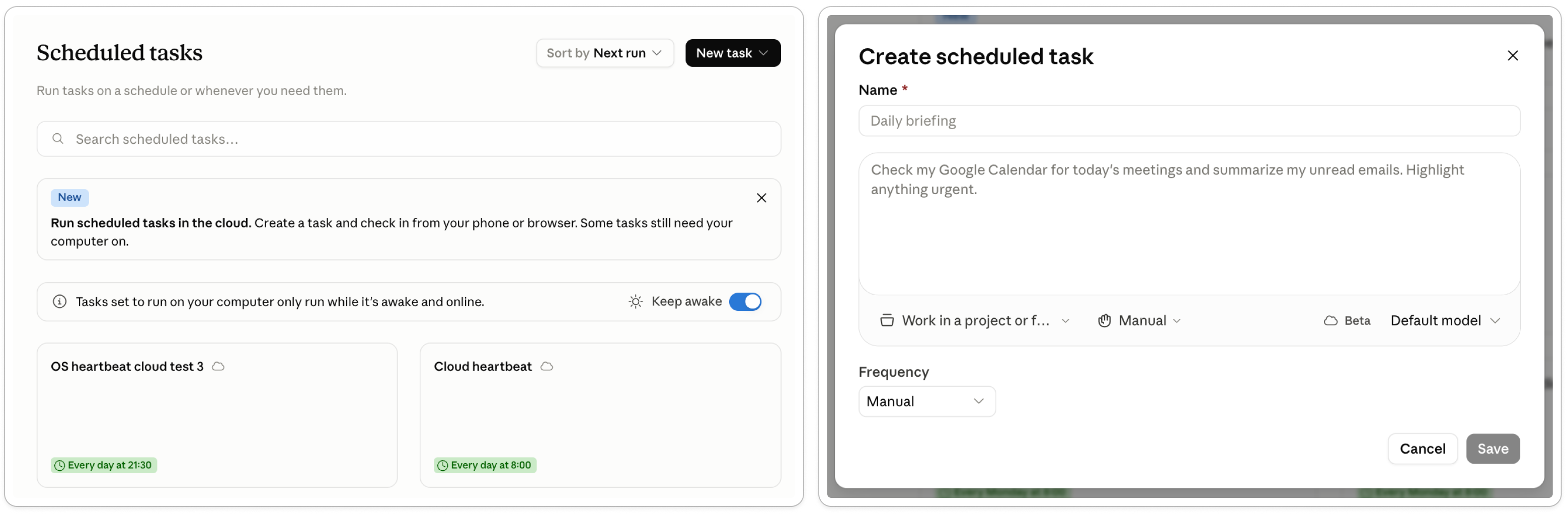
A scheduled task is a prompt that runs itself. You write it once, pick how often it fires, and Cowork does it without you starting a session. What’s new this week is where they can run.
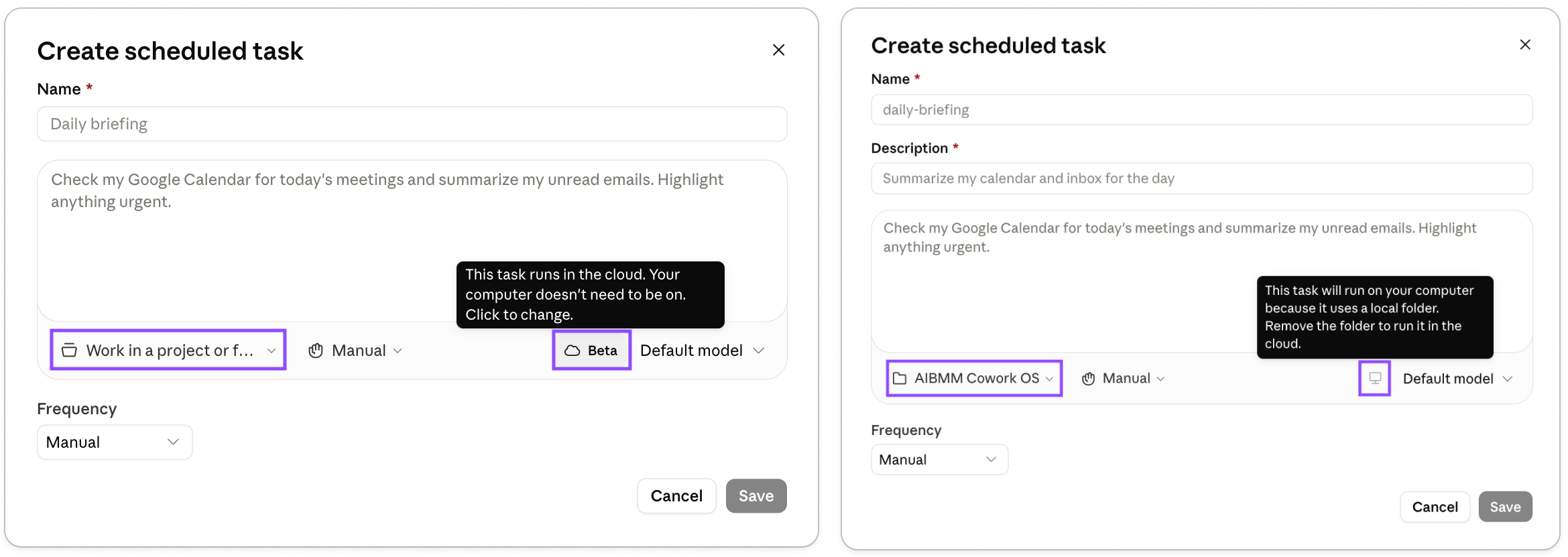
You’ll find them under Scheduled in Cowork’s left sidebar. Click New task, and a small form opens. Five things live in that form:
Name and prompt. What the task is called, and what Claude does when it fires. Type
/in the prompt to pull in your Skills and plugins.The “Work in a project or folder” picker. The most important setting on the form for us. It decides where the task runs. Pick a folder on your computer, and it runs on your computer. Leave it empty, and it runs in the cloud.
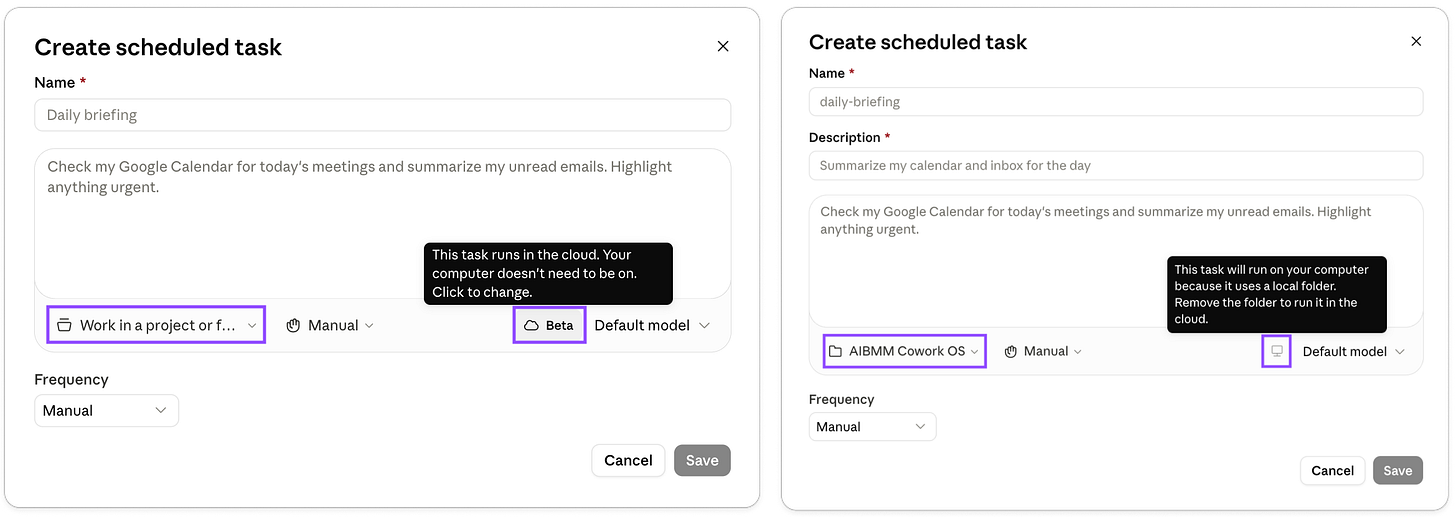
Notice how selecting a local folder switches the task to run only on your computer while it’s awake and online. Approval setting. “Manually approve each action” pauses and asks before touching anything. “Skip all approvals” never pauses.
Model. For most things, you can leave it on default.
Frequency. Hourly, daily, weekly, weekdays, or manual. No monthly, so plan weekly. Every task also has a run-on-demand button, which is how you test before trusting a schedule.
That’s everything you need to know about scheduled tasks. Now let’s fix their biggest limitation.
And even if you never build a full Cowork OS, you can use this same setup for any automation that works with files stored on your computer. Whether it’s organizing invoices, summarizing PDFs, processing transcripts, or updating reports in a folder, the idea is exactly the same.
From here on, this guide continues for Premium subscribers. This is where we’ll turn your scheduled tasks into cloud automations that can still work with the files stored on your computer.
If you already have a Cowork OS, you’re basically one prompt away from getting it running while your laptop is closed.
If you’re building one for the first time, it’s just three prompts and a few quick setup steps.