
Why Your AI Images Stall at "Almost Right" (the Fix Isn't a Better Prompt)
Your AI images always feel "almost right". The free Creative Feedback Loop lets you pin feedback, compare every version, and finish them inside Claude.
TL;DR: AI models can generate awesome logos, thumbnails, and social posts, but the results still feel close rather than ready to use. The missing step is review: comparing versions, pointing to what needs to change, bringing in other people, and improving the work through several rounds. AI chat gives you no good place to do that. The Creative Feedback Loop fixes it inside Claude, and we made it free to use. You can pin feedback to exact spots, see every option in context, share a review link with anyone, and keep iterating until you reach the final version. It’s live in Amplifiers now.
Every piece of creative work gets good the same way. You make a few versions, you sit with them, and sometimes you bring in other eyes too. Someone says “the second one, but the blue is off”, and you go again.
Design tools have supported this process for years. For years, tools like Figma have let several people review the same asset a designer created, pin comments to exact spots, and see everyone else’s feedback in one place.
But now that more of our creative work is made by AI, that feedback layer has disappeared.
You can generate a logo, thumbnail, app icon, or social post in seconds. Then you’re left inside one chat window, trying to explain what needs to change and sending screenshots around when someone else needs to weigh in.
I’d been running into this for a long time whenever I created a visual style for my assets. Inside a chat, I couldn’t line up all the options, compare them properly, refine only the promising ones, or send them to my team for a look.
And I know I’m not the only one. Any content creator using AI, any marketer making visuals and copy with it, anyone creating things with AI at all, runs straight into this.
Matei, my business partner, found the solution by accident while creating a logo for Amplifiers.
It was a Sunday, he was away with his family, and he couldn’t stay attached to his computer, working through every version with Claude. Like a lot of good ideas, this one came from a constraint. He needed the logo done, so he let AI carry the process, by gaving Claude one goal, set using the /goal command: Build a logo for Amplifiers and show it to me on a webpage where I can give feedback on every option, keep iterating until I pick a winner, and improve each new batch from my notes.
Claude built the interface, and Matei hosted it on Vercel. He could open the page whenever he had a few minutes, compare the options, leave feedback, and come back for the next batch.
That was when we realized how much easier creative work becomes when everything is laid out on the same page.
You can compare all the options, leave feedback directly on the ones that are close, and generate another batch that builds on what you liked.
So Matei kept improving that original interface and turned it into the Creative Feedback Loop inside Amplifiers. You can now use it for free to review and improve all kinds of creative work, from text to images, on your own or with other people.
And because knowing what to ask Claude for in the first place can be just as hard, I’ve put together a prompt library at the end of this article to help you create a strong first batch of ads, social posts, covers, moodboards, app icons, and more.
PS. If you’re new here, Amplifiers gives Claude or ChatGPT the tools and workflows of a whole team of specialists. Connect it once, and it can research, generate images, and produce high-quality work across marketing, design, writing, business, and more. You’re giving superpowers to the AI you already use, without adding another pile of tools or subscriptions.
Matei and I also opened a WhatsApp community where you can ask us questions, show us what you’re creating, and tell us which tools and workflows you need. Amplifiers is only three months old, and we’d love to build its next chapter with you. Join us here.
Here’s what we’ll cover:
How the Creative Feedback Loop works in Claude, step by step
For paid subscribers: My prompt library for generating a stronger first batch
Where giving AI feedback on images breaks first
With Amplifiers, you can open Claude and generate eight app icons in about two minutes. The models are extraordinary now, so you’ll probably get a few you really like.
But they usually still need some tweaks. You have to decide which one to keep and explain exactly what Claude should change to get to the final version.
And that’s where the interface gets in the way.
When ChatGPT launched, it launched as a chat window. One person, one text box, one thread. Because it was the first AI product that really worked, that became the shape of almost everything that followed.
Researchers who study human-AI collaboration have been flagging this as a design constraint for years. A chat can give you the first batch, but once you start working toward the final version, its limitations become obvious.
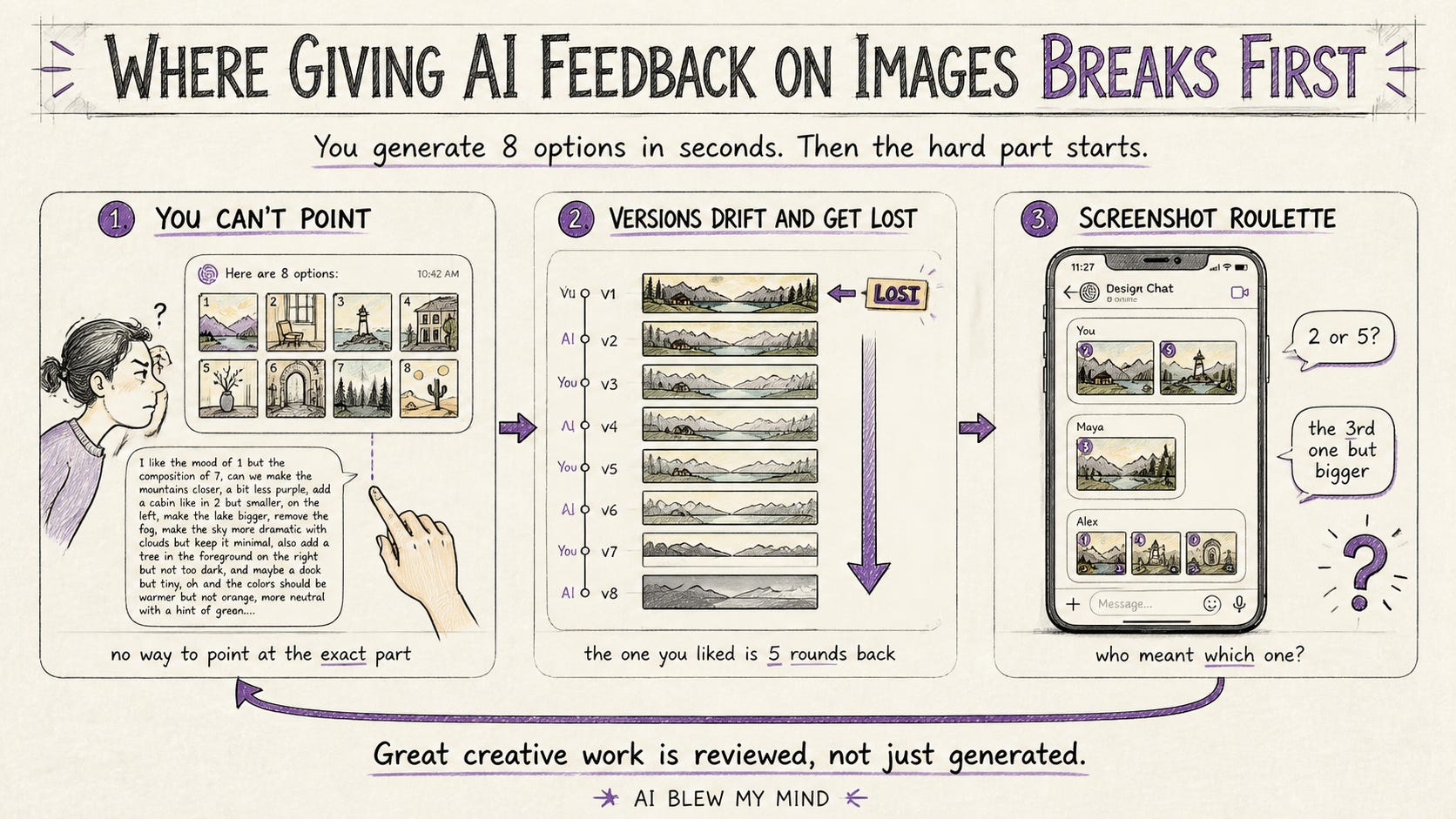
1. You can’t point to the exact part of an AI image
Say you’re creating an app icon. You’re looking at eight icons inside a scrolling chat, trying to work out which one still looks good when it’s the size of a real app on a phone. Number three is close, so you try to explain why:
“I like the third one, but the shape in the top-left looks strange, the gradient feels dated, and the mark needs to be bigger. The previous version had a better outline too. Can you keep that?”
You just wrote a paragraph about a picture you’re both looking at because there’s no way to point to the exact spot you want Claude to edit.
2. AI image quality drifts with iteration, and the version you liked gets buried
You add more instructions, generate another version, and the image starts to drift. A lot of people find that their AI images get worse the more they refine them. The version you liked may be several rounds back by then, buried somewhere in the chat.
Then you try to return to it, refine it, or combine what you liked about several generations into one final version. The result drifts again. You fix one detail and lose another, until the image is further away from the version you were trying to finish.
3. Getting feedback from other people means sharing screenshots
You paste the options into WhatsApp. One person says, “Two or five”. Someone else replies four hours later with, “The third one, but bigger”, and you’re no longer sure which third image they mean.
Then you copy their feedback into Claude, generate another batch, take more screenshots, and do it all again.
Very quickly, the process becomes inefficient. It’s hard to follow which version is which, collaborate with other people, and reach a final asset you’re happy to use.
How the Creative Feedback Loop works (video demo)
You ask Claude to start a Creative Feedback Loop for any text, image, or combination of both. Amplifiers creates and hosts the review page for you, which you can keep private or share with other people. There’s nothing technical to build or maintain.
The easiest way to understand it is to watch it work. In this video, I use it to create a book cover for a novel, from generating the first batch and leaving pinned feedback to creating the next round and choosing the final cover.
Creative Feedback Loop use cases
You can use the Creative Feedback Loop for anything you make with AI, but it’s especially useful when:
You need to compare several directions over multiple rounds without losing track of earlier versions.
You’re creating something you’ll use for a long time, so you want to spend more time getting the final version right.
Other people need to review and approve the work, especially when it combines images and text.
Here are a few examples of where I would use it.
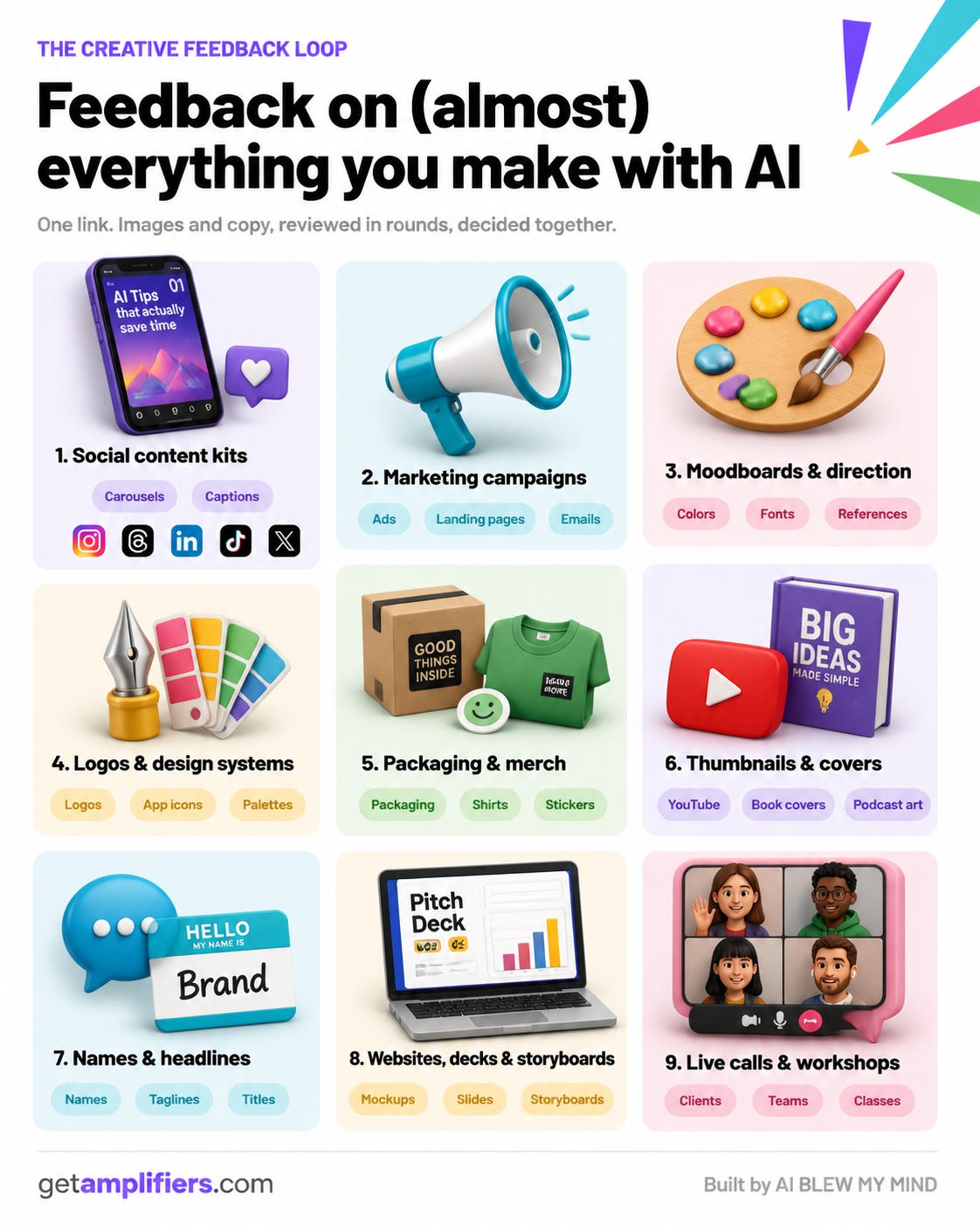
For each example below, I’m sharing the link to the actual feedback room alongside the screenshot. Feel free to open it, click through the options, and leave feedback yourself.
Paid subscribers will also find prompts for generating these kinds of starting directions at the end.
Marketing assets that need more iteration
You can start a separate Creative Feedback Loop for any campaign asset that needs more work, including:
Ad visuals and copy
Social media posts
Landing page hero images and headlines
Email subject lines
Product shots
Calls to action
Why it’s useful here: Marketing assets often look close after the first generation but still need several tweaks. The loop lets you compare directions, leave feedback on the promising ones, and generate new rounds without losing earlier versions until you reach the final asset.
Real example: https://app.getamplifiers.com/f/54Up_uQQw6T-PktVh37ozg
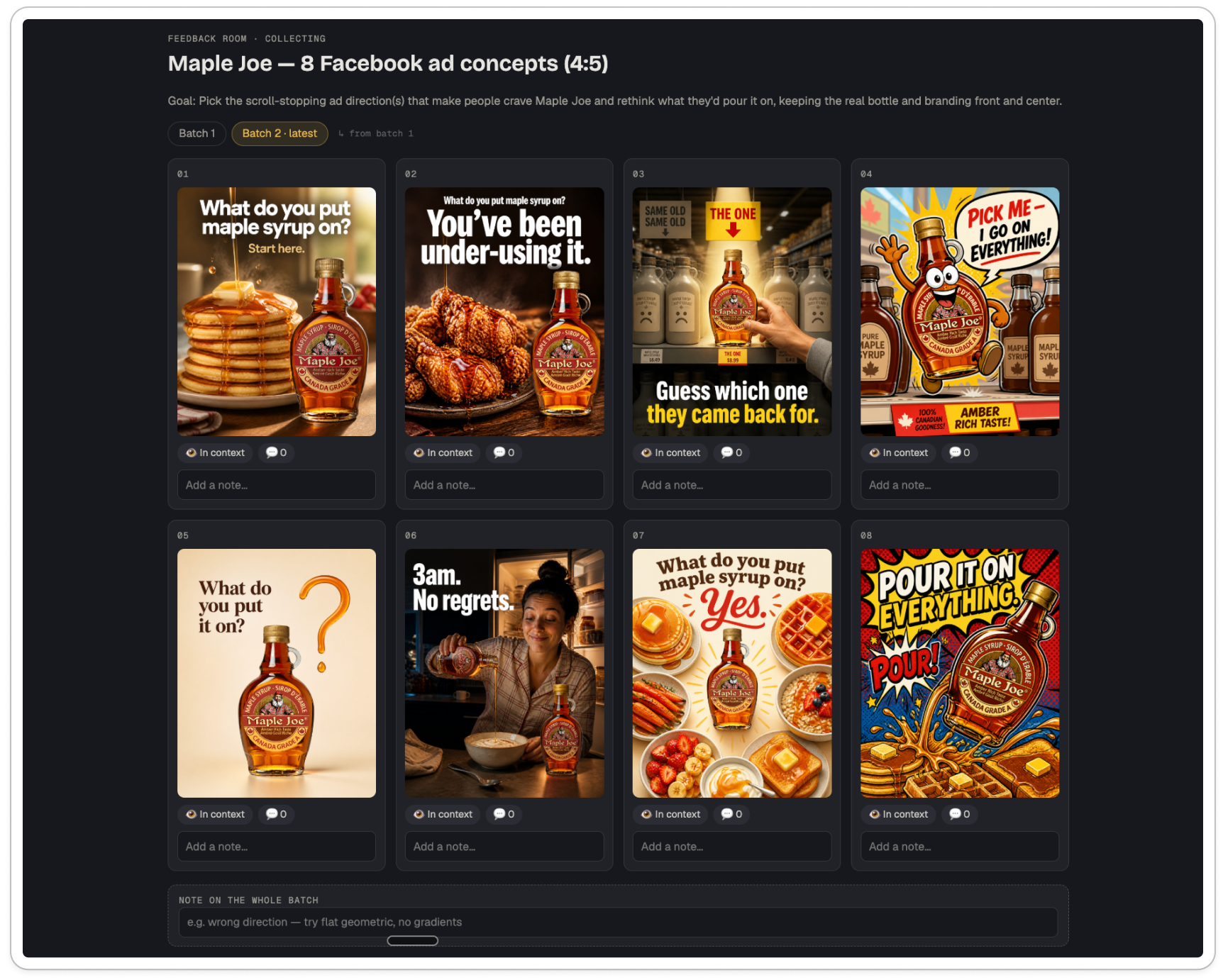
Moodboards and early creative direction
You can also use the loop before creating the final assets.
When you’re starting a logo, campaign, website, or design system, you can compare several moodboards or style directions on the same page.
Why it’s useful here: Seeing the directions side by side makes it easier to choose what you like, combine their strongest parts, and refine the one that feels closest. A client or team can comment on specific details too. Claude can then create the first assets from the chosen direction, or you can hand it to a designer.
Real example: https://app.getamplifiers.com/f/We7zkzMtXbjQbSIBiHYOzw
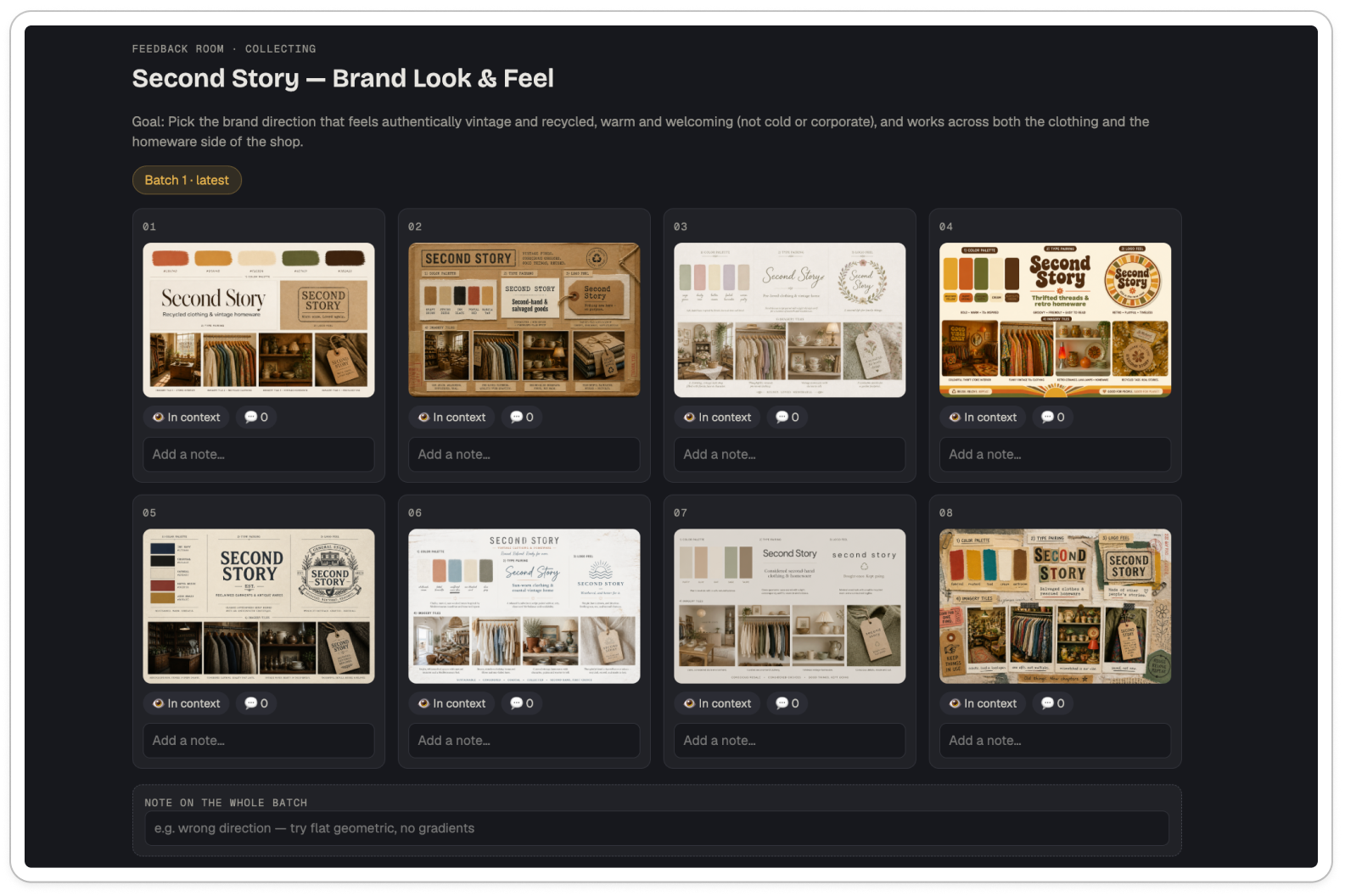
Logos, design systems, and product assets
These assets usually need more iteration because the direction you choose will affect everything you create afterward.
Logos: Compare several concepts and refine the strongest direction with feedback from your team or client.
Design systems: Review color palettes, typography, illustration styles, social templates, and interface directions together.
App icons: Compare several directions side by side and view each one on an iOS home screen at its real size.
Packaging and merch: Review graphics, colors, product names, placements, and copy across packaging, shirts, tote bags, stickers, or other products.
Why it’s useful here: These are projects you’ll keep using for a long time, so reaching the right final direction usually takes several rounds. Every earlier batch remains available, which means you can return to a version that worked if a later one moves too far away from it.
Real example: https://app.getamplifiers.com/f/_XDmrWHmC15DWqe7bELOWA
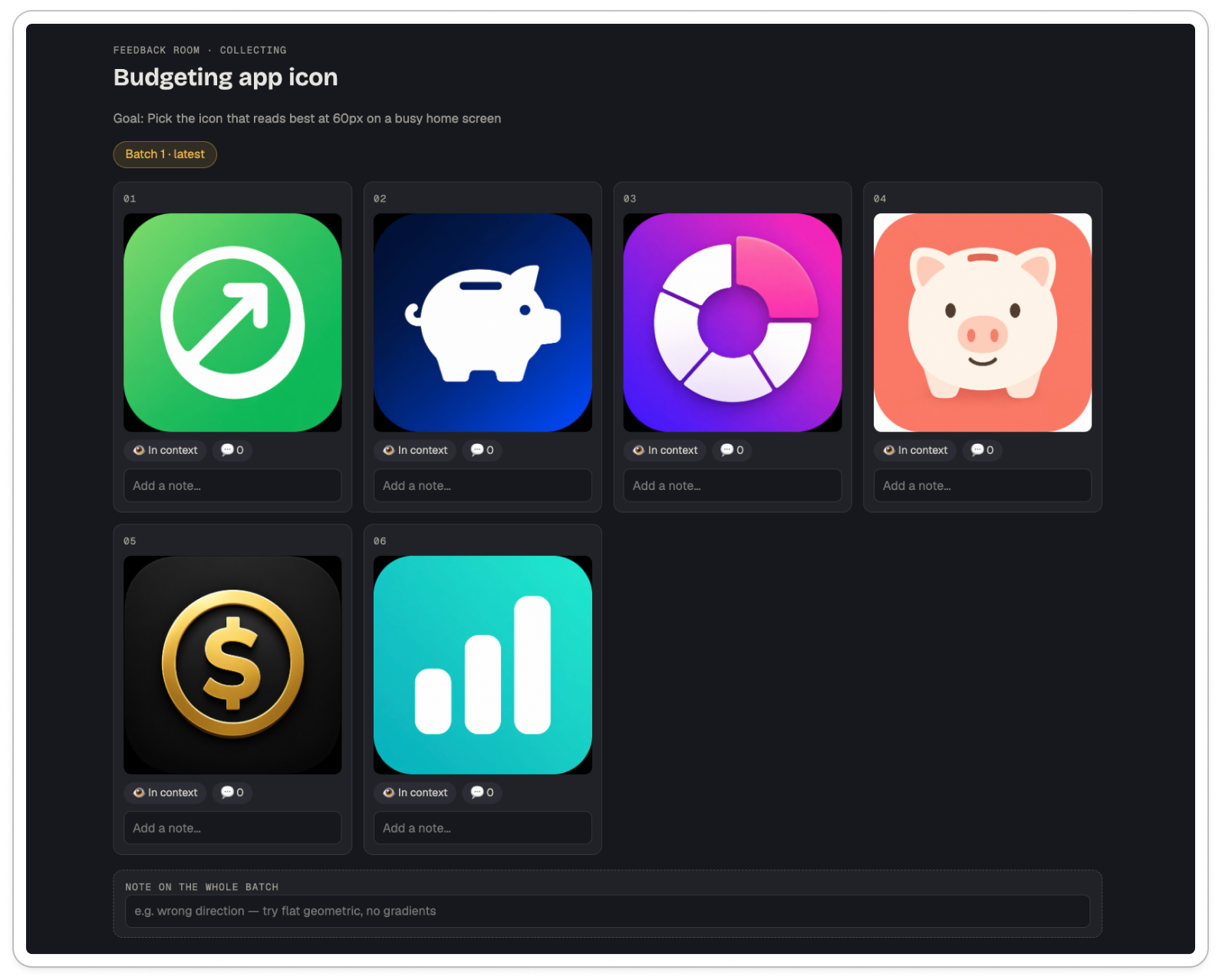
YouTube thumbnails, book covers, and podcast art
These assets need to communicate quickly:
Book covers
Podcast artwork
Album covers
Event posters
Course thumbnails
Newsletter visuals
Why it’s useful here: You can compare the options side by side and see which one still works in the place where people will find it. These are also the assets you can spend so long looking at that you stop noticing what feels wrong, so bringing in another person can make the final choice much easier.
Real example: https://app.getamplifiers.com/f/hyeo_6XjKns0jJmODnZDnA
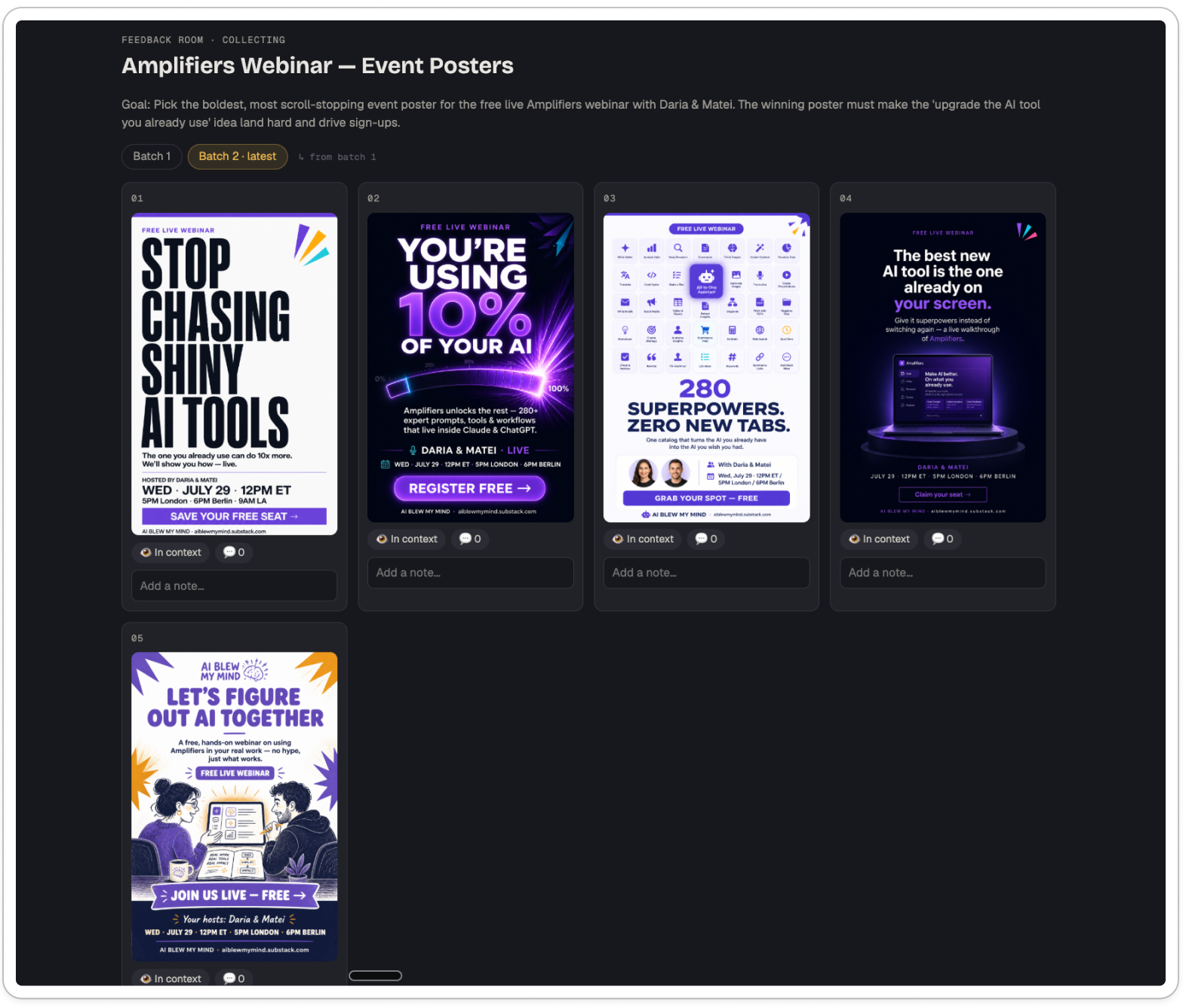
Headlines, names, taglines, and other text
Some decisions are difficult because only a few words carry all the weight. You can use the Creative Feedback Loop for:
Product or feature names
Campaign names
Headlines
Taglines
Email subject lines
Calls to action
Podcast or course titles
Why it’s useful here: You can generate several options, highlight the exact phrase you want to change, and keep refining the promising directions until one says what you need.
Real example: https://app.getamplifiers.com/f/wy5UgKz_gMmdWvcj3bSe5g
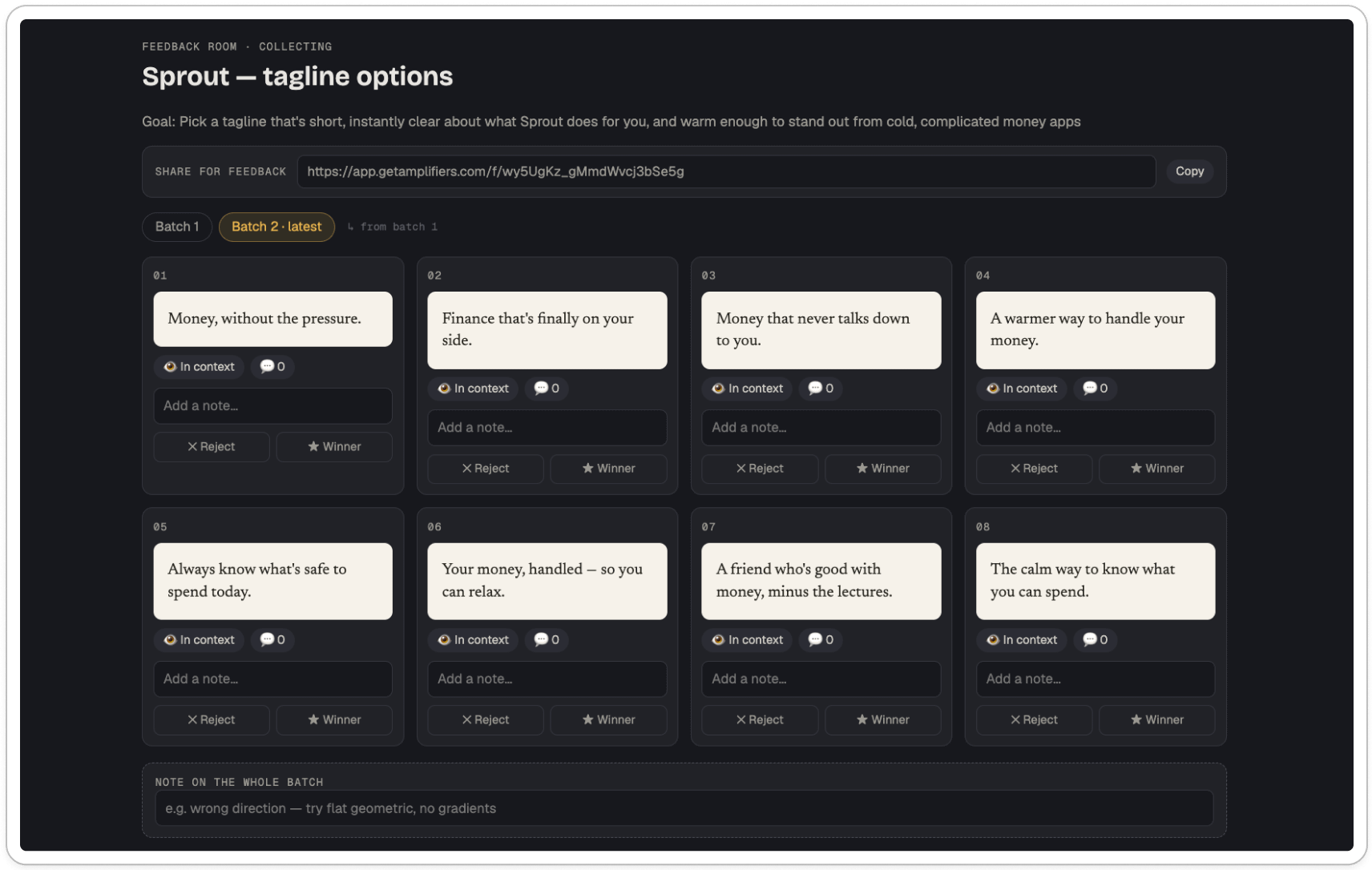
Live client calls, team meetings, and workshops
Because reviewers only need a link, you can also use the loop while everyone is in the same meeting.
During a client call: Show several directions and let the client pin what they like or want changed while you talk.
During a team meeting: Ask everyone to review the same options and decide which direction should move forward.
During a workshop or course: Put several options on the screen, share the link in the chat, and let everyone leave feedback from their phones. You can then generate the next batch from the group’s notes.
Why it’s useful here: Everyone looks at the same options and leaves feedback while the discussion is still happening. You decide when their notes are ready to become the next batch.
How the Creative Feedback Loop works in Claude, step by step
If you skipped the video demo above or prefer written instructions, here’s the complete process. I’ll walk you through every step, from asking Claude to start the loop to choosing the winner and closing the feedback room.
Step 0: Connect Amplifiers to Claude
The Creative Feedback Loop is available to AI Blew My Mind Premium subscribers through Amplifiers.
You only need to connect Amplifiers to Claude once:
Open Claude.ai in your browser or open Claude Desktop App.
Go to Customize → Connectors, click +, then choose Add custom connector.
Paste: https://mcp.getamplifiers.com into the connector URL field.
Name it Amplifiers. Leave the Client ID and Client Secret fields empty, then click Add.
Click Connect and sign in to your Amplifiers account in the browser tab that opens. Use the same email address you used to subscribe to my newsletter.
Return to Claude and ask it to “Setup Amplifiers” for a quick walkthrough of what’s inside.
Amplifiers will then be available across your Claude apps and enabled in every new conversation by default.
Note: Amplifiers also works with ChatGPT and other AI assistants, including local models that support remote MCP connectors. But I use Claude for most of my work, so that’s why I’m mostly talking about it in this walkthrough.
Need help getting started? Join the WhatsApp Community. Matei and I are both there, and you can ask us anything about setting Amplifiers up or using it in your work.
Step 1: Ask Claude to start a Creative Feedback Loop
Ask Claude to use the Creative Feedback Loop amplifier and tell it what you’re making. (Keep in mind to always mention “amplifier” in your prompt.)
For example:
Use the Creative Feedback Loop amplifier. I’m creating an app icon for a budgeting app. Generate six distinct app icon images. The icon needs to read clearly at 60px on a busy home screen.
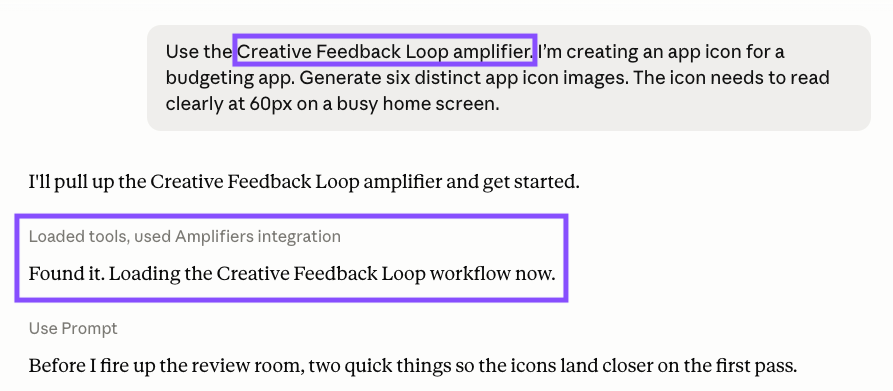
That message starts the process. Claude creates the session, generates the first batch, and gives you a private review page.
Pro tip: Start the Creative Feedback Loop in Claude Code, Cowork, or Codex. They can check the review page for new feedback in the background. In a regular Claude or ChatGPT chat, waiting for feedback can block the conversation.
Step 2: Tell Claude what the final version needs to do
Every session starts with a clear goal. For the app icon, that might be:
Pick the icon that reads best at 60px on a busy home screen.
The goal appears at the top of the review page. It tells Claude what each batch should work toward and gives everyone who opens the page the same criteria to use.
Step 3: Compare AI-generated options side by side and in context
Claude adds every option to the same page as a numbered candidate, so you can compare them without scrolling through the chat.
Earlier batches remain available in tabs, and the page works on mobile too. On a phone, the options appear one at a time so they’re still easy to review.
For images, you can switch between Bare and In context:
An app icon appears on a home screen.
A YouTube thumbnail appears inside a results feed.
A social post appears inside an Instagram, LinkedIn, or X feed.
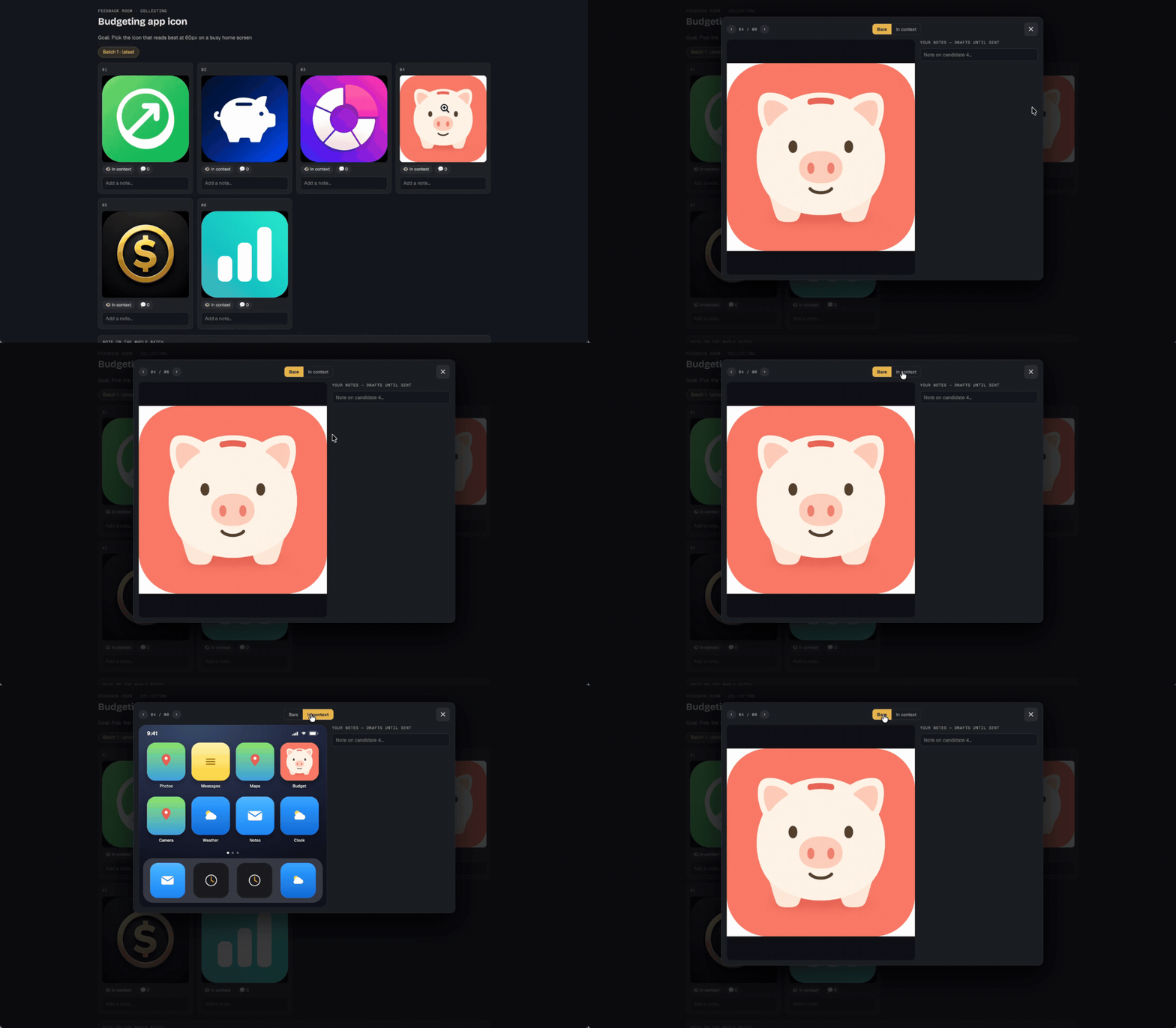
These are mockups built into the review page. They let you judge the asset at the size and in the place where you’ll use it.
Step 4: Pin feedback to an image or highlight text
For images, click the exact spot you want to change and add a note. You can add several pins to the same image, and Claude reads every note together with its position.
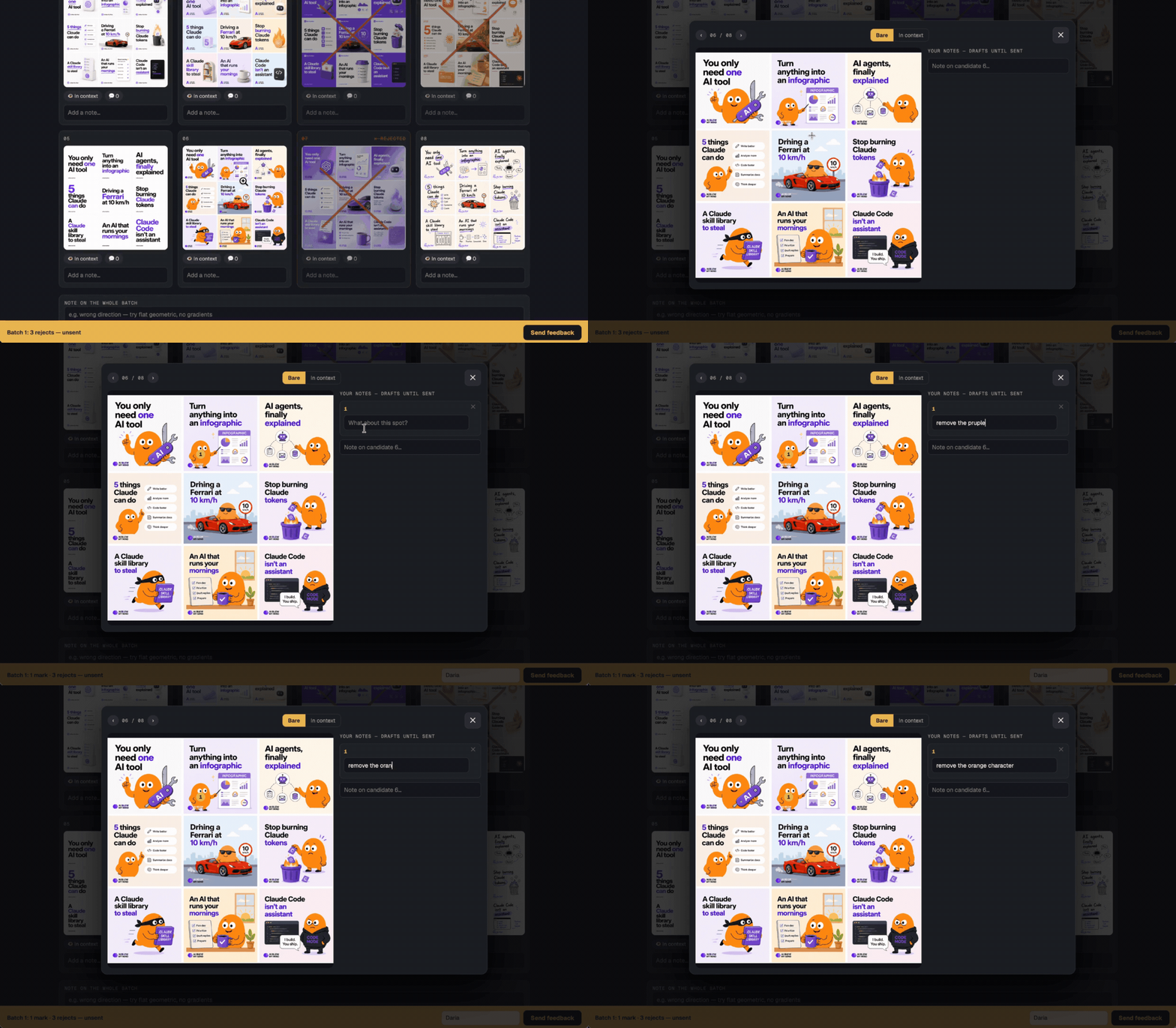
For text, highlight the exact words and attach your feedback to them.

You can also:
Leave feedback on the entire batch when the whole direction needs to change.
Keep your notes as drafts until you press Send feedback.
Edit or delete your own feedback after sending it.
So instead of describing which corner, shape, or word you mean, you mark it directly on the asset.
Step 5: Share the review page without asking anyone to create an account
If you want other people to weigh in, send them the shareable link. They don’t need Amplifiers, Claude, or an account. They open the page and leave their feedback.
Their notes collect on the page without triggering a new batch. Only you can decide when Claude should use everyone’s feedback and generate the next round.
Step 6: Reject options and decide when to generate the next batch
Reject the directions you don’t want: Claude saves each rejection as part of the session, so the same ideas don’t return a few rounds later. Earlier batches stay available in tabs, and you can start again from an older batch if you want to return to a previous direction.
Generate the next batch when you’re ready: Feedback from other reviewers collects on the page without triggering anything. Only you can start a new round, so the options won’t change while someone is still reviewing them.
When you press Generate next batch, Claude reads:
Your pinned image feedback
Comments attached to text
Notes about the whole batch
Rejected directions
Feedback from everyone you invited
It then creates the next round from all of it.
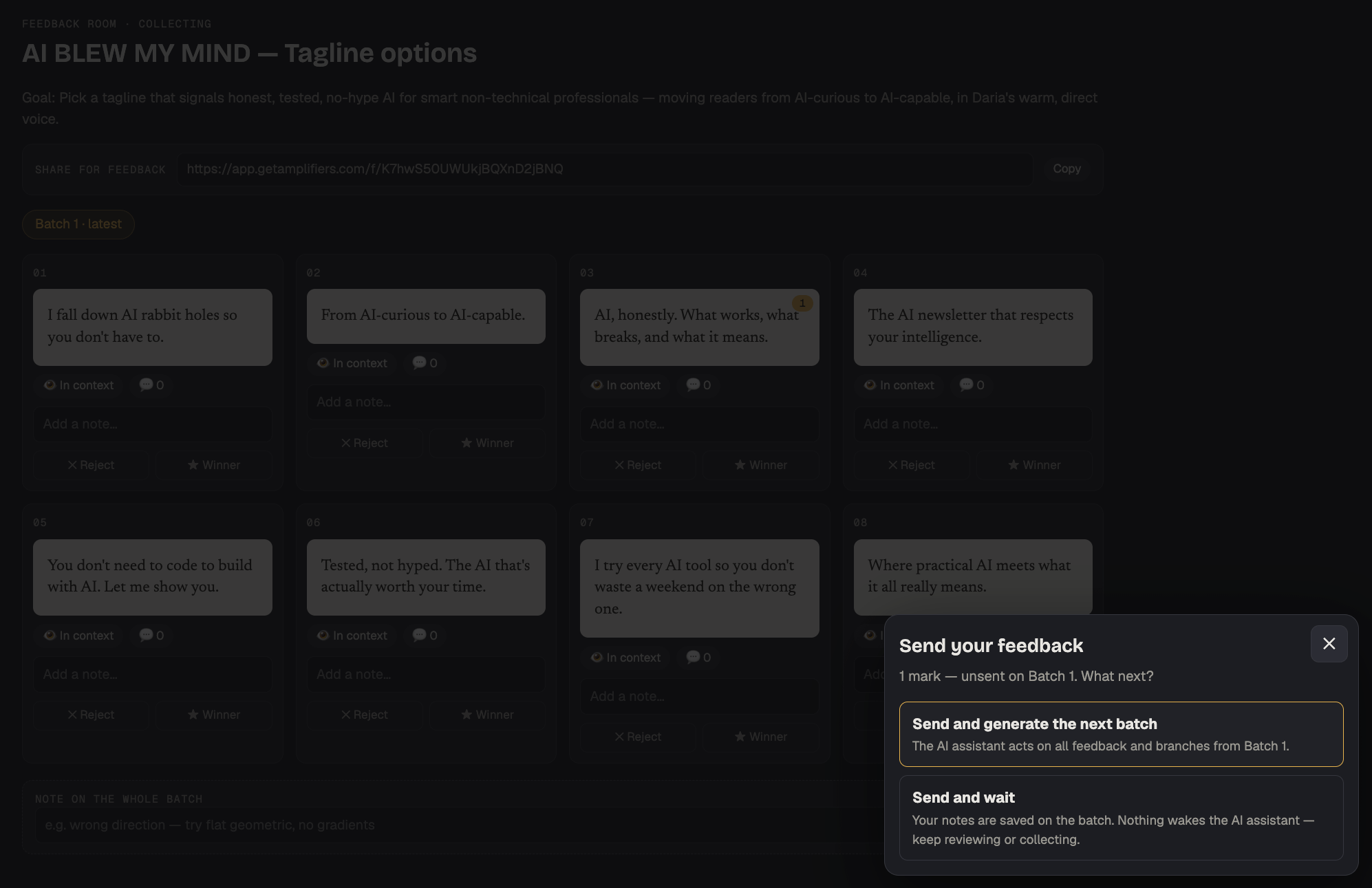
Repeat the process until you reach a final version you’re happy to use.
Step 7: Choose the winner and close the feedback room
Mark the final version as the Winner, then press Send winner & wrap up. Claude confirms the winner with you in the conversation and closes the session.
If you’re managing the feedback room, you stop collecting feedback at this point.
The page becomes read-only, so nobody can add more comments after you’ve made the final decision.
Creative Feedback Loop limits and practical details
Options per batch: You can currently generate between one and eight options. (We may increase this limit later.)
Rounds per session: Continue for up to 50 rounds.
Number of reviewers: Invite as many people as you need.
Reviewer access: Reviewers don’t need Claude, Amplifiers, or an account.
Shared links: Links remain active for 30 days and can be revoked earlier.
Supported formats: Review images, text, or assets that combine both.
Image-generation credits: Reviewing and leaving feedback use no credits. Credits are only used when you generate a new batch.
Come build Amplifiers with us
Amplifiers is only three months old, so your questions, requests, and “I wish it could do this” messages can help shape what we build next. That’s why Matei and I opened Amplifiers Insiders, a WhatsApp community for anyone using Amplifiers or curious about it.
Come ask questions, request new tools and workflows, share what you’ve made, and be the first to hear about new releases. We’ll be there to help, and I’d love to have you there.
Why this is how you get production-ready assets
A strong prompt matters. It gives Claude a clear goal, the right constraints, and enough context to generate a useful first batch. That’s what the prompt library at the end helps with.
From there, getting to a production-ready asset comes down to four things:
Examination: See every option side by side, at the size and in the place where it will be used.
Correction: Point to the exact details that need to change.
Improvement: Generate each new round from the feedback while keeping the parts that already work.
Repetition: Continue until you reach a version you’re happy to use.
By the end, you’ve seen the asset in context, given feedback on the exact details, and carried the parts that worked from one round to the next. Rejected directions haven’t returned, everyone whose approval matters has had a chance to weigh in, and the process ends with one clear winner.
And if you’re starting from scratch, the prompts below will help you generate a stronger first batch, so you have better directions to review and refine.
Steal my prompts for generating better visual options
The Creative Feedback Loop gives you a place to improve your work, but Claude still needs a clear brief to generate options worth improving in the first place.
So I put together 7 copy-paste prompts, one for each kind of asset:
Brand moodboards & visual style directions
Logos & brand marks
App icons
Static ad creative
Book, ebook & lead-magnet covers
Podcast, album & event artwork
Product mockups, packaging & merch
Paste one into Claude, answer a few quick questions, and it generates a spread of options and drops them straight into the Creative Feedback Loop to refine.