Build an AI Operating System in Claude Code That Runs 24/7 (in Under 45 Minutes)
Most AI operating systems are built for developers. This one isn't. It runs in the cloud, no code, and does the non technical work you keep putting off. Copy my starter kit and build yours tonight.

TL;DR: By the end you'll have an AI operating system in Claude Code that runs in the cloud, does the task you dread, and waits for your approval before anything goes out. No code. Copy my starter kit and yours is done tonight, in under 45 minutes.
Two weeks ago I showed you the Claude Code AI agent that runs my content distribution while I sleep. It wakes up four times a day, in the cloud, laptop closed, it ingests my articles, drafts posts, waits in my Slack for a yes or a no, and reports when a post is live.
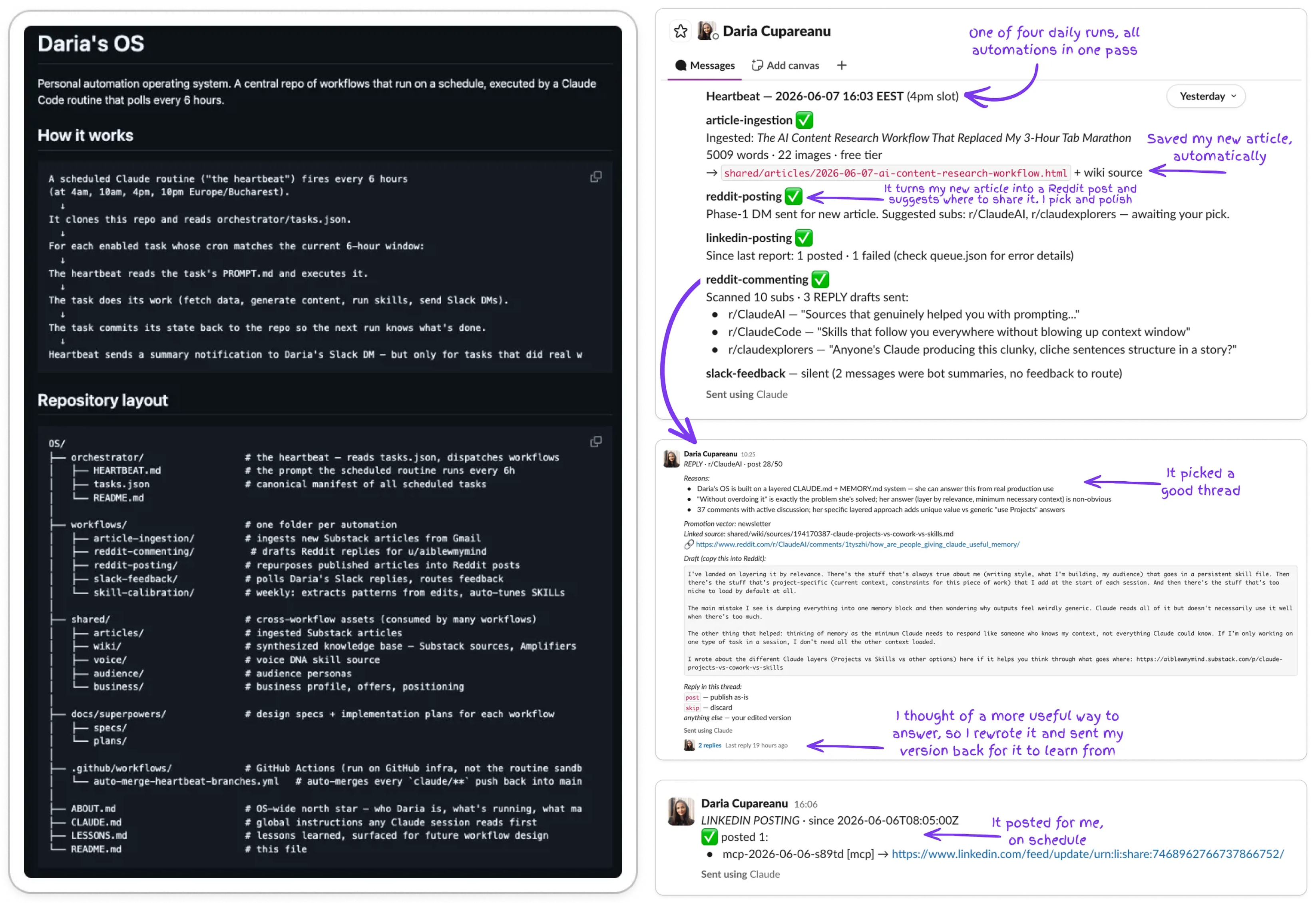
So many of you commented or texted asking for the same thing: how to build your own Claude Code operating system that runs 24/7, without you glued to your computer for your work to happen.
So this is Part 2, the recipe. By the end of it you’ll have your own Claude Code OS: a folder of plain text files that wakes up in the cloud on a schedule and does the work you keep putting off, while your laptop is closed.
And because the most common way people get stuck is the blank folder, I built you a starter kit.
It’s the skeleton of my system, generalized, with every mistake I made already patched. You copy it, open it in Claude Code, and say one sentence. Claude interviews you about your work and builds the rest for you.
Not comfortable in Claude Code yet? You can build a similar kind of system in Cowork instead. I walked through that in Build a Claude Cowork Operating System, and you can pair it with Cowork scheduled tasks. The one thing to know: those tasks run only while the Cowork app and your computer are open, so they can’t do the while-you-sleep part. That cloud piece is one of the reasons this system uses Claude Code.
Here’s what we’ll cover:
What a Claude Code operating system is — and the work it’s built for
Step-by-step setup: from download to your first verified cloud run
The six habits that keep it from breaking down over time, plus a self-learning workflow that makes Claude work more like you over time
Hire someone to build your AI systems for you, for about 80% less than a local hire.

Building AI systems for your business is powerful. It’s also a lot to build and maintain yourself. So here’s the other option: have someone do it for you.
Koya embeds a full-time, trained AI automation developer inside your business, working 40 hours a week with timezone overlap during your hours. They handle recruiting, payroll, compliance, and coaching, so you just get a developer who plugs in and starts shipping from day one.
I don’t promote services I haven’t seen work, so I put it to the test. I asked Koya to offer one of my paid readers a free system build as a prize, so I could see exactly what they deliver before recommending them to you.
I dropped the giveaway in our community chat, and Kim Doyal won. They built her a content distribution system in n8n: every time she publishes on Substack, it pushes the post to all five of her social channels in her own words, with her cover image and a link back. On quiet days it reshares an older post that did well, with a backup so it never goes down.
Kim’s verdict: “The guys were great to work with and very pleasant. They did a good job, the process was a piece of cake. I love that they set one up to pull old posts on the days I don’t publish.”
If you’ve got a backlog of “I should automate this” and no time to do it, this is the shortcut.
One promise before we start building your Claude Code OS: you won’t write a line of code. I didn’t either. I made the judgment calls, Claude did the building, and the same goes for you. It took me almost 2 months of iterating to build mine. You get the starter kit, so yours is done tonight.
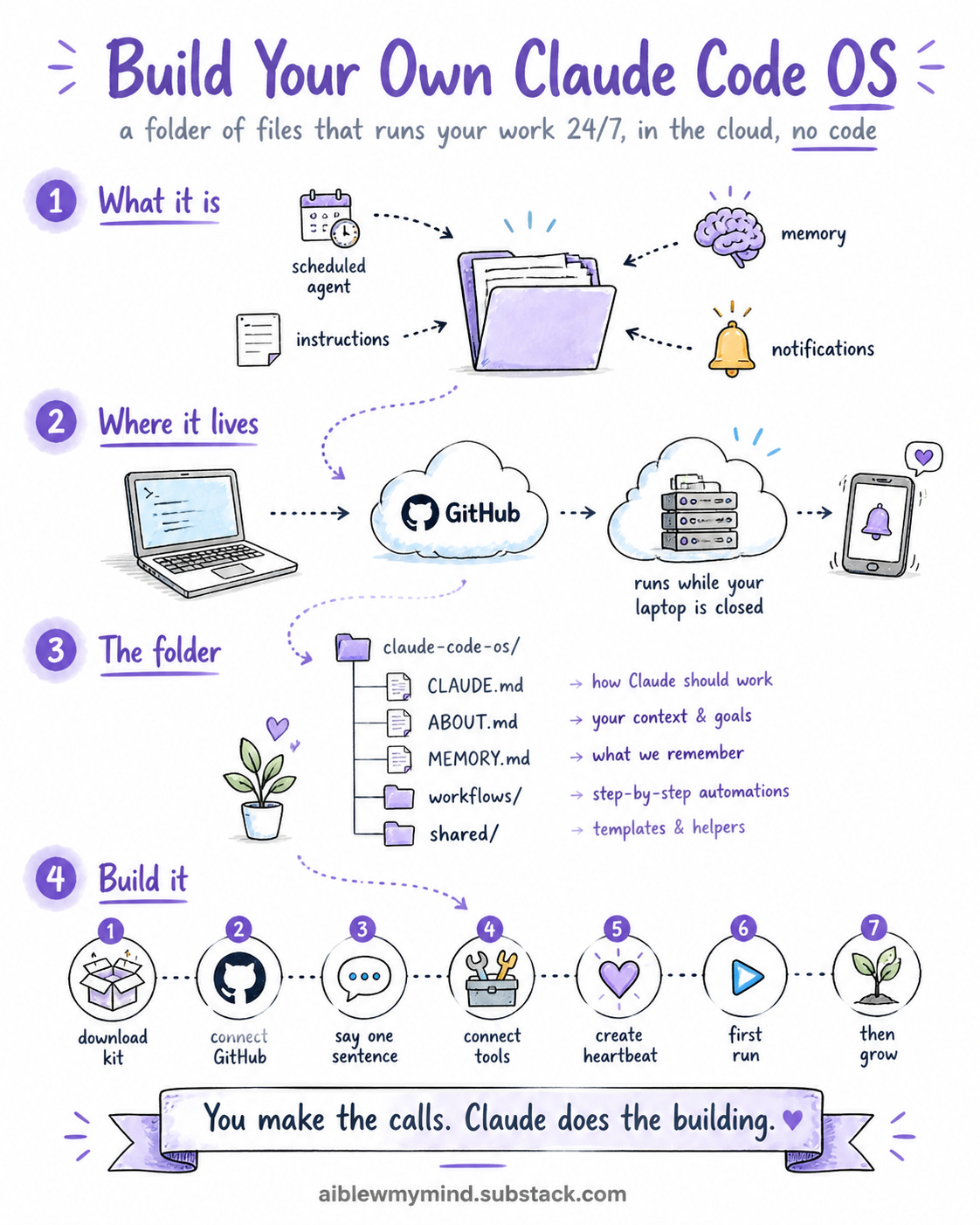
What a Claude Code Operating System is (and the work it's built for)
My OS does distribution because distribution is the work I dread, and I want it done whether I’m at my desk or on a beach. When I’m on vacation, like I have been these past two weeks, I write my articles ahead and schedule them to publish while I’m away. The distribution system runs on top of those scheduled posts, so my work spreads across every platform even when I’m not around.
But the thing I’m handing you today doesn’t care that mine does distribution.
Underneath the distribution is a pattern, and the pattern is what travels:
A scheduled agent that wakes up on its own in the cloud.
A folder of instructions it reads and follows every time it runs.
A memory system that keeps it from drifting or repeating itself.
A notification channel where it shows you its work and waits for your approval.
That last piece is about to get more interesting. Right now the channel is mostly one-way: the system reports, you reply. But Anthropic just released Claude Tag two days ago, which lets you tag Claude directly in Slack, hand it tasks in the channel, and turn on proactive behavior so it flags things and follows up on its own. (It’s currently in beta for Team and Enterprise for now.)
Whichever way the channel works, the four pieces are the same. And that pattern doesn’t only fit distribution. It also fits chasing invoices, building weekly reports, monitoring competitor prices, scanning job boards, or any recurring task you can teach a smart assistant to do.
But before we get into how you can set it up, let me show you what it is.
What a Claude Code OS looks like: the folder structure, explained
The whole system is a folder of plain text files. You won’t edit most of these by hand, Claude does that, but I want you to understand how the OS works and what you’ll find waiting in the starter kit, ready to be filled with your own context, workflows, and tasks.
There are three layers: a handful of files at the top, a few folders, and then one small folder per automation.
The files at the top level
These define your system globally and get read often.
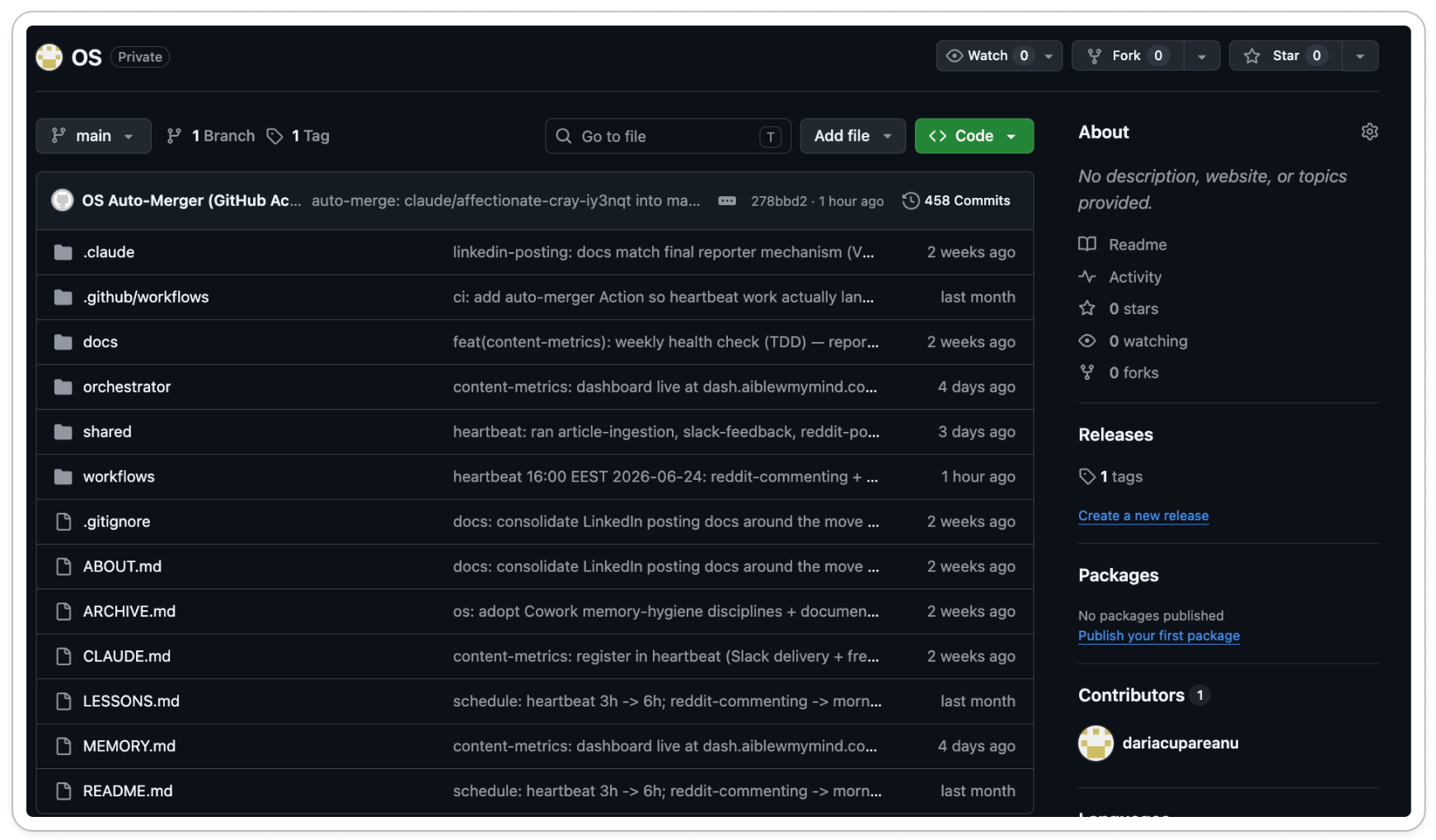
CLAUDE.md is the rule book. It’s the first file Claude reads every time it opens the folder. It holds the few non-negotiable rules plus a map pointing to everything else.
ABOUT.md is the big picture: who you are, your work, your current goals, and a small table of which automations are running. Every automation reads this first, so they all share your context instead of starting blind. (I didn't write mine. My business profile skill filled in most of it.)
MEMORY.md holds the facts that change. One home for each, so when something updates you change it in one place and never repeat yourself to Claude.
ARCHIVE.md is old, finished history. A different kind of memory, kept out of the way and only opened when you ask about something from the past, so it never slows the system down or burns credits being read on every run.
LESSONS.md is what went wrong and what it taught. Yours arrives pre-filled with some of the mistakes that cost me hours or weeks each. But your own lessons get added here over time too, so Claude doesn’t repeat its mistakes.
SETUP.md is the guided setup you run once. It’s the script Claude follows to build your OS. After setup it tucks itself away so the top of the folder stays tidy.
The folders
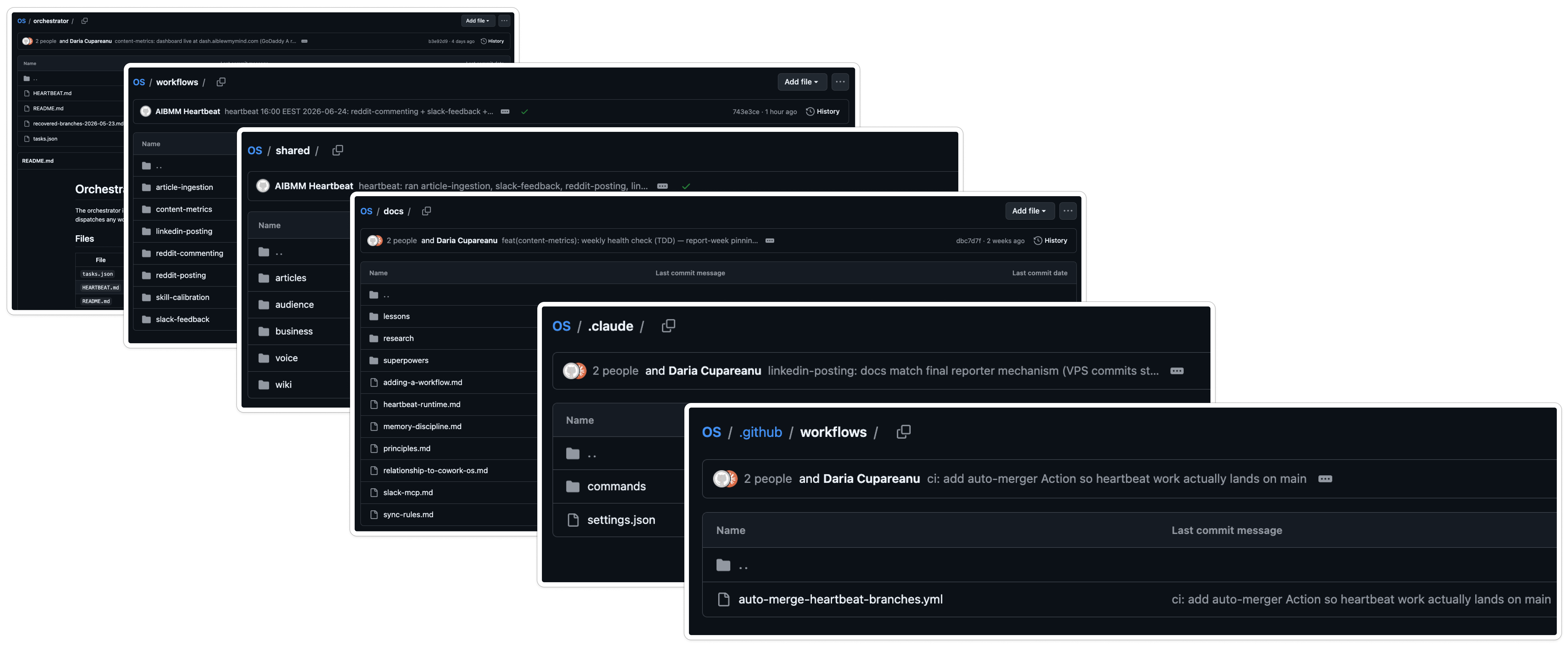
orchestrator/ is the engine room. Two files live here: HEARTBEAT.md, the instructions the cloud runs every time it wakes up, and tasks.json, the to-do list of every automation and when each one runs.
workflows/ is where your automations live, one folder each. The kit includes one template folder to start from. (Full breakdown below.)
shared/ is for anything more than one automation needs, kept in a single place so it’s never duplicated. It starts empty. Later you might add your writing voice, a client list, anything common. (This is where I keep my voice DNA and the wiki of every article I’ve written.)
docs/ is the deeper reference: the operating principles, and the how-to for adding your next automation. There when you want it, ignorable when you don’t.
.claude/ holds the settings that let the cloud run on its own without stopping to ask permission for every action. Pre-filled. Set once, forget it.
.github/ is a safety net: a small automatic job that rescues any work the cloud accidentally saves to the wrong place. Never delete it.
(There are also two housekeeping files, a README that explains the OS and a .gitignore. You can ignore both.)
Inside each automation’s folder
Every automation you build is its own folder inside workflows/, and it’s always the same five files:
CLAUDE.md is the contract, and the most important file in the automation. It states what this automation is allowed to read, what it produces, and what it must never do.
PROMPT.md is the instructions: the actual step-by-step it follows every time it runs.
MEMORY.md is what it has learned about your work and your preferences.
LESSONS.md is its own list of past mistakes, kept so the same one doesn’t happen twice.
loop/state.json is its memory of what it already handled, which is what stops it from doing the same work twice.
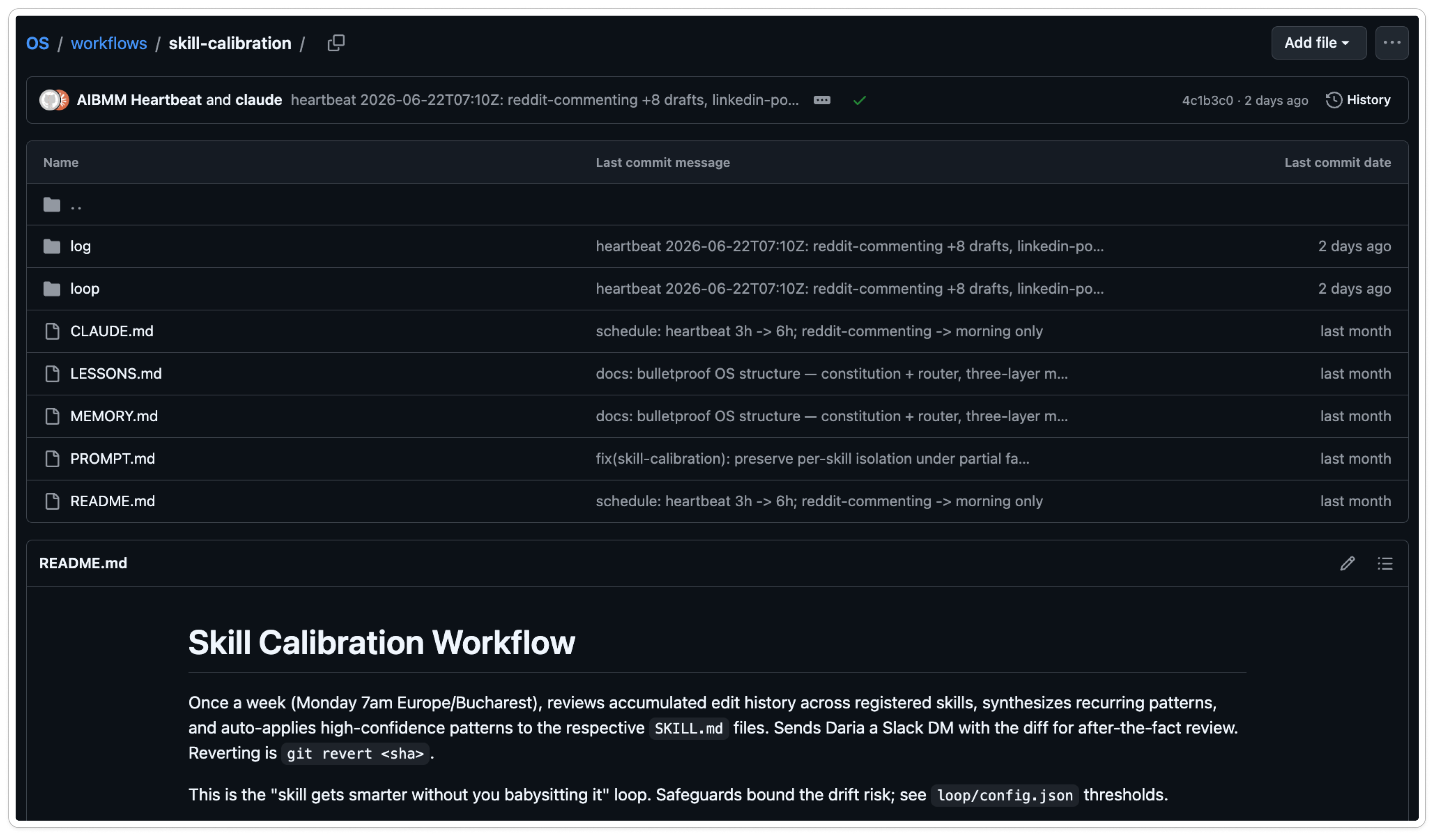
That’s the system. A handful of plain text files at the top, one folder per automation, and two folders of settings you set once.
And the best part? You don’t build any of it by hand. The starter kit I made you arrives with all of this already in place, and the workflows themselves (your automated tasks) get built by talking to Claude. You make the calls, Claude does the building.
Where it runs: your laptop, GitHub, and the cloud (so it works while you sleep)
That folder of files doesn’t just sit on your computer. It lives in three places at once, and each one has a job:
On your PC. Where you edit it and read what it produced.
On GitHub. A free website that stores your folder and keeps every version of every file. It’s the only place the cloud ever reads from, which is what lets your agent keep working when your laptop is off.
In Anthropic’s cloud. Where a scheduled task runs Claude Code on Anthropic’s computers, on a schedule you set.
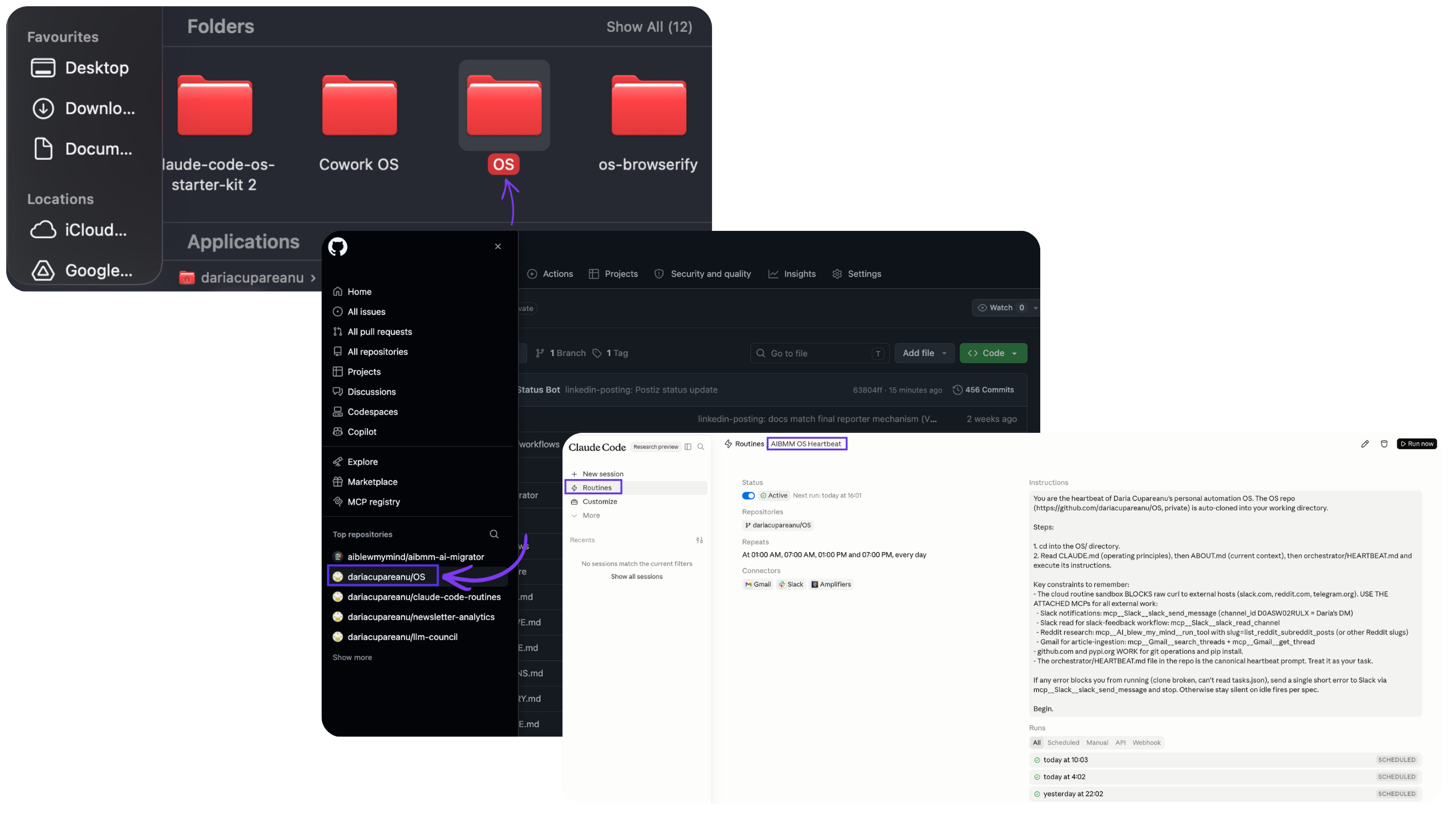
Why GitHub sits in the middle. Your laptop and the cloud never talk to each other directly. You save a change on your laptop, it goes up to GitHub, the cloud reads the latest version from there, does its work, and saves the result back. That round trip is how the two stay in sync without you managing anything.
The only vocabulary you need for GitHub:
A repo is your stored folder on GitHub.
A commit is a saved snapshot of your changes.
A push uploads that snapshot up to GitHub.
The heartbeat is what wakes it up. The scheduled cloud task has an official name, a Claude Code Routine, and it’s the heartbeat of the whole system. At fixed hours it wakes up, reads a to-do list in your folder, runs whatever’s due, saves its work, and sends you a summary. Then it sleeps. (If you want to understand Routines on their own, I covered them here.)
Your phone is the control panel. Drafts and reports land in your Slack, you reply with a yes, a no, or a rewrite (depending on the task), and the system carries on. We use Slack because it’s an official Claude connector, which keeps the setup simple.
Before you build: the two automation decisions to make first
Pick the one task you dread, and only one.
Not the most impressive automation you can imagine. Start with one recurring task. My system now runs eight workflows, and it got there one at a time, with days of watching in between.
Draw your line.
Decide what the system may do alone and where it has to wait for you.
My line: nothing publishes without me, because my work carries my voice, and AI posting in my name could damage my brand.
A freelancer chasing invoices: the system drafts the follow-up emails, but nothing reaches a client without their approval.
A shop owner watching competitor prices: getting an email with the changes might need no approval at all, since nothing leaves the building.
With your task picked and your line drawn, you’re ready for the kit that builds the rest.
The Claude Code OS starter kit, and how to get it
When you don’t know how to structure a system like this, you can spend more time on it than building the workflows that move the needle. That’s the whole reason the kit exists. It hands you the structure so you can spend your time on the part that matters.
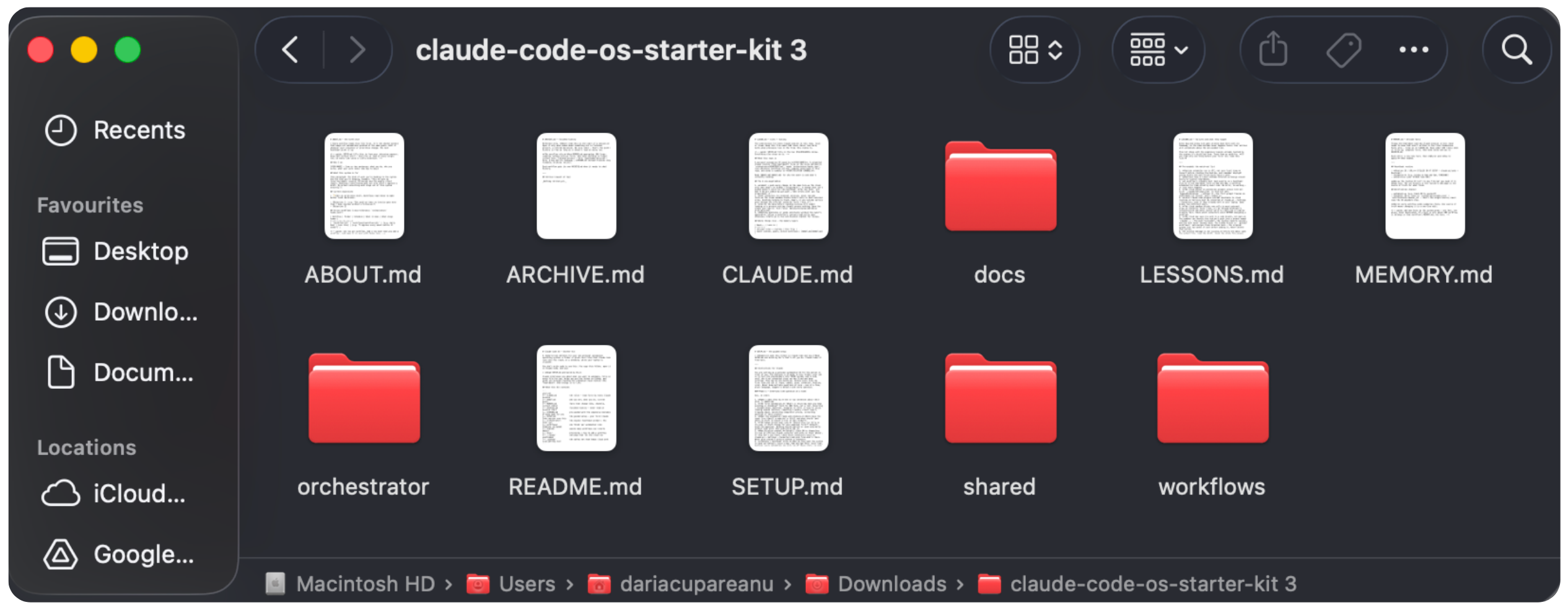
The kit is my system’s skeleton with my content stripped out and the lessons left in. Every hard decision is already made for you:
Which files go where and how to write them.
What the heartbeat prompt needs to say.
Which settings keep an unattended cloud run from freezing.
What protects you when the cloud misbehaves.
How it stays lean and structured as you add more workflows.
And turning it into a working system is one sentence. You open the folder in Claude Code and say “Read SETUP.md and build my OS”. From there it interviews you about your work, fills in every file above, sets up GitHub, creates the heartbeat, verifies the first run. You answer the questions and make the calls. That’s your job.
Now let’s set up your Claude OS.
Everything below is for premium readers: the starter kit download, the full step-by-step setup from GitHub to your first verified cloud run, the six habits that keep the system from degrading, and the example workflows for other kinds of work. Upgrade here.
How to build your Claude Code Operating System: the step-by-step setup
With the kit doing the heavy lifting, plan for about 30 to 45 minutes to have your OS up and running with your first automation, and most of that is Claude working while you answer questions.
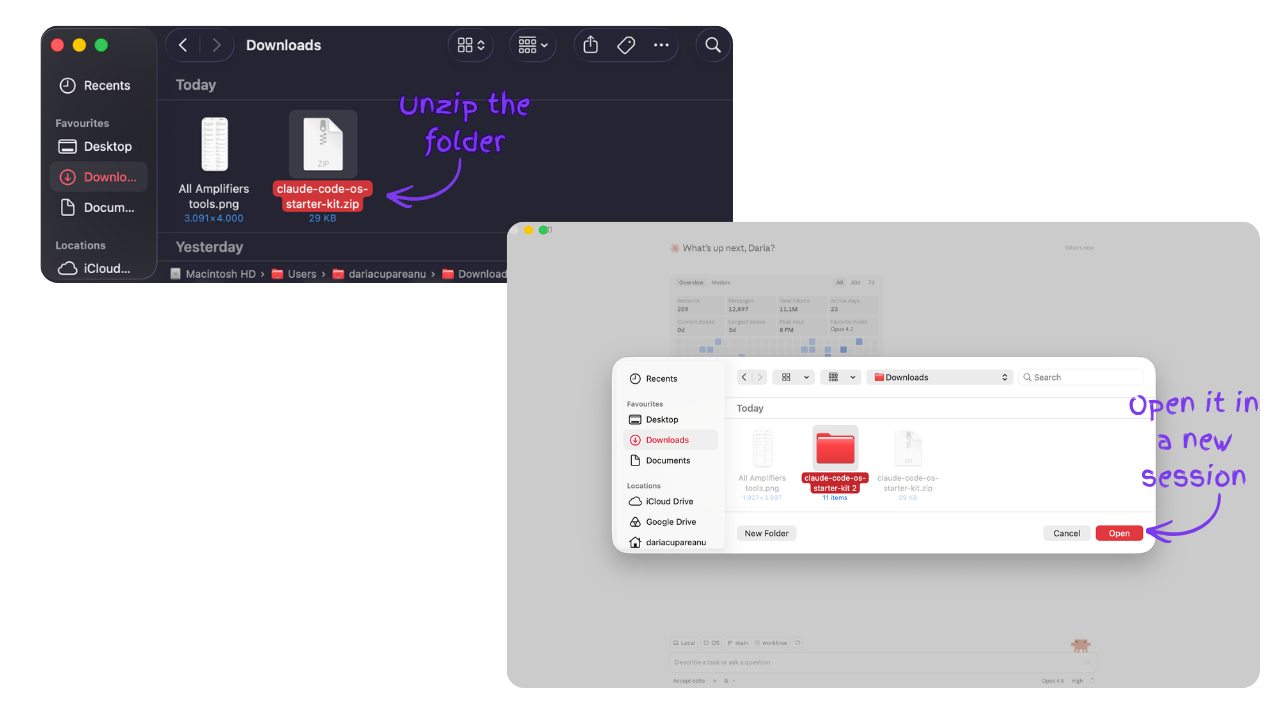
Step 1: Download the kit and open it in Claude Code
Download the kit (from the link below), unzip it, and drop the folder somewhere you’ll find it again. Then open that folder in Claude Code, the app or the terminal, either works.