
Every Google AI Tool in 2026: What Each One Does and When to Use It
Complete guide to 36 Google AI tools in 2026. From Gemini to NotebookLM, Veo to Google AI Studio - with tutorials, tips, and practical use cases for each. See the full map.

I’m a fool for Google AI tools. Seriously.
I built countless mini-apps in Google AI Studio. I use NotebookLM for research and writing almost every day. I automated a lot of my workflow with Google Apps Script. I only use Nano Banana for image generation. And almost every edition of my Ahead with AI series included at least one Google tool (and when they didn’t, I had to physically restrain myself from including one anyway).
Google has done SO much with AI in the last year. It goes way beyond “Gemini is a chatbot”.
There are AI features embedded in Docs, Sheets, Slides, Gmail, Meet, Search, Photos, your phone, your browser. There’s custom tool building, research tools, video creation, audio generation, music production, design work, and about 30 other things most people have never touched.
And if you’re already inside the Google ecosystem (odds are good you are), it’s a shame not to make the most of it.
So let’s talk about what you have access to and how to use it.
Here’s what we’re covering:
The Google AI ecosystem map (2026 edition)
Google’s AI strategy changed about 18 months ago. Instead of putting all their chips on “one AI chatbot beats other AI chatbots”, they decided to do something smarter.
They distributed AI across everything you already use.
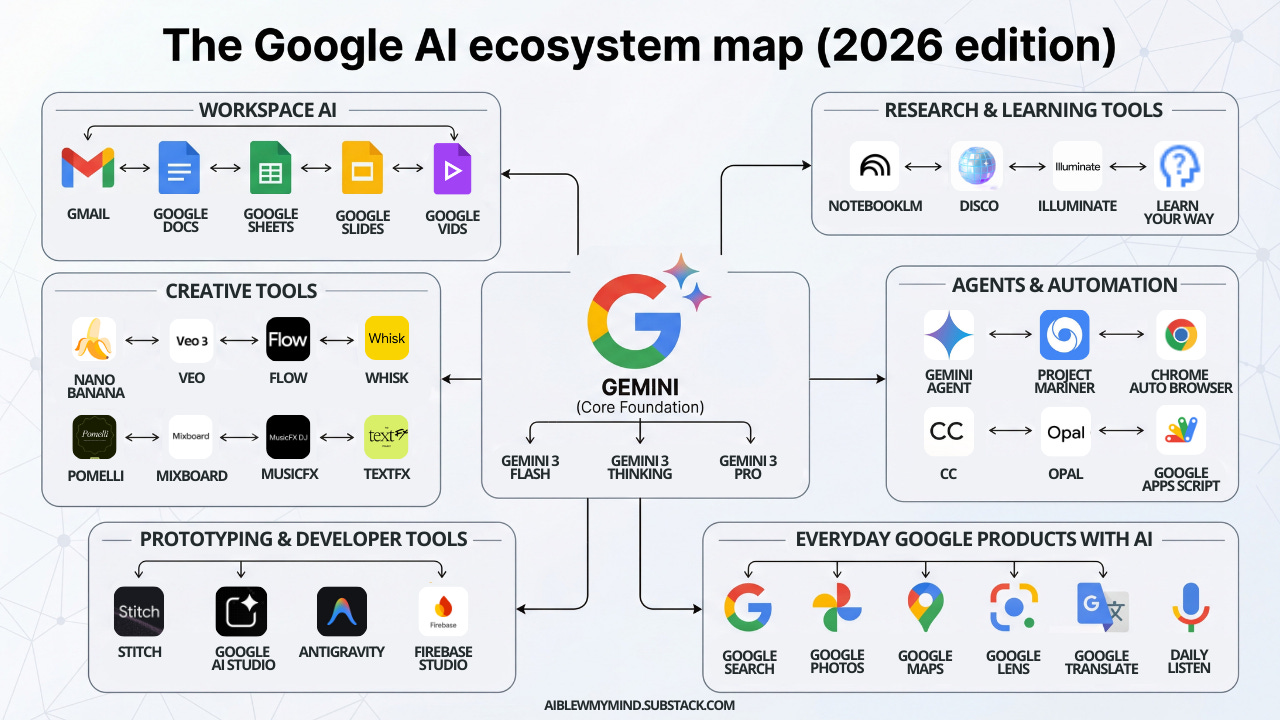
The pivot happened gradually, but by late 2024, it became obvious. Google wasn’t trying to beat ChatGPT by out-ChatGPT-ing it.
They simply started integrating AI into every product you use 40 times a day anyway.
So the “Google AI ecosystem” isn’t really an ecosystem you join. It’s an ecosystem you’re probably already swimming in.
At the center of it all is Gemini. The AI engine powering everything you’ll see on the list. (I wrote a complete guide to everything inside Gemini’s chat, covering every feature, every tool, and how to combine them.)
But beyond Gemini itself, there are dozens of AI products and regular products with AI baked in that you might not even know about.
Here’s a look at 36 of them, split by category.
Google AI tools for research and learning
Google has always been big in education, but what they’ve been building lately goes way beyond Google Classroom.
These tools turn passive reading into active learning, messy research into organized knowledge, and dense content into something you can absorb.
Whether you’re a student, a researcher, or just someone trying to make sense of a lot of information, there’s probably something here you haven’t tried yet:
NotebookLM: turn your sources into an AI knowledge base
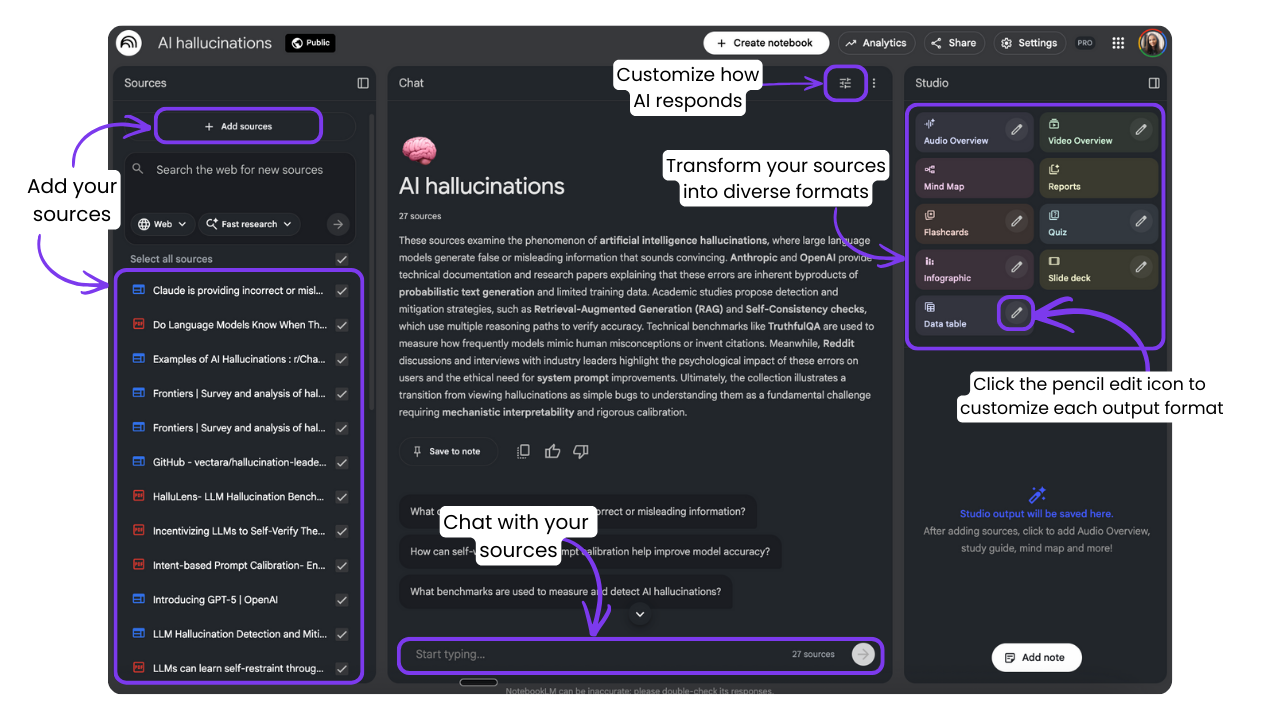
The breakout hit of the Google AI ecosystem, and one of the tools I use almost every day for research, organizing sources, making sense of info, and writing.
What it does: Upload your own documents, Google Drive files, YouTube videos, or web links, and Gemini becomes an expert on your specific material. Everything it tells you is grounded in your sources, with citations.
What you can do with your sources:
Chat with all of them at once. And customize how the AI responds with Custom Instructions.
Turn them into content: Audio Overviews, Video Overviews, Infographics, Slide Decks, and full written Reports (read my deep dive on Reports here).
Learn from them with Mind Maps, Flashcards, and Quizzes.
Structure them into Data Tables you can export to Google Sheets.
Take them into Gemini for deeper analysis, creative outputs, and cross-notebook connections. I wrote a full NotebookLM + Gemini tutorial with 36 use cases and video walkthroughs. Read it here.
Availability: Core features are free. NotebookLM Plus (more notebooks, more sources, more daily queries) comes with AI Pro/Ultra.
Read the complete complete NotebookLM tutorial I created in the LAB.
Disco: an AI browser that turns your tabs into visual workspaces
A Google Labs experiment that turns your messy browser tabs into something useful.
What it does: Instead of juggling 30 open tabs, Disco analyzes what you have open and builds custom interactive dashboards (called GenTabs) that organize everything into one screen. Competitor websites become a comparison matrix. Travel tabs become an itinerary planner. Recipe blogs become a meal planner with a shopping list.
How it works: It reads your open tabs, understands your intent, and generates a mini-app on the fly. Every piece of information links back to the original source.
Availability: Still experimental, macOS only, waitlist.
Illuminate: web content turned into AI podcasts
An AI tool built specifically for making sense of research papers, books, and dense content.
What it does: Paste any URL and Illuminate generates a conversation between two AI voices that break down the key points in plain language. Like NotebookLM’s Audio Overviews, but as a standalone tool for any web content.
How it works: Explore podcasts already created by others, or generate your own: paste a URLs and choose the tone (casual to formal). Illuminate generates the conversation, gives you an interactive transcript where you can click any sentence to jump to that moment, and lets you ask follow-up questions.
Availability: Works with any public web content (no paywalled sites or pages that opted out of AI indexing). File uploads coming soon. Still experimental.
Free with a limit of 20 generations per day. Connect with a VPN if it's not available in your country.
Learn Your Way: textbooks turned into interactive lessons
A Google Labs experiment tool built for students. It transforms static educational content into personalized, interactive learning experiences.
What it does: Takes textbooks, articles, and educational content and regenerates them into multiple formats you can actually learn from: immersive text with embedded questions, audio lessons, narrated slides, mind maps, and quizzes. All from the same source material.
How it works: Pick a topic from the library (economics, history, physics, and more), set your grade level and interests, and the AI adapts everything to you. Switch between formats based on how you learn best.
Availability: There's a waitlist for uploading your own PDFs, but for now there are countless sources already available to explore. Free to use. Access with a VPN if it's not available in your country.
Learn About: your AI tutor
A Google Labs experiment that goes beyond search. Instead of giving you links or text blocks, it acts as a conversational tutor that walks you through topics step by step.
What it does: Ask about any topic and instead of a wall of text, you get interactive, textbook-style pages with images, videos, diagrams, and cards that break everything down. It’s built on LearnLM, Google’s AI model specifically fine-tuned on educational research.
How it works Enter a topic or upload an image to start. Learn About builds a dynamic explanation with visuals, analogies, and embedded quizzes. It inserts “stop and think” moments, flags common misconceptions, and shows vocabulary definitions when you hover over complex words. At the end of each explanation, it suggests where to go next, basically building a lesson plan on the fly.
Availability: Free to use. Access with a VPN if it’s not available in your country.
Google AI tools for creative work: images, video, music, and more
If there’s one area where Google has gone all in, it’s creative tools. Images, video, music, visual brainstorming, brand content.
Whatever your creative work looks like, there’s probably something here for it. Most of them live in Google Labs as free experiments. Some are built directly into Gemini, others are standalone.
Nano Banana: image generation and editing
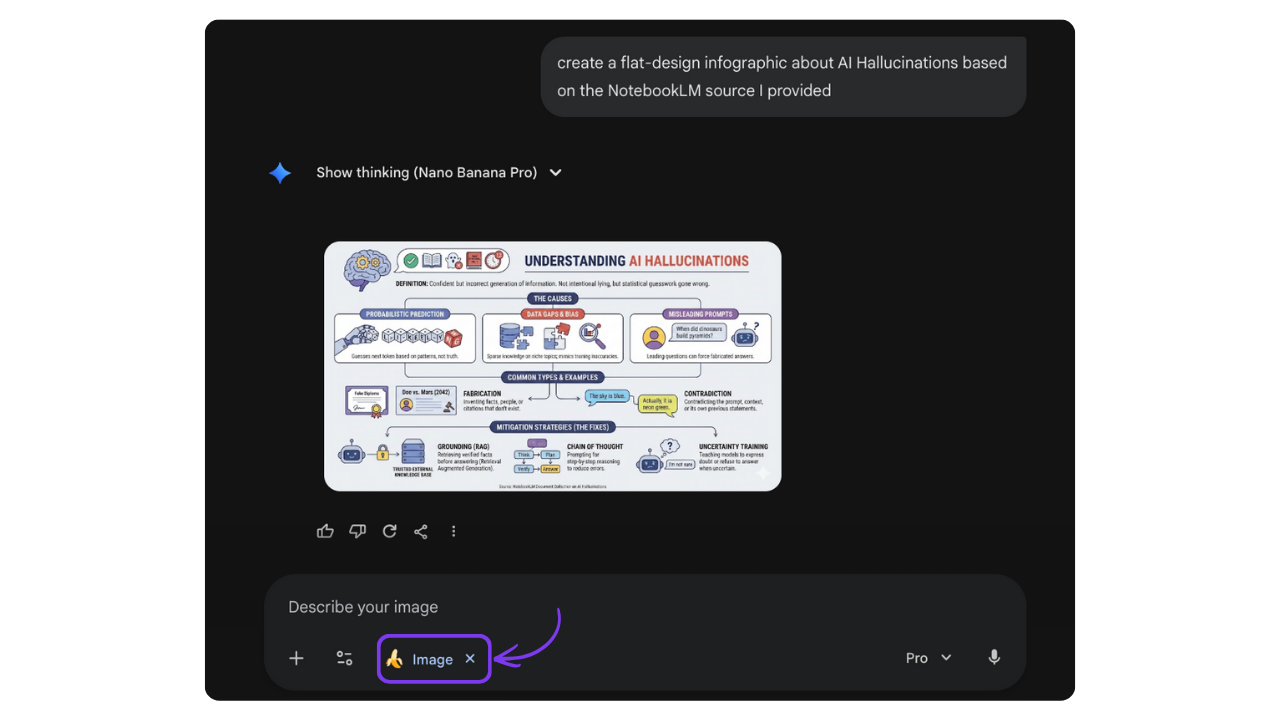
My favorite image generation model right now. Built directly into Gemini.
What it does: Generate images from scratch, edit existing ones with natural language (”remove the text” or “change the lighting”), or keep the same character consistent across different scenes. The Pro version supports up to 14 reference images at once for deep style and character consistency.
How it works: Prompt Gemini to create an image. Need adjustments? Just talk to it. “Make the lighting warmer.” “Change the background.” It edits in place.
Availability: Available inside Gemini. More generations with AI Pro/Ultra.
Check out my deep dive with dozens of Nano Banana examples in one article where I break down how you can use it to create visuals with text, and another where I share the 58 prompts I use for infographics.
Veo: video generation
Google’s most capable video generation model.
What it does: Turn text prompts into high-quality video clips up to 4K. It understands film terminology (timelapse, aerial shot, pan left), so you get director-level control over camera movement. It also handles native audio, so clips come with synchronized sound effects or dialogue.
How it works: Type something like “a cyberpunk city in the rain, cinematic lighting, 4K.” Veo interprets the physics and lighting and generates a short, coherent clip.
Availability: Available inside Gemini, but you need a Pro or Ultra plan to experiment with it properly.
Flow: AI filmmaking workspace
Powered by Veo, but built for longer projects.
What it does: Moves beyond single clips to full storytelling. Generate consistent characters and scenes across multiple clips, stitch them into a narrative, and even generate background music that matches your pacing.
How it works. Input a script or a series of scene descriptions. Flow generates clips for each scene, keeps your characters looking the same across all of them, and lets you assemble everything on a timeline.
Availability: Free to start with 100 credits, then 50 free credits refresh every day (no rollover, use them or lose them).
Whisk: visual blending and mood boards
A rapid concept art tool.
What it does: Separates images into three ingredients: Subject (what is it?), Scene (where is it?), and Style (what does it look like?). Blend them together for instant mood boards and concept art. Whisk Animate takes your result and turns it into a short looped animation.
How it works. Upload a photo of a sneaker (Subject), a jungle (Scene), and a Van Gogh painting (Style). Whisk shows you that specific sneaker in a jungle, painted in Van Gogh’s style.
Availability: Free Google Labs experiment.
Pomelli: on-brand marketing content
Built for brands that need consistent content at scale.
What it does: Upload your website’s URL. Pomelli learns your brand identity and auto-generates variations of social media posts, ads, and marketing assets that all stick to your guidelines. It can even place your product into AI-generated lifestyle backgrounds.
How it works: Say “create a summer campaign for our new sparkling water.” Pomelli generates multiple ad options using your brand assets, with your bottle on a beach, at a picnic, at a rooftop bar.
Availability: Free Google Labs experiment.
Mixboard: visual brainstorming canvas
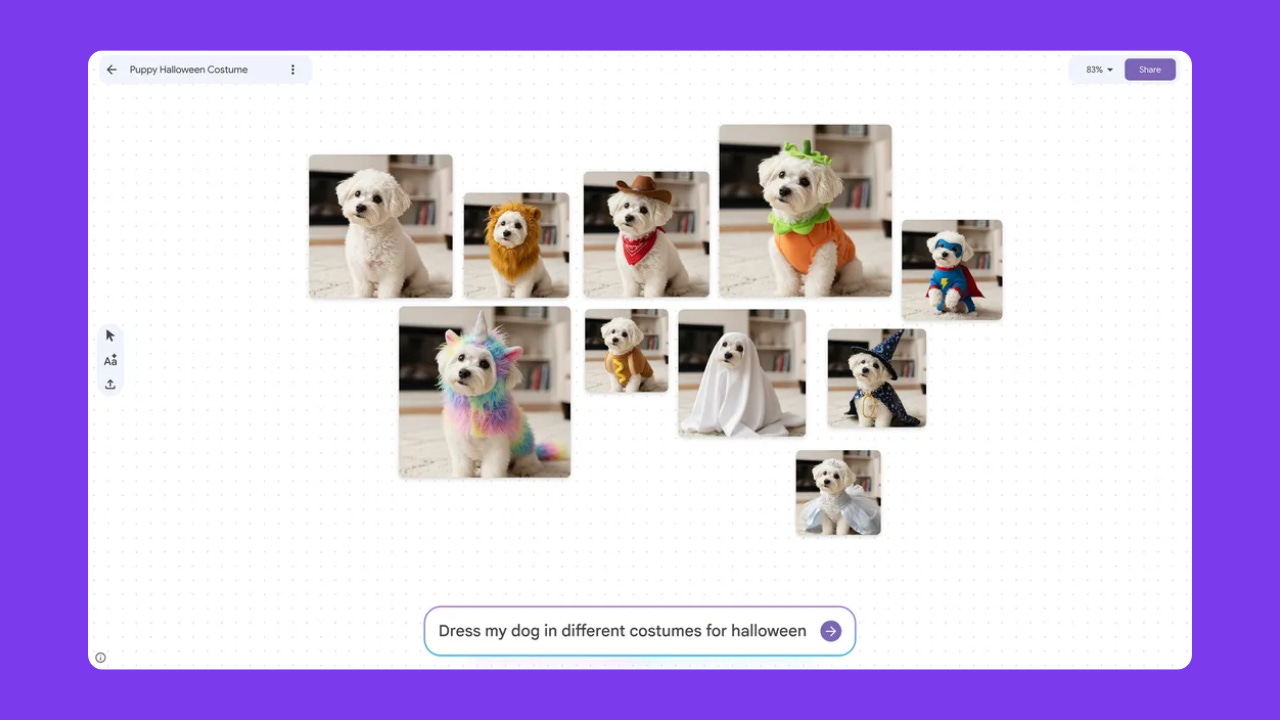
An AI-powered mood board.
What it does: Drop images, color swatches, and notes onto an infinite canvas. Mixboard analyzes the vibe and suggests what comes next: textures, complementary colors, or generated images that fit. Drag two images together and it blends their concepts instantly.
How it works: Drop a picture of a velvet couch and a neon sign. Mixboard suggests a palette of deep purples and electric blues, plus generated images of matching furniture and decor.
Availability: Free Google Labs experiment.
MusicFX: text-to-music
Turn text descriptions into music.
What it does: Type a description like “upbeat jazz with a flute solo and heavy 808 bass” and it generates a track. Powered by Google DeepMind’s Lyria model. Includes a DJ Mode where you control intensity and density with real-time sliders, and a Music AI Sandbox for looping, layering, and editing stems.
Availability. Free Google Labs experiment.
TextFX: creative writing tools
AI-powered tool for rappers, writers, and wordsmiths, built in collaboration with rapper Lupe Fiasco.
What it does: Ten specific tools for playing with language: Simile (finds unique comparisons), Explode (breaks words into similar-sounding associations), Unexpect (suggests surprising twists), Chain (builds semantically related word chains), and more.
Availability. Free Google Labs experiment.
Google AI tools for automation: agents that do things for you
These are the tools that do things for you. Not just answer questions, but actually go out, click buttons, fill forms, send emails, and build workflows.
Project Mariner: autonomous browsing agent
A DeepMind research prototype. This one’s still early but impressive.
What it does: An AI agent that navigates the web visually, just like you would. It can identify buttons, search bars, and forms on any website, open multiple tabs simultaneously, and complete complex tasks on its own. You see a ghost cursor moving in real time and can click “Take Over” at any moment.
How it works: Give it a goal: “Find a 3-star hotel in Chicago for under $200 that allows dogs.” Mariner goes to travel sites, inputs dates, filters by pet-friendly, compares prices, and compiles a final list for you to review.
Availability: Research prototype. Only available to AI Ultra users.
Chrome Auto Browse: Gemini as your browsing agent
The consumer-facing version of what Mariner previewed.
What it does: Gemini now lives in a side panel pinned next to whatever tab you're in. From there you can multitask without switching windows: summarize pages, compare options across tabs, transform images with Nano Banana without downloading anything, and connect to Google apps so everything works together.
Auto browse: This is the big one. Give it a multi-step task and it handles it on your behalf. Collecting tax documents, getting quotes from service providers, managing subscriptions, even identifying items in a photo, searching for them, and adding them to your cart within budget. It pauses before anything sensitive like purchases or social media posts. If a site requires login, it can use Google Password Manager.
Availability: Side panel and Connected Apps available now on Windows, macOS, and Chromebook Plus. Auto browse rolling out in preview in the U.S. for AI Pro and Ultra subscribers.
CC: your AI email assistant
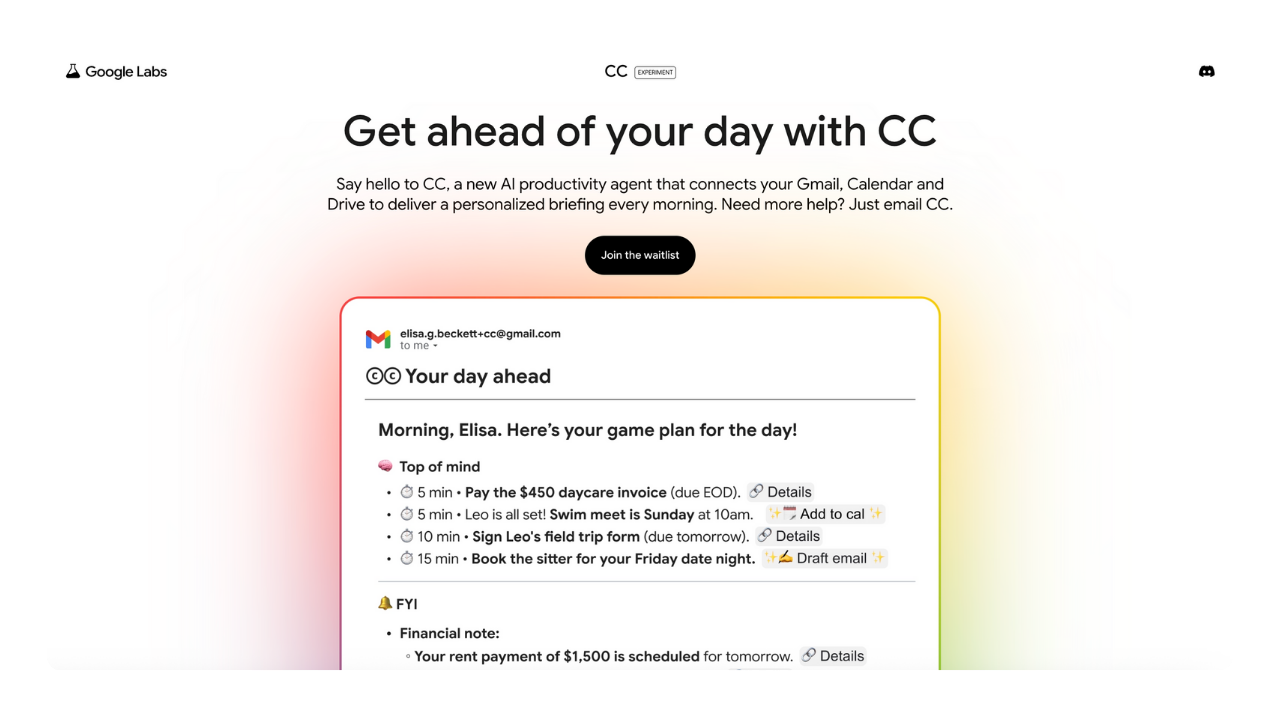
An AI agent that lives entirely inside your inbox. No app to open.
What it does: Every morning, CC sends you a personalized email summarizing your schedule, outstanding tasks, and emails that need replies. It connects to Drive and Calendar, so it knows context. If you have a meeting called “Project Alpha Review”, it links the relevant docs automatically.
How it works: You get an email from CC: “You have 3 meetings today. The 2 PM with John has no agenda yet.” You reply: “Draft an agenda based on our last email thread.” CC replies minutes later with a draft ready to forward. All through email.
Availability. Still experimental. Waitlist available.
Opal: describe an app, get an app
A text-to-app platform. No code required.
What it does: Describe what you want in plain English and Opal generates the logic, the interface, and the backend connections. It visualizes the workflow as a flowchart so you can see exactly how data moves. Once generated, your app gets a URL immediately.
How it works: Type “make an app where I upload a PDF invoice, it extracts the total, date, and vendor, and puts them into a table.” Opal builds a simple interface with an upload button and a results table, powered by Gemini’s vision.
Availability: Free Google Labs experiment.
Google Apps Script: Workspace automation, with Gemini
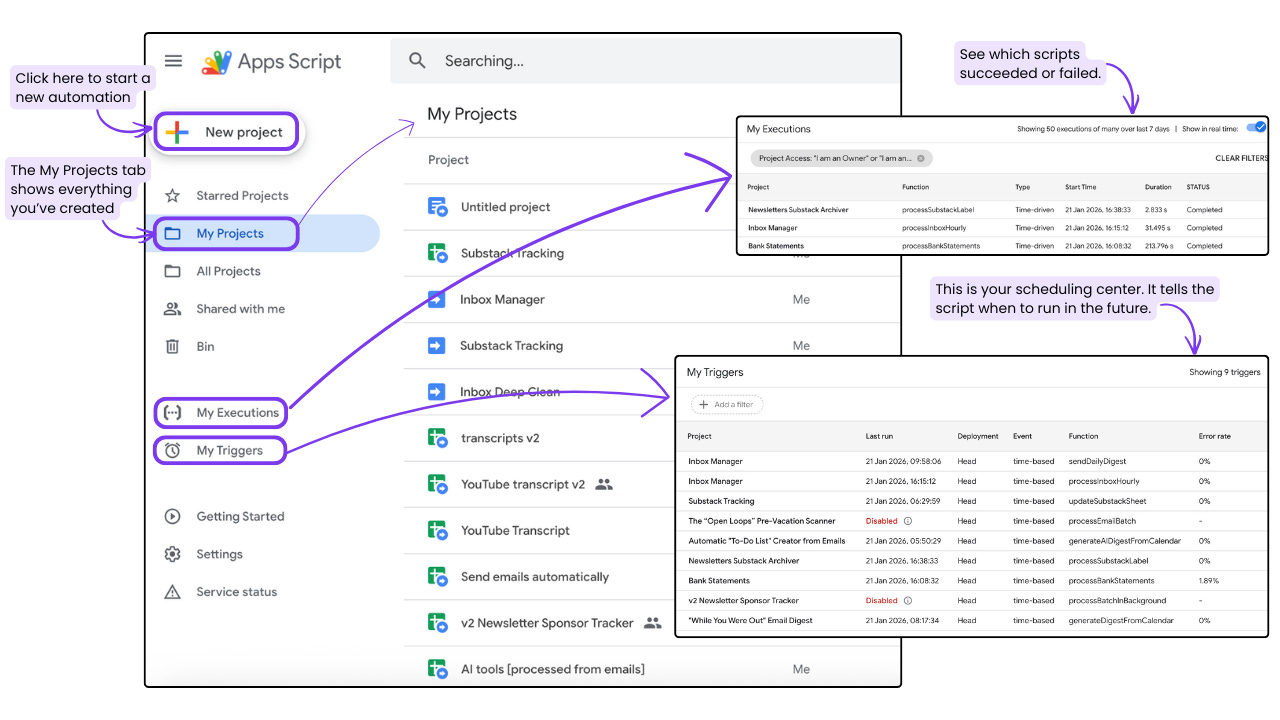
The classic automation tool for Google Workspace, now supercharged.
What it does: Write code that links Gmail, Sheets, Docs, and Drive in ways no off-the-shelf tool can. The difference now: you don’t need to know JavaScript anymore. The “Help me script” feature lets you describe what you want and Gemini writes the code for you.
How it works. Open the Script Editor and tell Gemini: “Write a script that checks my Gmail for emails labeled ‘Invoices,’ saves the attachments to a Drive folder, and logs the sender and date in a spreadsheet.” Gemini writes the code, you click run, done.
Availability. Free.
See my Google Apps Script automation guide.
Google AI tools for building: prototyping and development
Whether you’re a designer, a developer, or someone who’s never written a line of code, Google now has tools that let you build things. Here’s what’s available.
Stitch: sketch to UI
An AI design tool that turns rough ideas into polished interfaces.
What it does: Upload a napkin drawing, a whiteboard sketch, or just describe what you want. Stitch builds professional UI designs and exports fully editable Figma files with layers and auto-layout already set up. It also generates production-ready HTML, CSS, or React components. You can highlight any element and ask it to adjust just that part.
How it works: Upload a rough wireframe of a “plant care app.” Stitch applies a modern aesthetic and generates multiple screens: a dashboard, a camera view, a watering schedule. Export directly to Figma to tweak.
Availability: Free. Google Labs experiment.
Google AI Studio: build mini-apps by describing them
Not just a model playground. It’s a lightweight app builder.
What it does: Describe what you want an app to do and AI Studio builds it. No syntax required. It handles API connections, so you can say “add a button that uses Nano Banana to generate images” and it writes the code for you. Once it’s working, deploy to a public URL instantly. You can also click on any part of your app and type changes directly on that element.
How it works: Type “make an app where I paste a long article and it gives me a 3-bullet summary using Gemini.” Working link in under a minute.
Availability: Free to experiment.
I did a whole deep dive on Google AI Studio and everything inside it. Plus 5 mini apps I vibe-coded.
Antigravity: Google's AI-powered coding IDE
Google acquired Windsurf for $2.4B and turned it into this.
What it does: An agent-first coding environment where you manage AI agents instead of writing code yourself. You assign tasks and agents plan the changes, write the code, open your app in a built-in browser to test it, and present the finished work for your approval.
How it works: Tell it “add a dark mode toggle to the settings page.” The agent reads your codebase, plans the changes, writes the code, clicks the toggle to verify it works, and shows you everything it did.
Availability: Free in public preview. Supports Gemini, Claude, and open-source models.
Firebase Studio: full-stack app builder
For when you need more than a prototype.
What it does: Describe an app idea and Firebase Studio spins up a full environment: frontend, backend database, and authentication. It has an App Prototyping agent that generates everything, plus a visual annotation mode where you can draw on your app preview (circle a button, write “move this here”) and the agent updates the actual code. When you’re ready, one-click deploy to a live production URL.
How it works: Prompt “build a potluck planner where users can sign in and add dishes”. It generates the login page, the database, and the UI. Draw a circle on the header and say “add a Share button here.” Done.
Availability: Free to use with up to 3 workspaces. Join the Google Developer Program (free) to get 10, or the Premium plan for 30. Some integrations like App Hosting may require a Cloud Billing account.
Google AI tools for work: Gemini inside your everyday apps
I’ve been using Google Workspace for years and I still keep finding features I had no idea existed.
If you're in Google Workspace too, it's worth taking a closer look at what Gemini can do inside the tools you're already using every day. Trust me, there's more than you think.
I’ll cover some of the ones I use the most below. But you can also check out how Gemini works in Google Calendar, Google Forms, Google Meet, and Keep.
Availability: Gemini is automatically included in Google Workspace products for Workspace plan subscribers, but some AI features require an AI Pro/Ultra plan.
Gmail: What AI can now do inside your inbox
Your inbox now has a built-in AI assistant. Here's what Gemini can do inside Gmail:
What it does: Draft emails from scratch, get suggested replies that actually match your tone, summarize long threads, and proofread before you send. The Gemini side panel is always there while you work.
What’s new: AI-powered search lets you ask your inbox questions in plain English. AI Overviews summarize long threads and answer questions about your entire inbox (”how much did I pay for that logo redesign last March?”). And AI Inbox turns your morning into a briefing with recommended to-dos pulled from your emails. [Read more about Gmail’s 2026 AI updates here.]
Read more about Gmail's 2026 AI updates here.
Google Docs: AI that writes, creates, and designs for you
Gemini lives inside your documents now. Not as a separate app you switch to, but right there while you're writing.
What it does: Highlight text and ask Gemini to rewrite it, change the tone, or make it shorter. Or start a blank doc, describe what you want, and Gemini builds the whole thing: cover images, inline images, formatted text, tables, content pulled from your Drive files. One prompt, full document.
What’s new: Gems (your custom AI assistants) now work directly in the Docs side panel. Built a brand voice Gem? Use it right here while writing. Plus you can generate images directly inside your document.
Read more about Gemini in Google Docs here.
Google Sheets: The =AI() function and smart data tools
What it does: The =AI() function is a formula that understands language. Classify customer feedback, extract action items, generate ad copy, summarize text. It even pulls real-time info from Google Search. Enhanced Smart Fill watches how you enter data, spots the pattern, and autocompletes the rest. Label sentiment for three rows manually and it fills the remaining hundreds.
Here’s how I used the =AI() function: I built an Apps Script automation that pulls YouTube transcripts into a Sheet, then added 7 =AI() formulas to turn each transcript into social posts, course outlines, content briefs, and more.
What’s new: Multi-step editing lets you give Gemini a list of changes in one prompt (”delete archived rows, add a Status dropdown, freeze the header, create a formula for days until due date”). Multi-table analysis works across different data sources in the same sheet. And Gems work in the Sheets side panel too.
Read more about AI in Google Sheets here.
Google Slides: AI-powered image generation and presentation design
Gemini can now generate images, infographics, and even full slide layouts directly inside your presentation.
What it does: Describe what you want and Gemini generates images, infographics, or full slide layouts using Nano Banana Pro. Edit any image in plain English (”place this in a frame hanging in an art gallery”). Remove backgrounds in one click. Or select a slide and hit “Beautify” for an instant visual upgrade without starting over.
What’s new: Gemini side panel lets you summarize your deck, pull in content from Drive files using @mentions, and brainstorm ideas.
Read more about Gemini in Google Slides here.
Google Vids: Create professional videos with AI
An AI-powered video editor built into Workspace. Describe what you want, and it creates a full video with AI voiceover, stock footage, and transitions.
What it does: An AI-powered video editor built into Workspace. Type a prompt (or feed it a Google Doc or Slides deck) and Gemini generates a full storyboard with scenes, stock media, scripts, and background music. Everything’s editable. Choose from preset AI voices, generate AI avatars powered by Veo 3.1, or convert an existing slide deck into a video.
Read more about Gemini in Google Vids here.
Google Drive: AI search, summaries, and file organization
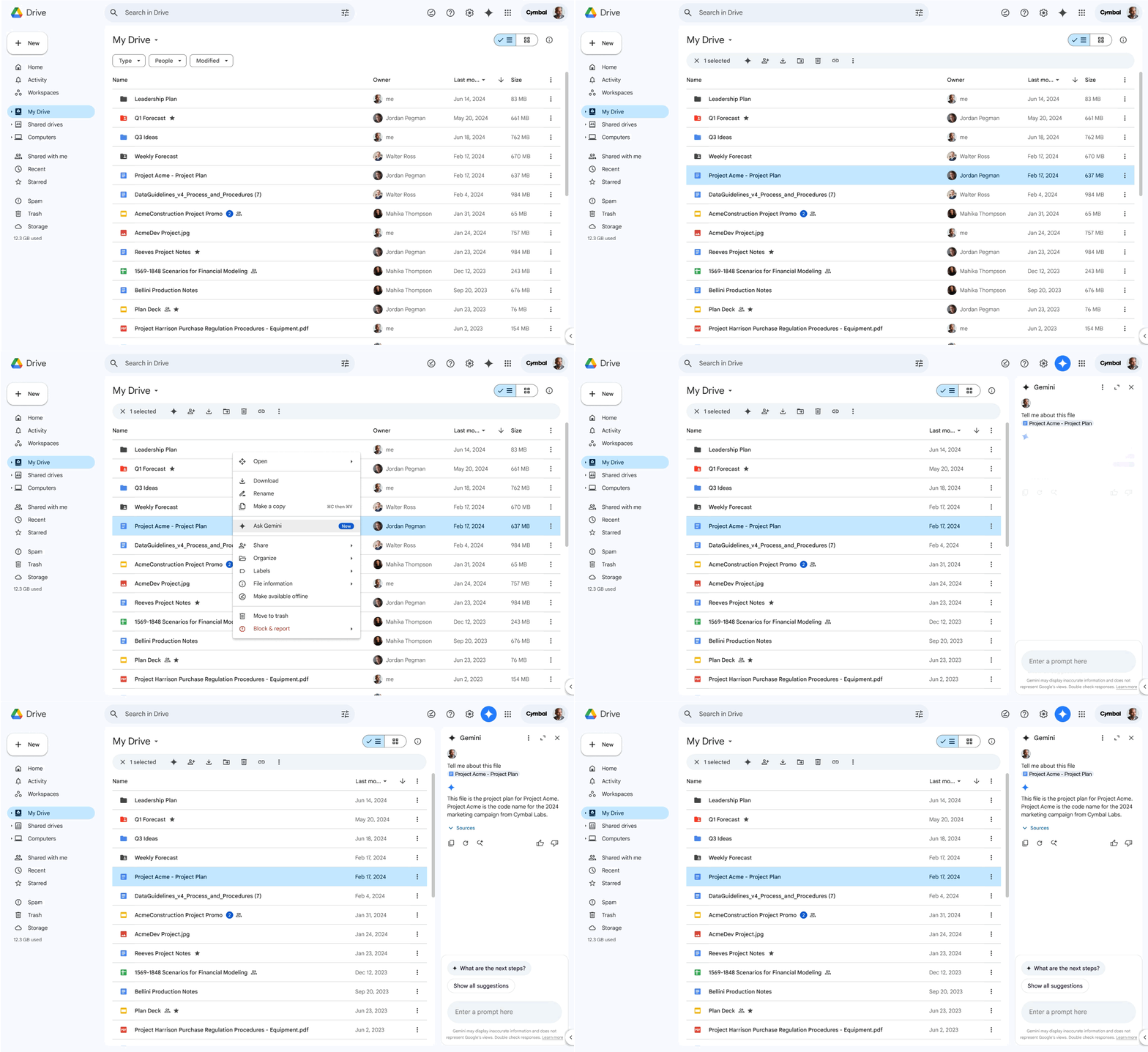
Your Drive now has an AI brain. Gemini sits in the side panel and can search, summarize, and organize across all your files without opening a single one.
What it does: Gemini sits in the Drive side panel and can search, summarize, and organize across all your files without opening a single one. Select documents, PDFs, or presentations and get summaries instantly. Type @FolderName and Gemini analyzes everything inside.
What’s new: Natural language organization lets you move files with plain English (”move all Q4 reports into the Finance folder”). You can create new Docs, Sheets, Slides, or folders directly from the side panel. And Gems work in Drive too.
Read more about Gemini in Google Drive here.
Gemini built into the products you already use
Beyond the standalone tools, Gemini is also running inside products you probably open ten times a day. These aren’t new apps to download. They’re features already sitting inside Search, Maps, Photos, and more.
Search and shopping
AI Mode in Search. A whole new search experience with dynamic visual layouts, interactive tools, and simulations. Less “ten blue links”, more direct answers and explorable results.
AI Overviews. AI-generated summaries that appear at the top of regular Google Search results, giving you a quick answer before you click anything.
Shopping in AI Mode. Tell it what you’re looking for and it browses, compares, and recommends products from over 50 billion listings. There’s also a virtual try-on feature: upload a photo of yourself and see how clothes actually look on you before buying.
Google Lens. Visual search, homework help, real-world object identification. Point your camera at something and get answers.
Photos, maps, and media
Ask Photos. Search your Google Photos library with natural language (”show me photos of my dog at the beach”).
Ask Maps. A hands-free AI driving companion that can answer questions about your route, find stops, and help you navigate without taking your hands off the wheel.
Daily Listen. Personalized AI audio news updates about topics you care about, generated fresh each day.
Live translation. Real-time translation across Google products, from conversations to camera text.
The bigger picture
Google made AI the default layer across everything billions of people already use every day. That’s not a product launch. That’s infrastructure.
And what makes it even better is that most of the Google AI tools and products are free. The barrier to entry is basically zero.
You just have to know they exist. Which, now you do.
Where to start this week
So which are the best Google AI tools to start with? If I had to pick a few for someone who’s never tried any of these:
If you’re a researcher or a writer: start with NotebookLM. Upload a few sources, chat with them, generate an Audio Overview. You’ll get it immediately.
If you’re curious about building things: open Google AI Studio. Describe a simple app and watch it build one for you. No code needed.
If you’re a creative: try Whisk. Upload three images (a subject, a scene, and a style) and watch it blend them into something you didn’t expect. Then hit Animate and turn it into a looping video. It’s the fastest way to see what AI can do with visuals.
If you just want to see AI inside tools you already use: open Google Docs or Sheets and try Gemini in the side panel. Ask it to summarize something, rewrite a paragraph, or generate a formula.
Now I want to hear from you
Which of these have you already been using? Which new ones you discovered are you most curious to try? Drop a comment and let me know.
And if you learned something new in here, share this with someone who’s been sleeping on what Google can do. It helps more than you think.
This is a free article. If you’d like to support my work and get access to all premium content inside AI blew my mind plus all the resources inside the LAB, consider upgrading your subscription.
Amazing info. I agree it’s hard to keep up with everything and I appreciate your summary. Tagging to save for later and read in more detail.
Thank you for this amazing overview!