The more time passes, the more I hear it: "I want to learn about automations. I want systems that run without me".
You’re probably feeling it too. Hours every week lost to repetitive tasks that feel like work but aren’t actually the work.
You know what I’m talking about. The email sorting, the data entry, the copy-pasting between apps, the invoice tracking, the report you rebuild from scratch every Monday even though the format never changes.
These are the tasks automation can take off your plate. And once they’re gone, you get those hours back. For the work that matters. Or for closing your laptop earlier.
Google Apps Script is where I started. And I still think it’s the best place for most people to begin if you're already using Google products.
Unlike n8n, which has a steeper learning curve, with Google Apps Script you can iterate with Gemini until your automation works.
So today, I'm going deeper than usual. Not just an automation I built, but the full picture. How Google Apps Script works. How to navigate it. And my exact process of building an automation with Gemini, step by step, so you can do the same.
Because once you learn how to think around automations, you can create your own for whatever process is eating your time.
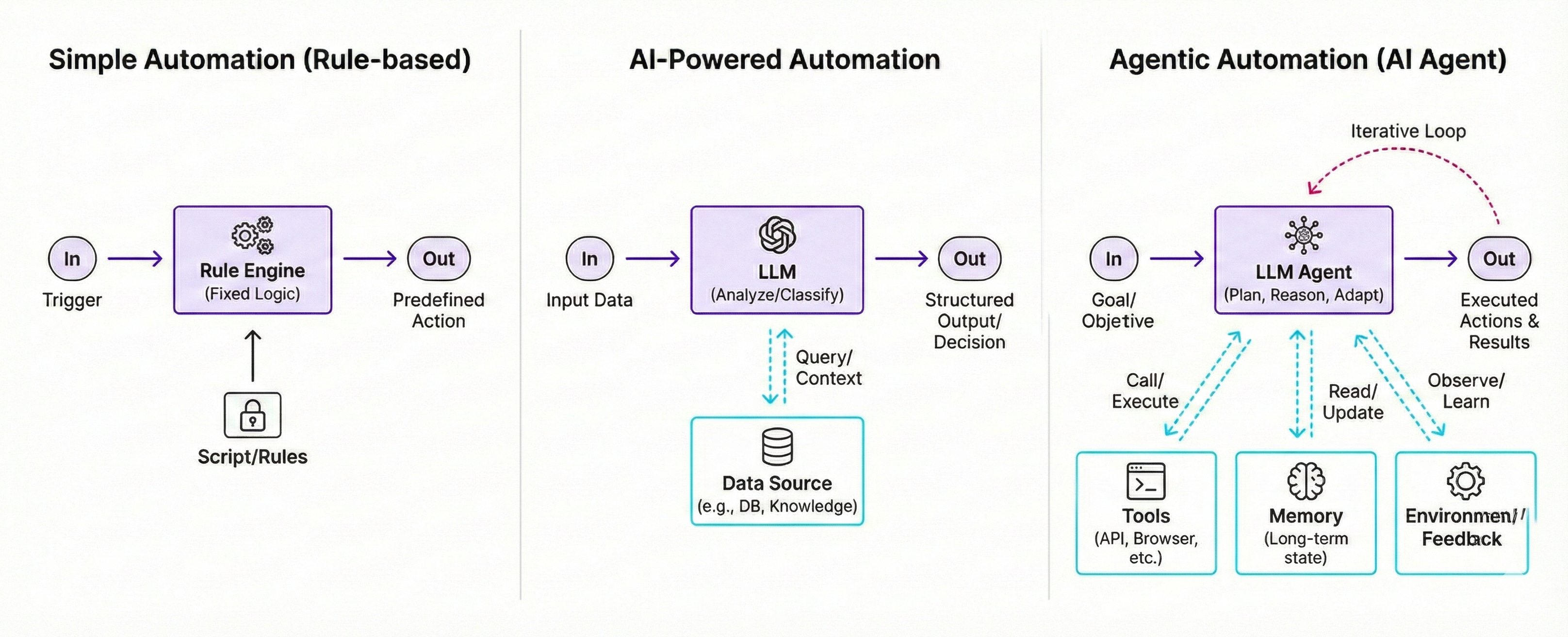
What automations are: simple vs. AI-powered vs. agentic
Why Google Apps Script is a great starting point for beginners
A full walkthrough of Google Apps Script: how to navigate it
Use cases and examples to inspire what you can build
A step-by-step build: how I created an automation with Gemini, from prompt to working script
What to expect when things break (and how to fix them)
A prompt to pressure-test your idea before you start building
Let’s begin.
Google Apps Script is one piece of a much bigger ecosystem. If you want to see everything Google has built with AI, from research tools to creative work to agents that browse the web for you, check out my complete guide to every Google AI tool in 2026.
And if you want to go deep on Gemini itself, every feature inside the chat, and how to get the most out of it, I wrote a complete guide to Google Gemini too.
What is an automation?
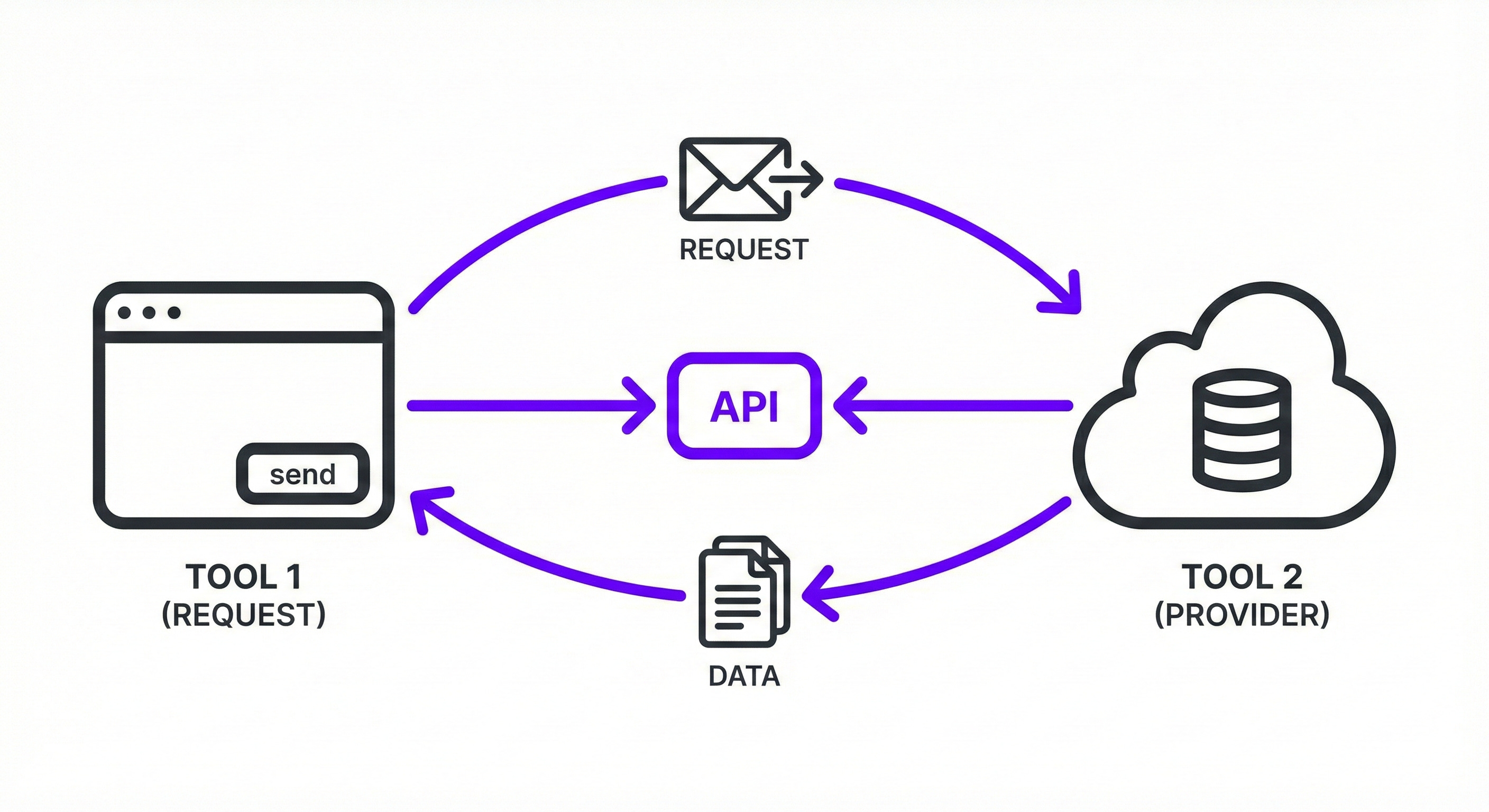
At its core, an automation connects tools and executes tasks without you being there. That connection happens through APIs.
An API is simply how one tool talks to another. You send a request (”give me today’s emails”), the tool sends back data. When you build an automation that connects Gmail to Sheets to Gemini, you’re telling their APIs to pass information between them.
So that’s what an automation does.
But not every automation works the same way. A task you do the same way every week needs a different approach than a task that requires decision-making.
Here’s a breakdown of the three types and when to use each:
If you're more visual, here's what the difference looks like. Notice how the complexity increases as you move right:
Google Apps Script fits in the first two categories. Simple automations and AI-powered ones.
If you need agentic workflows or more complex setups, tools like n8n or Make are better suited for that.
But if you're just getting started, Google Apps Script covers more than enough ground.
One of the best ways to support my work? Hit share if you find this useful.
What makes Google Apps Script (GAS) a good starting point
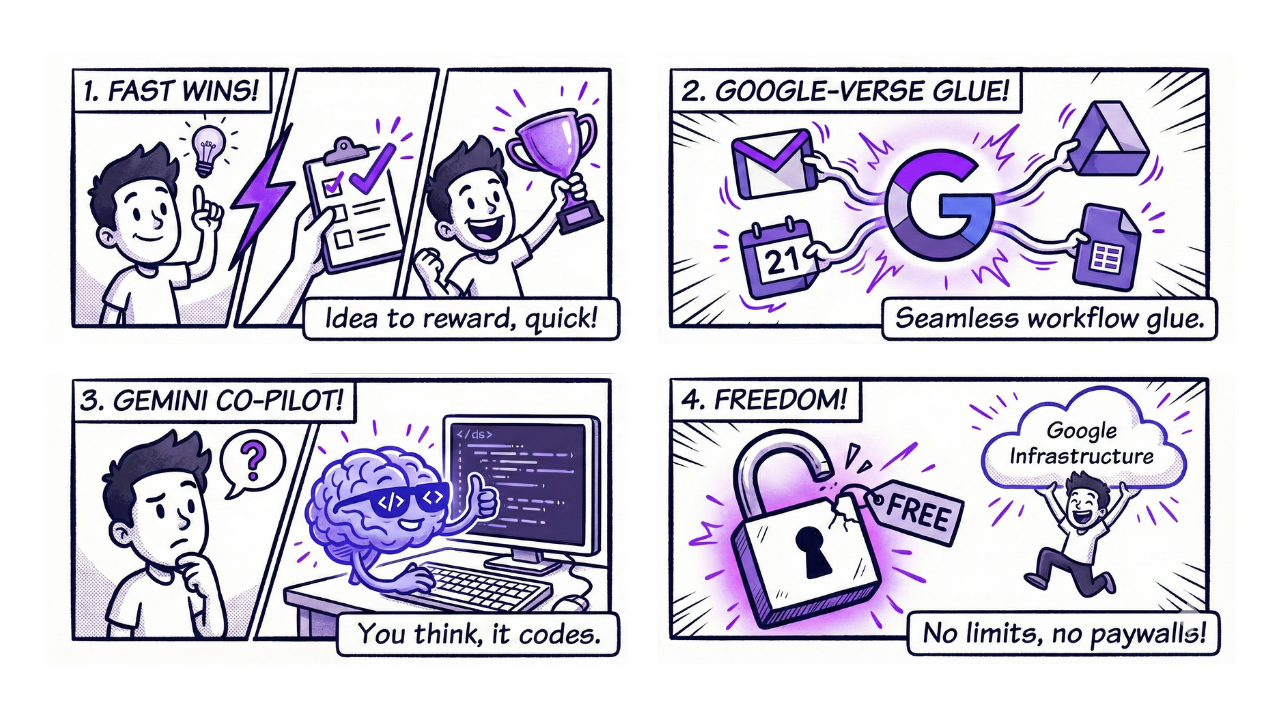
You see results fast: If you’re learning automations on your own, that little reward of “it works” is what keeps you going. With GAS, you get there quickly.
It’s built for Google products: Gmail, Sheets, Drive, Calendar. If these are already part of your daily workflow, you’re in the right place.
Gemini is your co-pilot: GAS is a Google product, so Gemini knows it inside and out. You don’t need to know how to write code. Gemini handles that. You handle the thinking.
It’s free: No subscription. No usage limits. No “starter plan” behind a paywall. You only pay for what you connect to it, like Gemini API calls or third-party tools.
What is Google Apps Script?
Google Apps Script is a cloud-based platform that lets you automate tasks using JavaScript.
If you've used Zapier, Make, or n8n, you know they work with visual workflows. Google Apps Script gets you to the same result, just with code instead of connecting visual blocks.
You write scripts (aka code), which are just sets of instructions that tell your tools what to do. (Don’t let the code part scare you. I’ll show you how to use Gemini to write it for you, step by step.)
Once your script is ready, it saves to Google Drive and runs on Google's servers, so your computer can be closed and the script still runs.
The point is to make your tools talk to each other and do work without you. And there’s a lot you can connect:
Built-in Google services: Gmail, Google Calendar, Google Drive, Google Sheets, Google Docs, Google Forms, Google Slides. Plus Google Analytics, Google Maps, Google AdSense, and more.
External tools: Any API you want. GitHub, Slack, Notion, OpenAI, you name it. If it has an API, you can connect to it.
Your automation isn’t limited to Google, it just starts there.
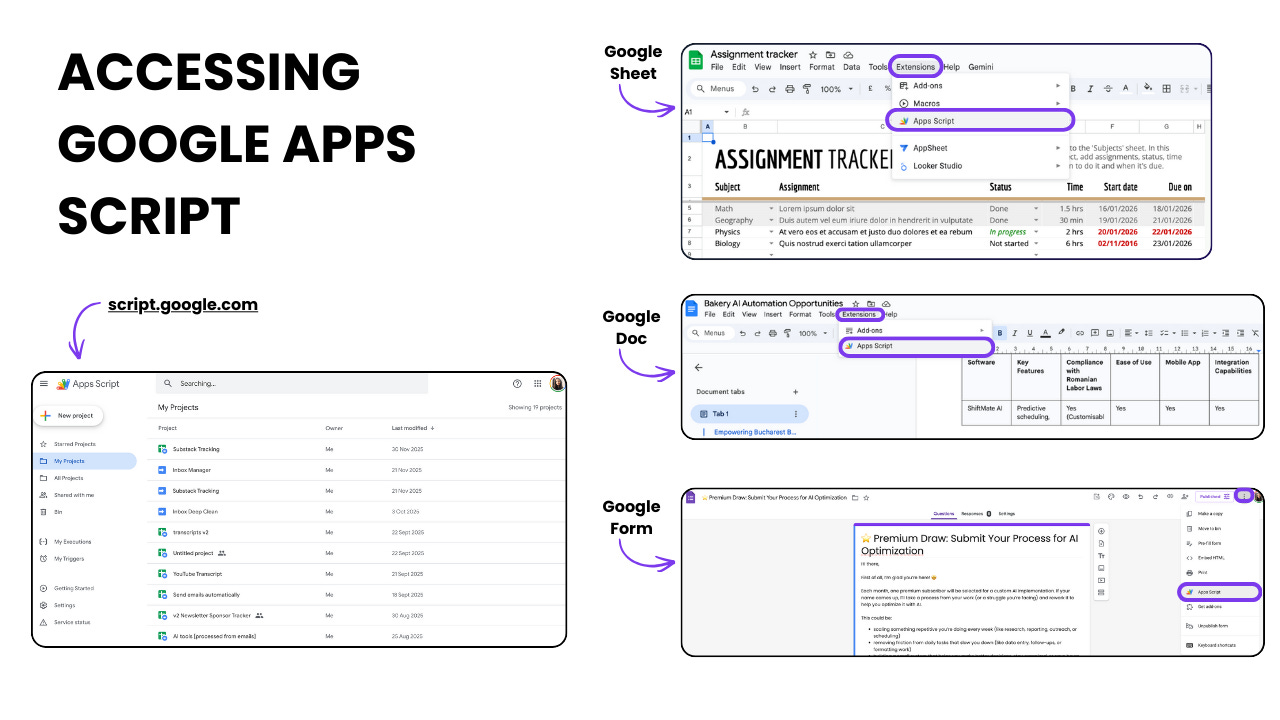
From any Google product (Sheets, Docs, Forms) via Extensions → Apps Script
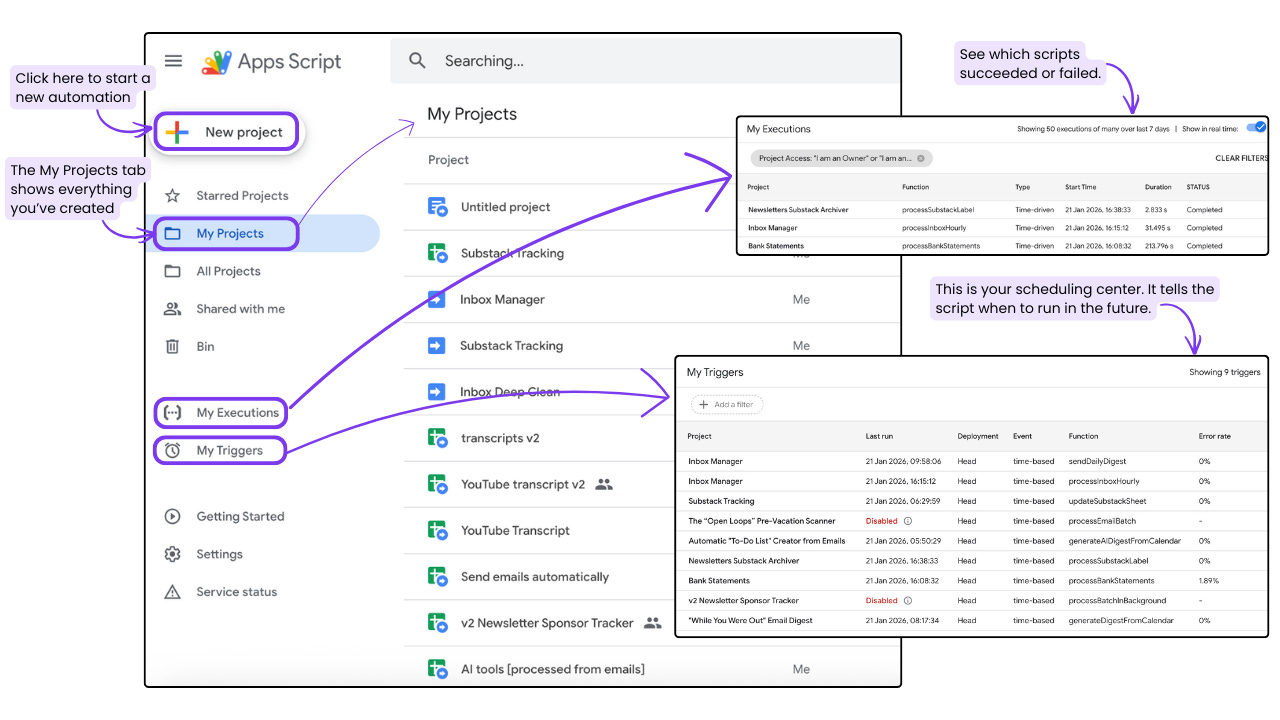
Dashboard walkthrough (home page)
There’s more inside the home dashboard, but these are the main things you’ll use:
New Project – Click here to start a new automation.
My Projects – Everything you’ve created. Your home base.
My Executions – See which scripts succeeded or failed. Useful when something breaks.
My Triggers – Your scheduling center. Tell your scripts when to run: every hour, every Monday, when a form is submitted.
Editor walkthrough (project view)
This is where you build a new automation. You get here by clicking "New Project" or by opening Apps Script directly from a Google Doc, Sheet, or Form.
Think of this screen as your "Command Center".
I won’t show you everything that’s inside it, just the main things you’ll use:
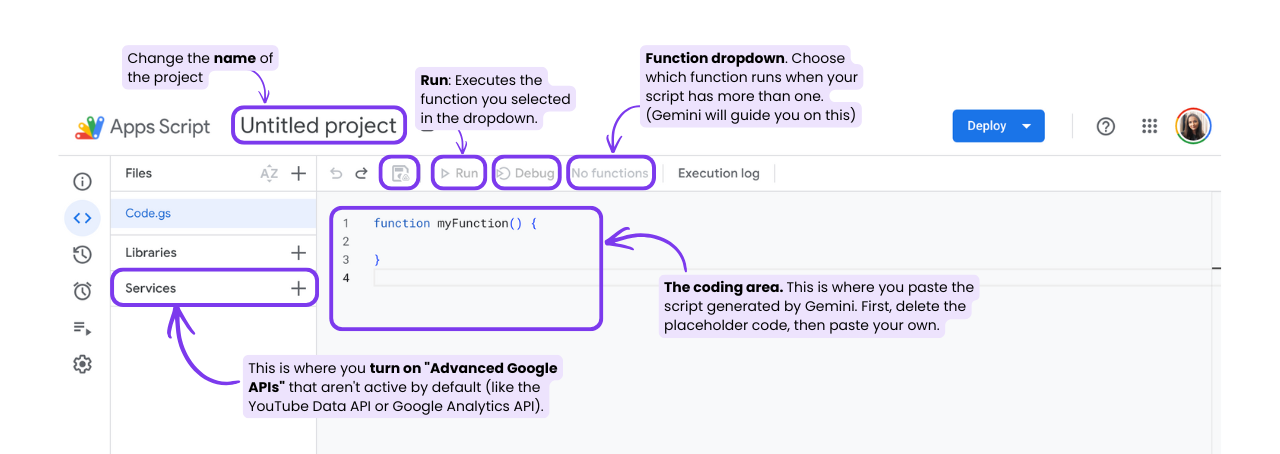
1. The “Files” & “Services” Pane (left column)
This panel manages your resources.
The main thing to know here: under "Services", you can turn on Advanced Google APIs that aren't active by default (like the YouTube Data API or Google Analytics API). Most automations won't need this, but some do.
2. The Toolbar (top horizontal bar)
Function Dropdown: If you write two functions (e.g., function sendEmail() and function cleanData()), you use this dropdown to tell Google which one you want to run right now.
Run: Executes the function you selected in the dropdown.
Debug: Runs the code but lets you pause it line-by-line to find errors.
Save: Your code doesn't auto-save. Click this after every change.
3. The Coding Area (center stage)
This is where the code goes. You'll paste what Gemini generates here.
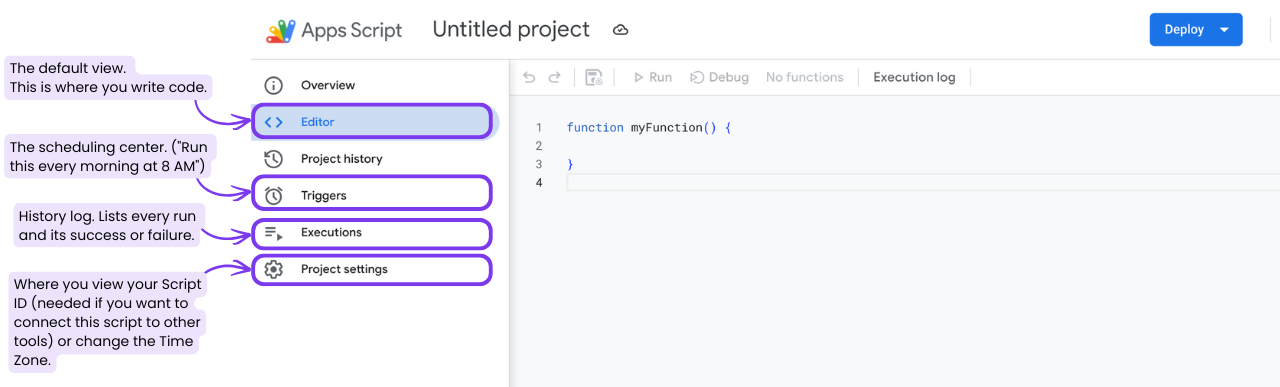
4. The Navigation Bar (far left strip)
These icons switch your entire view mode:
Editor: The default view. This is where you write code.
Triggers: The scheduling center. Where you say “Run this script every morning at 8 AM.”
Executions: The history log. Shows a list of every time your script ran and if it succeeded or failed.
Project Settings: Where you view your Script ID (needed if you want to connect this script to other tools) or change the Time Zone.
You'll find Triggers and Executions in the home dashboard too, but here you only see the ones for this specific project.
Google Apps Script use cases and examples
Now that you know how Google Apps Script works, the question is: what do you build with it?
Here are three ways to find ideas:
1) Start with your frustrations
The best automations come from tasks that make you think "there has to be a better way". Start there. If you need help finding it, I wrote an article on how to identify automation opportunities in your work.
2) Steal from what's already built
Here are some I’ve built and shared (some via the newsletter, more in the LAB):
Want more? I created a public doc with with 100 Google Apps Script automation ideas organized by category. Grab it here.
3) Brainstorm with Gemini
Tell it about your work and the tools you use, then ask: what could I automate with Google Apps Script? It knows what GAS is capable of and can brainstorm with you.
Here's a prompt to get you started:
I want to find tasks I can automate using Google Apps Script. I use [list your tools: Gmail, Sheets, Calendar, etc.] and these are some things I do repeatedly: [describe 2-3 tasks]. What could I automate?