
The Simplest Way to Turn Any AI Chat Into a Reusable Workflow (Free Claude Skill)
Learn how to document and reuse AI workflows instead of re-explaining the same task. Here's a free Claude skill that turns any chat into a reusable workflow in 5 minutes.

Think about the last time you worked on something with Claude or ChatGPT and it went really well. Maybe you were researching a new client before a call, pulling together everything you needed to know before you got on.
You started broad, then you corrected a few things, pointed the AI in a better direction, asked it to dig deeper into one area, told it the format wasn’t right, adjusted the length. By the end of the conversation, you had something useful. And more importantly, your LLM had learned how you wanted this type of task done.
Then next week, you needed to do the same thing again for another client. And you started from scratch.
That moment, where you rebuild something you already figured out once, is the difference between having one-off chats and systems you can reuse.
Every time you corrected and guided the AI, you were training it on your preferences, your quality bar, your way of working. When it’s a task you do over and over, throwing that away and starting cold every time makes no sense.
So today I’ll show you the easiest way to document an AI workflow once and reuse it — for the kind of work you already do with AI, instead of re-explaining and re-correcting the same things every time. It runs on a Claude skill I built for exactly this.
Here’s what we’ll cover:
Why the easiest workflow to build is one you already finished (no extra work, you just save what already happened)
The free Claude skill that turns a finished conversation into a workflow you can reuse (walked through step by step with screenshots)
The two places I save workflows so I can find them again (and which one to use when)
How to get the skill and set it up (whether you’re in Claude or ChatGPT)
Over the next few weeks I'm going to show you the systems I've built for myself and my business, in Claude Code and Cowork. But you won't be able to build your own until this part, the foundation, is in place. So this is where we start.
Let’s get into it.
The easiest workflow to build is one you already finished
The hardest part of building reusable AI workflows is that nobody saves the work they already did.
Now you might say, “But Daria, I don’t have time to take notes after every conversation.” Fair. The good news is, you don’t have to. Not with this method I’m about to show you.
When we hear “documenting”, we immediately think of the hard version, the one where you sit down to write up a process that lives in your head, something you do by hand and have never spelled out before.
What we’re doing here is the opposite. We’re looking at the chats where you spent 30 minutes, an hour, two hours working a task through with the AI. Teaching it how the task should be done, what format you wanted, correcting it until you landed on a version you were happy with.
That chat already happened. Claude was in it the whole time, watching every correction and learning how you want this done.
The only thing you never did was save it. You closed the tab, and next time the task came up, you started from scratch.
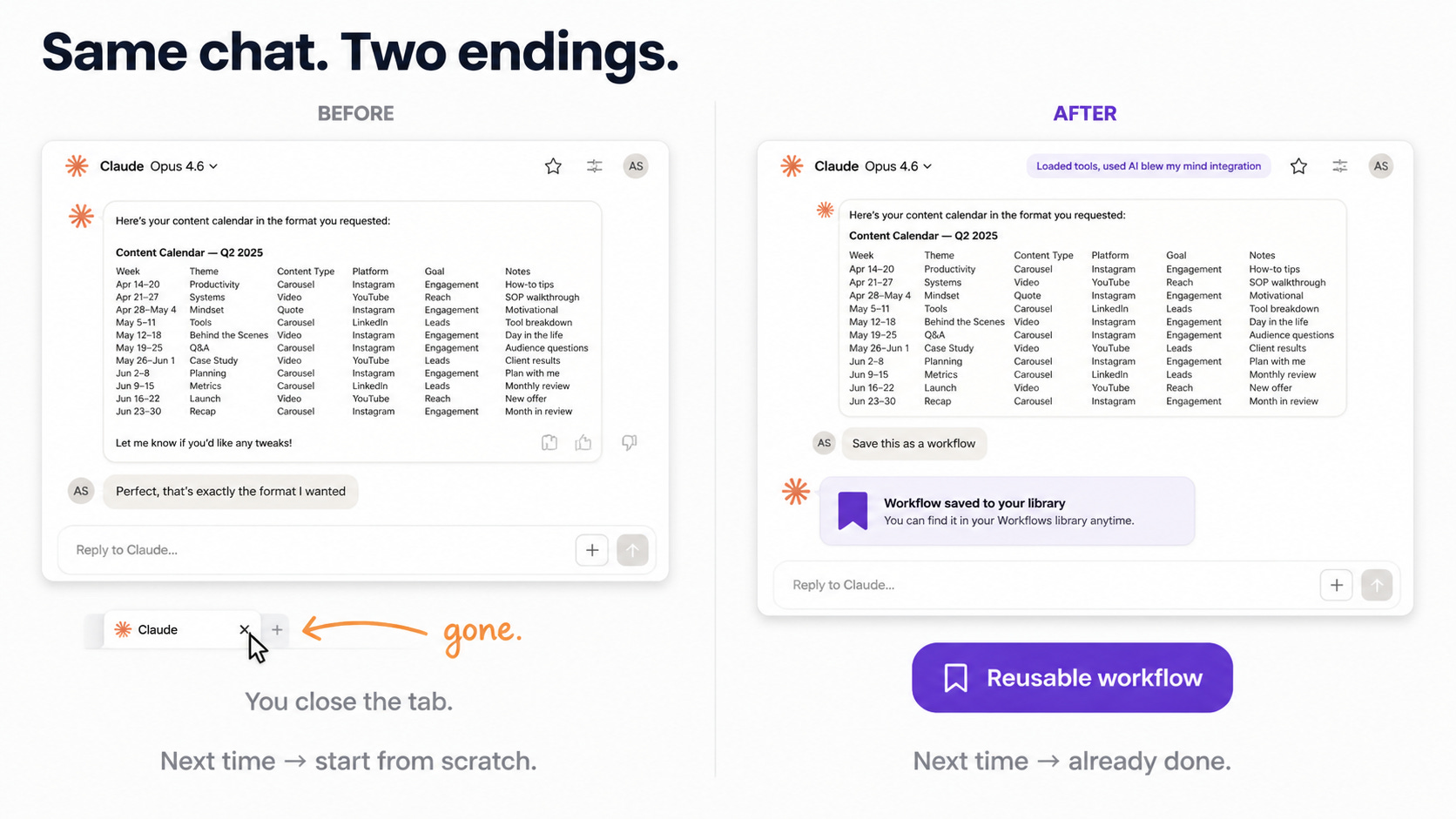
This is where the method comes in, and why I think you’ll find it so easy to use.
You run the Claude skill I built at the end of a work session, once you’ve landed on the output you wanted, and it documents everything about how you got there. That’s the easiest possible way to turn a chat into something you can reuse, which is exactly why it’s worth starting here.
And it does more than give you a repeatable workflow. It builds a habit. You keep doing what you’re comfortable with, your one-off conversations, but you start taking the first steps toward building real systems around your work.
It takes time to get used to, and this is the gentlest way in: one small layer added at the end of chats you were having anyway. Do it enough, and you're slowly working the way the people who get the most out of AI already do.
How the /conversation-to-workflow Claude skill works
You run all kinds of chats in a day. Quick questions, one-time tasks, things you’ll never touch again. Most of them aren’t worth saving, and that’s fine.
This skill is for the ones that are. And the way you figure out which is by asking yourself one question:
Is this something I’ll do again? Will future-me thank present-me for not having to figure this out from scratch?
If yes, that’s the chat to turn into a workflow.
Using it is simple. At the end of a conversation that went well, you drop /conversation-to-workflow into the chat.
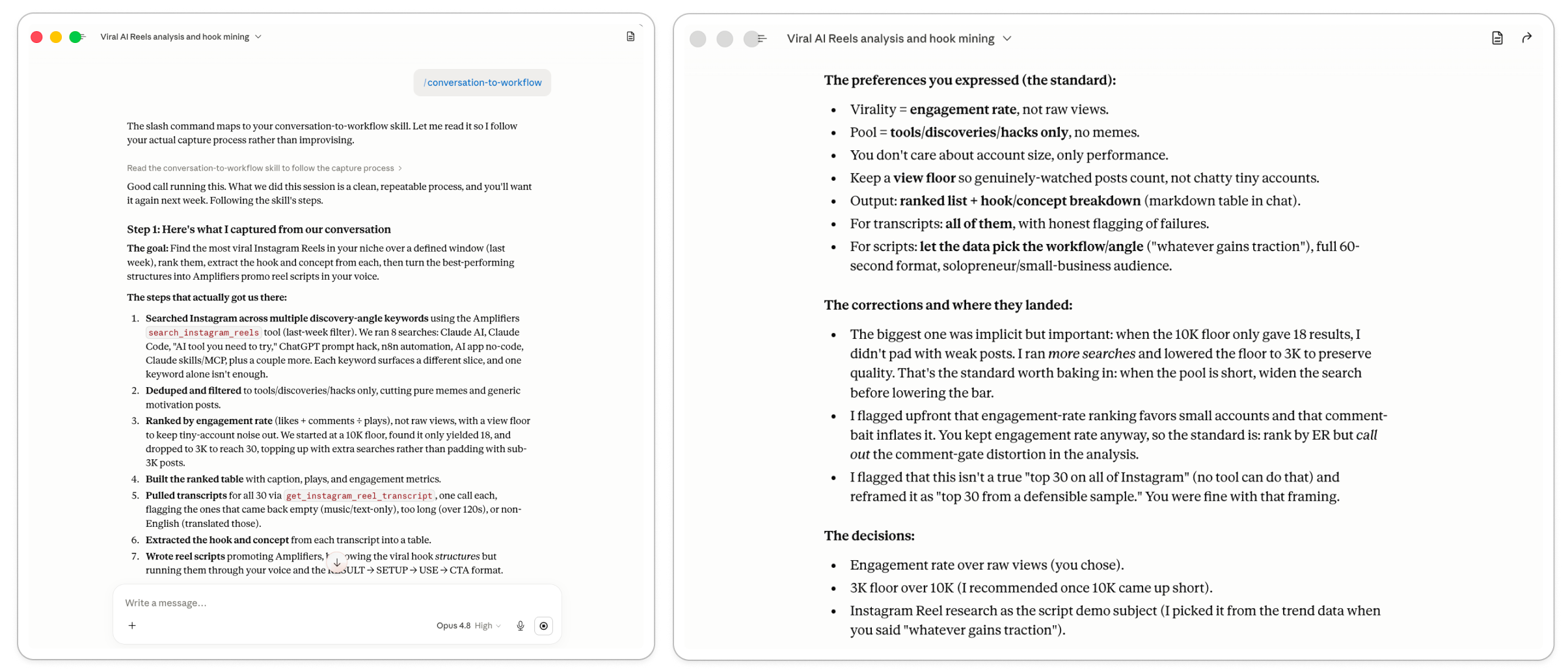
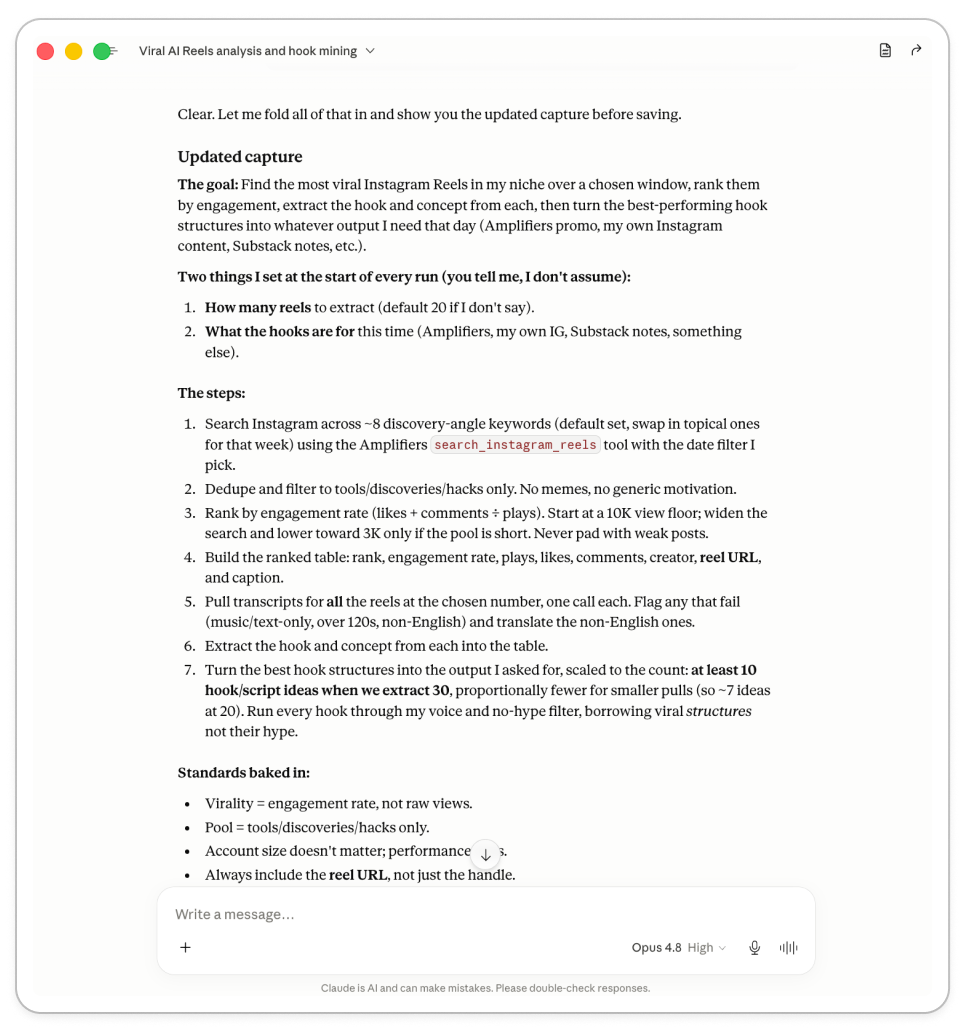
It runs right there on the conversation you’re already in, and walks through five steps. I’ll take you through them with a real one of my own. Earlier I built a workflow that tracks which reels are going viral on Instagram, then borrows their hooks to promote Amplifiers.
Step 1: It reconstructs what happened
Once you trigger it, it reads back over the entire conversation and reconstructs the process into a documented workflow. What it pulls out comes down to four things:
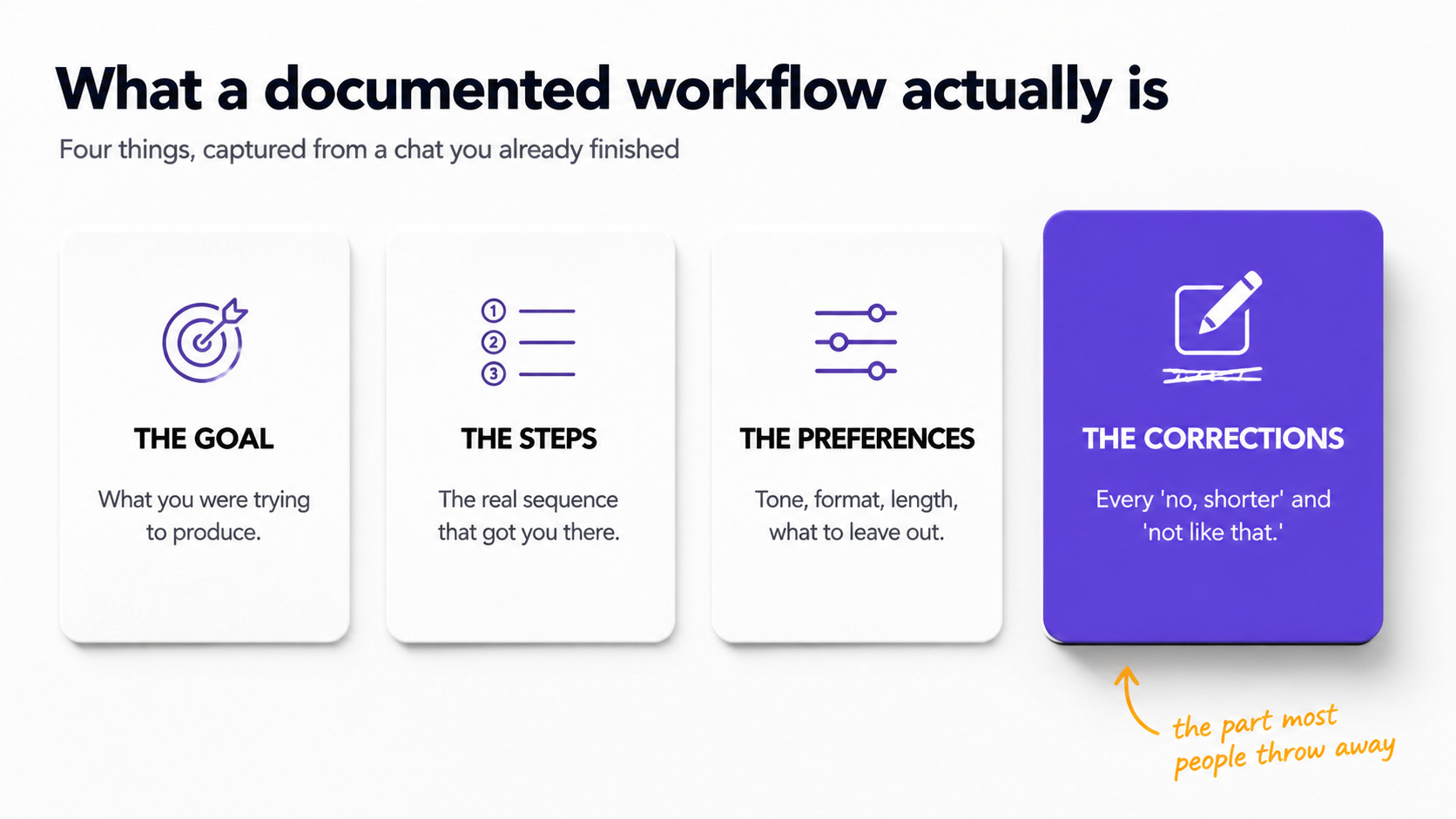
The goal. What you were trying to produce.
The steps. The sequence that got you there, including any tools you used and in what order.
The preferences. Everything you asked for along the way: tone, format, length, what to include, what to leave out.
The corrections. Every time you said “no, shorter,” or “more direct,” or “drop that section,” or “that’s not the format I wanted.”
That last one is the most valuable part. All those corrections you made in the chat, the ones Claude watched and learned from, a plain set of step-by-step instructions would lose every single one.
A list of steps only tells you what happened. The corrections tell you why the first version wasn’t good enough and what made the next one right. That’s where your standard lives, and it’s the context that separates an AI that does the task from an AI that does it the way you’d do it.
Step 2: It shows you the summary, you review and correct it
Then it shows that summary back to you and asks whether it matches how you’d want this done every time. This is your chance to catch what it got wrong and to add what you figured out mid-task.
Most of the time the version you want to save is better than the conversation that happened, because you learned something halfway through that should have been there from the start. So you bake it in now.
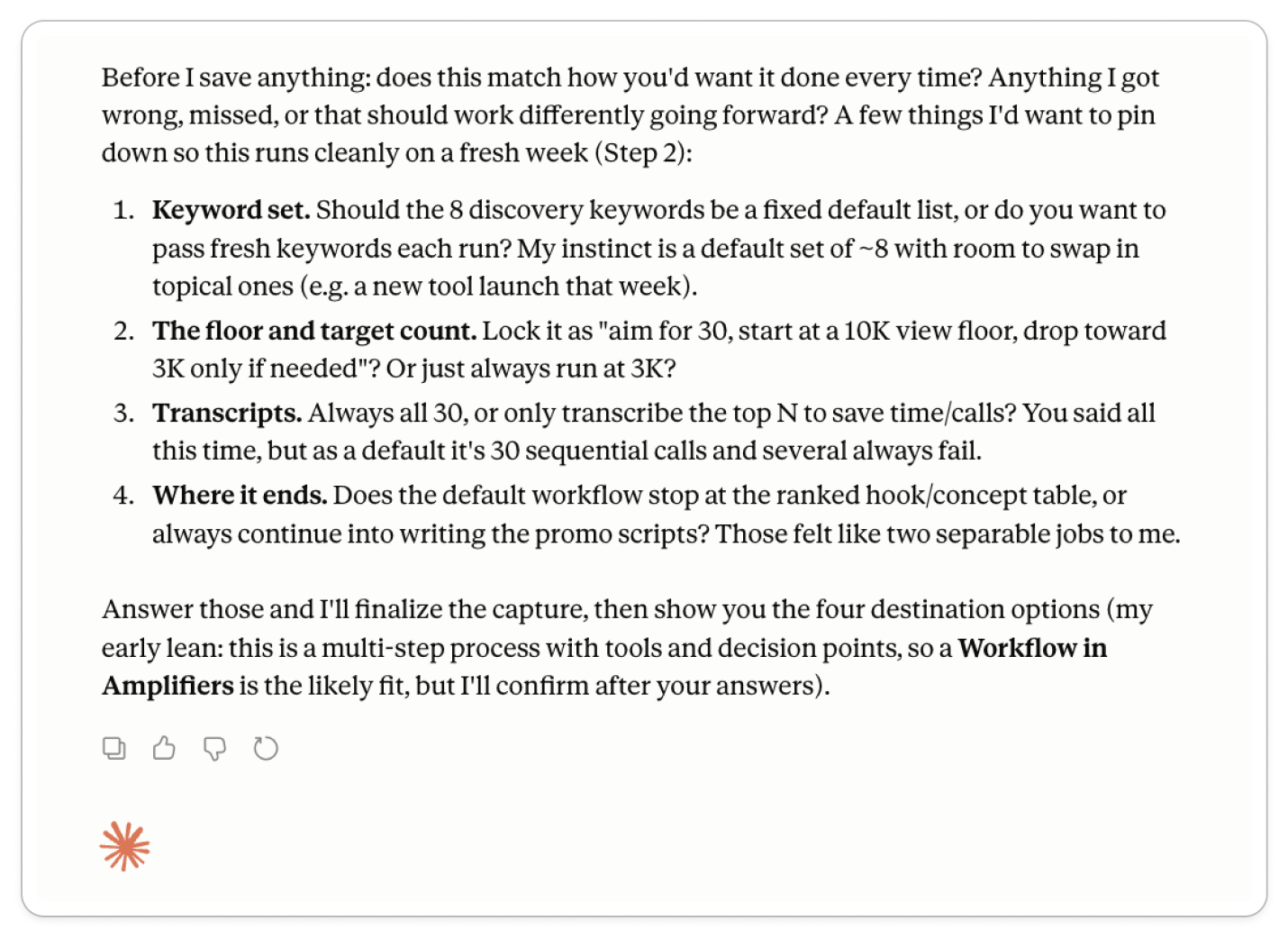
Step 3: It pokes holes in its own summary
Then it does something I think is really important. It looks for anything that relied on context that won’t exist next time:
A preference you corrected once, but never said was your default.
A step where it’d have to guess if it ran the task cold next week.
An input the workflow needs that you never named.
And it asks you about those things directly, before saving, so the saved version works on a fresh task instead of falling apart the moment the context is gone.
Step 4: It builds and saves the clean version
Once it’s confirmed and clarified, it writes the final version and saves it.
The whole thing feels like a five-minute wrap-up at the end of a good chat, not a second project. You finish the task, run the skill, answer a couple of questions, and walk away with a documented workflow.
Step 5. It asks where to save it
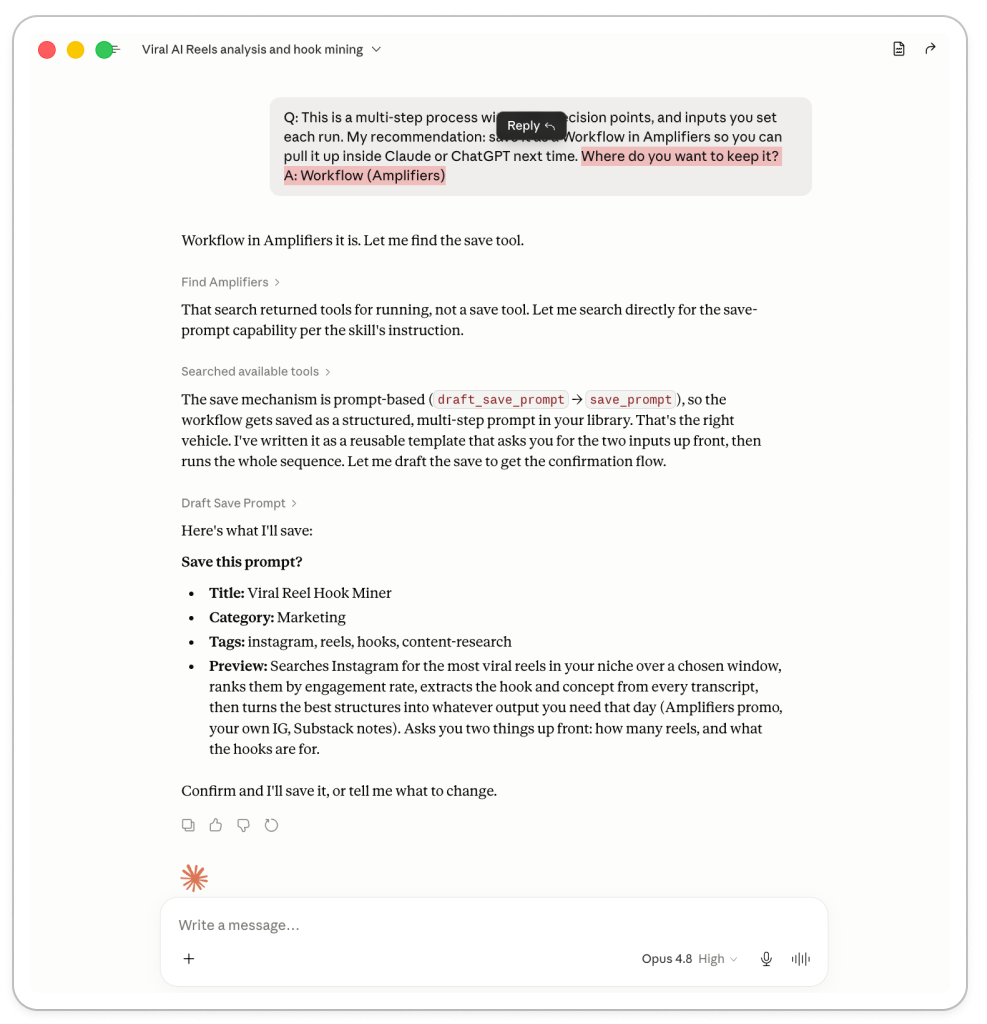
Now you've got the workflow. The skill's last move is asking where to keep it, because a workflow you save in a Google Doc, your notes app, or some database is a workflow you'll lose. You won't dig it out next week. It's too much friction to find it, copy it, and paste it back, and half the time you don't even remember what to search for. So you redo it from scratch, which defeats the whole point.
So instead of leaving you to file it away somewhere you’ll never look, the skill gives you two places to put it, both built to be there when you need them.
Where to save your AI prompts and workflows so you never lose them
The skill gives you two options, and which one fits depends on whether you want it applied automatically every time or saved so you can pull it up when you choose.
1. Save it to your private Amplifiers library.
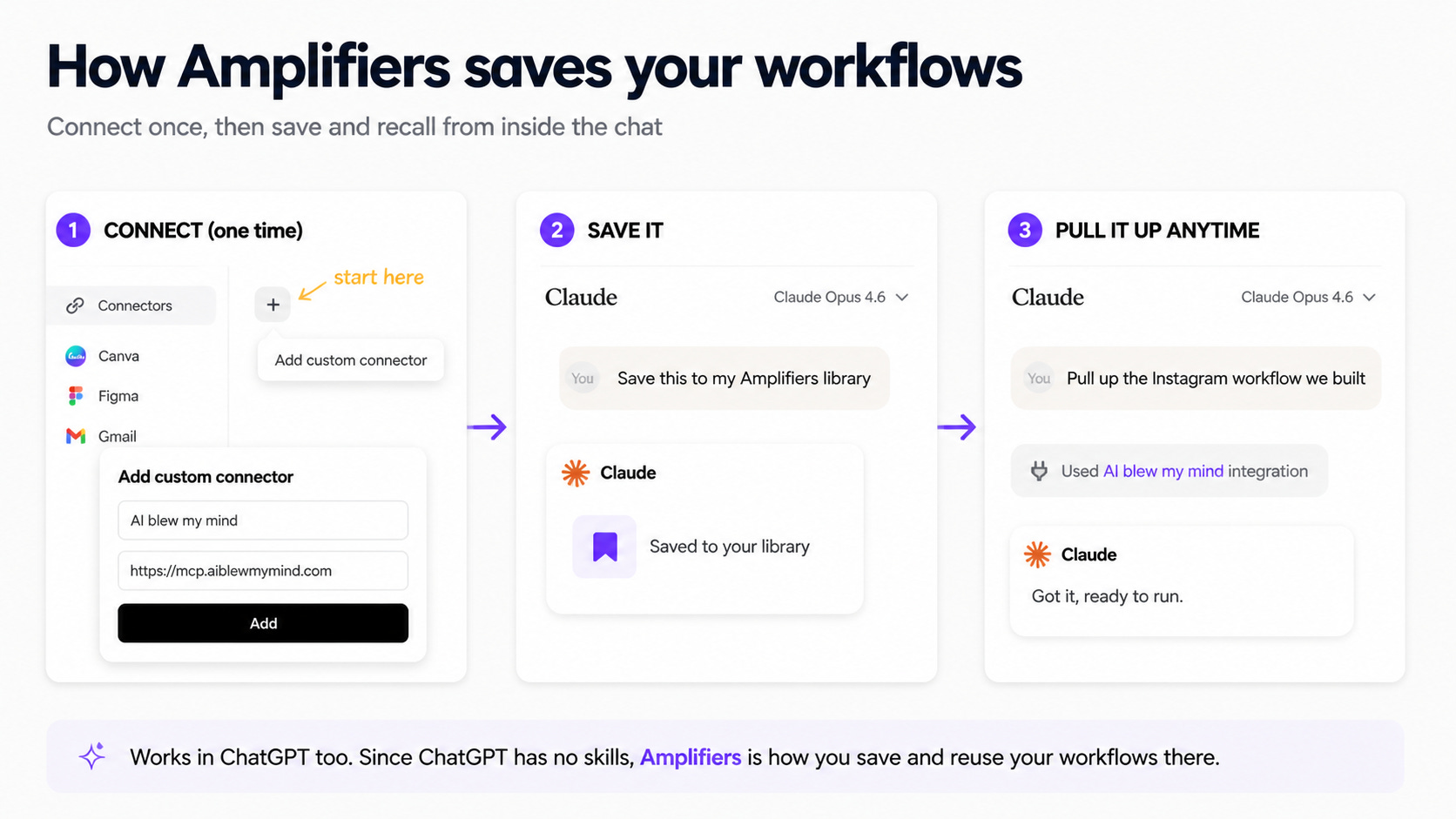
Amplifiers is a connector you add to Claude or ChatGPT. You might know it for giving your AI my full library of prompts, workflows, and tools it doesn’t have out of the box.
But it also works the other way around: it gives you your own private library, where you can save the prompts and workflows you build, right inside the chat where you already work.
So you just say “save this to my Amplifiers library”, and it’s there. No copying it into another app, no context-switching, no losing it in a folder. And when you want it back, you don’t have to remember the exact name or hunt for keywords. You just tell Claude what you're after, mention Amplifiers so it knows where to look, and it pulls it up for you.
PS. It works in ChatGPT too, which doesn’t have skills at all (yet), so whatever workflow you build, you can easily reuse in both.
2. Build a Claude skill.
A skill teaches Claude how you want a task done, then applies it automatically every time the task comes up. You lock in the format and the quality bar once, just like I built mine for writing, on-brand documents, or carousels.
The reel workflow above shows the difference. I wouldn’t turn it into a skill, because I don’t want it running on its own every time, and what I want out of it changes each run. That’s why I want it saved somewhere I can pull up on purpose, and tell it what I need that day. That’s what the Amplifiers library is for.
If you don’t have Amplifiers set up yet, it takes a few minutes:
In Claude: Customize → Connectors → add a custom connector named Amplifiers, paste https://mcp.aiblewmymind.com. Connect.
In ChatGPT: Settings → Apps → Advanced Settings → turn on Developer mode, create an app with the same URL, connect.
Sign in with the email you subscribed with at AI Blew My Mind, since that’s how it knows whether you’re a free or a paid subscriber.
Once it’s connected, just mention “amplifiers” in your prompt whenever you want to use it, whether you’re saving a workflow to your private library or pulling one back up.
Get the conversation-to-workflow skill
I made this skill free for a reason. When ChatGPT first came out, we all used it the same way. Ask a question, get an answer, move on. Most people never left that mode.
The shift I want everyone reading this newsletter to make is out of it. Out of one-off answers and into building things you keep and reuse. This skill is one step across that line.
In the folder you’ll find a markdown file with the skill. Here’s how to use it depending on where you work:
If you use Claude: Upload the markdown file to Claude as a skill (Customize → Skills → Upload a skill). At the end of any conversation worth keeping, type /conversation-to-workflow, and it runs.
If you use ChatGPT: Open the markdown file in Drive and copy the text. Paste it into ChatGPT. After you set up Amplifiers, ask it to save the prompt to your private library. From then on you pull it up in any chat just by asking, instead of pasting it in every time. It’s the closest thing ChatGPT has to skills, and it’s how you keep this process within reach there.
Building repeatable AI systems starts here
There’s a reason most people never do this. We’re wired to value the result, not the process that got us there. You finish the research, you get the draft, you move on. Going back to document how you got there feels like extra work.
But documentation is the work that eliminates future work.
When you capture a process that worked, you’ve made something you can hand to AI next time and say “do it like this”. You start from your standard, not from zero.
One workflow on its own is useful. It saves you that twenty minutes the next time the task comes up. But the real transformation happens when you have a few of them, and you start to see how they connect.
Your trend research feeds your content planning. Content planning feeds the writing. Writing feeds the promotion. Each one is a small, documented piece, and together they stop being a pile of prompts and start being a system. That’s when it gets interesting. Once you can see the pieces, you can connect them, the output of one becomes the input of the next.
But every system starts the same way: by capturing one process that works.
So start with one conversation this week. Something that went well. Before you close it, run the skill. Five minutes. Then build another, and another.
What’s the first workflow you’d build? Hit reply and tell me, I read everything.
And one more thing. This method is about as simple as it gets, anyone can do it, and the skill is free. So if it was useful to you, share it. Send it to a friend, a colleague, anyone still stuck having the same conversation with AI over and over. You’ll be helping them work smarter, and you’ll be helping this newsletter grow, which means a lot to me.
This post is free. Paid subscribers get access to all premium prompts and tools inside Amplifiers (the AI blew my mind MCP), weekly premium articles, all premium resources inside the AI blew my mind Lab, and exclusive partner discounts. Upgrade here.
I don’t use AI to write, but I do use it as my “ruthless editor.” I give it a rubric to grade my essays on a range of criteria, and then revise from there. It’s effective—although, frankly, I’m still a meaner editor to myself than any AI has managed to be. But, after reading this, I’m going to do two things: (1) try the Amplifiers extension and (2) turn my rubric into a Skill, so it can help me evaluate each draft the way I do every time.
These are the actual tools I am working on now, after spending hours on document conversions, where I need to move from one revision to an updated revision and from our document format to client document formats, which have more complicated cover pages and TOCs
We have a critical process during commissioning activities for Oil and Gas Projects that requires a strict review of documents from multiple sources within our Completions Management System before creating the cover page with all the details, so I created a composite report to capture the details required to produce the cover page, which, when done manually, could take between 1 and 3 hours to do.
Because each request for this document is different, there can be up to 15 variations, so after spending 4 hours teaching Claude what I wanted, attaching examples of the expected outcome and having to modify the CMS generated template, all I need to do now is upload the cover page and the report, run the skill and within 20seconds I have the sample output to approve or adjust. But this will require a lot of adjustment before I can release it to my team.
So it's definitely worth the pain of building your process and then converting it into a dedicated SKILL to automate it.
So I really appreciate the work Daria puts into her workflows and sharing her knowledge, as it sparked the idea and the motivation to try. You don't know what you can achieve if you don't try.