
Claude Code for Beginners: The Workflow Behind 15 Live Projects
Follow along as we build a Claude Code project from scratch. Install, plan, build, deploy. The exact workflow behind 15 projects, for beginners.

I’ve written a lot about Claude. The chat basics, Skills, Amplifiers MCP, plugins. You can find all of it in my Mastering Claude roundup, sorted by where you are.
Claude Code is the corner I’ve touched least. Most of you reading this are non-technical, like me. And since Cowork launched, you can get most knowledge work done there anyway (I’ve tested it).
But I know many of you are using Claude Code anyway, despite not being developers, just like me. And even though I’ve written about routines, subagents, building a website for your business with Claude Code, managed agents, and automating a web scraper, each one assumes you’ve already got the basics set up.
So it's about time someone writes a proper starting guide for Claude Code.
And for this one, I asked my business partner, Matei Pavel, to take it. He's been building with Claude Code far longer than I have, and he'll share the habits you need to start any Claude Code project like a pro. All in plain English.
One thing I’d ask: don’t just read this one. Build along with us, even if you’ve touched Claude Code before. The point isn't to finish a tutorial. It's to walk away with habits and a workflow you repeat every time you start a project.
This is our best attempt yet at getting you set up for the future of building with AI. It feels irresponsible not to, as we’re increasingly convinced AI-amplified humans will outpace other humans.
The first part of this will FEEL too technical. If you’ve never done this before, your brain will tell you “I’m not cut out for this” or “I am too old”. Resist that feeling and push on. I promise you the benefits on the other side are staggering.
And while this article covers every single step you need, we’ve decided to host 1-on-1 Claude Code onboarding sessions if you feel working together with screenshare will help you commit and become an AI builder this month!
Book your 1-on-1 Claude Code session
Premium subscribers get 50% off. Founding subscribers get it free. I'll share your discount codes at the end of the article.
In this article:
Step 1: Set up your Claude Code project folder — Install Claude Code on Mac or Windows, connect your project to GitHub, and add the Superpowers plugin. The 30-minute setup you only do once.
Step 2: Tell Claude what the project is (and make sure it never forgets) — How a CLAUDE.md file and a docs/ folder turn Claude from a slot machine that forgets everything into a teammate that remembers every decision you’ve ever made.
Step 3: Plug Claude Code into real services like Supabase — Add a real database in 5 minutes, connect the Supabase plugin, and understand what MCP does (without reading a single piece of documentation).
Step 4: Brainstorm your project before writing a line of code — The 5-minute habit that prevents 200 lines of code solving the wrong problem. Plus why Next.js and Tailwind are the safest stack for beginners in 2026.
Step 5: Run your Claude Code app locally to see it work — What localhost and port 3000 mean, and the small moment your project stops being theoretical and starts being a real app in your browser.
Step 6: Deploy your app to the internet with Vercel — The 3-minute one-time setup that connects Vercel to your GitHub repo, gives your app a live URL, and auto-deploys every change you push.
Step 7: Use the brainstorm-plan loop for every change — The workflow rhythm I use for every new feature, bug fix, and refactor. And the single 2-minute step that protects you from Claude going rogue.
Step 8: Train Claude to work the way you work — How Claude Code memory files stop you from re-explaining your preferences every single session, and why memory is different from project documentation.
5 Claude Code mistakes that cost me time (and how to avoid them)
I’ll let Matei take it from here.
Why Claude Code changes how you build with AI
We run an ecosystem of about 15 projects. Our central authentication platform, Amplifiers (our MCP server that turns anyone who installs it into an AI-demi-god), a marketing site, a lab where we share dozens of workflows and resources, plus a handful of mobile and web apps. All of them are touched by Claude Code most days.
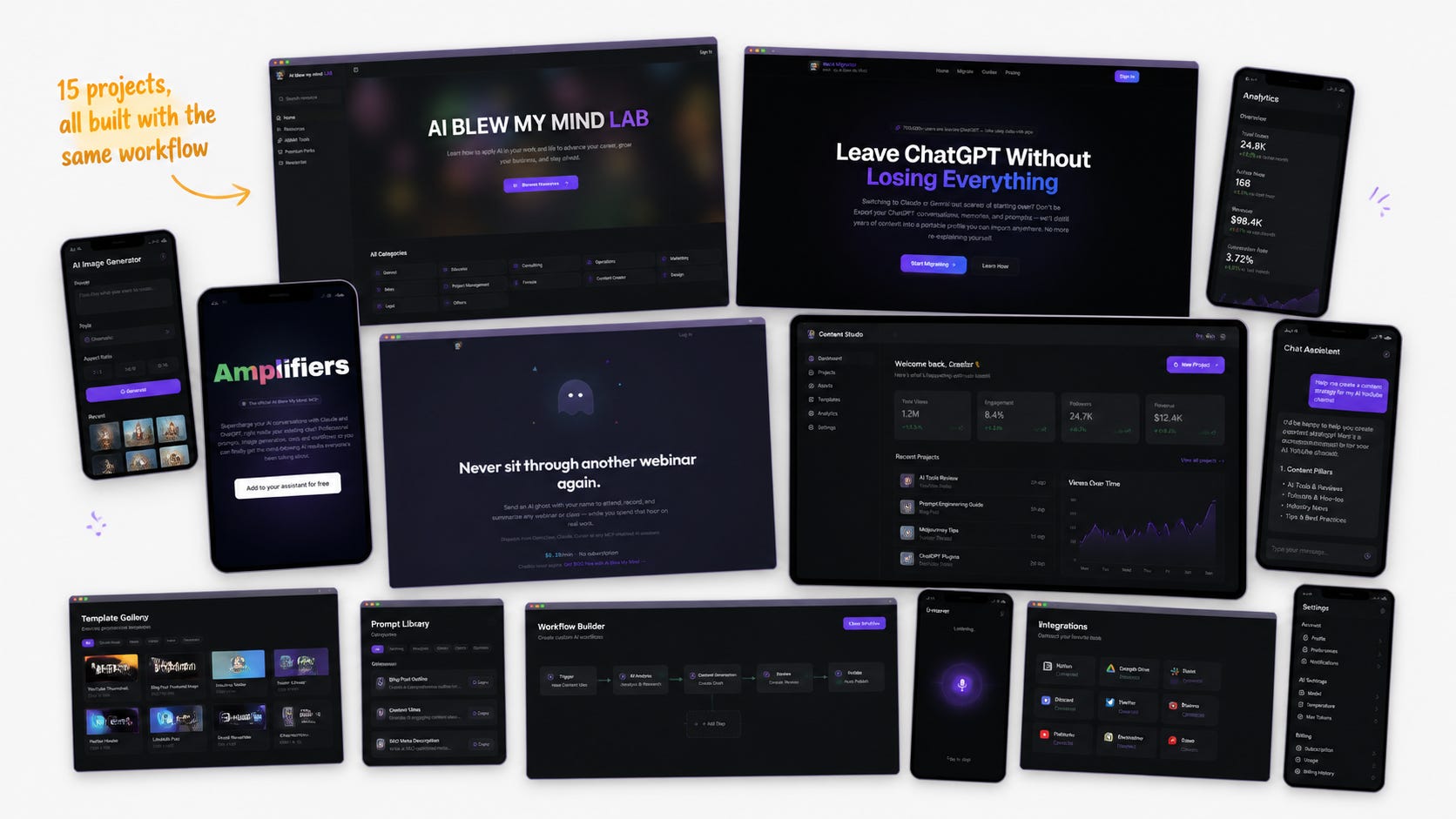
A year and a half ago, that sentence would’ve been unthinkable.
Back then, “working with AI” meant opening a chat window, pasting some code, getting something slick-looking back, and then spending three hours figuring out which parts had invented themselves.
The AI was a slot machine: most pulls were close-but-wrong, and the wins didn’t add up. You couldn’t build on them.
What we have now is different. Claude knows the shape of every project, remembers decisions we made last week, and pushes back when we try to skip planning.
That shift didn’t come from a trick we found in a thread somewhere. It came from building a workflow, one habit at a time, mostly by paying attention to the evenings we lost to bugs Claude could have prevented if it had known one more fact about the codebase.
This article is that workflow. If you’ve never used GitHub, never opened a terminal, and have only ever talked to AI through a chat window, you’re exactly who I’m writing for. Every piece of jargon gets explained the first time it shows up. Every section has a “Try this” panel with the exact commands to run.
To keep things concrete, we’re going to build a made-up project together.
Meet MealMap: a small web app where you save recipes you cooked, tag what worked and what didn’t, and over time it learns enough about your taste to suggest a weekly meal plan. We won’t write a line of MealMap’s code.
We’ll walk through how Claude would help you build it, and the habits you can reuse across any project you build with Claude Code.
Step 1: Set up your Claude Code project folder
For Claude to be useful, it needs a place to live. That place is a folder on your computer.
This sounds basic. But without a project folder, Claude Code doesn't know what it's working on. It has no files to read, no context to build on, nothing to remember between sessions.
Claude Code, Anthropic's command-line version of Claude, expects a project folder. It reads everything in that folder and edits files in place.
What you need before you start
Three things have to happen before Claude can be useful inside that folder:
Claude Code installed. A one-time setup.
A terminal you can type commands into. On Mac, it’s the app called Terminal (already on your machine: search Spotlight). On Windows, you already have PowerShell (search for it in the Start menu).
The folder turned into a “git repository” — a fancy way of saying “Claude can keep track of every change it makes, and you can undo any of them.”
One thing worth knowing before you open a terminal for the first time: it works exactly like a chat window. You type something, you press Enter to send it, and you wait for a response. Nothing happens until you press Enter, so don’t worry about accidentally running something by just typing it.
How to install Claude Code on Mac
Try this:
Open Terminal (Spotlight search → “Terminal”).
Paste this and press Enter:
/bin/bash -c “$(curl -fsSL https://raw.githubusercontent.com/Homebrew/install/HEAD/install.sh)”That installs Homebrew, the tool we use to install other tools. Wait ~2 minutes.
Paste:
brew install node— this gives you Node.js, which Claude Code needs.Paste:
npm install -g @anthropic-ai/claude-code— this installs Claude.Paste:
claude --version— if you see a number, you’re done.
How to install Claude Code on Windows
On Windows, install Node.js from nodejs.org, then run the same npm install -g @anthropic-ai/claude-code step in PowerShell.
Create your project folder and turn it into a git repository
Now we need a folder. Make one called mealmap — anywhere convenient, but Desktop is fine.