
Transcribe, repurpose, and fact-check any YouTube video with AI
3 YouTube AI workflows from Amplifiers: watch any video without watching it, repurpose it into social posts and courses, and fact-check claims. With demos.

After I dropped this YouTube AI workflow in our community chat, the message pulled close to 50 reactions. And over in my Substack notes, a separate wave of comments rolled in, people saying they were blown away and super excited to try this Amplifier.
That’s usually my signal. A lot of what I write comes straight from what grabs your attention in the chat or in the notes. Same thing happened with the workflow I use to research a topic before I write about it, and now with this YouTube one.
It clearly struck a nerve, probably because it solves a problem we hit all the time: getting through a long YouTube video fast.
I run into it constantly. Sometimes I’ll be watching something I’m really into and the last thing I want is to stop every minute to take notes. I just want to watch, so afterward I use these workflows to transcribe it, summarize it, and ask questions about it. Other times I don’t want to watch at all, I just need the transcript or a quick summary to get the gist.
And that’s just the start. These workflows run on the YouTube tools already built into Amplifiers, and they go a lot further than a transcript. So today I’m sharing three:
One watches any YouTube video for you, the visual part included.
One repurposes a video into social posts, a mini-course, and infographics.
One fact-checks any video or reel before you share it.
Plus, you don’t need to stitch together a separate transcriber app or an automation tool, each with its own subscription. It all runs on Amplifiers, straight from Claude or ChatGPT.
So today I’ll show you what each one does, what I did with it, and where it fits into your own work.
And if you build a distribution system like mine in Claude Code, the first two could become a strong research layer for you. Pair them with the other Amplifier research tools and you’ve got a small team of AI agents working on your content.
A word from today’s sponsor: Cuey
You don’t have to pick the best AI anymore.

No model is best at everything. One’s good at research, another writes more like you, another gets facts wrong. So instead of picking, use all of them.
Cuey runs your prompt across 30+ models from inside the AI you already use, and they all work from the same memory of you:
One prompt, every model, no extra tabs.
They all know your style and your work, so you compare them on real tasks.
You see where they agree, where they don’t, and which answer holds up.
Then it pulls the best parts into one answer you can use.
And the good news? I got you 60 days of Pro free.
Try Cuey free for 60 days
Use code AIMIND60, no card needed.
In today’s article:
The YouTube AI tools these workflows are built on
YouTube Video Watcher: watch any video without watching it
YouTube Video Repurposer: turn one video into a week of content
Fact Checker: verify any video before you share it
How to set up Amplifiers and access the workflows
Let’s begin.
The YouTube AI tools these workflows are built on
Before the workflows, you should know where they come from. Amplifiers already had a set of YouTube tools built in, the ones I covered in this article. The three workflows I’ll share below are built on top of them.
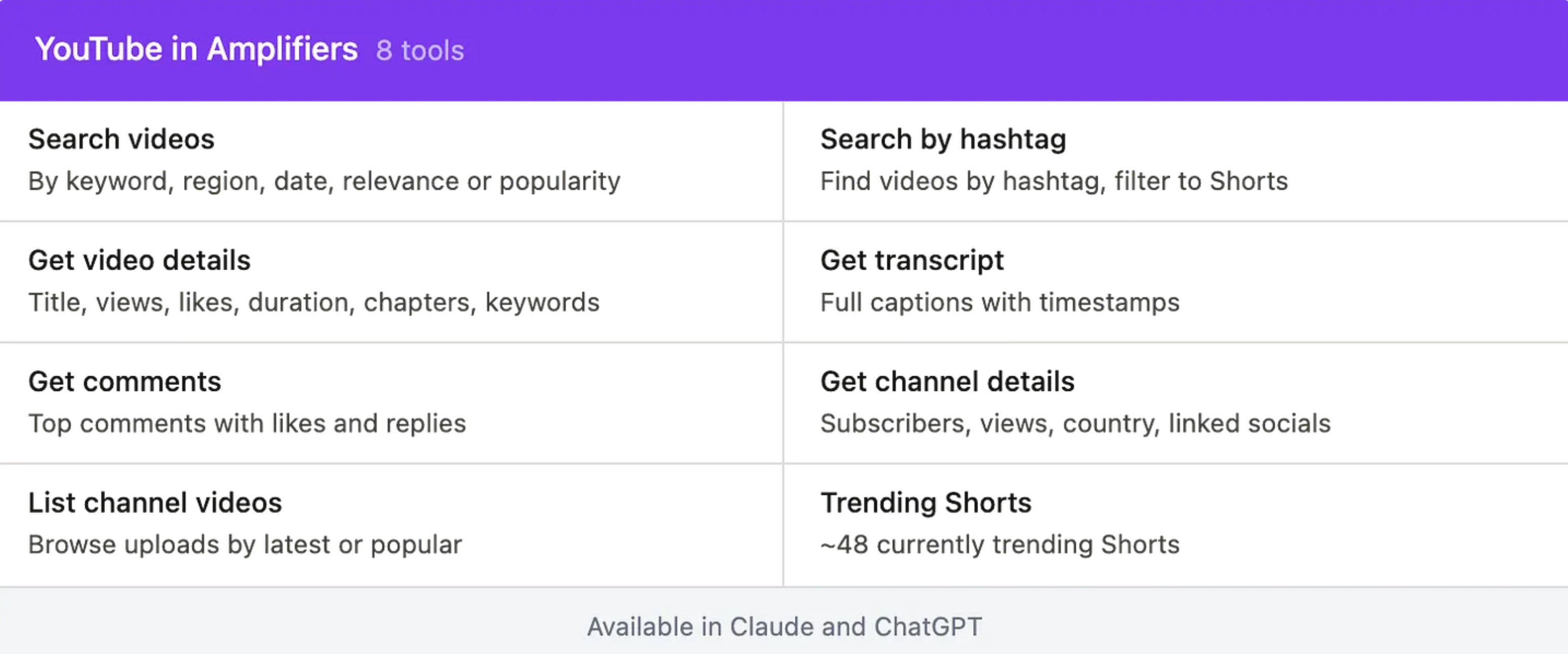
Search videos: keyword search across YouTube, with region and date filters
Search by hashtag: find videos tagged with a specific hashtag, Shorts included
Get video details: title, channel, description, duration, views, likes, chapters
Get transcript: the full transcript of any video, with timestamps
Get comments: the top comments, with likes and replies, to read audience reaction
Get channel details: a channel’s profile, subscriber count, total views, linked socials
List channel videos: every video a channel has published, sorted by latest or popular
Trending Shorts: a fresh batch of currently trending Shorts on demand
You can use the pre-built workflows I’m about to share or you just ask Claude to use the YouTube amplifier tools directly.
Now, the workflows.
YouTube Video Watcher amplifier: watch any video without watching it
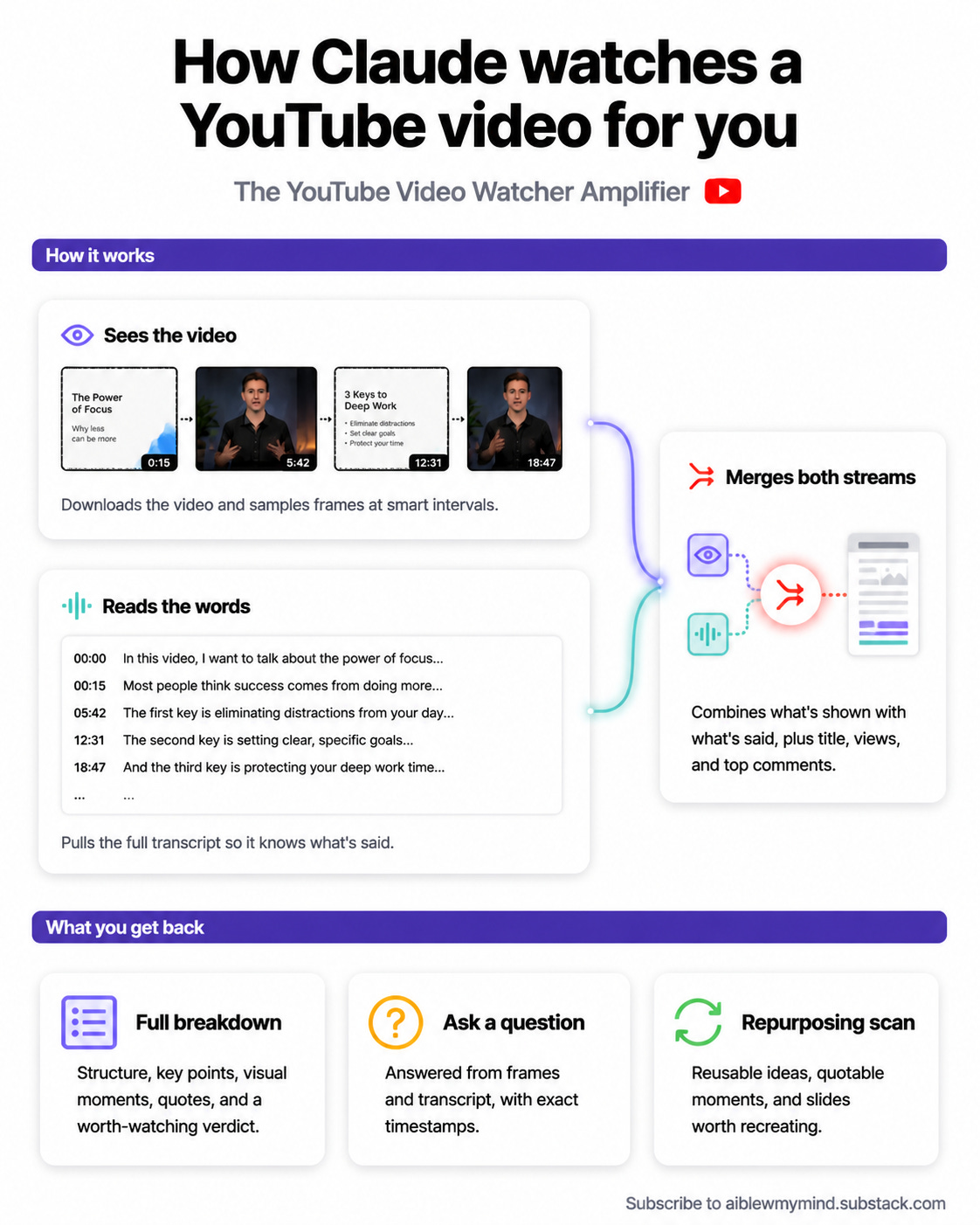
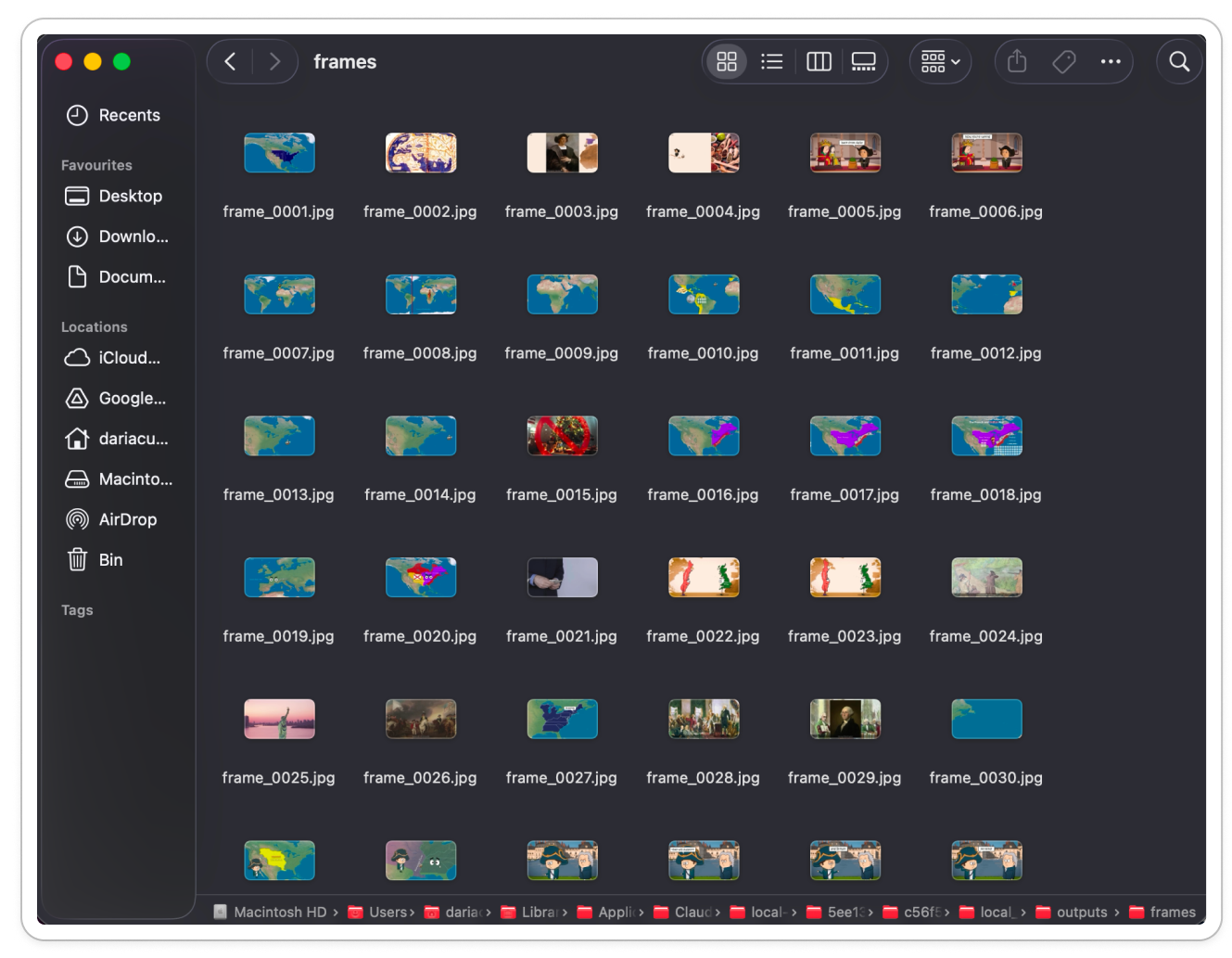
What it does: It watches a YouTube video for you, the visual part included. It downloads the video, extracts frames at smart intervals so it can see what’s on screen, pulls the transcript and the metadata, then combines all of it into one analysis. Most tools only read the transcript. This one also sees the slides, the demos, the diagrams, the faces, the text on screen.
Outcome: You know exactly what’s in a video, what’s shown and what’s said, without sitting through it.
Here's a video demo:
What I did in this demo:
00:00–00:52: I used the watcher to get a full breakdown of an animated history video"423 Years of American History in 13 Minutes". It gave me an overview, the visual format based on the frames it extracted, the structure and flow based on what was being said, the key points, notable quotes with the minute they were spoken so I could jump to them, the audience reaction based on the comments, and the bottom line.
00:52–01:37: I asked it to turn the video into a vertical infographic using the Infographic Generator Amplifier, because with Amplifiers, Claude can also generate images.
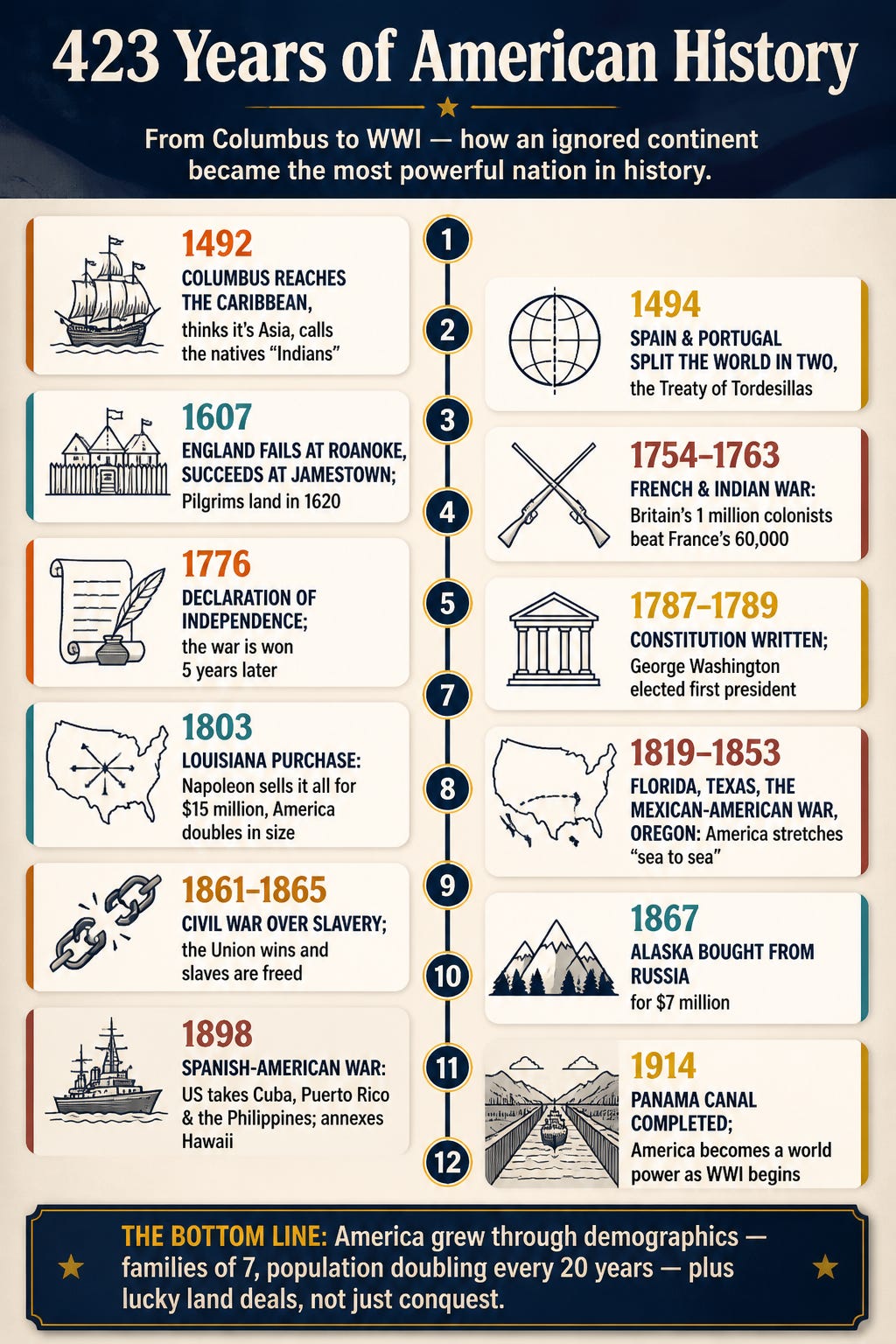
01:37–01:55: I asked for the exact transcript with timestamps too.
01:55–02:35: I asked it to build an ebook from the transcript and the extracted frames, a written, illustrated version of the video. It came out beautiful, see it here.
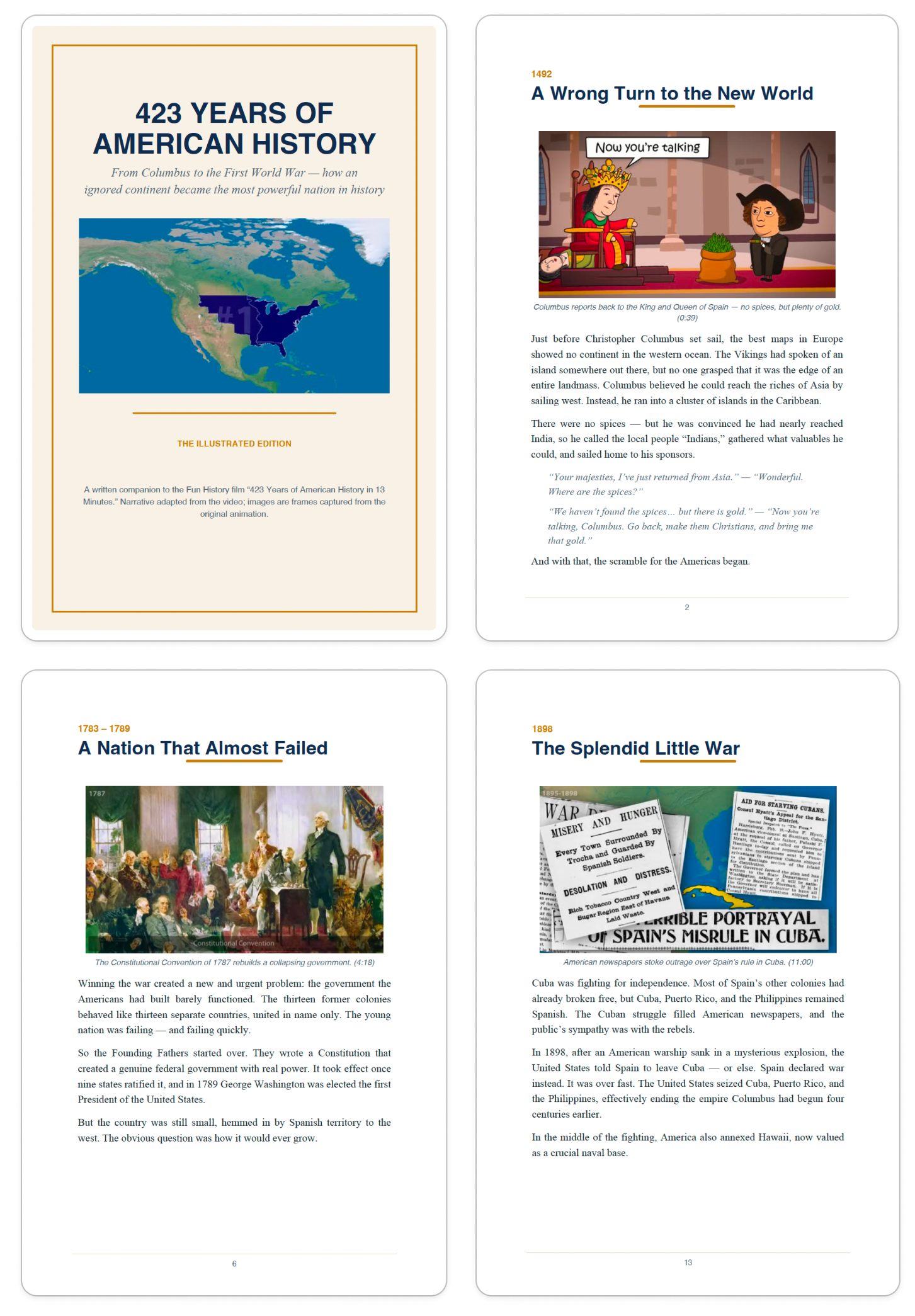
The beauty of it is that you can take this as far as you want, combining it with other Amplifiers in the library.
One trick: if you want it to extract frames the way I did, you need Cowork or Claude Code. Regular chat can’t save the frames locally on your computer, and these two can. So the visual layer only works when Claude is running locally on your machine.
Where you can use it: Cowork or Claude Code
What you can use this workflow for:
Researchers and analysts: Break down a long talk or lecture and pull the key arguments with timestamps, without watching the full thing.
Content creators: Study a competitor’s video, see how they structure it visually and verbally, and find the gaps you can fill.
Consultants: Turn a recorded webinar or conference talk into a clean written brief for a client.
Course creators and educators: Convert a video lesson into an illustrated ebook or study guide using the extracted frames.
Anyone learning a tool (or any topic): Get a step-by-step written breakdown of a software demo, with the on-screen actions described frame by frame.
YouTube Video Repurposer amplifier: turn one video into a week of content
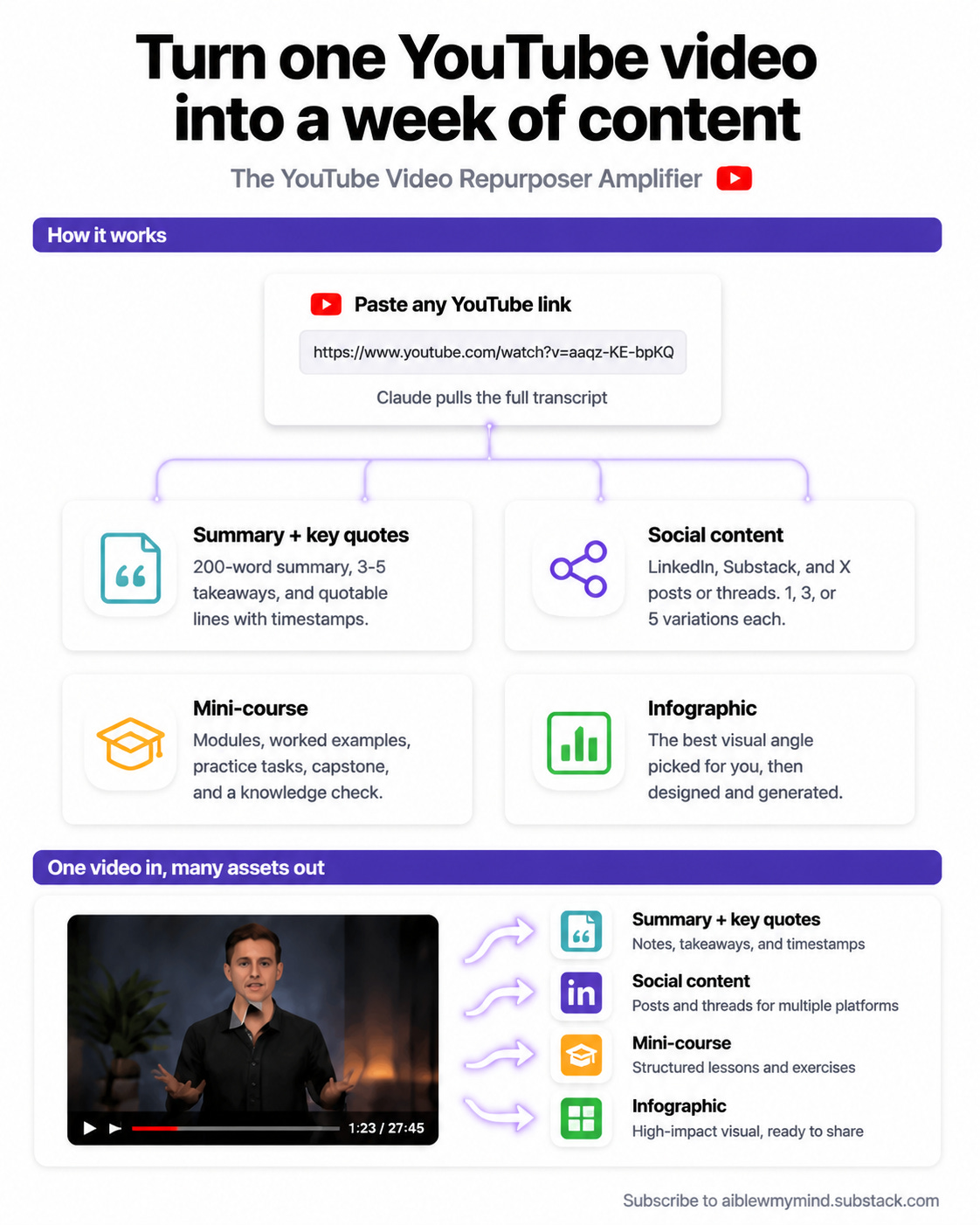
What it does: Similar to the watcher, except this one is built for repurposing. It doesn’t watch the video or extract frames, it works from the transcript. You paste a link, it pulls the transcript, then it turns the video into whatever you need: a summary with key quotes, a structured mini-course, platform-native social posts, or an infographic. Because it only uses the transcript, it works anywhere, including regular chat and ChatGPT.
Outcome: One video goes in, multiple finished assets come out. You don’t watch the video and you don’t write from scratch. You pick what you want and it builds it.
Here’s a video demo:
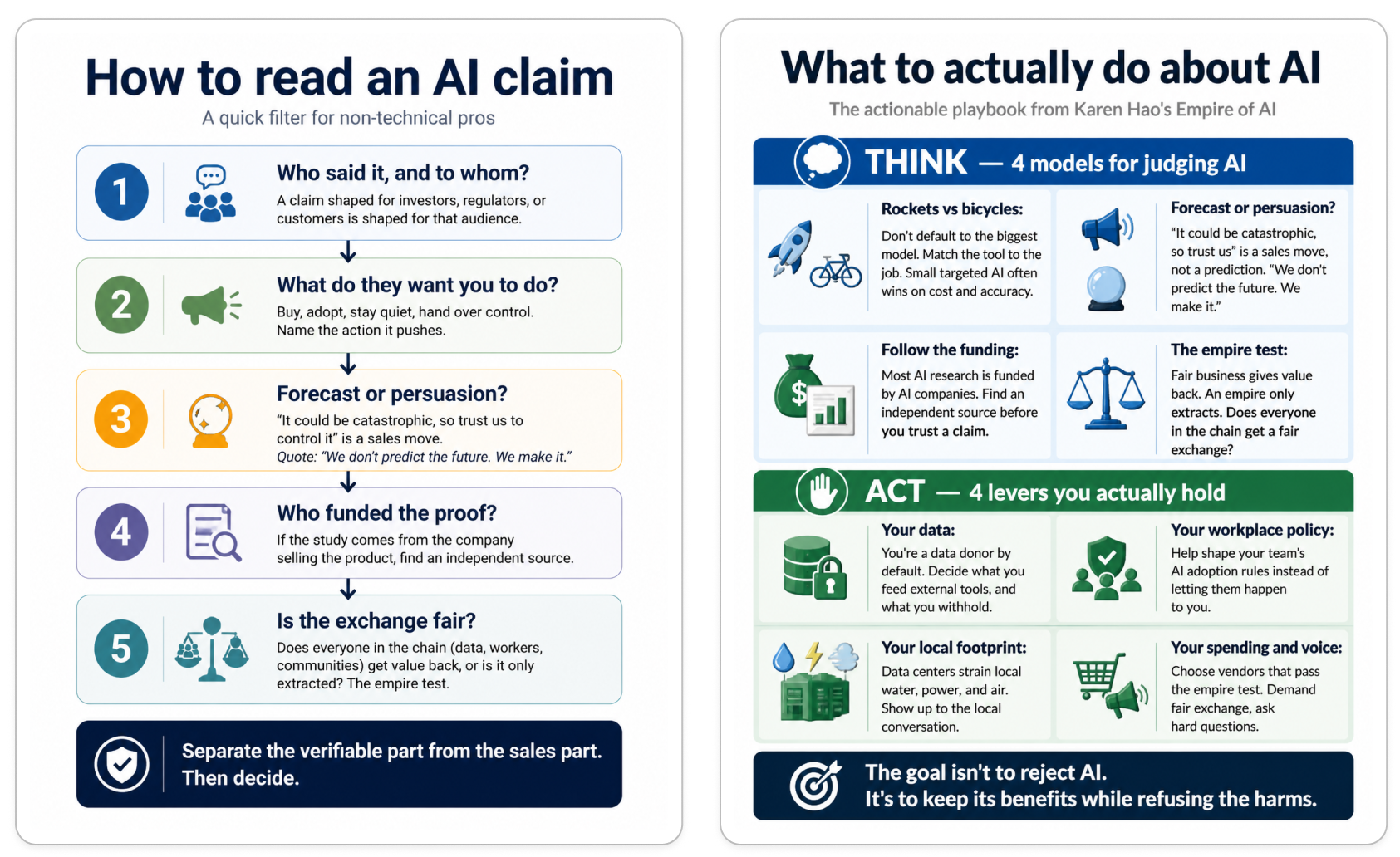
What I did in this demo: I took an episode from one of my favorite podcasts, The Diary of a CEO, with Karen Hao about her book Empire of AI, and repurposed a 2+ hour conversation.
00:00–00:20: I asked it to repurpose the video into everything it’s built to do.
00:20–00:35: The summary with key quotes and actionable takeaways.
00:35–01:02: Posts for every platform: a Substack note, a LinkedIn post, an X thread (which works on Threads too).
01:02–01:44: The mini-course, where I asked it to include practice tasks based on the conversation. It did great, considering the source is a discussion rather than a how-to. It included:
Modules with summaries, key concepts, examples, steps to apply, pitfalls, and practice tasks
A capstone project
A knowledge check with quizzes and answers
A glossary of all the terms used
Further learning suggestions
01:44–02:33: The infographic, where I made two, the more actionable kind so the learnings could travel with a social post.
Where you can use it: Claude chat, Cowork, Claude Code, and ChatGPT (it works in plain chat because it only needs the transcript, no frame extraction).
What you can use this workflow for:
Newsletter writers: Turn a podcast episode or interview into a social post, a summary, and a set of quotes in one pass.
Solopreneurs and creators: Take one long video and feed a whole week of social posts across LinkedIn, X, and Substack.
Course builders: Convert an expert interview or talk into a structured mini-course with practice tasks and a capstone.
Teams and coaches: Distill a long training session into a glossary, a knowledge check, and takeaways your team can actually use.
YouTubers: Repurpose your own videos into infographics, threads, and posts to extend their reach, exactly like I repurposed Dheeraj Sharma’s 40-minute video into an infographic.
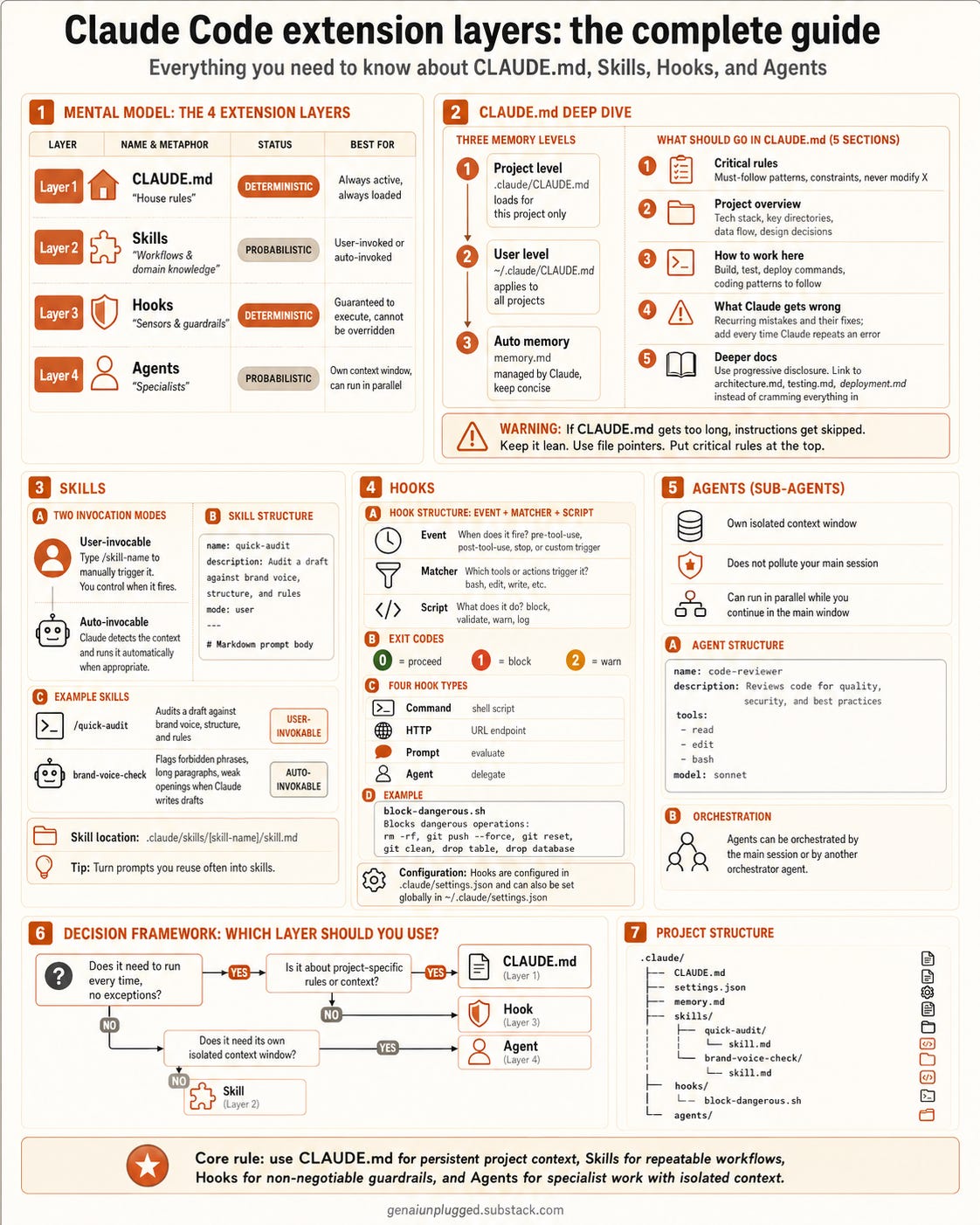
Fact Checker Amplifier: verify any video before you share it
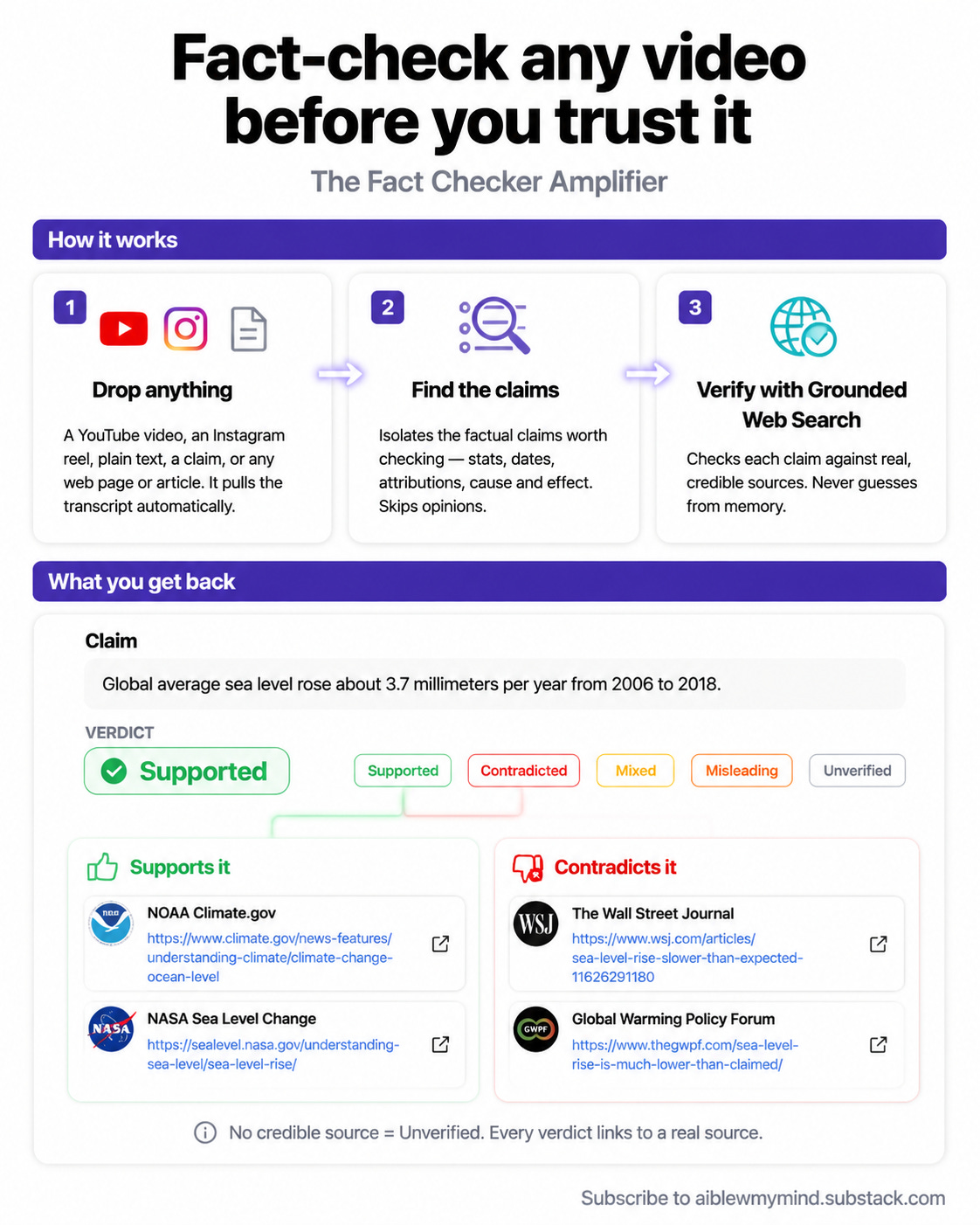
What it does: You drop in a claim, a paragraph, a YouTube link, or an Instagram reel, and it checks whether it holds up. If you give it a video, it pulls the transcript first. Then it isolates the factual claims worth checking, verifies each one against trusted sources using grounded web search, and shows you the links that support it and the links that contradict it. It checks against real sources. It never guesses from memory.
Outcome: You find out whether something is true before you share it, cite it, or believe it. Each claim comes back with a clear verdict (supported, contradicted, mixed, misleading, or unverified) and the evidence on both sides, so you can judge for yourself.
Here’s a video demo:
What I did in this demo: We all watch things and we don’t always stop to ask whether they’re true. Sometimes we just accept it.
This workflow is the quickest way to check without testing everything yourself. I gave it a short YouTube video claiming Claude has a set of secret commands or codes you can use. I told Claude to fact-check it and dropped the link.
In about a minute, using the grounded web search amplifier and the YouTube transcript tool, the bottom line was: Claude has no secret slash codes on claude.ai. Three of the six (persona, devil’s advocate, silent/concise) describe real things you can ask Claude to do in plain English. The rest, especially “render a motion picture,” “god mode unlocks held-back answers,” and “AI detectors can’t detect it,” are false. The only real slash commands live in Claude Code, the developer CLI, and even there, none of these six exist.
Where you can use it: Claude chat, Cowork, Claude Code, and ChatGPT.
What you can use this workflow for:
Writers and journalists: Verify a stat, a quote, or an attribution before it goes into your piece.
Newsletter and content creators: Pressure-test a viral claim before you repeat it to your audience.
Students and researchers: Check whether a source’s claims hold up against primary and peer-reviewed sources.
Consultants and analysts: Validate a number or a market claim before it lands in a client deliverable.
Anyone online: Check a reel or a Short that sounds too good (or too alarming) to be true.
How to set up Amplifiers and access the workflows
Setup takes a few minutes and you only do it once. After that, using these workflows is as simple as telling Claude what you want.
You don’t need to remember the names of the workflows. Say you want to watch, repurpose, or fact-check a video, and Claude finds the right Amplifier for you.
The one thing to keep in mind is to always mention Amplifiers in your prompt. Both Claude and ChatGPT default to their own built-in tools, and those can’t do what the Amplifiers do. So when you ask, say something like “watch this video using an amplifier” and you’re set.
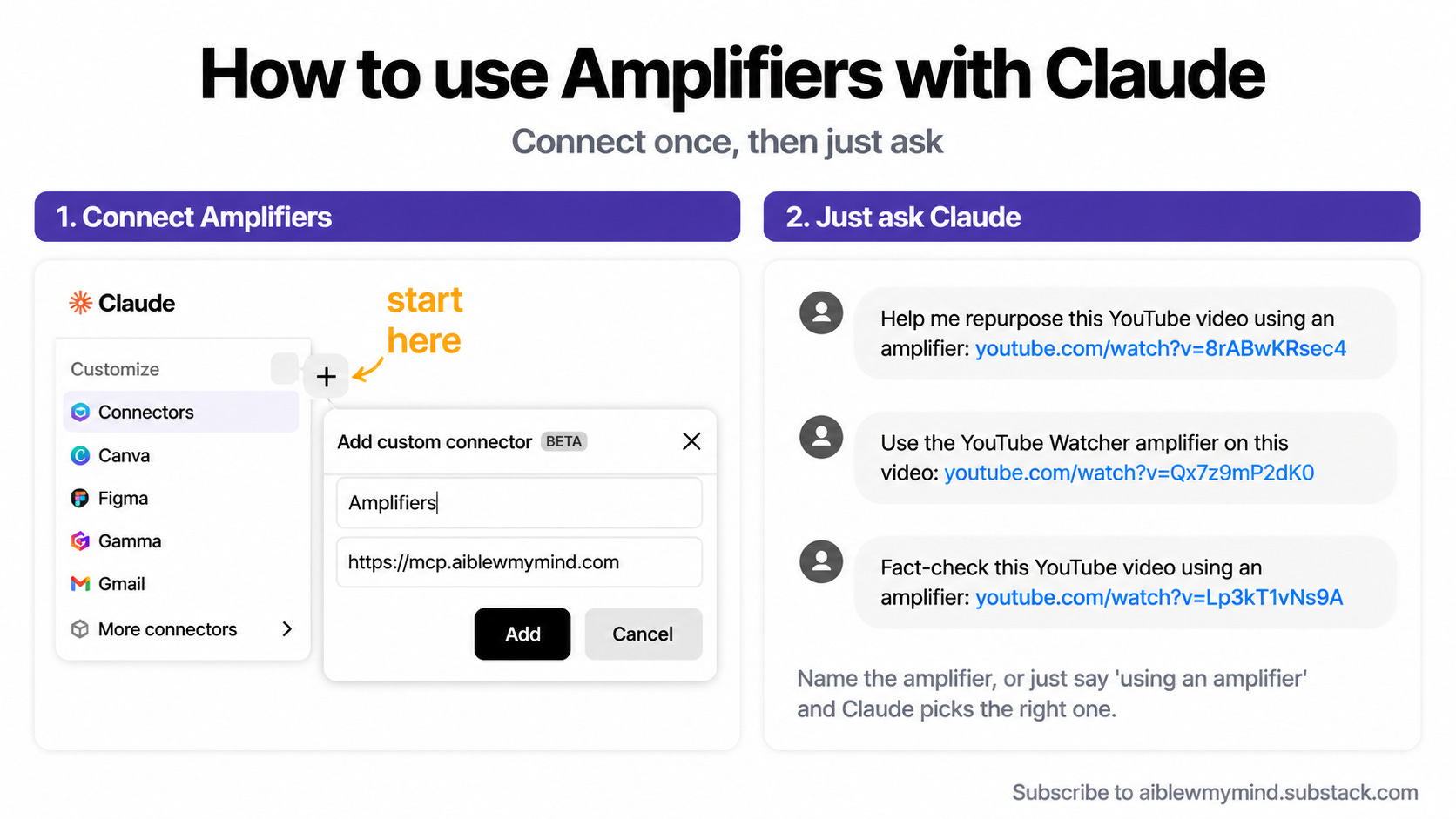
How to set up Amplifiers in Claude
Step 1. Add the connector
Open Claude in the desktop app. Go to Customize in the left side panel, click Connectors, then the + icon. Select Add custom connector. Name it “Amplifiers” or “AI blew my mind” and paste this URL: https://mcp.aiblewmymind.com. Click Add.
Step 2. Connect it
Go back to the Connectors section and scroll down to Not Connected. Find the AI blew my mind MCP and click on it. Hit Connect. This takes you to auth.aiblewmymind.com where you’ll create your account. Make sure you use the same email you subscribed to AI Blew My Mind with. Then click Always allow for all tool permissions.
Step 3. Add your Gemini API and OpenAI key (for image generation inside Claude only)
Your first 3 image generations are on me. After that, you need to add your own API key to keep generating images. All other prompts and research tools work without it.
Go to Google AI Studio and sign in with your Google account or to platform.openai.com and sign in with your OpenAI account.
Create a new API key.
Copy the key and store it somewhere safe.
Head to auth.aiblewmymind.com and add your API keys there.
Done. You only pay for credits on the images you generate. Nothing else.
How to set up Amplifiers in ChatGPT
Go to chatgpt.com in your browser.
Open Settings → Apps → Advanced Settings.
Toggle on Developer mode.
Click Create apps.
Name it “Amplifiers”.
In MCP Server URL, paste: https://mcp.aiblewmymind.com/
Set Authentication to OAuth.
Click Create, then Connect.
Create your account on auth.aiblewmymind.com using the same email as your AI Blew My Mind subscription to connect.
Pick one workflow and build from there
These three workflows cover the full loop with video. You can watch a YouTube video without watching it, turn any video into the content you need, and check whether what you’re watching is even true.
Each one stands on its own, and each one gets stronger when you pair it with the other Amplifiers: the Infographic Generator, the Content Repurposer, the research tools, your own voice and brand skills.
So pick the one that excites you most, run it on a video, and tell me how it goes in the comments.
Amplifiers replaces the dozen tools you’d otherwise stitch together and pay for separately, with every prompt and workflow built right in. And everything new I make goes straight there.
So sharing this post with someone who’d get value from it is the best thank-you I could ask for.
And if you want to get the most out of it, upgrade to paid. You’ll unlock every prompt and tool inside Amplifiers, including premium ones like the three YouTube workflows in this article, all the premium resources in the AI blew my mind LAB, every weekly premium article, and many other perks.
Exceptional to see how Daria continues to evolve her Amplifiers stack with these next-level YouTube workflows!
The watcher taking in what is on screen as well as what is said is the part I had not properly considered, since so much of a good talk hides in the visuals. When you repurpose from the transcript alone, do you find the visual context gets lost, or does the spoken track usually carry enough on its own?