
Gemini Omni tutorial: 7 video use cases and the exact prompts I used
Viral talking characters, product visualizations, explainer animations, UGC ads — 7 Gemini Omni use cases with every prompt I used and a prompt generator.

Video generation is getting really close to being useful for people who aren't video editors and don't want to become one, the same way image generation went from barely usable to something you'd put on your social pages.
Every few weeks now, a new model comes out that’s a little more realistic, a little easier to control, a little less AI-looking.
The latest one is Gemini Omni, which Google launched just about a week ago. It’s different from Veo, and it lives right inside Gemini, where a lot of us already work.
I’ve been playing with it for the past three days. I wanted to see how easy it is to use, what it can handle, and whether I could start making videos with it for real. For my content, for marketing, for the kind of short clips that used to need a freelancer or hours in an editing tool.
So I tested seven different use cases and I’m going to walk you through all of them.
By the end of this article, you’ll have all the prompts behind my videos, a prompt generator I built that writes Gemini Omni video prompts for you, a curated library of prompts from across the internet, and every limitation I ran into along with workarounds where I found them.
What’s in this article:
What is Gemini Omni? Google’s new any-to-any video model explained
How to access Gemini Omni: Gemini, Flow, YouTube Shorts, and the API
The 7 Gemini Omni use cases I tested
Use case 2: Product visualization videos (exploded view of a Rolex)
Use case 3: Talking character videos (an avocado that pitches itself)
Use case 5: Kurzgesagt-style explainer animations (compound interest demo)
Use case 6: UGC-style ads with AI (solo traveler + Beats headphones)
Use case 7: Put yourself in any scene (the “ancient Rome” viral format)
Gemini Omni avatar and video editing: what I couldn’t test yet
All my Gemini Omni prompts and the Omni prompt generator (+ a bonus prompt library)
What is Gemini Omni? Google's new any-to-any video model explained
Gemini Omni is Google’s new AI video model. What makes this one different: you can create video from text, images, audio, or existing video.
Combine your own assets. Photos, music, clips, mixed with what it produces.
Generate and sync audio. Voiceover, background music, sound effects, either from your own files or from a description.
Readable text on screen. Captions, titles, and labels that you can post without going to an editor afterwards (more like Nano Banana does).
Manipulate your own videos. Move yourself to a different location, add effects, change what’s happening in the background.
Edit through conversation. Refine what it generates instead of starting over every time.
That last part is really new. Before Omni, every time you wanted to change how an AI-generated video looked, you had to revise the prompt and regenerate from scratch. The result was never the same twice. Editing was painful. Now you can say “make the lighting warmer” or “slow down the last 3 seconds” or “the people look too stiff, make it more natural” and it adjusts the existing video. That’s a fundamentally different way to work with AI video.
In Google’s language, it’s an “any-to-any” multimodal model. Input can be text, image, audio, or video. Output can be video, image, audio, or text. You can mix all of these in a single prompt.
How to access Gemini Omni: Gemini, Flow, YouTube Shorts, and the API
There are several ways to use Gemini Omni, depending on how much control you want.
Gemini (the simplest way)
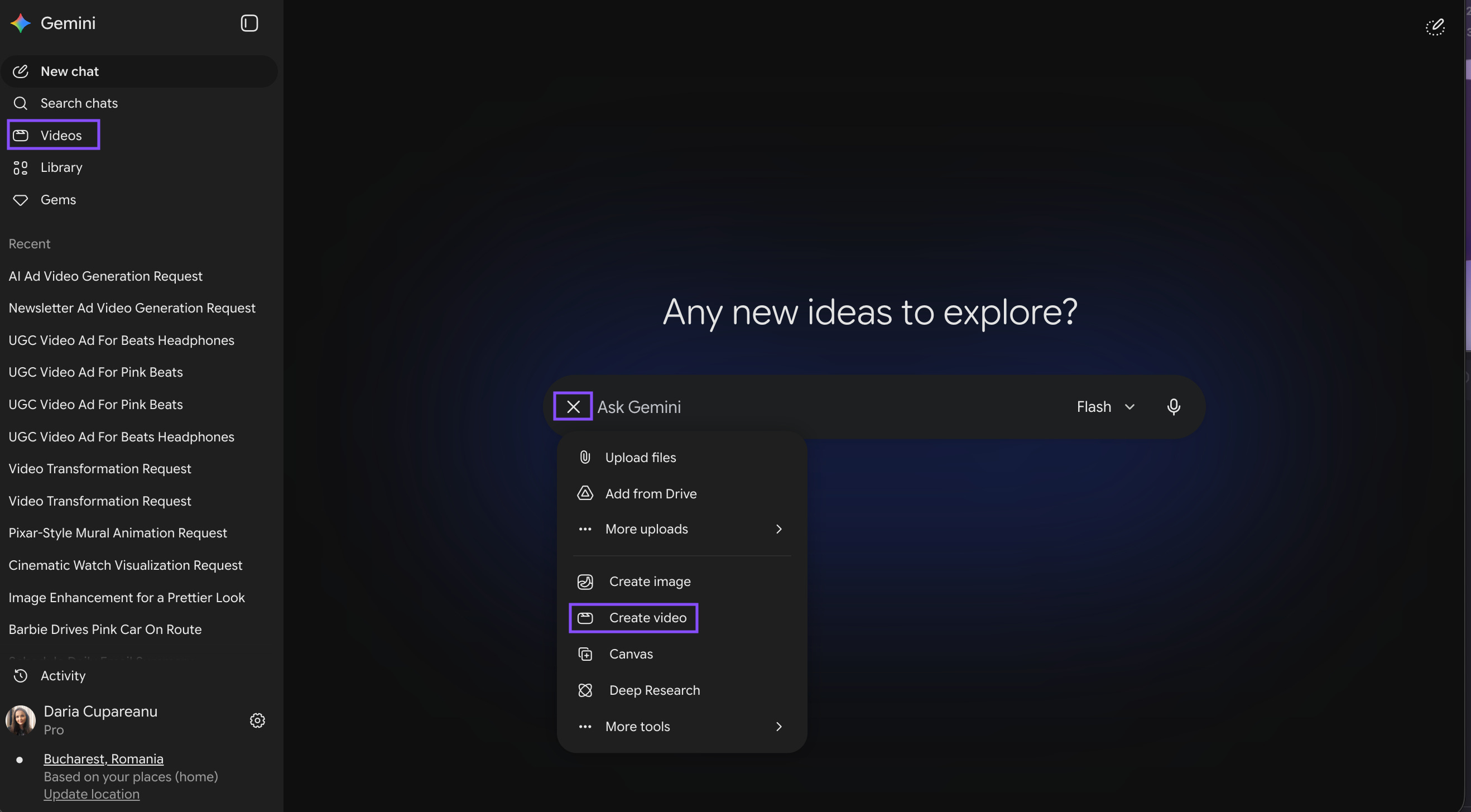
Go to gemini.google.com, open the sidebar, click “Videos,” or select “Create video” from the + button in the chat. You can pick the format (landscape 16:9 or portrait 9:16), choose your model (3.1 Flash Light, 3.5 Flash, or 3.1 Pro), and create videos that are 4, 6, 8, or 10 seconds. You can upload images, audio, and video alongside your text prompts. This is where most people will start. (If you want a deeper look at everything Gemini can do beyond video, I wrote a full guide here.)
Google Flow (for more control)
Flow is Google's AI creative studio. You can generate and refine images, create characters, build storyboards, scenes, and produce videos, all from natural language prompts in a single workspace. You also get more control over things like frames, number of seconds, and how many variations you want to generate.
YouTube Shorts and YouTube Create (free)
This is the free entry point. You can use Omni’s video generation directly inside YouTube Shorts and the YouTube Create app. If you’re already creating content for YouTube, this is a good way to try it. Limited compared to the full Gemini experience, but enough to see what it can do.
The API (for developers)
The API (for developers). Omni isn’t available through the API yet, but Google confirmed it’s coming in the next few weeks. I’m also hoping it means that once it’s out, I’ll get to test video generation from my own videos and audio, since right now those features aren’t available yet in my country.
Gemini Omni pricing: which plan do you need
Gemini Omni is only available on paid plans. Google restructured its pricing around a credit system called Flow Credits, and they moved from daily prompt limits to compute-based usage that refreshes every 5 hours.
AI Plus ($7.99/month): 200 Flow Credits. Enough to experiment and generate a handful of videos. Good for trying it out and seeing if it fits your workflow.
Pro ($19.99/month): 1,000 Flow Credits. This is the sweet spot for most professionals and small businesses. Enough for regular content creation.
Ultra ($99.99 or $199.99/month): 10,000 or 25,000 Flow Credits. Two tiers, both aimed at heavy users. If you’re running an agency or producing video content daily, this is where you go.
The Gemini pricing page has the full details. One thing to keep in mind: video generation uses significantly more credits than text or image generation.
I have the Pro plan and every 3 video generations, I had to wait 5 hours before I could generate again. To test everything I’m sharing in this article (plus many other things I tried), I ended up using multiple accounts, and I still had to wait many times for the limit to reset.
The 7 Gemini Omni use cases I tested
I tested Gemini Omni across seven use cases. Some came from you, like Nils Haaland, who wanted to see video animations of how things work or characters talking. Others are general use cases you might need to generate videos for.
For each one, I’ll share what I was trying to do and what came out of it.
By the end of the article, you’ll also have a spreadsheet I put together with all the prompts I used and the Omni prompt generator I created for creating your own video prompts.
All videos below were made using the Gemini 3.5 Flash model, the latest one, and they're all done from the Gemini app. If you want more complex compositions with multiple videos, I'd suggest using Flow (I might cover that in a future tutorial).
Now... let’s get to the fun part.
Use case 1: Turn your photos into social media videos
You already have the photos. They’re sitting in your camera roll, on your Google Drive, maybe in a shared folder from that photographer you hired two years ago. The storefront, the product shots, the team lunch, the latte art. They’ve been used once (maybe twice) and then forgotten.
Gemini Omni lets you upload a batch of photos and turn them into a short video, the kind you’d post as an Instagram Reel, a Facebook ad, or a product showcase.
What I tested: I grabbed 5 stock photos of a coffee shop (see below) and asked Omni to create a 10-second “come visit us” reel.
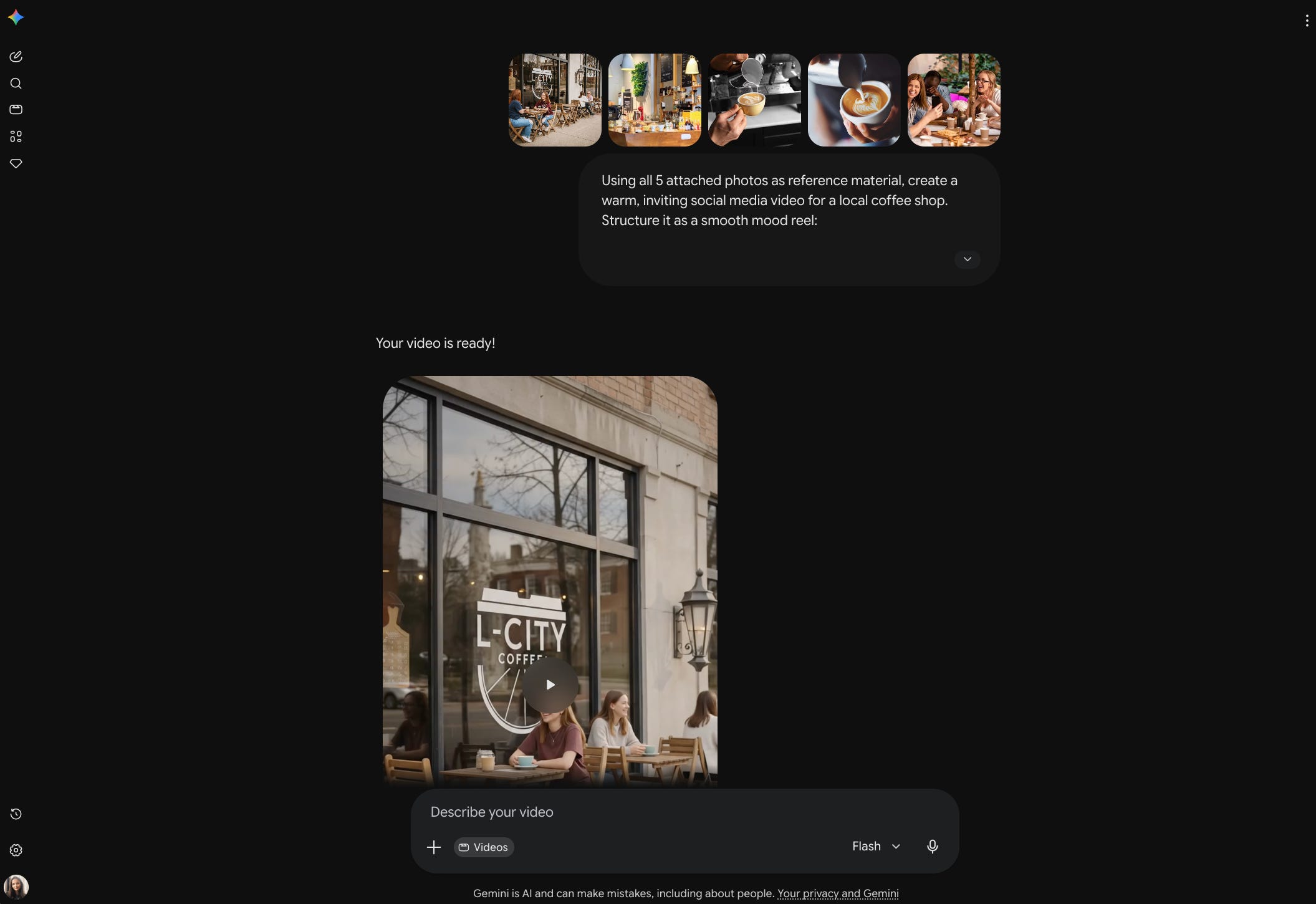
Result:
Find the full prompt and the Omni prompt generator by the end of the article.
What happened: It preserved everything in each shot from the images and followed my prompt closely, so the whole thing feels very realistic. It looks like someone took the video, not like AI generated it. No extra elements that weren’t already in the images I attached. I really love this one.
Use case 2: Product visualization videos (exploded view of a Rolex)
If you sell a physical product, you’ve seen those slick animations where the product floats, spins, breaks apart to show its insides, then reassembles. They’re everywhere in tech marketing, on Apple’s site, in Kickstarter campaigns, in every product launch video on YouTube. They’re also expensive. A motion designer, 3D renders, weeks of back and forth.
Gemini Omni lets you upload a product photo and turn it into one of those animations. Exploded views, floating components, smooth reassembly, text overlays, the kind of video you’d put on a landing page or in a product launch.
What I tested: I uploaded a photo of a Rolex mechanical watch and asked Omni to create a 10-second product visualization worthy of a Rolex commercial. Exploded view, floating components, gears still spinning mid-air, reassembly, tagline at the end.
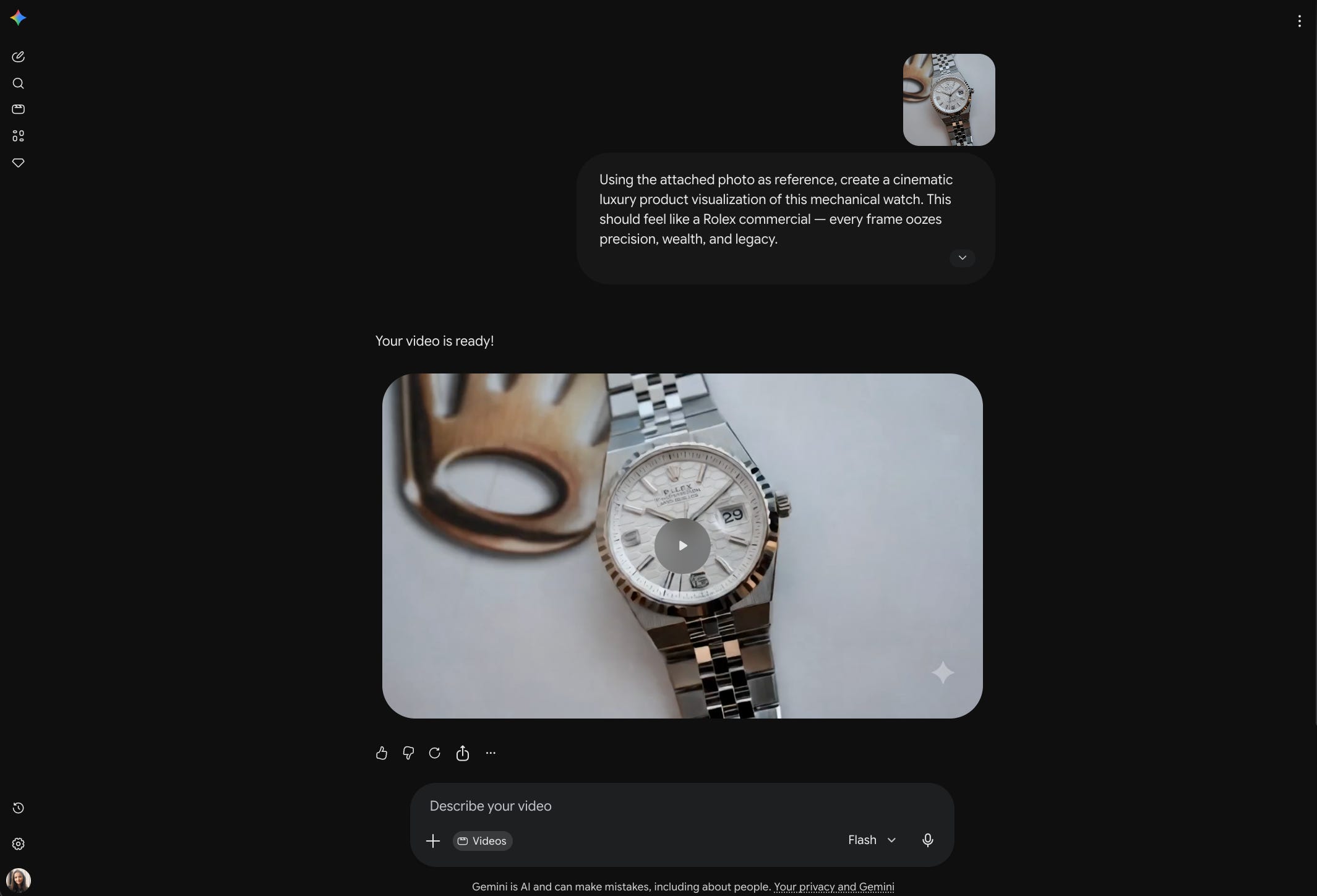
The result:
Find the full prompt and the Omni prompt generator by the end of the article.
What happened: This worked like a charm. The Rolex in the video looks exactly like the one in the photo I attached. You can use this for product showcases, landing pages, social content, anywhere you need to show what a product looks like in motion.
Use case 3: Talking character videos (an avocado that pitches itself)
You’ve seen these. A stomach complaining about what you ate last night. An avocado listing all the reasons it deserves to be in your smoothie. Talking vegetables, body parts, household objects explaining themselves, what they do, why they matter, why you should care about them. They’re one of the most viral formats on social media right now, across Reels, TikTok, and Shorts. The absurdity of the character makes people stop scrolling. The self-aware education makes them stay.
These used to require character animation skills, voice recording, and editing software. Gemini Omni can create them from a single prompt, character, voice, script, and scene changes included.
What I tested: I asked Omni to create a talking avocado selling you on why it should be in your diet. Not a lecture. A pitch. From the avocado itself.
The result:
Find the full prompt and the Omni prompt generator by the end of the article.
What happened: It worked really well, but I had to iterate. The script I started with was too long and the important parts kept getting cut off when generating the video. If you keep the script to what fits, it builds a full composition with talking, scene changes, and it doesn’t feel rushed. Once I figured that out, the result was solid. You can create this kind of viral content yourself now.
Use case 4: Storyboard-to-video with image references
The idea is simple: you create a storyboard first, a set of illustrated frames showing your story scene by scene, then you hand that storyboard to Omni as a reference and ask it to turn those frames into video. Two steps. Image first, video second.
Gemini Omni lets you upload your storyboard panels and use them as visual references, so the video follows your scenes, your art style, and your narrative instead of making it up from a text description alone. You control the story before the video even starts.
What I tested: I created two storyboards for short animated scenes, six panels each, one for each shot. I generated both storyboard images first using ChatGPT’s image generation, then fed each one to Gemini Omni along with a detailed prompt and asked it to create the video following the frames exactly.
Result 1: The last brushstroke, a mural painter finishing her work through the night
Result 2: The AIBMM newsletter, a glowing envelope traveling from Bucharest across the world to its readers
Find the full prompts and the Omni prompt generator by the end of the article.
What happened: It took a few attempts. Omni can be picky. Too many scenes and it either stalls or takes much longer than the usual couple of minutes. And the result didn’t always look great. Fitting six storyboard frames into 10 seconds is a lot to ask from one generation. What I’d do differently: instead of cramming the full storyboard into one prompt, break it apart. Generate video from one or two frames at a time, get each scene looking right on its own, then stitch them together. You get better results, more control, and Omni doesn’t have to solve everything at once.
Use case 5: Kurzgesagt-style explainer animations (compound interest demo)
If you teach, coach, or create courses, you’ve probably wanted animated explainers for your content. The kind you see on YouTube channels like Kurzgesagt, with bold flat colors, smooth transitions, and concepts that click visually in ways that words alone can’t do. The problem is these cost thousands to produce and take weeks to make.
Gemini Omni lets you describe a concept, a visual style, and how the animation should flow, and it generates the explainer for you. Coins multiplying, graphs drawing themselves, diagrams assembling step by step, with text labels and transitions included.
What I tested: I asked Omni to create a 10-second animated explainer of how compound interest works, in a Kurzgesagt style. Bold flat-design coins that multiply on screen, a year counter ticking, an exponential curve drawing itself, and clean text labels walking you through the math.
The result:
Find the full prompt and the Omni prompt generator by the end of the article.
What happened: This one got a bit too long. It’s a composition that might work better in Flow, and it would probably land better as two or three shorter videos to finish the explanation rather than trying to cram it all into one. It still looks really good though.
Use case 6: UGC-style ads with AI (solo traveler + Beats headphones)
UGC ads are everywhere, and so are AI-generated ones. I know this is a controversial topic, but it works really well in Omni, so it’s worth showing. UGC creators are expensive, $200 to $500 per video, and you need multiple variations to test what works. If you’re not a company with the budget to invest heavily in promoting your products, it adds up fast.
Gemini Omni lets you upload a photo of a person and a product photo and generate a UGC-style ad. It handles the scene, movement, lip sync, and keeps everything consistent with your images. You can also upload product photos from multiple angles so it doesn’t distort it.
What I tested: I uploaded a photo of a woman traveling and a product shot of Beats Solo 4 headphones in pink. I asked Omni to create a UGC-style ad where she’s walking toward camera on a sunny street, wearing the headphones, talking about why she loves them for solo travel.
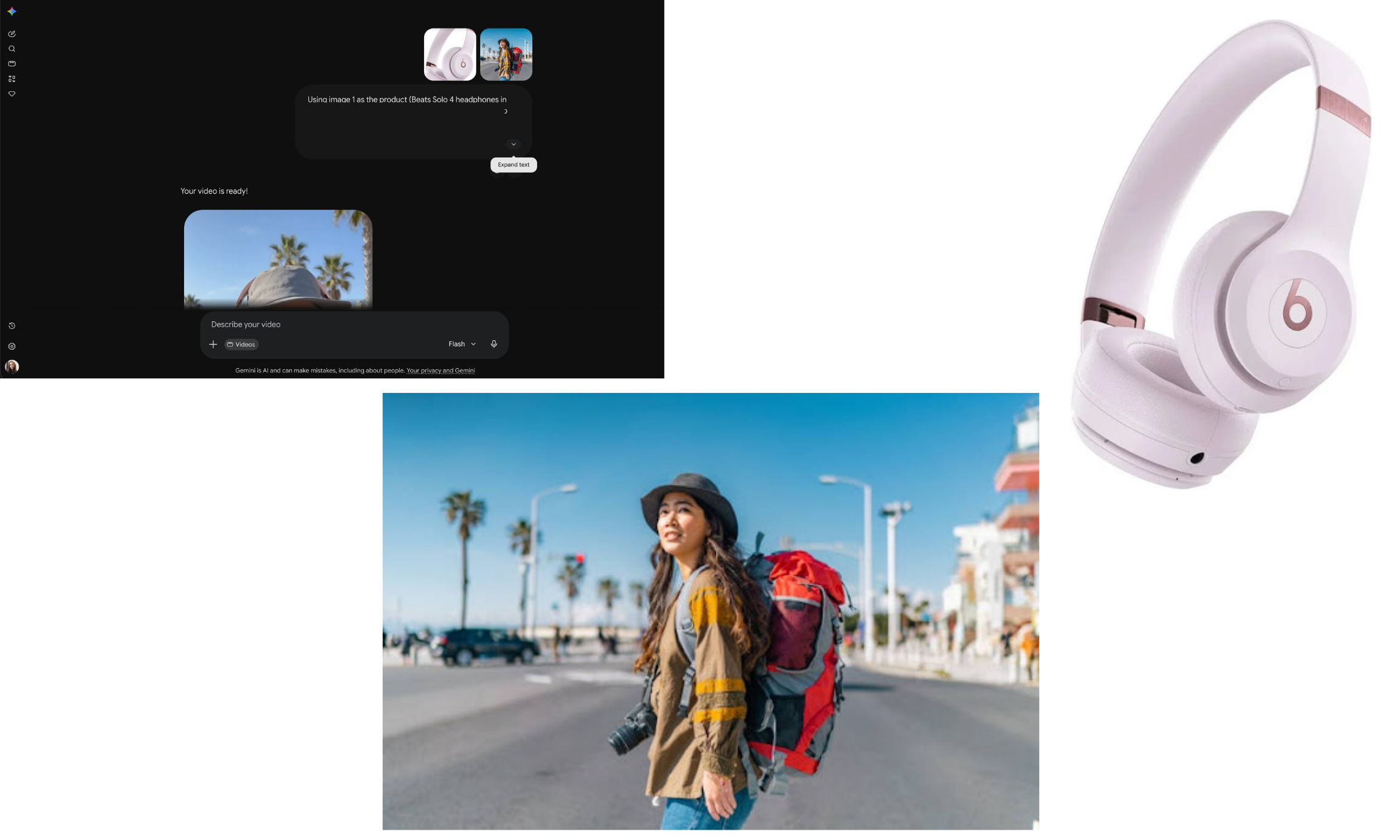
The result:
Find the full prompt and the Omni prompt generator by the end of the article.
What happened: The clothing, the scenery, the headphones, it preserved all the elements from the images and the whole thing feels natural. Almost scary how well it kept everything consistent. The lip sync is great too.
Use case 7: Put yourself in any scene (the "ancient Rome" viral format)
You’ve seen this one everywhere. A creator teleported into ancient Rome, walking through the Colosseum, talking to camera like a travel vlogger who accidentally time-traveled. It’s one of the most viral formats right now.
Gemini Omni lets you upload a photo or video of yourself and place you into any setting, any time period. You can use it to tell a story, promote your business, or teach something while standing in ancient Rome, a medieval court, or a 1920s boardroom.
What I tested: I uploaded a photo of myself and asked Omni to place me inside the Colosseum during a live event, vlog-style, reacting to everything around me.
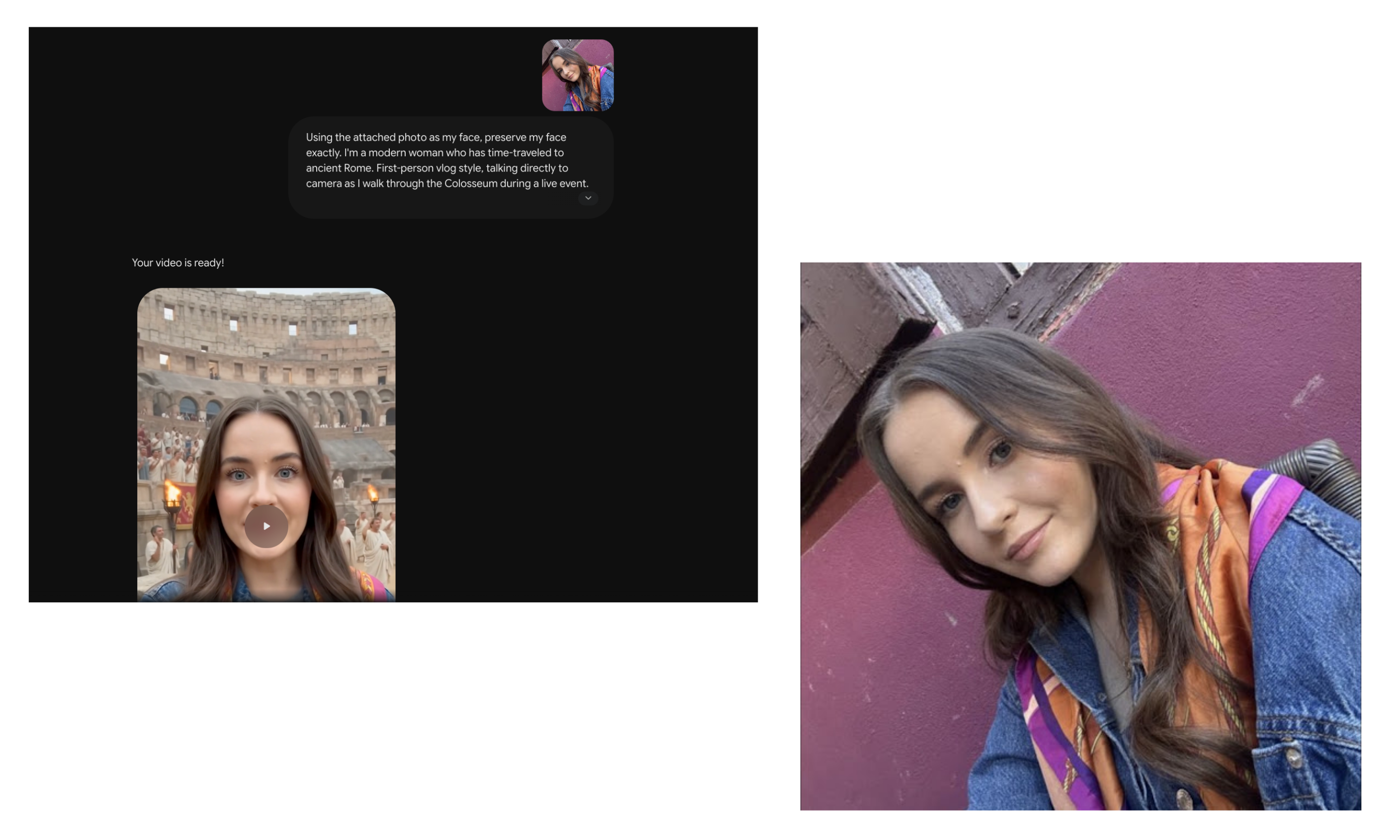
The result:
Find the full prompt and the Omni prompt generator by the end of the article.
What happened: The scene and setting looked great. But it didn’t really look like me. I used a single selfie, not a video or a pre-built avatar, so the model didn’t have enough to work with. For this format to really work, you need the avatar and video input features, which circles back to the regional limitations I mentioned.
Gemini Omni avatar and video editing: what I couldn't test yet
I could only create videos from images and text. Audio and video as inputs aren't available in Romania yet. So there are things I couldn't test, and among all of them, these two are the ones I was most curious about:
Clone yourself
I’d be really curious to test this when the API comes out or when the avatar feature becomes available to me. From what I’ve seen other creators do with it, the avatar really looks and sounds like you. Here’s how you set it up:
Open Gemini, go to settings, click on Avatar
Hit the Try Now button and scan the QR code with your phone or tablet
It’ll ask you to speak some numbers out loud and scan your face
Once it’s done, your avatar is ready. You can use it or retake it if you didn’t like the first one
From there, you can generate videos of yourself without ever picking up a camera. You can even take the motion from a reference video and apply it to your avatar, match the rhythm to a music track you upload, and pick the format you want.
Video manipulation
This one is great for anyone who already creates content with themselves in it. You can upload a video of you doing something and change what’s happening around you:
Move yourself to a different location
Add effects to the background
Snap your fingers and the lights go off, then come back on
Add things that didn’t happen when you filmed it
You can take content you already have and make it more dynamic, more visual, more fun to watch, without reshooting anything.
Gemini Omni video ideas for every profession (12 examples)
Beyond what I tested, here’s a longer list of what you could create with Omni depending on what you work on:
Any physical product: exploded view animations, unboxing reveals, ingredient breakdowns, cross-sections, try-on videos, product demos. Works for skincare, electronics, food, clothing, jewelry, supplements, furniture, anything you can photograph
Restaurant, bar, salon, or studio: upload photos of your space, your dishes, your work. Create a mood reel with a CTA at the end
Real estate or property development: upload listing photos or architectural renders. Create walkthrough videos of spaces, including ones that don’t exist yet
Course creator or teacher: animate concepts from your curriculum. How a funnel narrows, how the water cycle works, how a pricing tier is structured. Anything that clicks faster as animation than as text
Financial advisor or coach: explain budgeting, debt snowball, portfolio diversification, or tax brackets as short animated explainers
Fitness or health coach: show how muscle recovery works, how progressive overload builds strength, how macros break down in your body
SaaS founder: explain what your product does in 10 seconds. The onboarding flow, the data pipeline, the integration
Freelancer or consultant: upload your workspace, a deliverable, and your headshot. Create a personal brand reel
Event organizer: upload behind-the-scenes photos from a past event. Create a recap reel to promote the next one
Marketing and ads: generate multiple UGC-style variations for testing, product showcase videos for landing pages, short social clips from existing photos
Personal memories: upload travel photos and ask for a warm nostalgic mood reel with smooth transitions
Now that you’ve seen the use cases and ideas, let me share what I loved about Gemini Omni and the limitations I ran into.
What Gemini Omni does really well
It preserves everything in your images. When you upload photos, it keeps the objects, the details, the labels, the colors, everything. Product photos stay accurate. A Rolex looks like a Rolex. A coffee shop looks like your coffee shop. This is where Omni is strongest and it’s what makes it practical for businesses that already have assets they want to turn into video.
It feels made for social. The output has a natural, realistic quality that looks like it belongs on Instagram or in a Facebook ad. Both the animated content and the realistic content have this social-native feel that you could post.
It’s easy to use. If you’ve struggled with prompting in other video tools like VEO, Omni is a relief. Less complex prompting, less effort to get something decent. You describe what you want in normal language and it mostly understands.
Audio sync is tight. When I added voiceover, the speech matched what was happening on screen. When I described background music, the mood fit. This wasn’t something I had to fight with.
Text on screen is readable. Previous AI video models produced text that looked like it was melting. Omni renders text that you can read. Captions, titles, labels, they work.
Gemini Omni limitations and bugs to watch out for
What frustrated me the most is that it can feel buggy. Some videos generated in under a minute. Others took 10-15 hours or never finished. I couldn’t pinpoint why. When I deleted those and retried the exact same prompt from scratch, it generated in a minute. It just came out a week ago, so this probably still needs to be fixed, but it’s worth knowing going in.
Beyond that:
Long scripts get cut off. If you write too much dialogue for the time available, the video just stops before it finishes all your scenes. It won’t compress the speech to fit. It just cuts.
Too much in one prompt and it stalls. If the scenes or the script don’t fit in the maximum time, more often than not it just won’t generate at all. It gets stuck and nothing comes out.
Content policy blocks can be unpredictable. I tried to generate a ballerina working hard with bleeding toes as part of a dramatic storyboard, a rising story where all the hard work pays off. Maybe it made sense that it refused that, but a lot of Reddit users report getting blocked on prompts that seem completely innocent too.
Video editing and manipulation don’t work in all regions. This was my biggest disappointment. I tried editing videos I’d already generated and they just never finished. It’s been 72+ hours and they’re still pending. I’m assuming this is because video generation from video doesn’t work in my country, and that’s probably why editing doesn’t work either, but I don’t know for sure. I’ll keep testing. Uploading videos and cloning myself didn’t work either. Sometimes it told me the feature isn’t available in my country. Sometimes it just sat there pending and never generated. Even with a VPN, nothing changed.
It can be buggy under load. I had videos loading for 15 hours that never finished. When I launched too many generations at the same time, things broke. Eventually I deleted those conversations and started fresh. Sometimes you also get “too many requests right now, please try again later” and there’s nothing to do but wait.
Maximum length is 10 seconds. For anything longer, you’re generating multiple clips and assembling them yourself.
Character consistency can drift. Across multiple scenes within one video, subtle details sometimes shift. Clothing colors, facial features, small things that break the illusion if you look closely.
All my Gemini Omni prompts and the Omni prompt generator
Here’s everything I promised throughout the article. Below you’ll find:
The spreadsheet with every prompt I used for every use case. Copy them, tweak them, use them as starting points for your own videos.
The prompt generator I built that writes Gemini Omni video prompts for you. Tell it what you want, it handles the structure, the timing, and warns you before something will break.
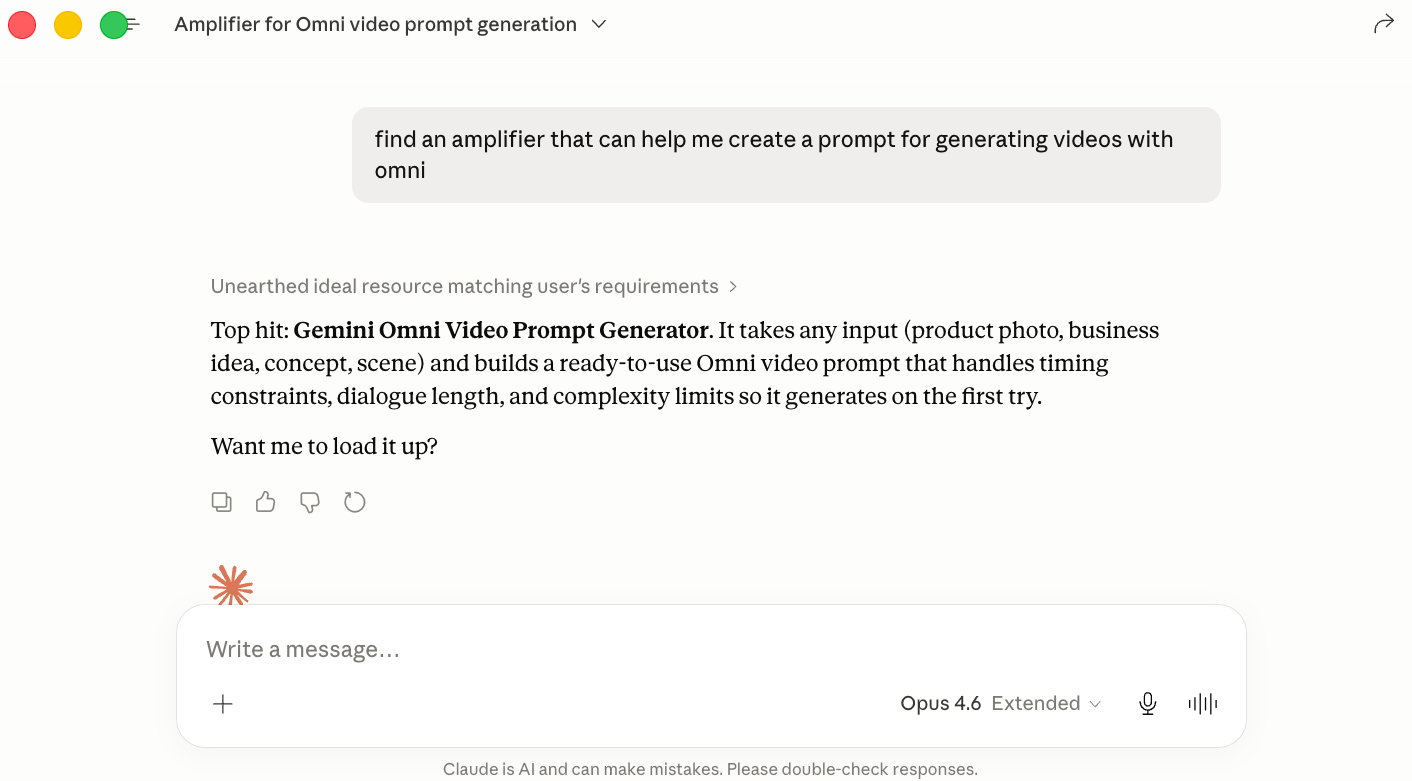
If you have Amplifiers set up, it’s available there too:
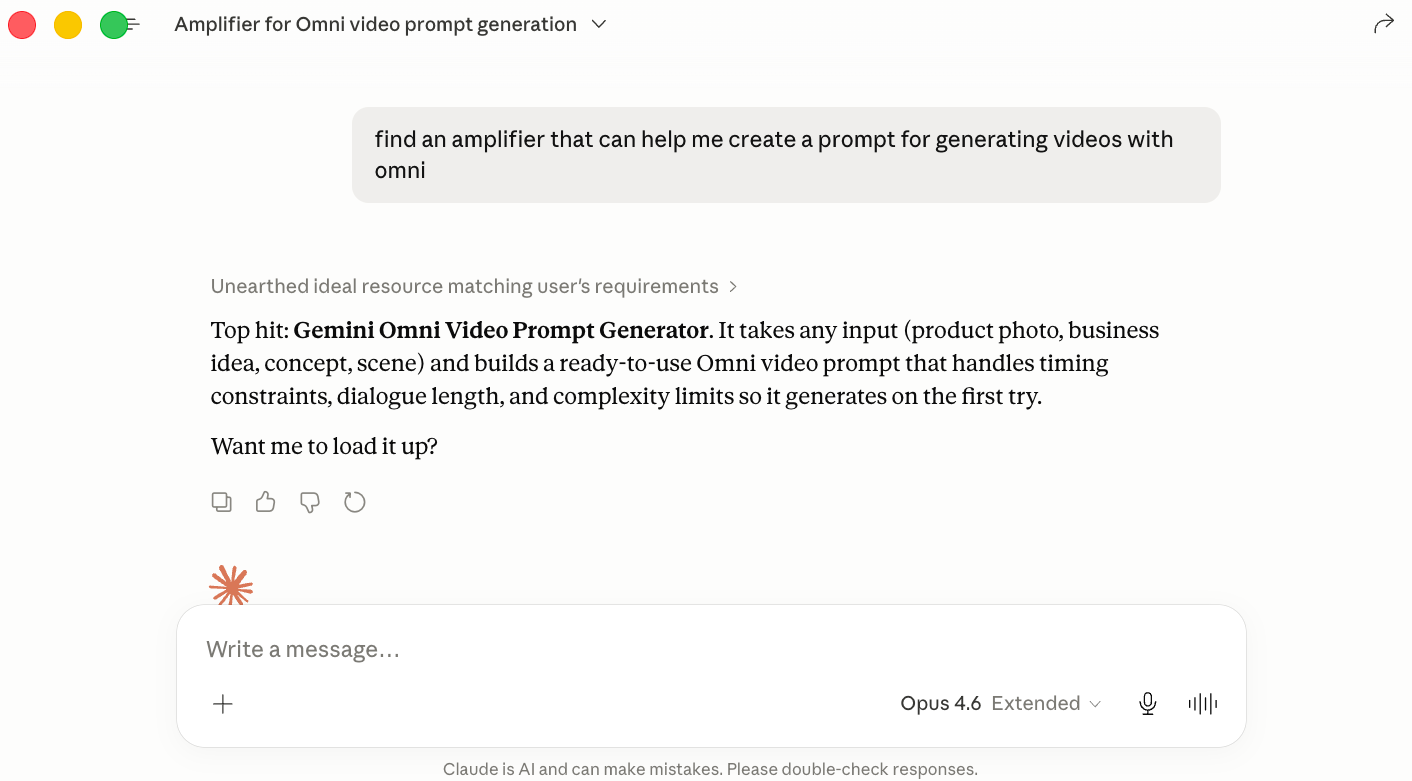
Bonus: a curated prompt library I put together from prompts I found across the internet. Use it as inspiration.
Upgrade to Premium to access everything.