
Build a Website with Claude Code End-to-End: Payments, SEO & Deploy
Complete, step-by-step guide to building a website with Claude Code — from buying your domain to going live with payments (Stripe), email (Resend), database (Supabase), SEO, Google Analytics

There are hundreds of videos and articles of people building websites with AI in 15 minutes. The code is done, the demo looks beautiful, everyone’s impressed.
And yet I’ve never seen a single guide that gives you the end-to-end of publishing a website live with everything it needs to be ready for visitors, payments, and business.
Nowadays, tools like Claude Code can build a website for you if you know what you want and how to guide them. But… how do you put it on the internet? How do you connect payments? How do you show up on Google when someone searches for what you offer? How do you add a privacy policy, a contact form, a lead magnet that delivers itself?
So I built a full, working website from scratch using Claude Code for this demo, and I’m going to show you everything. All the prompts, all the tools you need to connect, how to connect them, why you need each one, and every step to get the thing live.
And I did it all from the Claude desktop app, not the terminal, to make it as easy for you as possible if you’re not familiar with the terminal already.
Because at the end of the day, you care about the finished product. Getting your goal done. A website that works for you and your business.
That’s what we’re doing today.
What you’ll have by the end of this guide
Before we get into the how, let me show you the finish line. By the time you’re done, you’ll have:
A live website on your own custom domain through Vercel. Not a temporary demo or a random generated URL, but your own business address on the internet.
A working payment button connected to Stripe where people can pay you directly. No manual invoicing, no sending PayPal links in DMs.
A contact form that saves submissions to Supabase and sends you an email notification through Resend. Someone reaches out, you know about it instantly.
A lead magnet that collects emails, saves them to your database, and delivers your freebie automatically via email. No manual follow-up needed.
SEO optimization so your site shows up on Google when someone searches for what you offer. Meta tags, sitemap, schema markup, the works.
Google Analytics so you can see how many people visited, where they came from, what they clicked, and where they dropped off.
Google Search Console so you can track which keywords bring people to you and whether Google is indexing your pages.
Privacy policy, terms, and cookie consent so you’re covered legally when collecting emails and data.
Auto-deploy from GitHub, meaning every change you save to your code goes live on your website in seconds. No re-uploading, no calling a developer.
All of this. With Claude Code doing the implementation. You tell it what you want and connect the tools.
I went for a more complete project on purpose, to show you how to do as many things as possible in one place. But think of this guide as a menu, not a fixed recipe. Don't need payments? Skip Stripe. Don't want a lead magnet? Skip that part. Pick what's relevant to your business.
In this article
What is Claude Code and how to get set up: how you access it, modes, which model to use, how you pay for it
Use cases: what kind of website can you build with Claude Code
The build from first prompt to working website (19 steps): domain, accounts, first prompt, connecting Supabase, Stripe, Resend, deploying to Vercel, testing, SEO, Google Analytics, Google Search Console, and more
The full build on video: my entire Claude Code session
If you're new to Claude and want to understand how Claude Code connects to everything else, I covered all of it in my introductory guide to Claude.
What is Claude Code and how to get set up
Claude Code is an AI coding tool from Anthropic. You describe what you want in plain language, and it writes the code, creates files, runs commands, spins up subagents to work on multiple parts of your project in parallel, and handles the technical work. (I covered other AI coding tools in this article and in this one.)
You don’t need to know how to code to use it. You’re just having a conversation with Claude, except this version can build working software on your computer.
How you access it
You can access Claude Code in a few ways:
Claude desktop app (Mac or Windows) under the “Code” tab. This is the friendliest option.
Terminal / command line on your computer. More powerful, more flexible, what I usually use for bigger projects. (We’ll cover this in a future article)
Through an IDE like Cursor or VS Code, if you’re already using one of those
For this project, we're going with the desktop app to keep things as simple as possible for anyone who's not a developer and has never touched the terminal before.
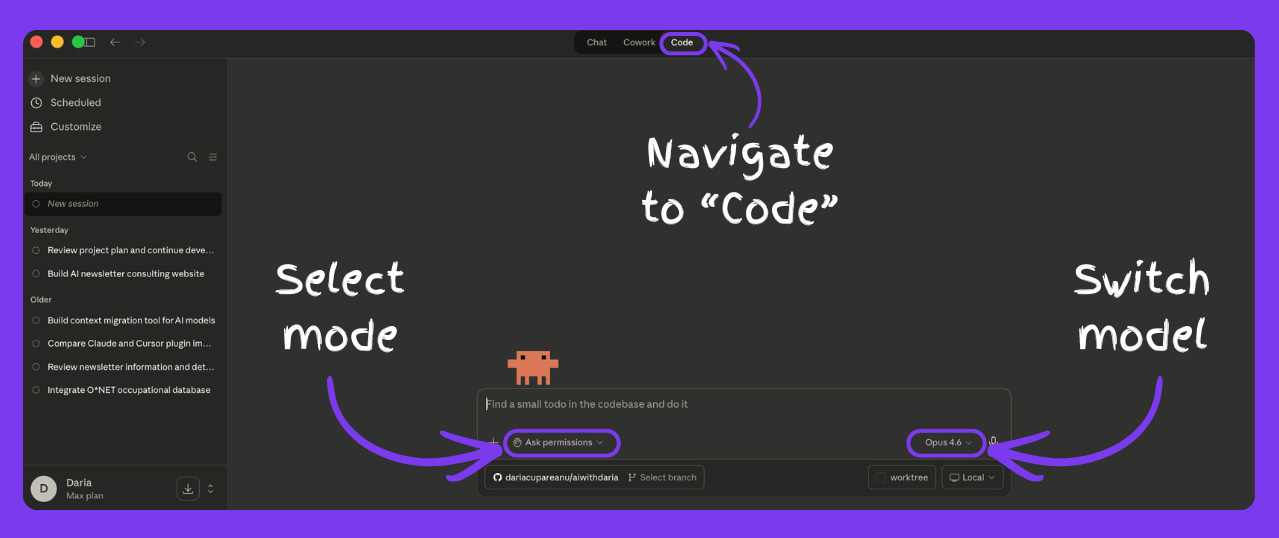
Modes: how much control you give it
When you start Claude Code, you choose how much autonomy it gets:
Ask permissions: stops and asks before every file change. Best for learning
Auto accept edits: does its thing, you approve the direction. Fastest for clear projects
Plan mode: outlines a plan and discusses it with you first. Best for complex or exploratory projects
I used auto accept for this project because it’s a landing page with integrations, not that complex. But when I’m building a product with more moving parts, I always start with plan mode.
Which Claude model to use
Claude Code lets you switch between models mid-session:
Opus 4.6: the most powerful. Best for complex reasoning, longer sessions, and when something isn’t working and needs deeper thinking. This is what I use most, but I’m on a Max subscription
Sonnet 4.6: the default. Handles most tasks well and uses less of your usage quota. A good starting point on a Pro plan
Haiku 4.5: the fastest and lightest. Good for quick, simple tasks but not ideal for building a full project
You can start with Sonnet and switch to Opus when you hit something it struggles with. Just keep in mind that Opus uses more of your usage allowance.
How you pay for it
Claude Code is included in your Claude subscription, just like Cowork. You need at least a Pro plan ($20/month) to access both, though the Max plans ($100/month or $200/month) give you significantly more usage.
If you use the terminal, you can also link an API key instead of your subscription, but I wouldn’t recommend it. It burns through credits much faster. Stick with your Pro or Max subscription even there.
Use cases: what kind of website can you build with Claude Code for your business?
If you run any kind of business and want an online presence that captures leads, collects payments, or sends emails, this is for you.
Consultants and coaches who want a page where people can read about their services, click a button, pay, and book
Freelancers and creatives (designers, copywriters, photographers) who need a portfolio site with a contact form and pricing
Local and trades businesses (real estate agents, HVAC, plumbers, electricians, dentists, personal trainers, therapists) who want to show up on Google and collect inquiries
Creators and educators who want to sell digital products, capture emails, and deliver a freebie to warm up buyers
Event and community organizers who need a page to promote events, collect registrations, and take payments
E-commerce and product launches that need a landing page with checkout, email capture, and SEO
Anyone starting something new who needs a page up fast without hiring a developer
I built a consulting page for this demo, but you can swap in your own offer, your own brand, and follow the exact same steps.
And if you want a real-life example, Kim Doyal wrote a great behind-the-scenes piece on how she used AI to build her own full platform with Claude Code.
The full toolkit for putting your website live (costs and alternatives included)
There are a bunch of tools involved in putting a website live. I know that sounds overwhelming. But each one has a clear job, most of them are free, and you set them up once. After that they work in the background.
Here’s my setup for this project. I’m not affiliated with any of these products. You can swap most of them for alternatives, and I’ll mention those. I’ll explain each tool in more detail when we get to setting it up.
What does it cost you to get started? You need a Claude Pro subscription ($20/month) and a domain (~$10-20/year). Everything else has a free tier that's more than enough to get going.
The build: from first prompt to working website
I'm not going to spend much time on polishing the UI, tweaking the copy, or refining the design. There are enough resources on that and you can always do it later.
What I'm focusing on is building the website and everything around it: the setup, the tool connections, the go-live steps. All the things you need so it's live and working. That's where most guides stop and where most people get stuck.
Below is everything: all the steps, all the prompts I used, all the tools and how to connect them, in order. The full walkthrough from empty folder to live website, explained step by step for complete beginners (with screenshots + demo video).