
One Folder, Every AI: Give Claude and ChatGPT the Same Memory and Context
I updated my Cowork OS after months of daily use. Here’s how to build or upgrade an AI operating system with shared memory, context, rules, and skills for Claude, ChatGPT, and Codex.

Any system you rely on needs maintenance, and the Cowork OS is no different.
Since I shared mine, so many of you have built your own. And because I’ve continued using mine every day, I’ve gradually run into a few things the original setup didn’t account for. I’ve now improved those parts, and if you built your system from the original guide, I want you to have the updates too.
I originally called it the Cowork OS because I built it to work inside Claude Cowork. But at its core, it’s an AI operating system: one folder that holds the rules, preferences, decisions, skills, and context your AI assistants need to work with you.
Because the AI reads that folder when you start working, your decisions stay locked in and you don’t have to explain yourself again in every conversation. You get better, faster work with much less frustration because it already knows how you work.
And while the system still does exactly what I built it to do, my own way of using AI has changed.
I don’t use one assistant for everything anymore. I still spend most of my time somewhere inside Claude, whether that’s regular chat, Cowork, or Claude Code. But I also use ChatGPT and Codex, and recently I started experimenting with AI agent tools like Hermes and Multica, which can work with different models.
And if you’ve been reading for a while, you know that whenever a new tool catches my eye, I want to test it on my own work. But the quality of what you get from AI depends heavily on what you give it. If I’ve spent months teaching one assistant how I work, I’d have to spend weeks rebuilding that context before I could judge how another compares. One knows my work inside out. The other has just met me.
That’s why keeping the system in a folder you control matters. Every compatible assistant can work from the same context, and because mine also lives in Google Drive, it’s backed up and available across my computers.
Using the folder this way showed me how the original setup needed to evolve. I wanted every assistant to follow the same rules, my skills to remain available outside one app, and the work we create together to stay inside the folder without weighing down the memory the AI reads every day.
So I updated the original Cowork OS to make it portable across AI assistants, keep it lean as it grows, and give you a simple way to audit and improve it whenever something starts to feel off.
Here’s what we’ll do:
Make one synced folder work as a shared AI operating system across Claude, ChatGPT, Codex, and any other assistant that can access it.
If you already have a Cowork OS: Audit and update it, then move any skills stored only inside the Claude desktop app into the folder.
If you’re starting from scratch: Use the updated Planner and Builder to create the stronger version from the beginning.
What the folder gives you in every session
The Cowork OS is one folder on your computer (and Google Drive) that holds the context AI needs to work with you.
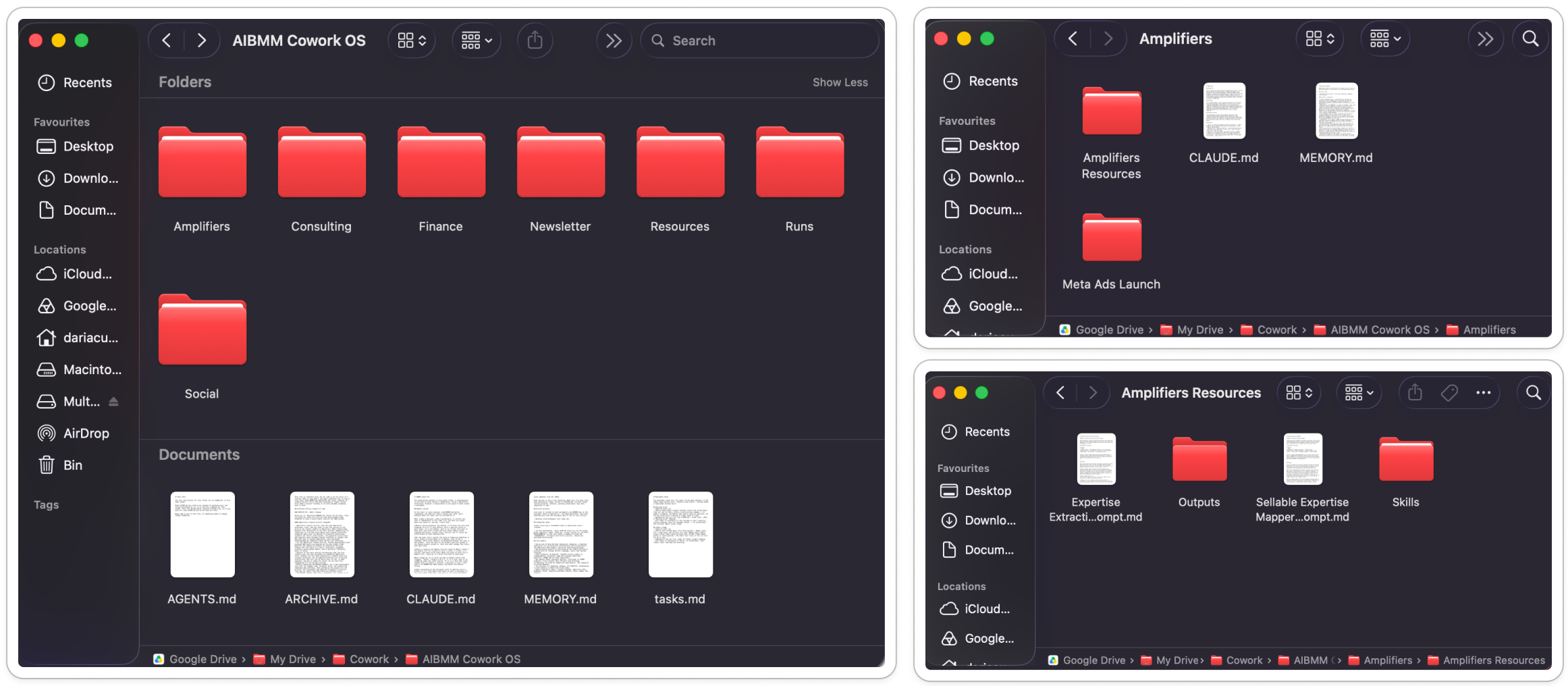
Inside are simple text files in Markdown format containing your instructions, a complete memory system, skills, and other relevant context and resources, organized into separate workspaces for each area of your work. You don’t maintain them by hand. Your AI assistant reads and updates them as you work.
That gives you a system that:
Starts every session caught up. A shared memory system gives every assistant the same understanding of your decisions, preferences, how you work, and what it should and shouldn’t do. Older context stays preserved for when it’s needed, while ongoing and finished work stays saved without being loaded every time.
Finds the right context for each task. It knows where your newsletter work lives, where your client information belongs, and which skills or workflows to use.
Keeps different areas of your work organized. Rules and context stay close to the work they apply to instead of everything being mixed together.
Gets better as you use it. New decisions and corrections are saved, so you don’t have to teach the same lesson again.
Stays under your control. The files are readable, portable, and stored outside any single AI app. If the folder lives in Google Drive, the same system is available across your computers instead of remaining tied to one machine.
If you want to understand the full structure before continuing, the original Cowork OS guide explains in detail how it works, while the cloud setup guide covers scheduled tasks that use the folder while your computer is off.
I won’t repeat how every file works or everything inside the system here. We’ll pick up from those guides with the step-by-step path that applies to you: updating the system you already have or building the updated version from scratch if this is your first time.
The four Amplifiers behind your AI OS: plan, build, schedule, audit
The original guide used two Amplifiers for the initial setup. The first helps you plan the system around your work. The second builds the complete folder for you from that plan. Together, they set up your Cowork OS in under 60 minutes.
The cloud guide added a third, the Heartbeat. It solves a current limitation in both Claude and ChatGPT by letting scheduled tasks access the folder through the cloud and continue running while your computer is off.
The new fourth Amplifier is the Auditor. It checks an existing system, repairs the gaps I’ve discovered through months of using mine, and installs the improvements now included in the updated setup Amplifiers.
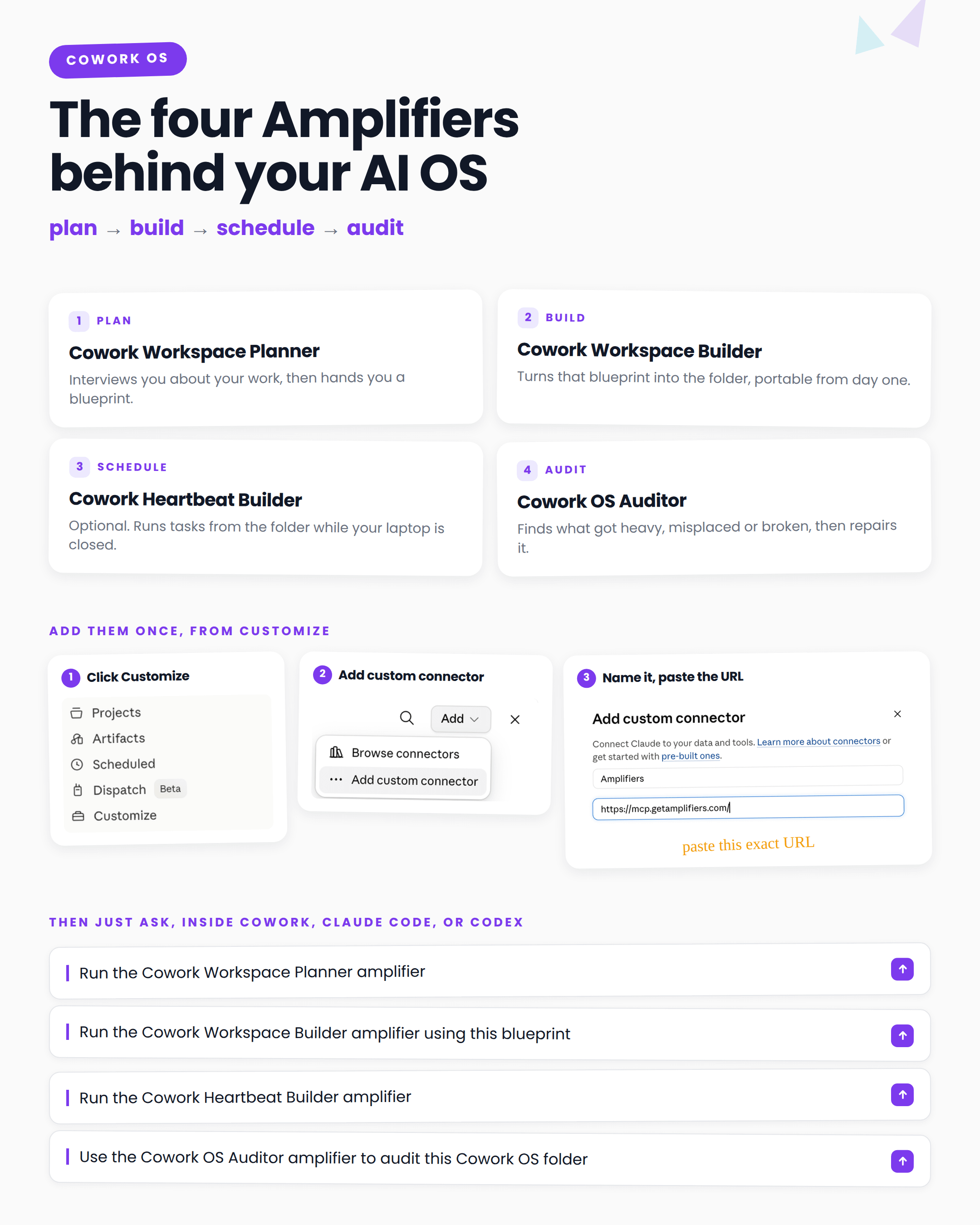
Cowork Workspace Planner: Interviews you about your work, helps you decide how to organize it, and turns everything into a complete blueprint.
Cowork Workspace Builder: Takes that blueprint and creates the folder, workspaces, memory, routing, skills setup, and places for your work. It also asks which AI assistants will use the folder, so portability is built in from the beginning.
Cowork Heartbeat Builder: Optional. It sets up scheduled cloud tasks that work from your Cowork OS folder and continue while your computer is off.
Cowork OS Auditor: Reads an existing system, finds what has become heavy, misplaced, duplicated, missing, or unreliable, and shows you what needs attention. Once you approve the changes, it repairs those parts and installs the updated structure, Outputs folders, and guardrails.
Which ones you need depends on where you’re starting.
If you’re starting from scratch: Run the Planner, then the Builder. Add the Heartbeat if you want scheduled cloud tasks to work from the folder while your computer is off. You don’t need the Auditor at this stage. I’ve updated the Planner and Builder with everything I learned from maintaining my own system, so those improvements are included from the beginning.
If you already have a Cowork OS: Your update is the Auditor. You don’t need to repeat the Planner or Builder. It brings your existing system up to the same standard as a new build while preserving your structure and work. It also adds Outputs folders, giving the work itself a separate place beside your memory and archive. Your drafts, versions, exports, and completed projects stay available inside the system without being loaded at the start of every session.
Next, I’ll show you what the Auditor found inside my own system, what it changed, and exactly how to run the right sequence for yours.
What the audit found after months of daily use
I used this system every day and would have told you it was organized. To be honest, I rarely opened the folder because I didn’t need to. AI managed it for me.
Then a reader told me his system had started feeling cluttered and slower. Around the same time, as I began using ChatGPT more, I realized mine wasn’t properly structured for several AI assistants to use the same folder.
So I ran the Auditor.
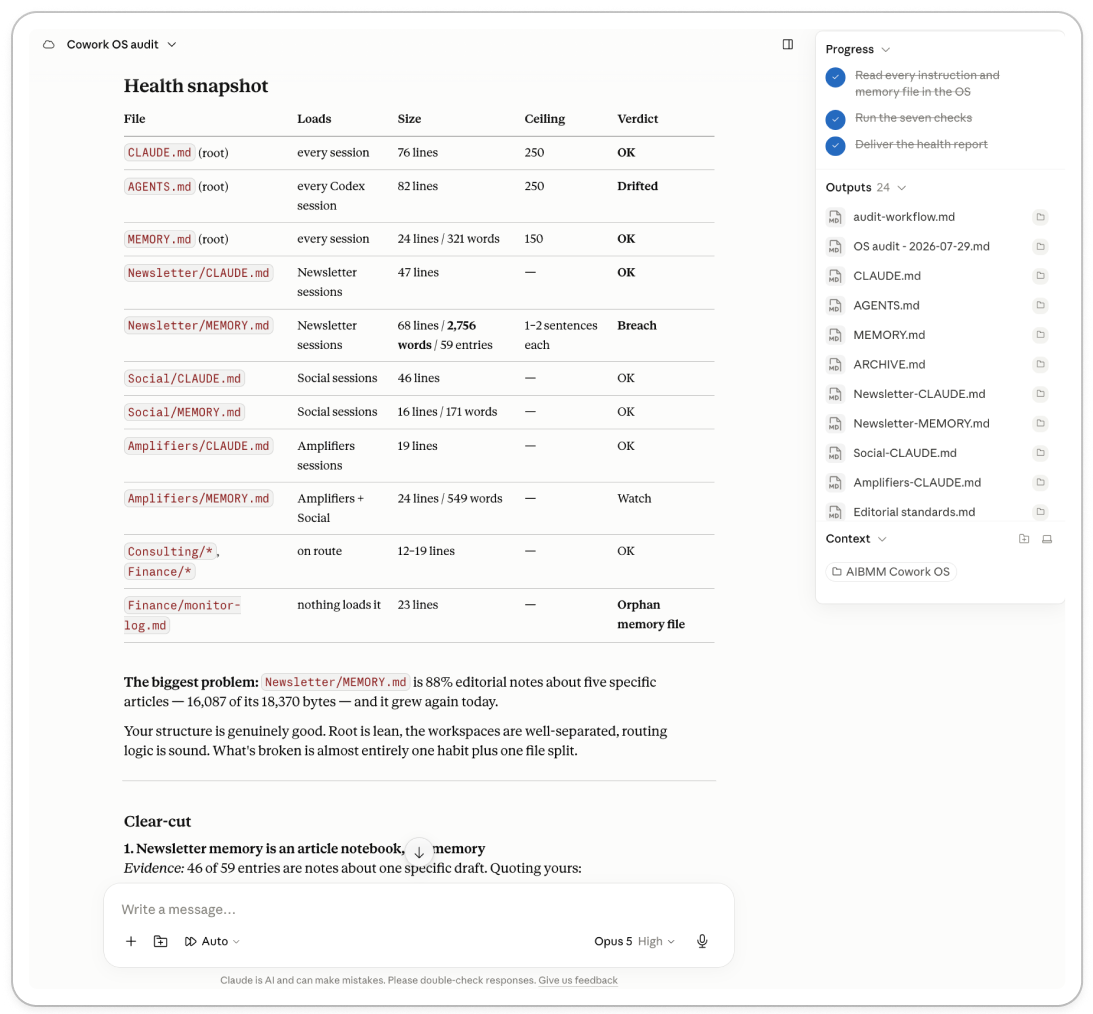
The biggest problem was that my memory files had become too long. Temporary decisions and notes from day-to-day work had been saved as permanent context. That meant more information was loading in every session, making the important rules and current context easier to miss.
I also discovered that different assistants read folder instructions differently. So I tested several formats until I found one that Claude and ChatGPT could all use reliably, with a few extra rules to keep the system cleaner as it grows.
That led to four improvements:
One shared rulebook for every AI assistant. Each one is pointed to the same source of truth in a format it can find and follow.
Portable skills inside the folder. Skills stored only in one app can be copied into the AI OS automatically, so you don’t have to download and move each one manually.
A separate place for the work itself. Memory holds what the AI needs now, the archive preserves older context, and Outputs keeps drafts, versions, exports, and completed work without loading all of it every session.
A maintenance process. It catches misplaced files, outdated context, broken routes, and rules that are no longer being followed consistently.
The Auditor handles both the cleanup and the upgrade. It reads the system, shows you what it found, and waits for your approval before changing anything. Then it fixes the problems and adds guardrails that help keep them from returning.
The original setup had been doing its job. Months of daily work had simply changed what I needed from it. But like any useful system, it needed maintenance and a few improvements I couldn’t have known I would need when I built the first version.
Which path to run, depending on where you're starting
Below, you’ll find the four Amplifiers, the full prompts behind them, and the exact sequence to follow depending on whether you already have a Cowork OS or you’re starting from scratch.
As usual, the explanation looks longer than the work itself. I built each Amplifier to guide you through the process, ask the questions it needs, inspect what you already have, and tell you exactly what comes next. You won’t have to decide how every file should be organized or work out which rules belong where. You review what it proposes, approve the changes, and let it do the work.
By the end, you’ll either have your existing system cleaned, updated, and ready to use across multiple AI assistants, or a new system built with all of these improvements from the beginning. Choose the path that fits where you are.
If you already have a Cowork OS: audit and upgrade it
You’ll make two updates:
Audit and upgrade the system so it stays clean as it grows.
Make your skills portable so they’re backed up in the folder and available to every AI assistant you use.
1. Run the Cowork OS Auditor.
Open the top folder of your operating system in Cowork or Claude Code. Then tell Claude something like: “Use the Cowork OS Auditor amplifier to audit this Cowork OS folder.”
That’s it. Claude will load the Auditor, read the system, and show you what it found before changing anything.
Once you approve the changes, it cleans up the existing folder and adds the parts the original version didn’t have: Outputs folders for the work itself, clearer rules for memory and archives, and, if you use more than one AI assistant, one shared rulebook they can all follow.
It also saves the complete audit process inside your Cowork OS. From then on, when you say, “Run the audit”, the AI opens that workflow and checks whether your instruction and memory files are still lean, whether work has been saved in the wrong places, whether any routes are broken, and whether your assistants are still following the same rules.
This is a thorough review of the whole system, so I recommend running it with Fable 5 or Opus 5 at high effort.
If you prefer to run the Auditor yourself without Amplifiers, you can copy the full prompt below into a new Cowork or Claude Code session with your Cowork OS folder open: