
Even though Claude is my daily driver, there are things I only go to Gemini for, because it does them better than any other LLM or because they’re only available in Gemini: video (both Veo and Gemini Omni), web search and deep research, and brainstorming, where Gemini pulls from a wider range of sources on its own while Claude works best with what you give it.
And if you’ve been reading this newsletter for a while, you already know I’m hooked on Google’s tools. I’ve written about them a lot: an overview of every AI tool Google has built, tools I built in Google AI Studio, how I use NotebookLM for research and writing, how I automated a lot of my work with Google Apps Script, prompts for Nano Banana, and pieces on using NotebookLM together with Gemini and integrating it with Claude Code.
I first published this guide in March. Seven months later, Gemini has a new frontier model, an agent that runs tasks for you, skills that are replacing Gems, desktop apps, and NotebookLM has a new name. So I updated the whole thing: what every feature does, when it’s useful, and my favorite ways to combine them. Wherever I’ve tested something in depth, I linked the full breakdown.
What changed since the last update (Oct 2026)
New models. Gemini 4 Argon is the new flagship on AI Pro and Ultra, and Flash is now on version 3.8.
New plans. AI Plus, AI Pro, and AI Ultra in two sizes, with limits that refresh every 5 hours.
Tasks. The agent Google announced as Spark is now Tasks, with a Chat/Task toggle next to the prompt box.
Skills replace Gems. Gems go away for personal accounts starting in November, and they move to skills automatically.
NotebookLM is now Gemini Notebook, and Gemini has its own Notebooks that sync with it.
Desktop apps for Mac and Windows, Gemini Live built into the chat, Lyria 3.5 for music, and Omni 1.1 Flash for video.
Here’s what we’re covering:
How to set up Google Gemini (plans, apps, importing your history, instructions, memory and Personal Intelligence, owning your own context)
Every feature inside Gemini’s chat (models, uploads, Notebooks, Deep Research, file generation, images, video, music, Canvas, Guided Learning, Gemini Live)
Let Gemini work for you (Tasks, skills, scheduled actions, Daily Brief)
Gemini across Workspace and Chrome
6 ways to combine Gemini’s tools (real workflows)
Where Gemini falls short (honest take)
Now let’s get into it.
How to set up Google Gemini
Before we get into what Gemini can do, let’s get it set up properly: your plan, where you use it, getting Gemini up to speed on who you are, and bringing over your context if you’re switching from another AI.
Picking your plan (and the perk nobody talks about)
Gemini has a free tier and three paid plans. In the US, they cost:
AI Plus at $9.99/month, the smaller entry point.
AI Pro at $19.99/month, which is where Gemini 4 Argon and Tasks start.
AI Ultra in two sizes: 5x Pro’s limits for $99.99/month, or 20x for $199.99/month (Google cut the top tier from $250 at I/O in May).
Prices vary by country, so you’ll see your local currency on the plans page.
Usage limits are now compute-based. They refresh every 5 hours, up to a weekly cap, and you can buy AI credits if you run out. The context window grows with the plan too: 32k on Free, 128k on Plus, and 1M on Pro and Ultra.
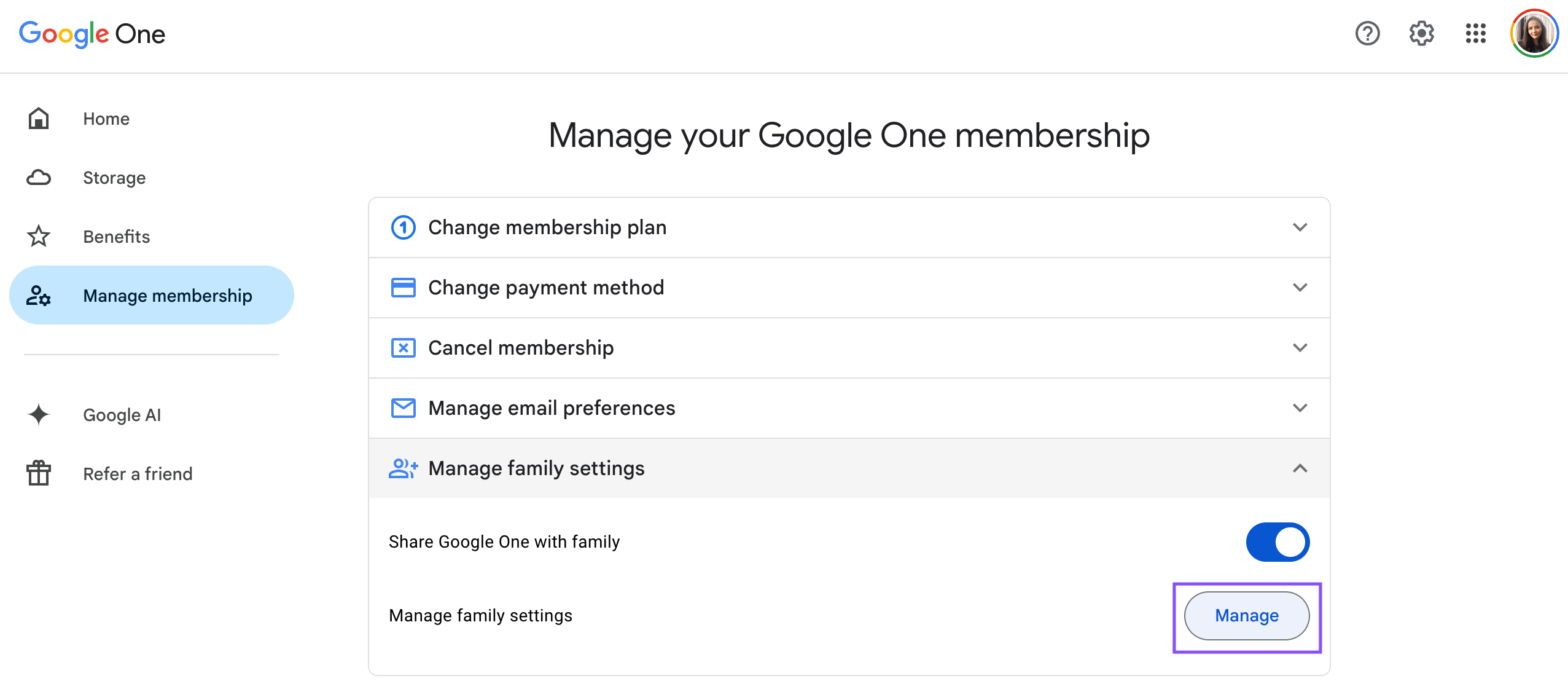
Now here’s the part that makes Google’s pricing hard to beat: any paid plan lets you share it with up to five family members, and everyone gets their own individual access to the full plan. You share the storage, but that’s it. [verify: family sharing still covers every AI plan, including both Ultra sizes]
I don’t know any other AI platform that offers this. If you have a partner, kids, or parents who are curious about AI, two minutes of setup and five people are in, for the same price.
Here’s how: go to gemini.google.com → Settings → Manage subscription. That takes you to Google One. Click Manage family settings, toggle on Share Google One with family, click Manage family settings again, and invite family members by email.
Where to use Gemini: browser, desktop, or phone
The browser at gemini.google.com is the simplest way in.
The desktop apps are new. On Mac, Option+Space opens Gemini from anywhere, and since September there’s a Windows app too (Alt+Space). The Mac app can also run Tasks on local folders you choose, and it has Google’s Antigravity coding interface built in. Download them here.
The mobile app is where Gemini Live is at its best, with your camera and screen sharing.
How to customize Gemini to know you
Three things to set up before you go any further. All of them help Gemini understand who you are and what you do, so its answers stop being generic and start being relevant to you.
Step 1. Import your ChatGPT or Claude history into Gemini
If you’re switching to Gemini from ChatGPT or Claude, Google’s Import Memory to Gemini lets you upload your full chat history as a ZIP file.

The catch: that’s everything. Every random question, every throwaway conversation. It’s a lot of noise.
If you want something cleaner and you care about sharing only what’s relevant with Google, I built the AI Migrator for exactly this. It processes your conversation history and extracts a structured profile: who you are, what you’re working on, your goals, your communication preferences, your projects, your patterns. You paste it into Gemini’s instructions or memory, and it knows you from the first conversation. Read my step-by-step guide on migrating.

Step 2. Set up custom instructions in Gemini
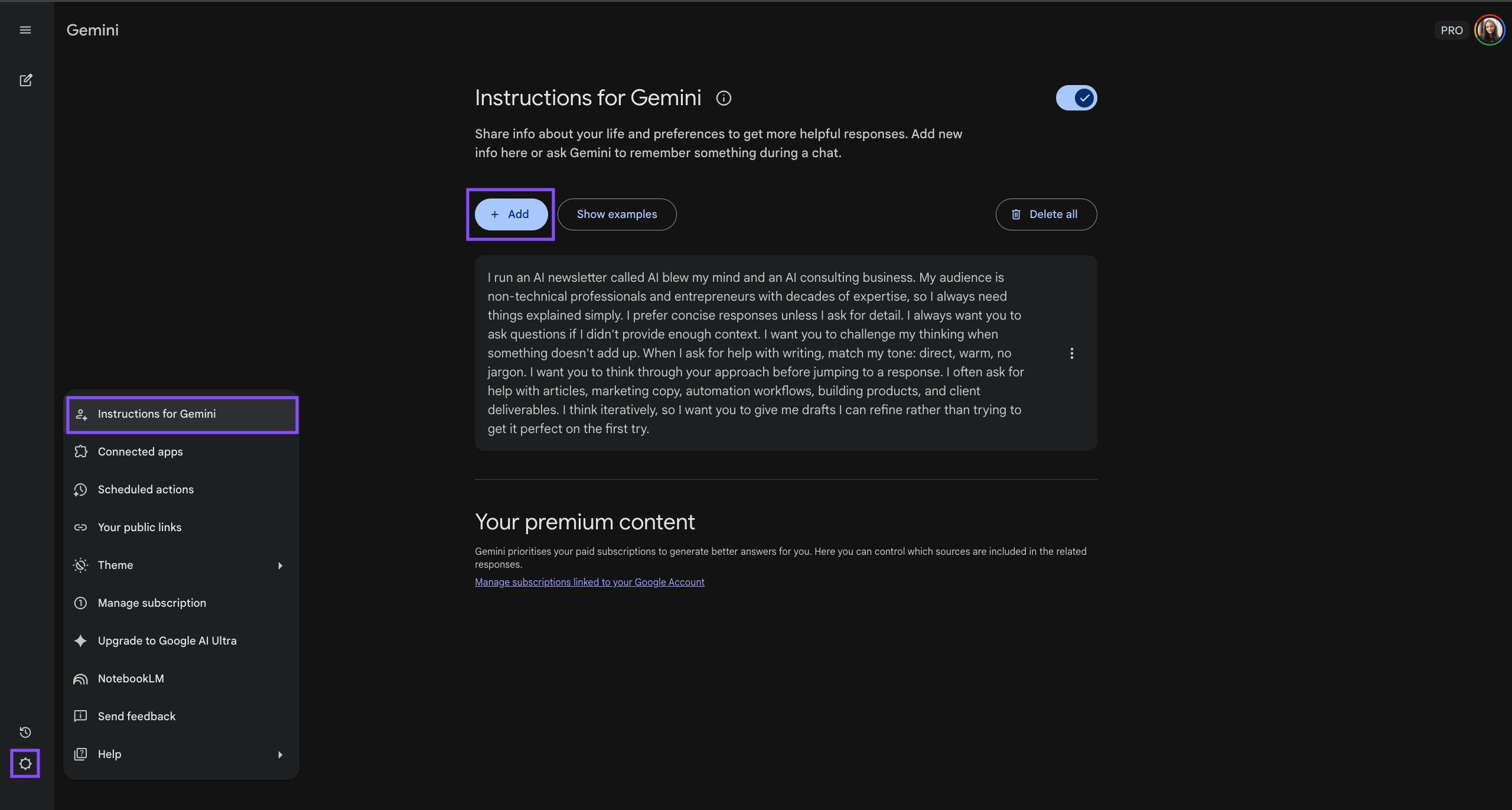
Go to Settings → Personal context → Instructions for Gemini and click Add.
This is where you tell Gemini who you are, what you do, and how you like responses: your role, your industry, how detailed you want answers, what tone works for you. Gemini applies this across all your chats, and it stays saved until you delete it.
If you used the AI Migrator, your communication preferences are already extracted, and you can paste them in here.
Step 3. Turn on memory, connect your apps, and check Personal Intelligence
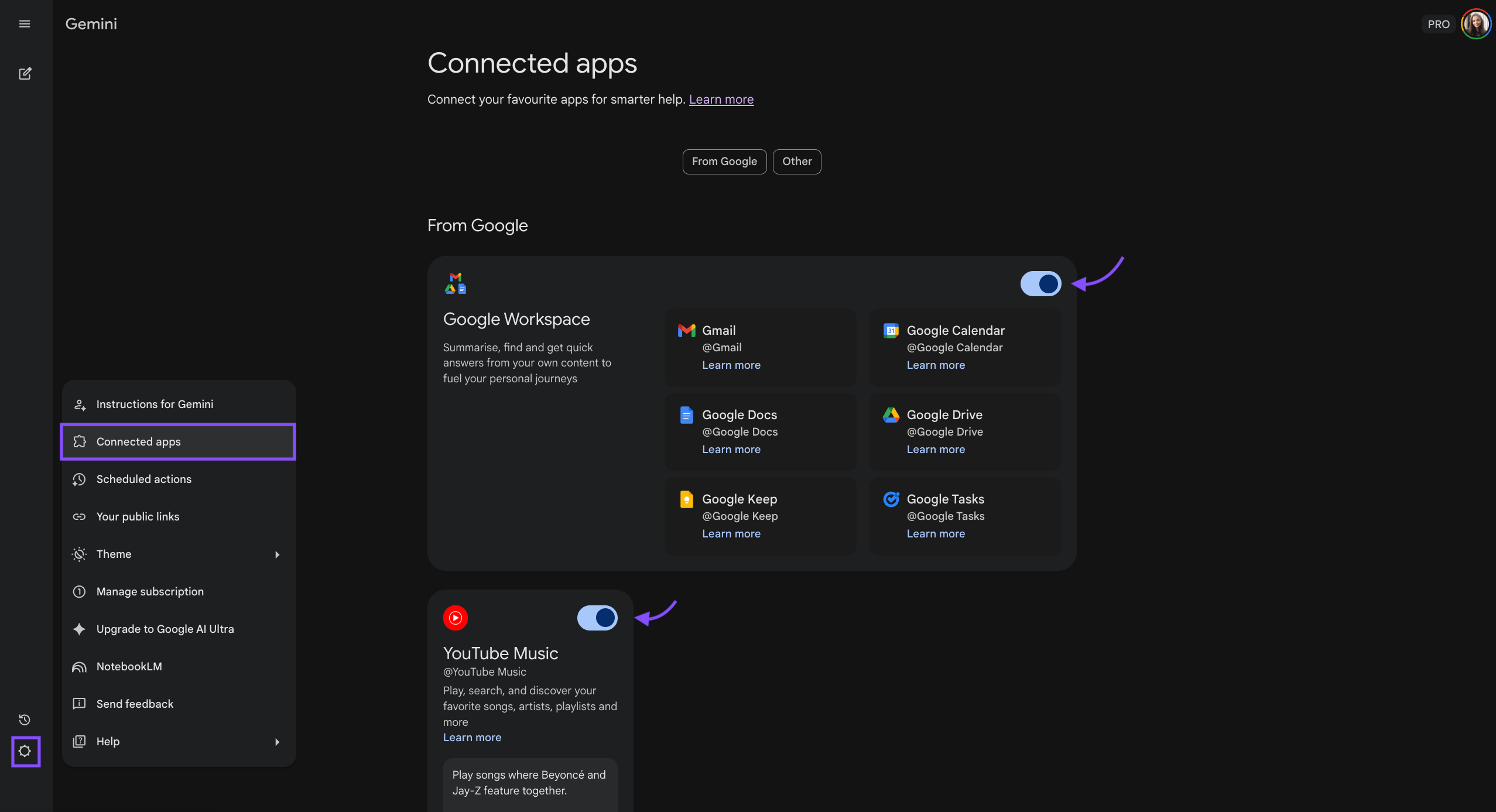
Gemini now remembers. In March, Google renamed “past chats” to Memory, and it lives under Personal Intelligence in your settings.
With it on, Gemini uses your earlier chats to understand your ongoing projects, preferences and decisions, so you don’t have to repeat yourself. It needs Keep Activity turned on, and since June, Gemini Live can use it too.
When a conversation shouldn’t be remembered (client work, anything confidential), open a Temporary Chat and it stays out of your memory.
Personal Intelligence also connects Gemini to your Google apps, like Gmail, Photos and Search. That’s where it gets useful in everyday life. Gemini can find a bag that matches shoes you bought last week, or troubleshoot your fridge by pulling the model number from a receipt in your email. It’s opt-in and off by default, and in the US it’s now free in the Gemini app and in Chrome. Outside the US, it’s still rolling out.
Then go to Settings → Connected Apps. Beyond Google’s own apps, Gemini now connects to 40+ others, from Canva, Adobe and Shopify to productivity tools like Airtable, Linear, monday.com and Zoho (added in September).
Every feature inside Gemini's chat
You’re set up, Gemini knows who you are, and you’re ready to go. Now let’s go through everything inside the chat, because there’s a lot more in there than what you see when you open it.
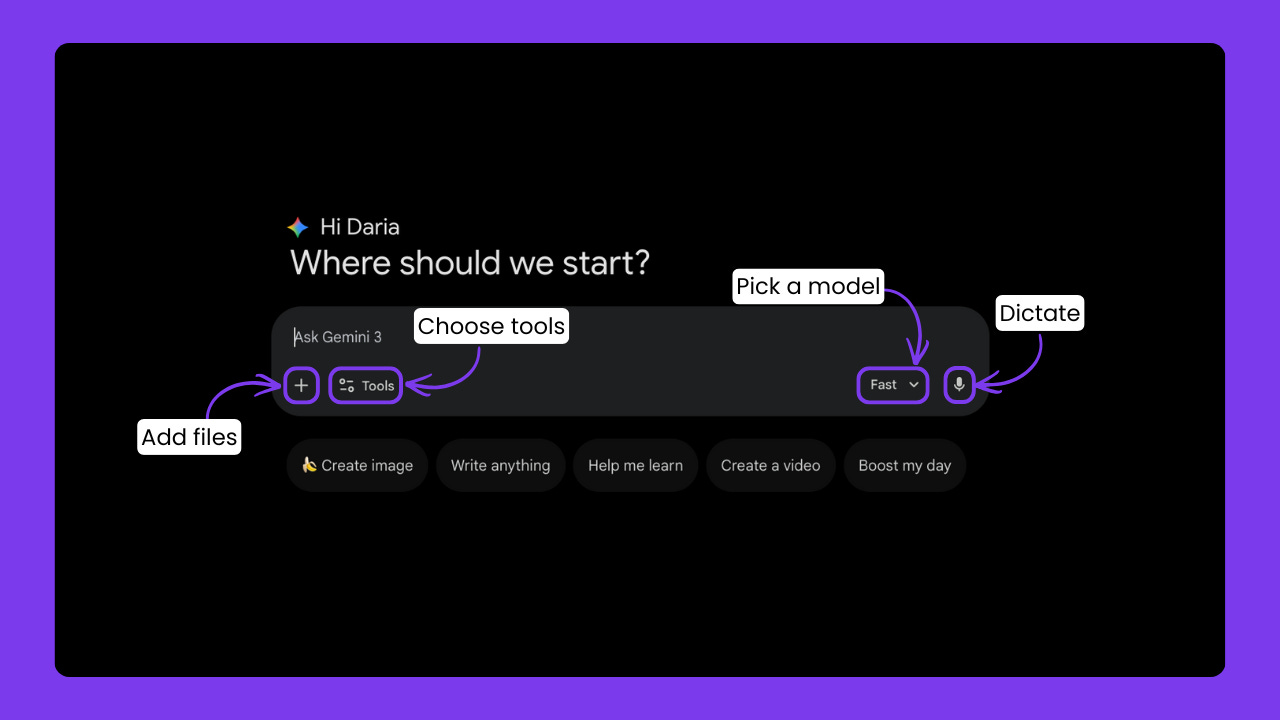
Choose the right Gemini model (Auto, Flash, Pro, Argon)
When you open Gemini, you pick which model runs your request:
Auto picks for you, based on what you ask.
Flash (now 3.8) is the fast workhorse for quick, everyday tasks.
3.1 Pro is the strong all-rounder for complex reasoning.
Gemini 4 Argon is Google’s new frontier model, on AI Pro and Ultra since 13 October. Google says it answers more directly, with less hedging and fewer clichés.
Deep Think is a reasoning mode on Ultra for the hardest problems.
The rule for picking stays simple: the harder the problem, the more powerful the model you want behind it.
What you can upload and connect in Gemini
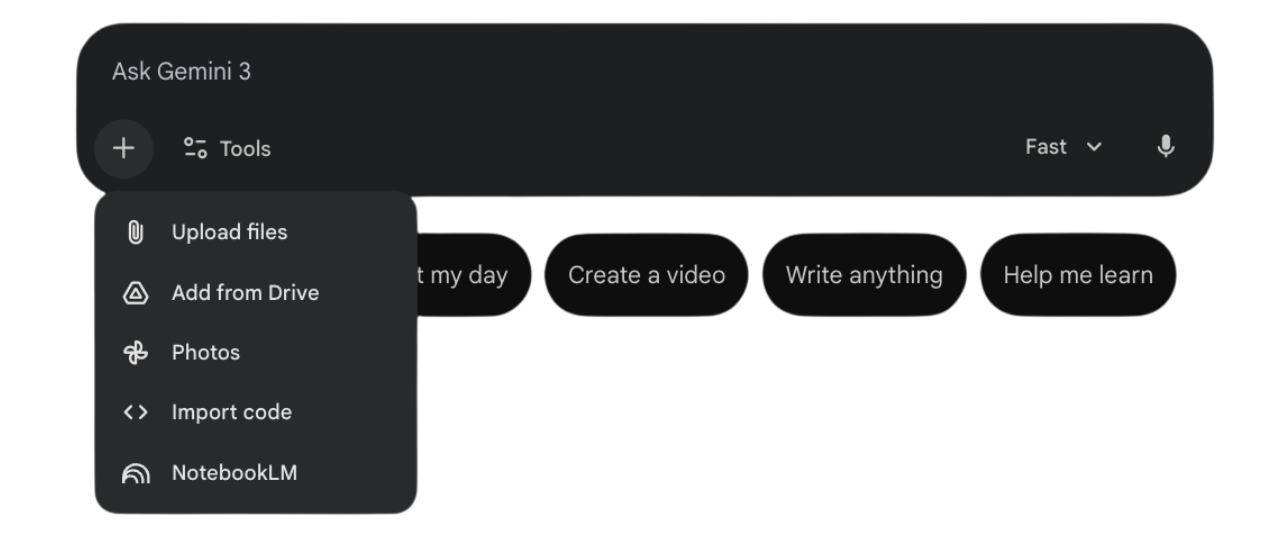
You can bring a lot into a Gemini conversation:
Direct file uploads. PDFs, images, documents, spreadsheets, presentations, even video files. It can watch, timestamp, and summarize footage.
Code folders. Upload a whole folder of code, up to 1,000 files and 100MB per conversation, and Gemini can find bugs or suggest refactors. If you’d rather build than debug, here are the 5 no-code tools I built in Google AI Studio.
Google Drive and Photos. Gemini can reference your cloud-stored files and pull images straight from your library, with no downloading and re-uploading.
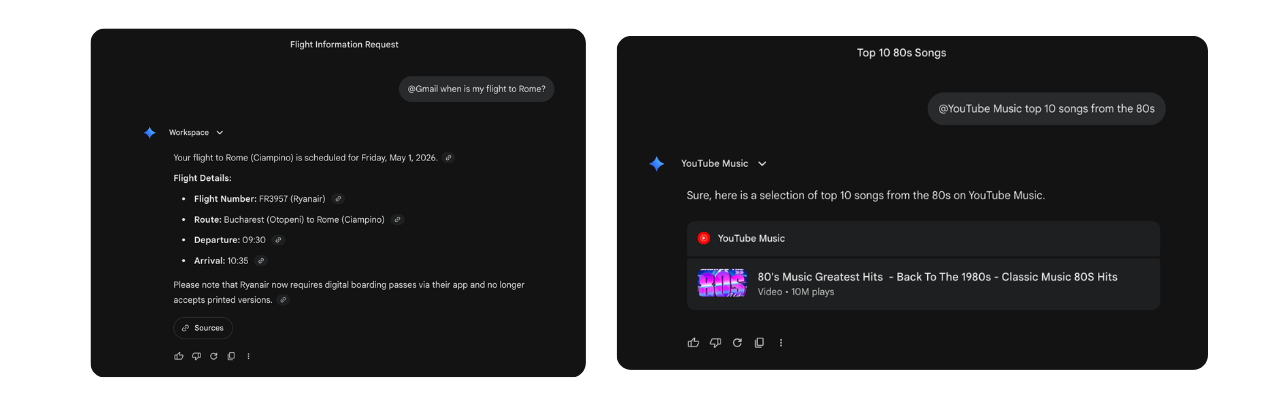
@ commands for connected apps. Type @ in the chat and you’ll see the apps you’ve enabled. Ask Gemini to find an email, summarize a document from Drive, or play a song, all from within the conversation.
Notebooks and Gemini Notebook (formerly NotebookLM)
In July, NotebookLM became Gemini Notebook. And since April, Gemini has its own Notebooks on the web for Plus, Pro and Ultra: click “New notebook” in the side panel, move past chats into it, give it custom instructions, and add the files it should know. Notebooks sync with Gemini Notebook, so you get the research features of one and the chat of the other.
You can also pull your notebooks into any Gemini chat as sources, as many as you want, and since July, Gemini Notebook can run code and go find sources on its own.
I use it for research and writing almost every day, and I wrote about how I made it write like me, how to use it together with Gemini, and how to connect it to Claude Code, with 5 demos and 50 use cases.
Gemini's built-in tools: what each one does
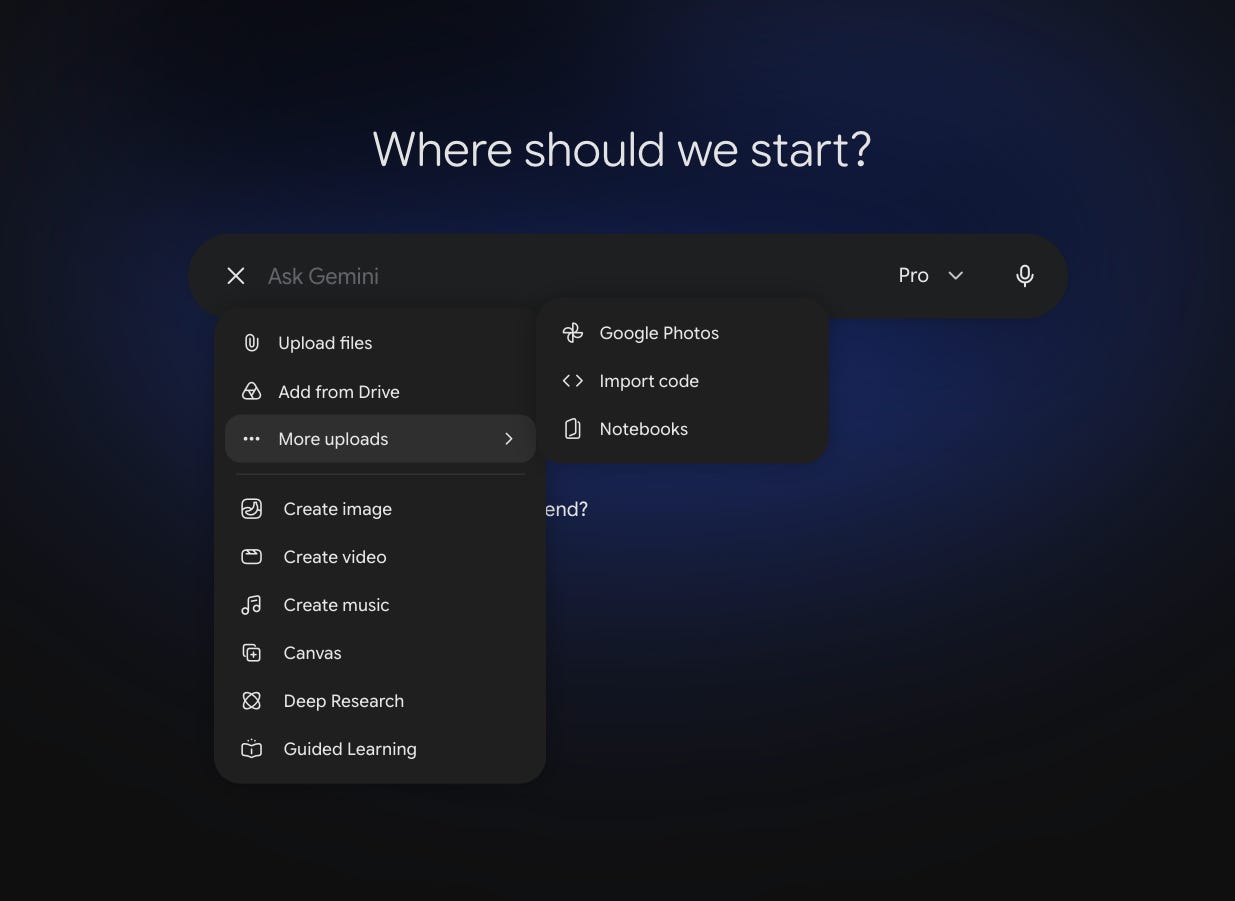
Google has built more tools directly into Gemini than any other AI platform right now. Here’s what each one does and when it’s worth using.
Deep Research: Gemini’s AI research agent
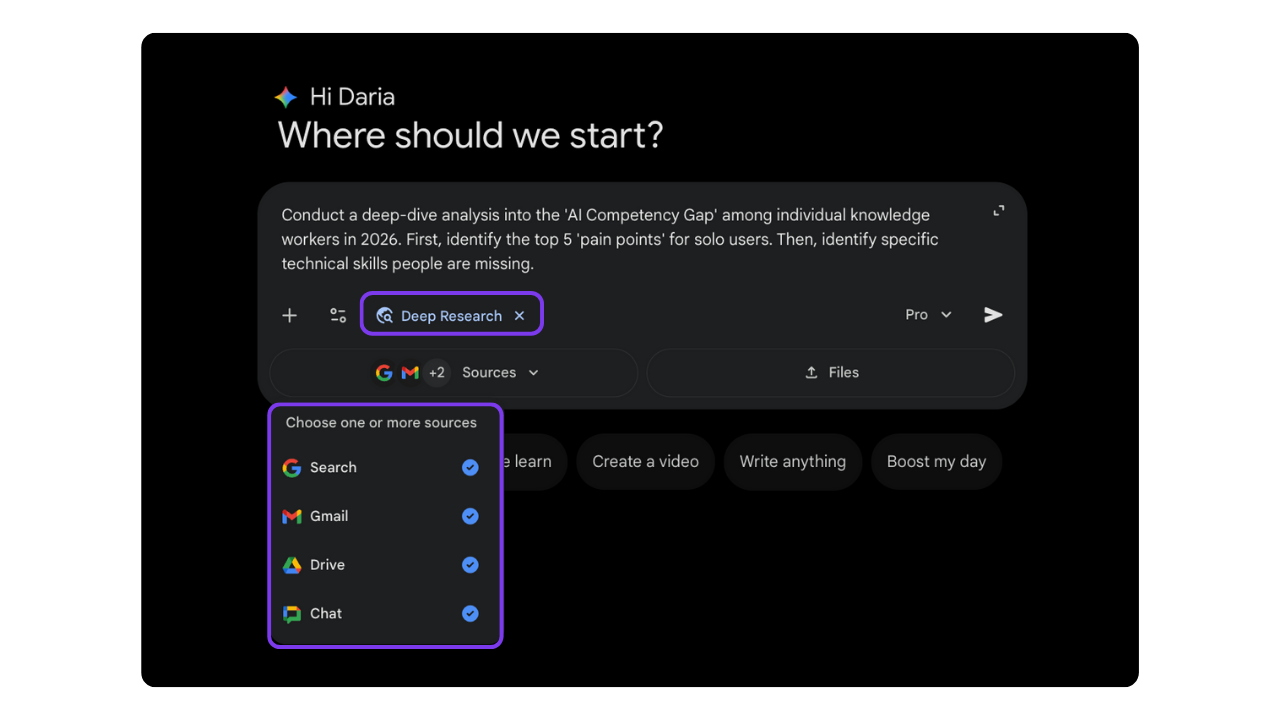
Whenever you need to go deep on a topic, use this. Gemini browses the web, reads multiple sources, synthesizes everything, and comes back with a comprehensive, cited report. You can go make coffee while it works.
It also researches across your own sources: Gmail, Drive, even Google Meet chats. So instead of “what does the internet say about X”, you can ask “what have we discussed about X in our team emails and documents”. And on Ultra, reports now come with embedded visuals.
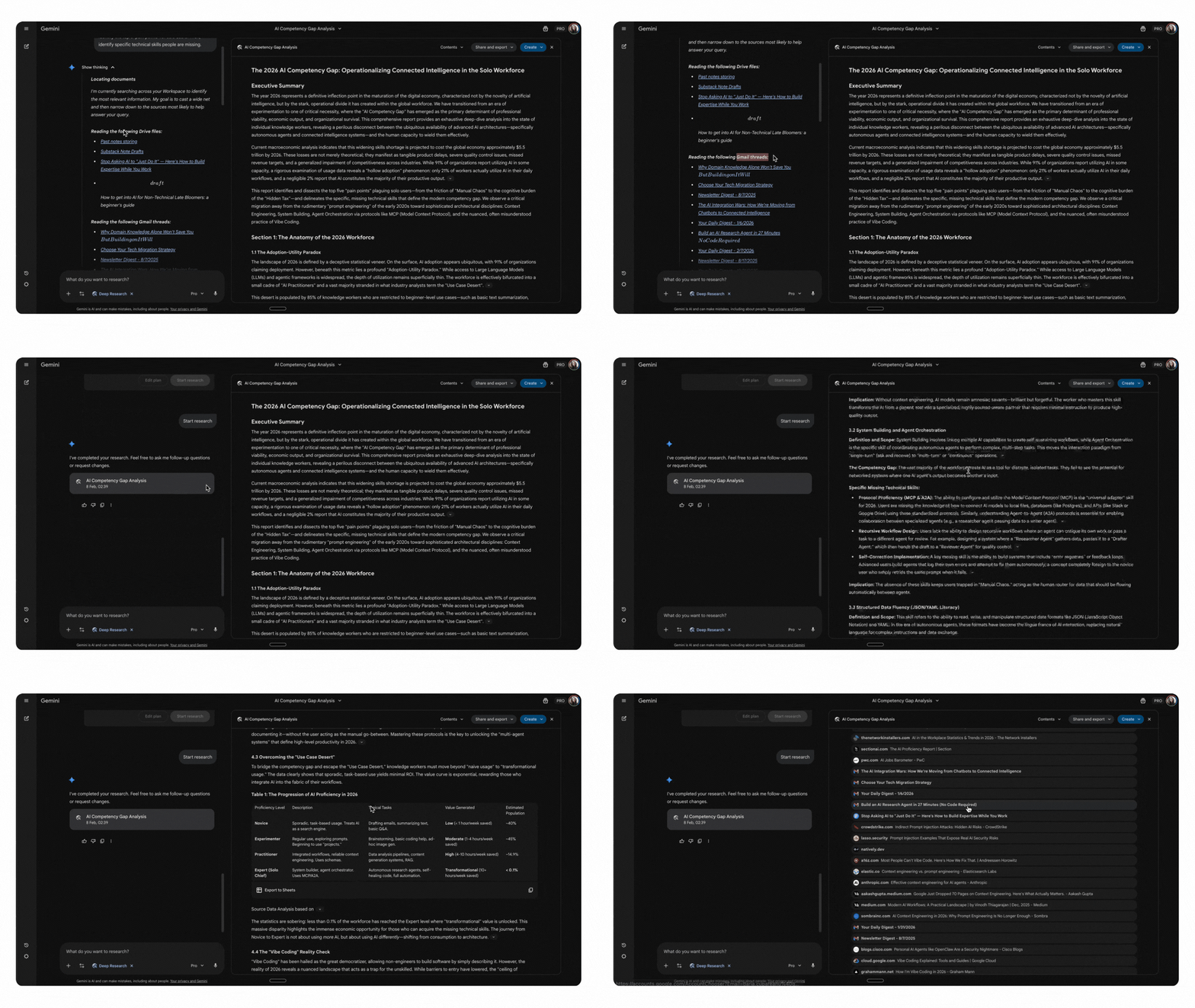
If you research content, these are the workflows I use: one that shows me what’s going viral across 8 platforms with real view counts, and one that scans 9 platforms for trends and hands me a ranked menu of what to create next.
File generation: Docs, Sheets, Slides and PDFs from the chat
Since April, you can ask Gemini for a finished file instead of text to copy: a Google Doc, Sheet or Slides deck, or a PDF, DOCX, XLSX or CSV you can download. Polished, formatted, ready to send.
Image generation with Nano Banana
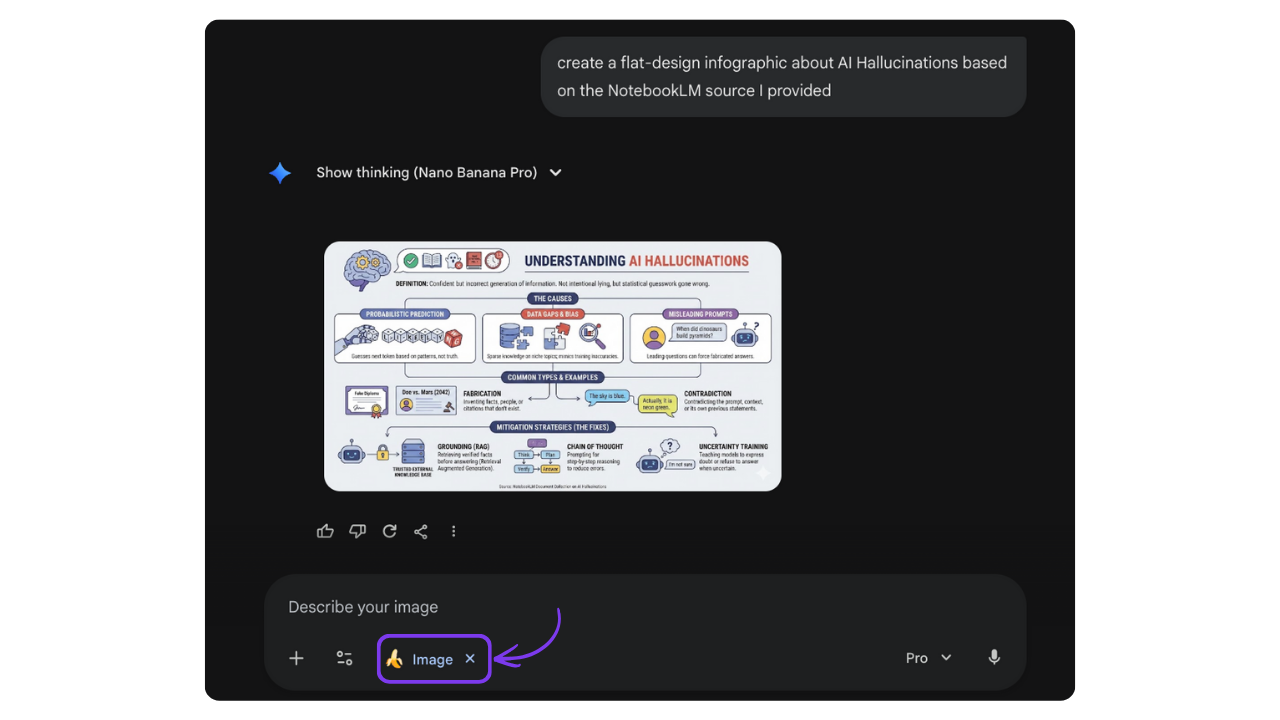
The family now has three models: Nano Banana 2, Nano Banana 2 Lite (which replaced the original in June), and Nano Banana Pro. You can create images from scratch, edit existing ones in plain language (”remove the text”, “change the lighting”), or keep the same character consistent across scenes.
I’ve written about every version as it came out: this review for AI Supremacy when it first launched, 7 real tests of Nano Banana Pro with a master prompt, and 58 prompts for infographics with Nano Banana 2.
In May I put Nano Banana 2 against GPT Image 2 on 10 identical prompts, and GPT Image 2 won. On portraits from my own photo, the difference was night and day.
You can also use Nano Banana inside Claude through Amplifiers, so Claude writes the prompt and generates the image in the same conversation. Here’s what that looks like.
Video creation with Veo and Gemini Omni
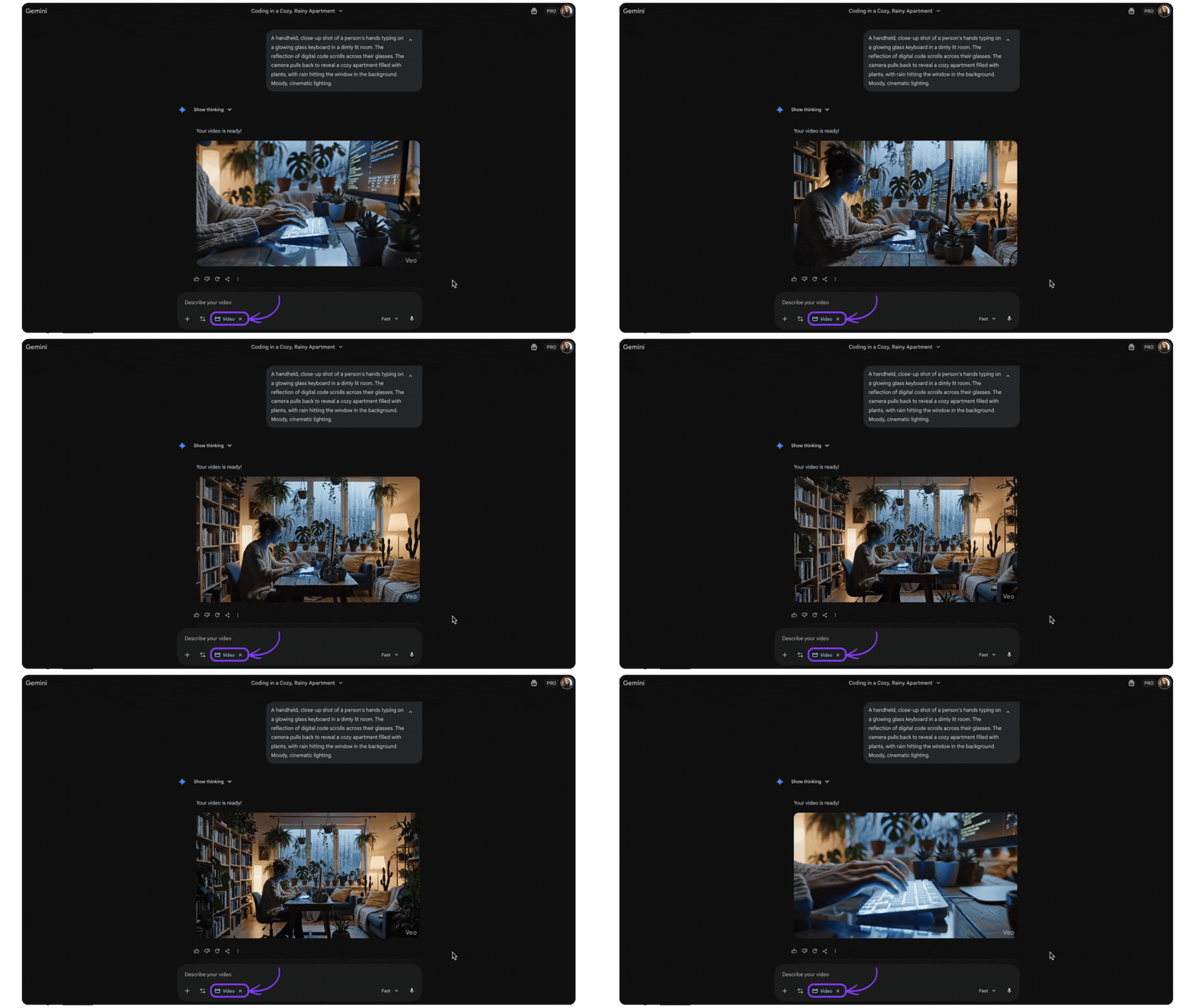
Veo is Gemini’s cinematic video engine. You can generate high-definition clips (up to 4K) directly in the chat, with native audio, so your videos come with synchronized sound effects or dialogue. Veo 3.1 is the version listed on the plans page right now.
Gemini Omni is Google’s other video model, built differently. Where Veo focuses on cinematic clips, Omni lets you mix inputs: upload photos, add text, attach audio, and it combines everything into a video you can edit through conversation. The current version, Omni 1.1 Flash, added scene extension, first and last frame control, and 4K upscaling.
I tested Omni across 7 use cases: product animations from a single photo, talking characters, UGC ads with lip sync, photos turned into Instagram reels, animated explainers, storyboard-to-video, and dropping yourself into any scene. Full breakdown with every prompt and a prompt generator here.
Gemini can also analyze video. Drop a video into the chat and ask it to break something down. If you’re a marketer, upload a competitor’s ad and ask for the messaging, the visual structure, the pacing. If you’re a creator, upload your own video and ask for feedback on structure and delivery.
Music creation with Lyria 3 Pro
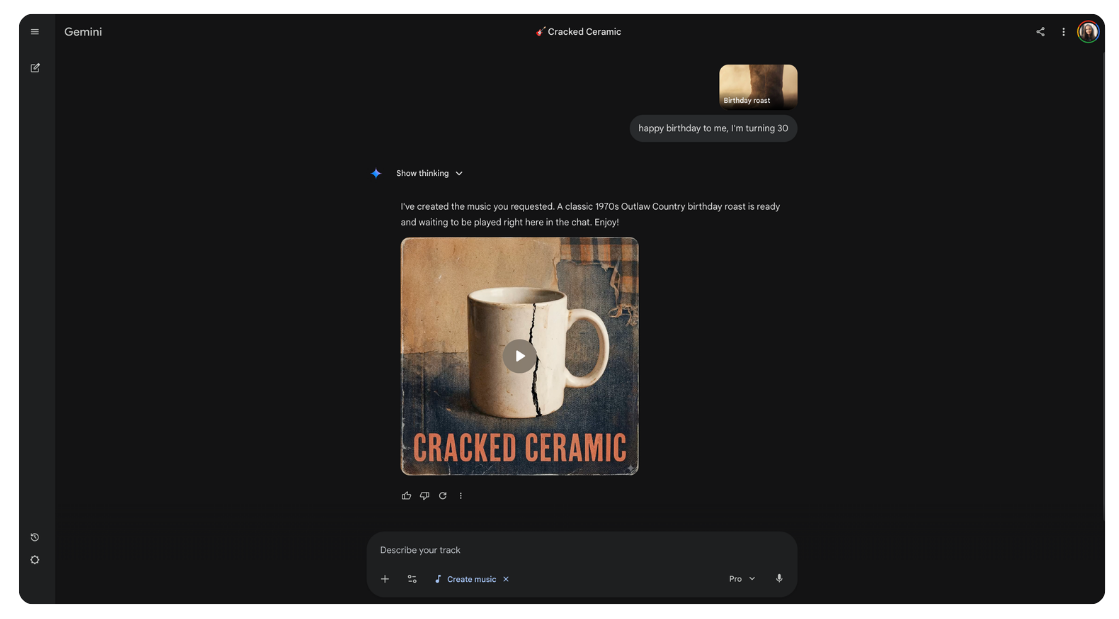
You can create custom music tracks directly inside Gemini. Lyria 3.5, available globally since September, makes richer arrangements and more coherent songs, and it can turn an image into music.
I don’t find much difference in quality between Google’s music generation and dedicated tools like Suno or Mureka. You get fewer customization options in Gemini, but the quality is solid, and it’s included in your subscription (or free within limits), which means one less tool to pay for.
Canvas: Gemini's side-by-side writing and coding workspace
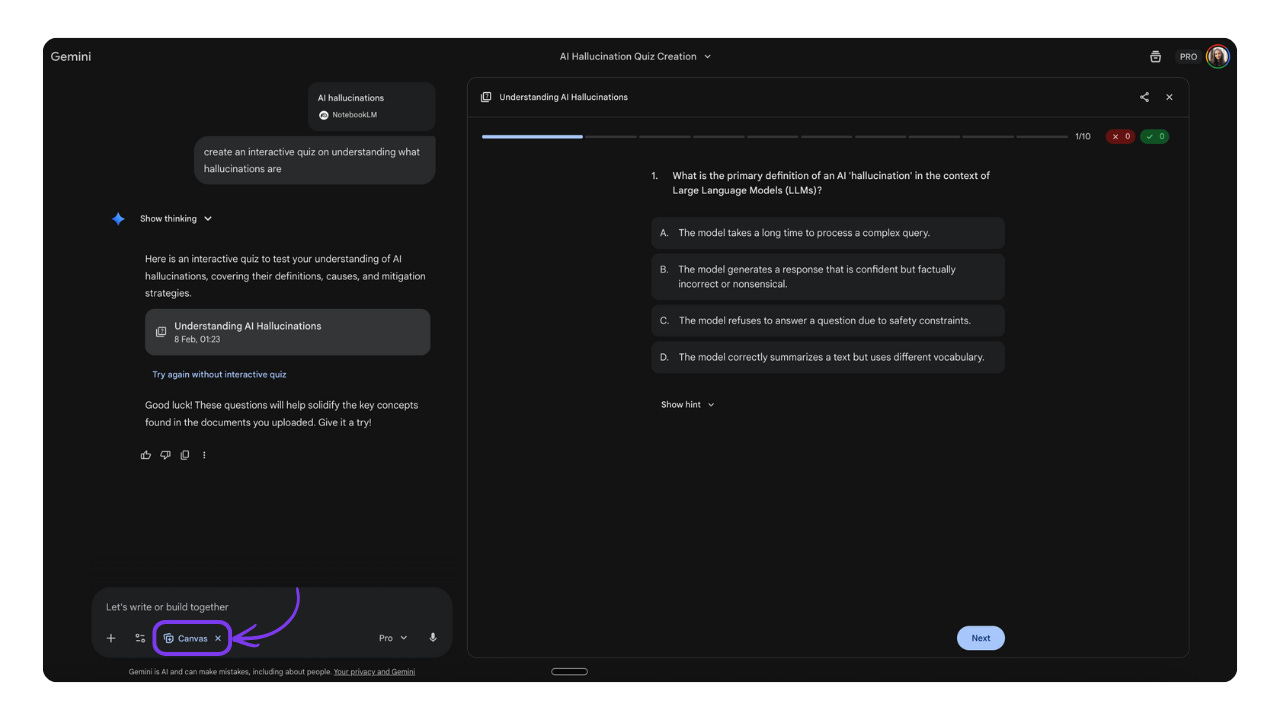
Canvas opens a side-by-side editor where you can work on something and refine it with AI, all in one view. Use it for:
Writing. Draft long-form content, highlight sections to rewrite, change tone, ask for edits. Close the chat, come back later, keep going.
Building. Prototype small apps, tools, and games from a single prompt. When I built 12 games and apps with AI, Gemini in Canvas delivered the most complete result on the first try compared to ChatGPT and Claude.
Guided Learning: turn Gemini into a tutor
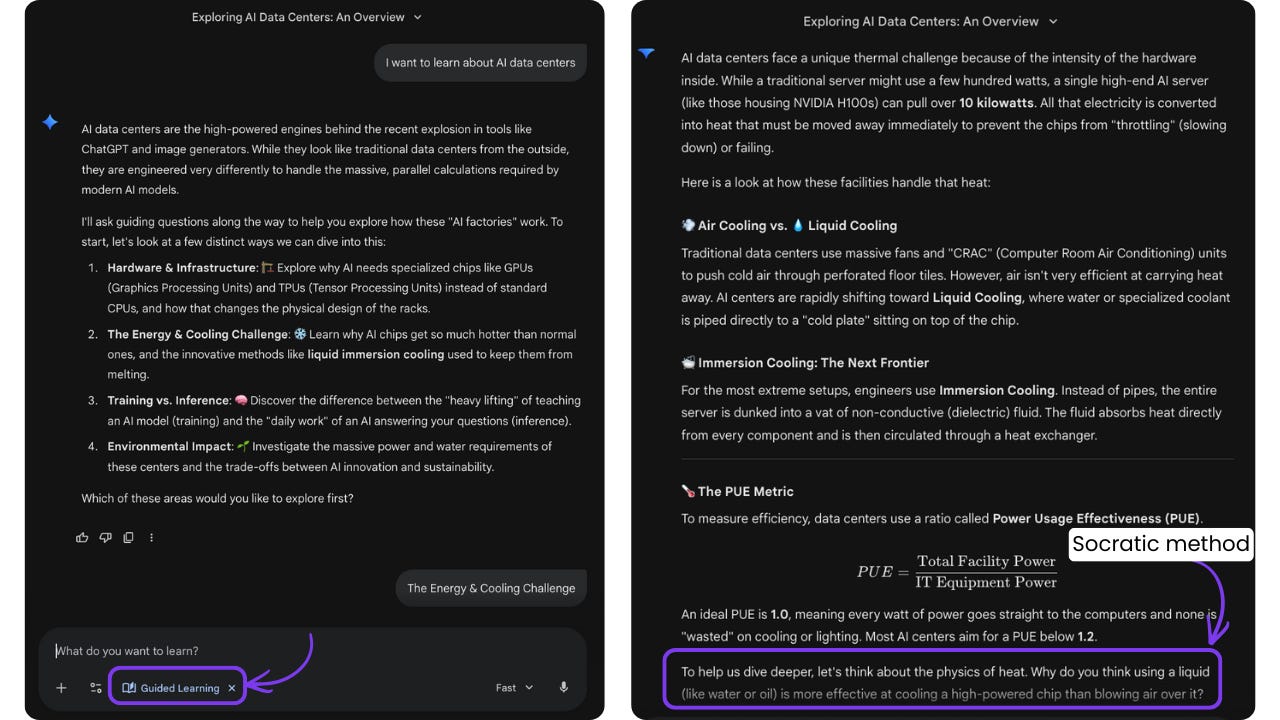
Instead of giving you the answer, this mode turns Gemini into a tutor. It asks you questions, walks you through quizzes with hints, and explains what you got wrong. You can create quizzes from documents you upload or ask Gemini to quiz you on any topic.
It’s useful for more than studying: preparing for a client meeting on unfamiliar territory, onboarding into a new industry, or testing yourself after a Deep Research session.
Gemini Live: voice, camera and screen sharing, now inside the chat
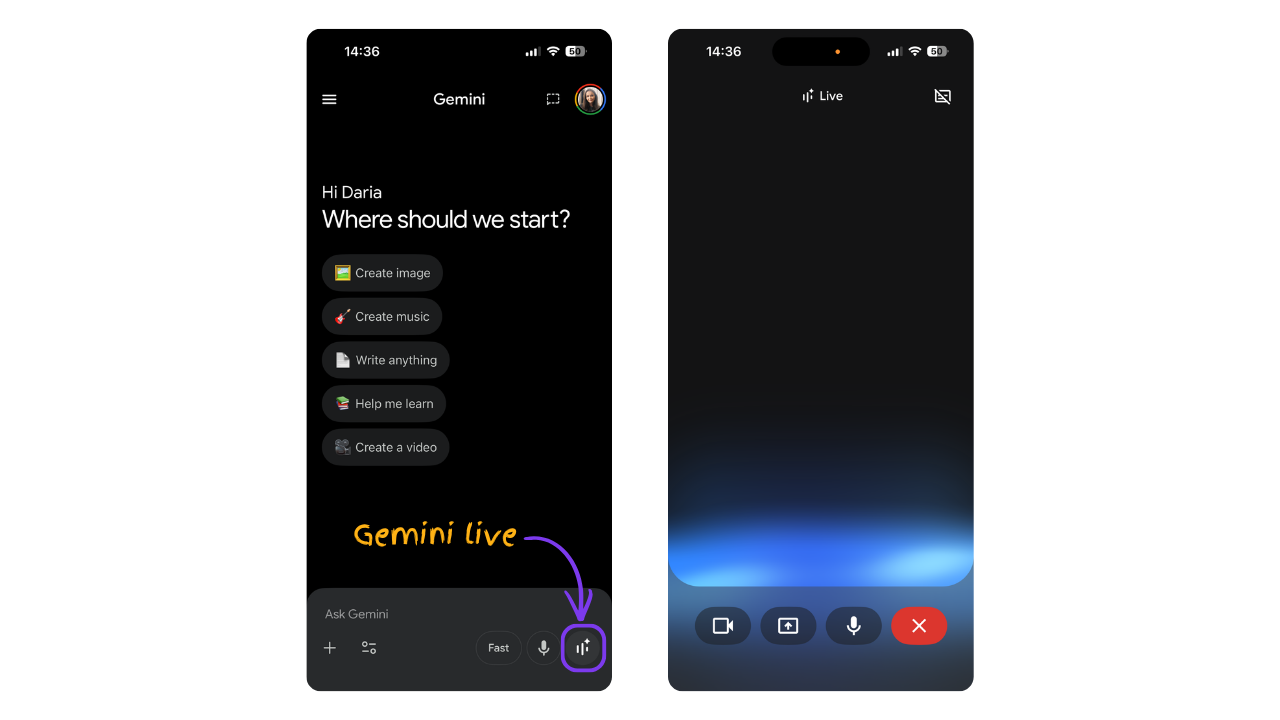
Gemini Live is no longer a separate mode you open on your phone. Since May, it’s built into the chat, so you can switch between typing and talking in the same conversation. It runs on the Gemini 3.8 Live voice models (September), and since August, you can set up multi-step tasks by voice.
What makes it more than a voice assistant:
Share your camera. Point your phone at something and ask about it: a plant, a menu in a foreign language, step-by-step help fixing your coffee machine.
Share your screen. Get real-time help with whatever’s on your screen, like picking photos for a post or getting a second opinion on something you’re about to buy.
Brainstorm out loud. Talk through ideas while walking or driving. You can change your mind mid-sentence, interrupt, switch topics.
It also connects to Google Maps, Calendar, Tasks, and Keep, so you can plan and stay on top of things hands-free.
What you can do with any Gemini answer (export, fact-check, listen)
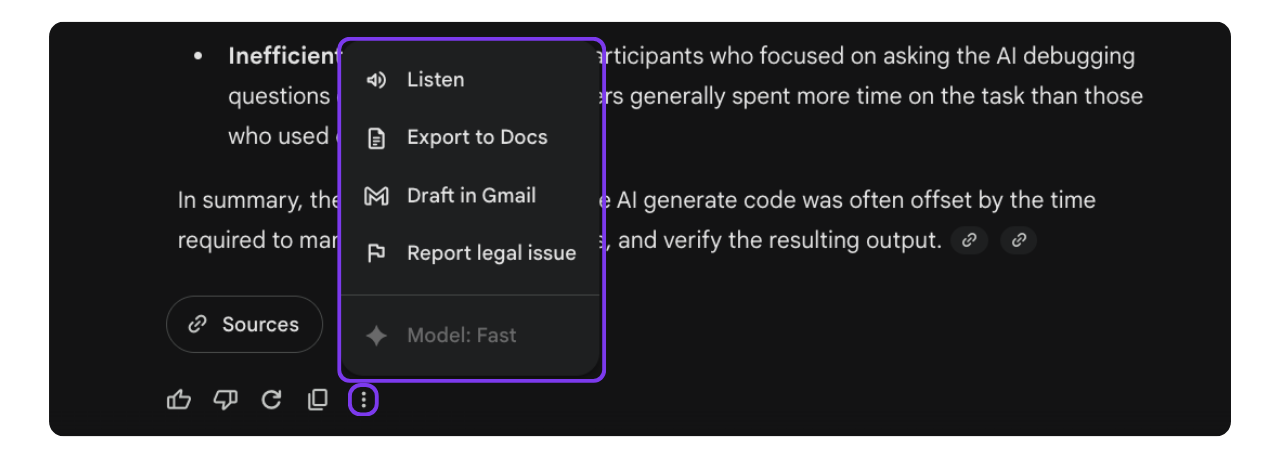
When you click the three dots on any Gemini answer, you get a few options worth knowing about:
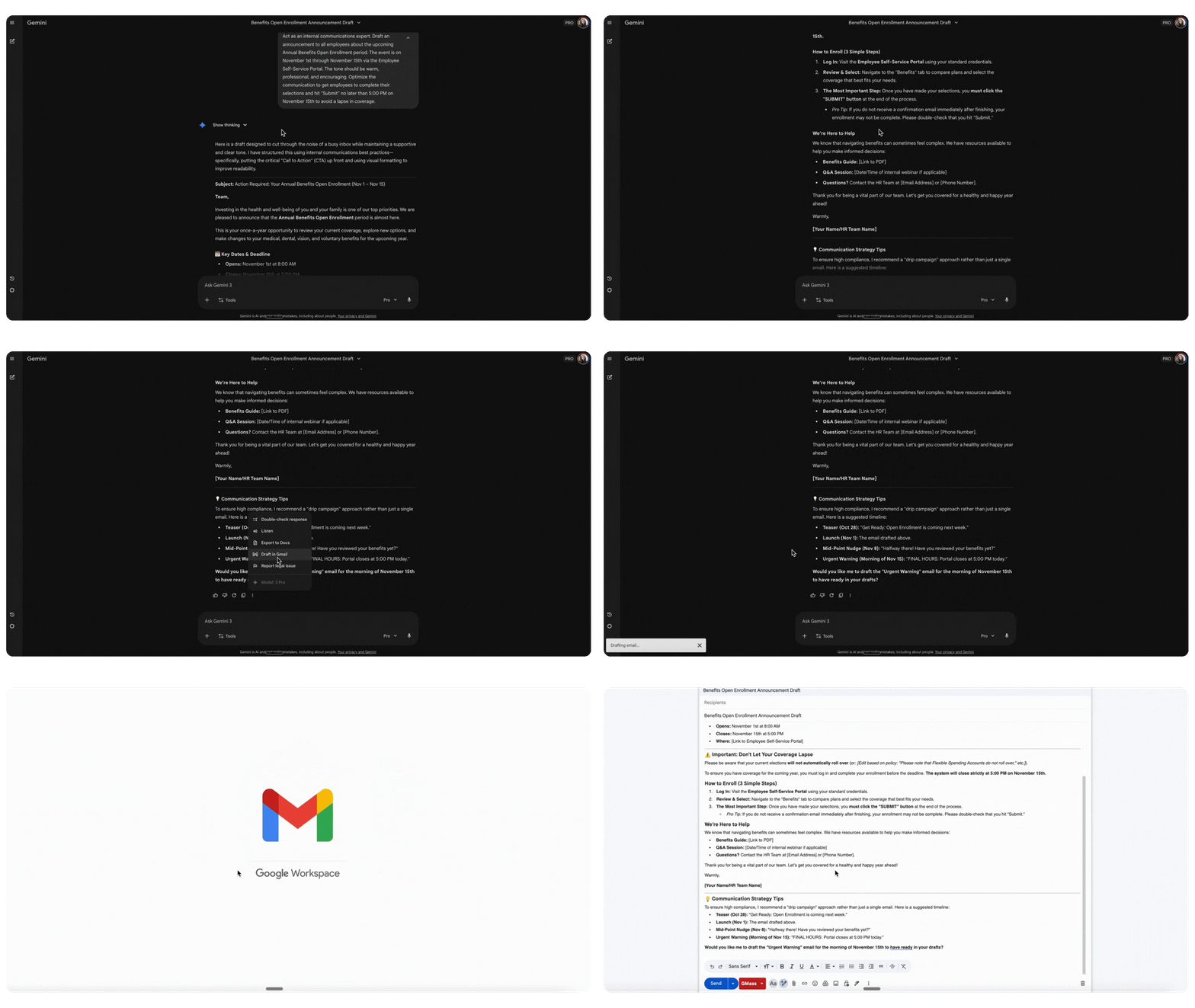
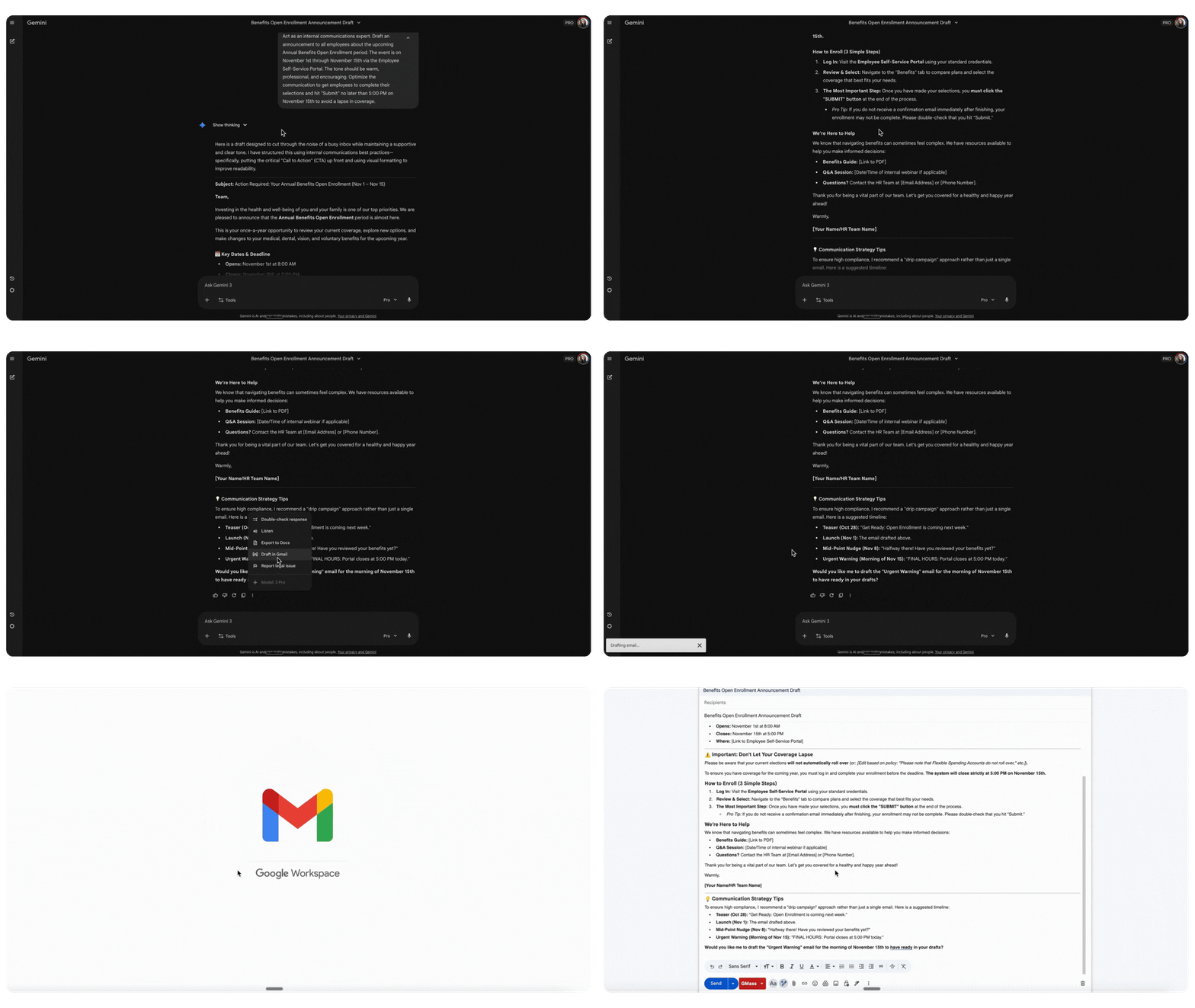
Export to Docs, Gmail, or Sheets. Everything Gemini creates can go straight to a Google Doc, a Gmail draft, or a Sheet for tables. No copy-pasting between windows.
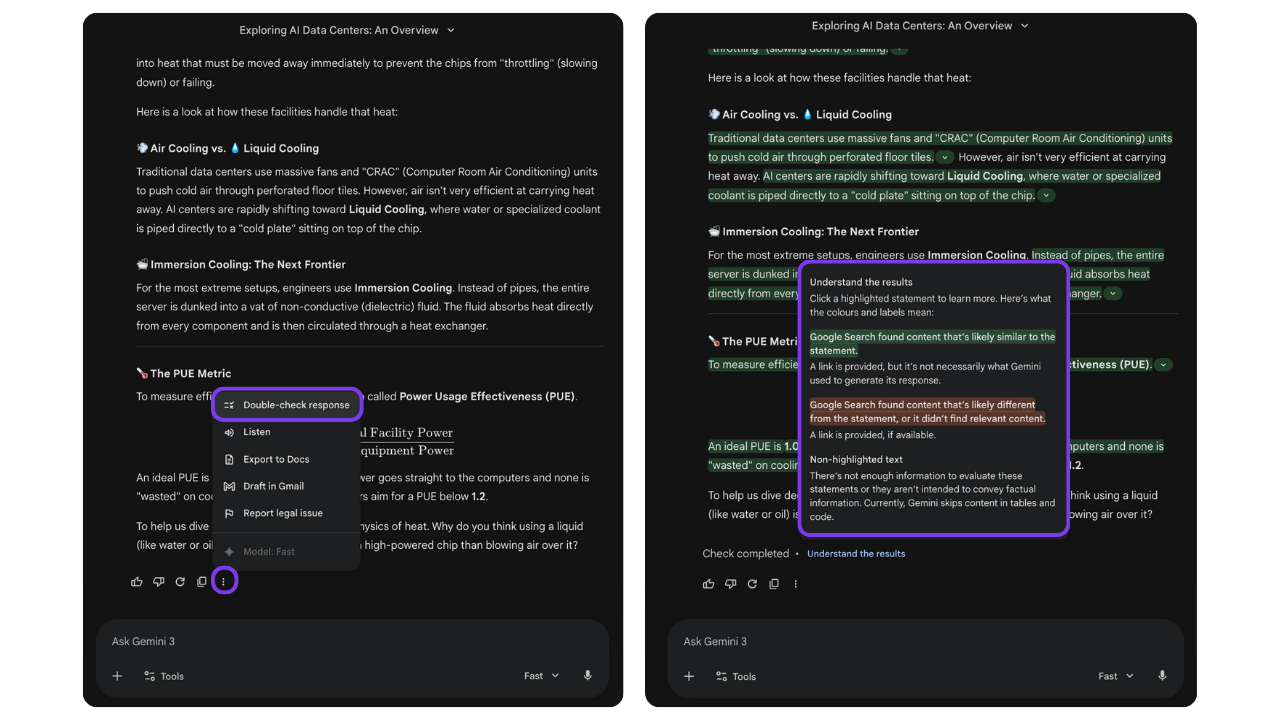
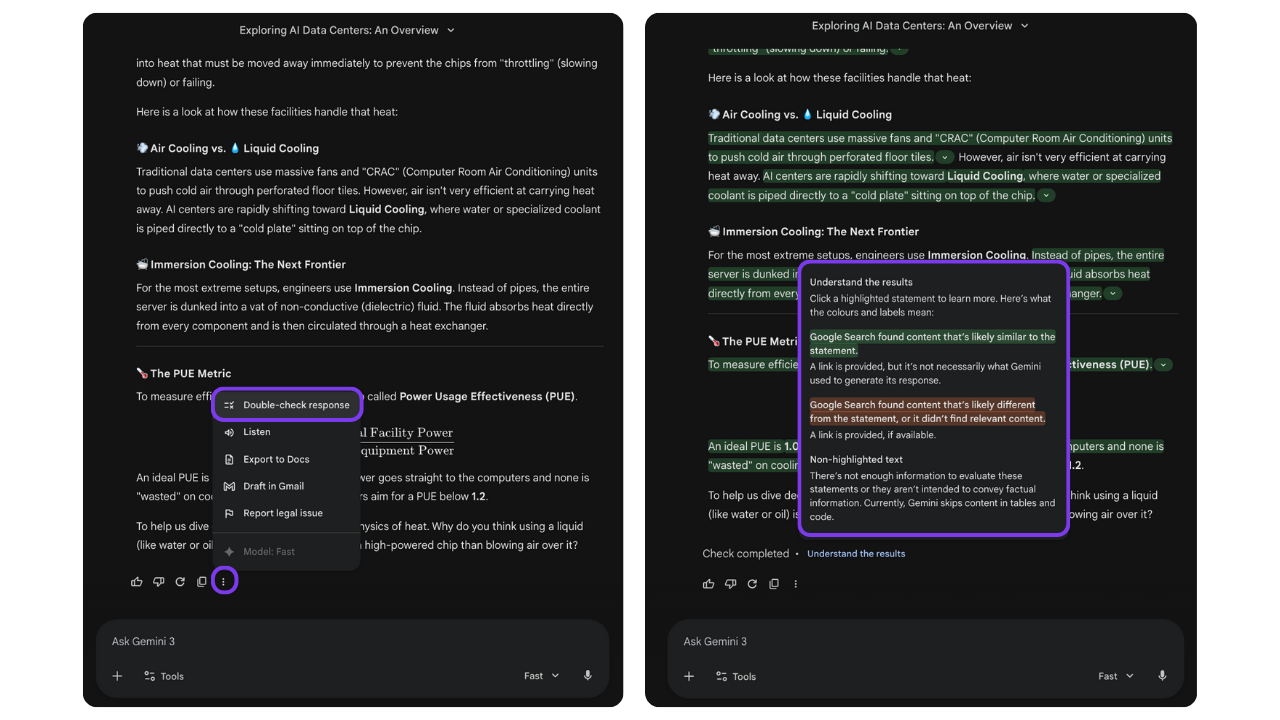
Fact-check the answer. This one’s underrated. One click and Gemini uses web search to check its own response, highlighting what holds up and what doesn’t. Every AI model hallucinates, and Google built a “trust but verify” button right into the interface.
Listen. Gemini reads the response out loud, which is good for longer answers while you’re doing something else.
Go deeper:
How I Get Professional Results With Any AI Tool (Even New Ones): the system I use to get good at a new tool fast, including Google’s own prompting guides.
Transcribe, repurpose, and fact-check any YouTube video with AI: three YouTube workflows, from watching a video without watching it to fact-checking its claims.
Let Gemini work for you
Everything up to here has been you working with Gemini in the chat. This part is about Gemini doing the work on its own: tasks it runs for you, skills it follows every time, and schedules that run while you’re away.
Tasks (formerly Spark): Gemini’s agent
At I/O in May, Google announced Gemini Spark, an agent that works for you. It’s now called Tasks, and you start one in the same place you start a chat: flip the Chat/Task toggle next to the prompt box and describe what you want done.
A task can use your connected apps, your skills, Personal Intelligence, a remote browser and computer, and the websites you’re signed into. It can run on a schedule (”every day at 8 AM…”) or when something happens (”when my flight is delayed…”), and it asks before anything high-stakes. On the Mac app, it can also work with local files you choose to add to your connected folders.
Tasks need AI Pro or Ultra, and many of the agent features are only in select countries for now.
It does for Gemini what Cowork does for Claude. If you’ve been automating Google Workspace the hands-on way, my Google Apps Script tutorial shows how I used Gemini to build automations for me, and it still works for anything Tasks can’t reach.
Skills: reusable instructions (and what happens to your Gems)
Skills are now how you save instructions in Gemini so it follows them every time. They’re replacing Gems: Google will remove support for Gems for personal accounts starting in November (March 2027 for Workspace business accounts, June 2027 for education), and your Gems migrate to skills automatically.
Skills don’t need a paid plan, and unlike Gems, you can stack several in one chat, like a writing-style skill plus a brand skill.
To recreate a Gem as a skill yourself, tell Gemini what you want the skill to do, or upload a skill folder with a SKILL.md file. That’s the same format Claude uses, so the skills you built for Claude can come with you.
I had a Gem for creating thumbnails that used the image tool by default, and that’s exactly the kind of setup a skill handles now. If you want to start with skills I’ve already built and shared:
Writing like you: Voice DNA, Audience Profile and Business Profile teach AI your voice, your readers and your business, and Draft to Final teaches it how you edit, so drafts come back almost ready.
Your brand and content: a brand skill that applies your colors, fonts and layout to every doc, plus skills that turn your content into branded lead magnets and Instagram carousels.
Saving what works: the free conversation-to-workflow skill turns a chat that went well into something you can reuse, and 39 skills from 23 creators give you ideas for your own.
Scheduled actions and Daily Brief
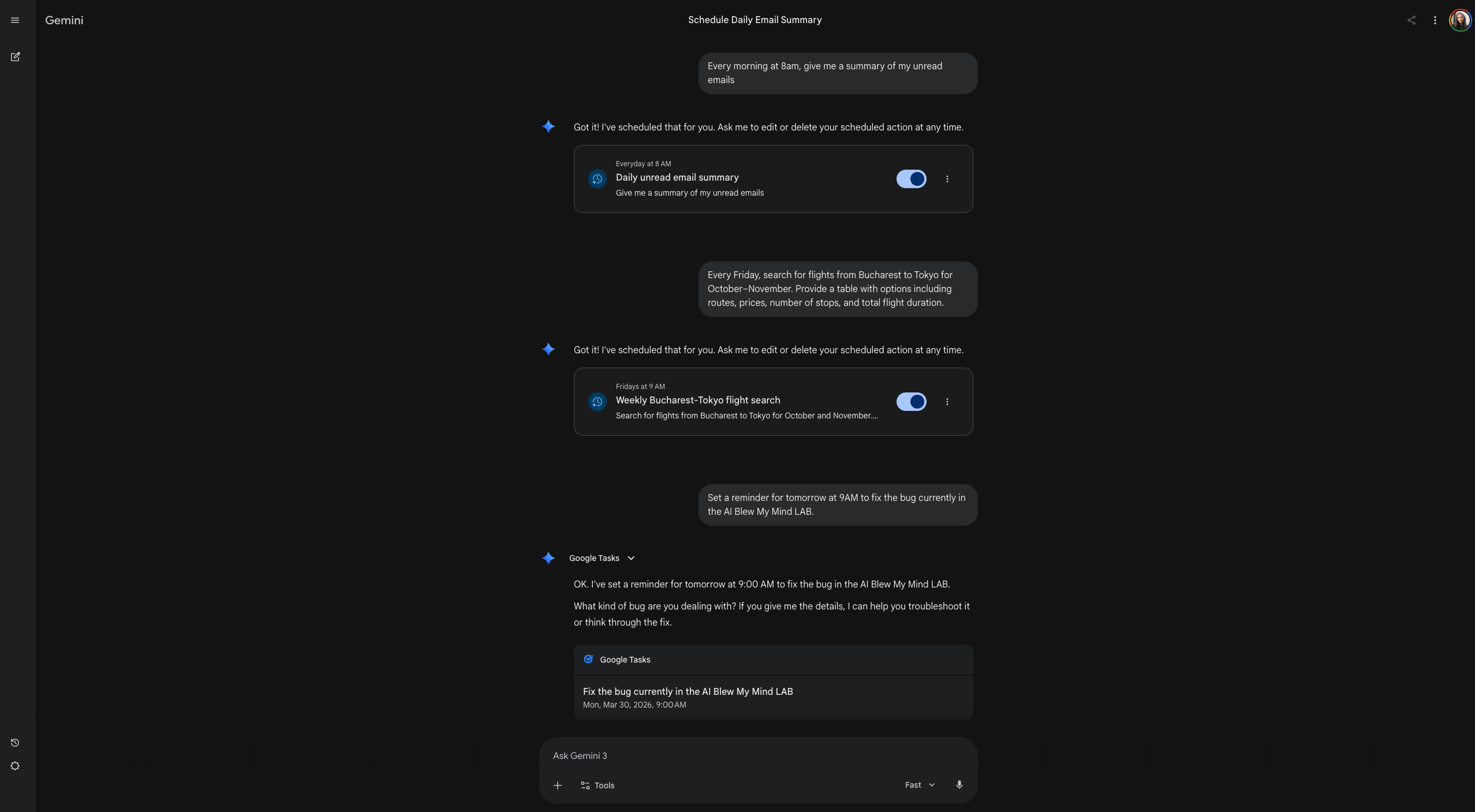
Scheduled actions still work inside the chat for simpler, recurring prompts. Describe what you want in a normal chat, and Gemini creates the action and runs it at the time you set, across your connected Google tools: a flight search through Google Flights, an email summary from Gmail, a calendar briefing from your schedule. Reminders work through Google Tasks: ask Gemini to “set a reminder” and it creates a task with a date and time.
Daily Brief, launched at I/O, builds your morning plan for you. It pulls priorities from Gmail, Calendar and your Gemini chats into one easy-to-read view.
If you’d rather get a full roundup of your industry, I built a newsletter that writes itself for you or your team, no code.
Gemini across Workspace and Chrome
Gemini also works inside the Google apps you already use, and since September it can act across them. From any Workspace app, you can ask it to create a Doc, Sheet or Slides deck, draft and send an email, schedule a meeting, or create a task, and it confirms before anything goes out.
In Docs, it handles comment workflows and generates visuals (July), and since September it can ground what it writes in your Gemini Notebook sources, with citations.
In Sheets, it troubleshoots formula errors for you (June).
In Chrome, Gemini sees the page you’re on, and on Pro and Ultra, auto-browse can click through websites and finish tasks for you. [verify: Gemini in Chrome and auto-browse availability in Romania]
If you’d rather run your Workspace from Claude, I put together 30 Google Workspace automations you can run with Claude. And for the full map of what Google has built beyond Gemini, here’s my guide to every Google AI tool.
6 ways to combine Gemini's tools (real workflows)
Learn from YouTube videos. Drop a video URL in the chat, ask Gemini to extract the key takeaways and frameworks, then switch to Guided Learning to quiz yourself, use Nano Banana to create an infographic that maps how everything connects, or open Canvas to build a flashcard game from the content.
Build an end-to-end campaign. Attach a client strategy brief from Drive, add a notebook with past campaign examples and top-performing hooks, and ask Gemini to write the marketing copy based on all of it. Then generate video assets with Veo or Omni in the same chat.
Turn a research rabbit hole into something usable. Run Deep Research on a topic, ask Gemini to turn the key findings into a client-ready summary, and have it generate the Doc or the Slides deck straight from the chat. Then export the summary to Gmail as a draft, ready for your polish.
Monitor something on autopilot. Set up a scheduled task to research your industry, your competitors, or a specific topic every week. Gemini delivers a sourced report on schedule, and when something interesting comes up, you continue the conversation right there.
Reverse-engineer what works in your industry. Drop a competitor’s video ad into the chat and ask Gemini to break down the messaging, structure, and hooks. Then use that analysis for your own campaign: write the copy in Canvas, generate visuals with Nano Banana, create video with Veo.
Let a task do your weekly content prep. You could stack your writing-style skill and your brand skill, then give Gemini a weekly task: pull your newest notes from Drive, draft posts in your voice, and drop them in a Doc for review.
Where Gemini falls short (honest take)
No tool review from me without the part where I tell you what doesn’t work well.
The safety filters are too aggressive. This is still Gemini’s most frustrating limitation. It sometimes refuses reasonable requests because it flags them as sensitive. I’ve had it refuse to generate an image starting from a photo of me, or block a video for the same reason. You end up rephrasing your prompt three times to get an answer. [DARIA: still true in October?]
Long conversations lose coherence. The context window is massive, but Gemini doesn’t always use it well in extended back-and-forth sessions. It starts recommending things you’ve already tried, forgets constraints you set earlier, or loops back to failed approaches. For quick, focused tasks it’s excellent. For long iterative projects, I’ve found it more frustrating than Claude. [DARIA: does this still hold with Argon?]
Your chats are hard to take with you. There’s still no export button in the app. You can download your chats through Google Takeout, but you have to pick My Activity → Gemini Apps (the “Gemini” box only exports your Gems), and Export to Docs saves one answer at a time. If you care about owning your context, that’s one more reason to keep it in your own folder.
Writing quality is a step behind. For long-form articles, nuanced copywriting and matching a specific voice, Claude is still better in my experience. Gemini’s writing leans generic, technical or academic, and needs more steering to get personality into it. For research I think it’s the best, and I enjoy using it for brainstorming, but for writing, it’s not there yet. [DARIA: re-test with Gemini 4 Argon, since Google says it skips clichés. Keep, soften, or drop?]
The best new features depend on where you live. Tasks, Personal Intelligence and auto-browse are rolling out country by country, so what you see in Europe can lag months behind the US.
Your turn
Gemini has grown into something far beyond a chatbot. Between the research tools, the creative suite, the memory and personal intelligence layer, and an agent that runs tasks for you, there’s a lot to explore. And knowing Google, there’s much more coming.
Pick one feature from this guide you haven’t tried yet and start there. If you’re new, set up your instructions and memory first. If you’ve been using Gemini for a while, move your Gems to skills before November and give Tasks one job you do every week.
What’s the one Gemini feature you’re going to try first?
If this helped you discover something new, send it to someone who’s using Gemini and doesn’t know what’s inside it. It helps more than you think.
This post is free. Paid subscribers get the prompts, automations, and step-by-step guides.
Gemini has been my favorite from the beginning. I have been using the tools regularly. But Your guide is very comprehensive. Thank you for the same.
Gemini stands out when you use its full stack, tools, research, and multimodal capabilities together